Purpose: Learn how to reactivate a "Historic" or "Was Never Active" contract using the "Contract - Check Request Status" activity in your Contracting CoPilot workflow.
You may find a contract with a "Historic" or "Was Never Active" status because the initial contracting request activity was never recorded. To move these records to an "Active" state, a manual activity override is required to trigger the status update across both the request and the contract itself.
- In the Contracting Requests object, search for the specific Contracting Request record associated with the inactive or historic contract.
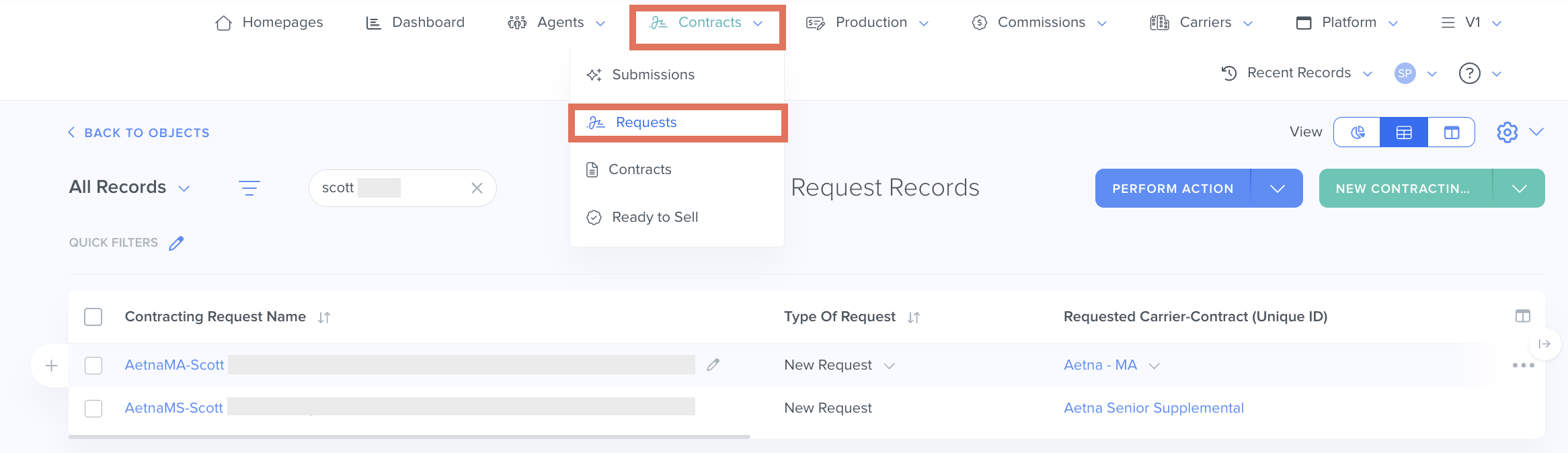
- Select the hyperlinked Contracting Request name to open the record.
- Scroll down to the Activity section and select Log Activity > "[Contracting] Check Request Status" from the dropdown menu.

- In the pop-up window, find the Status* field and select "Active" from the dropdown menu.
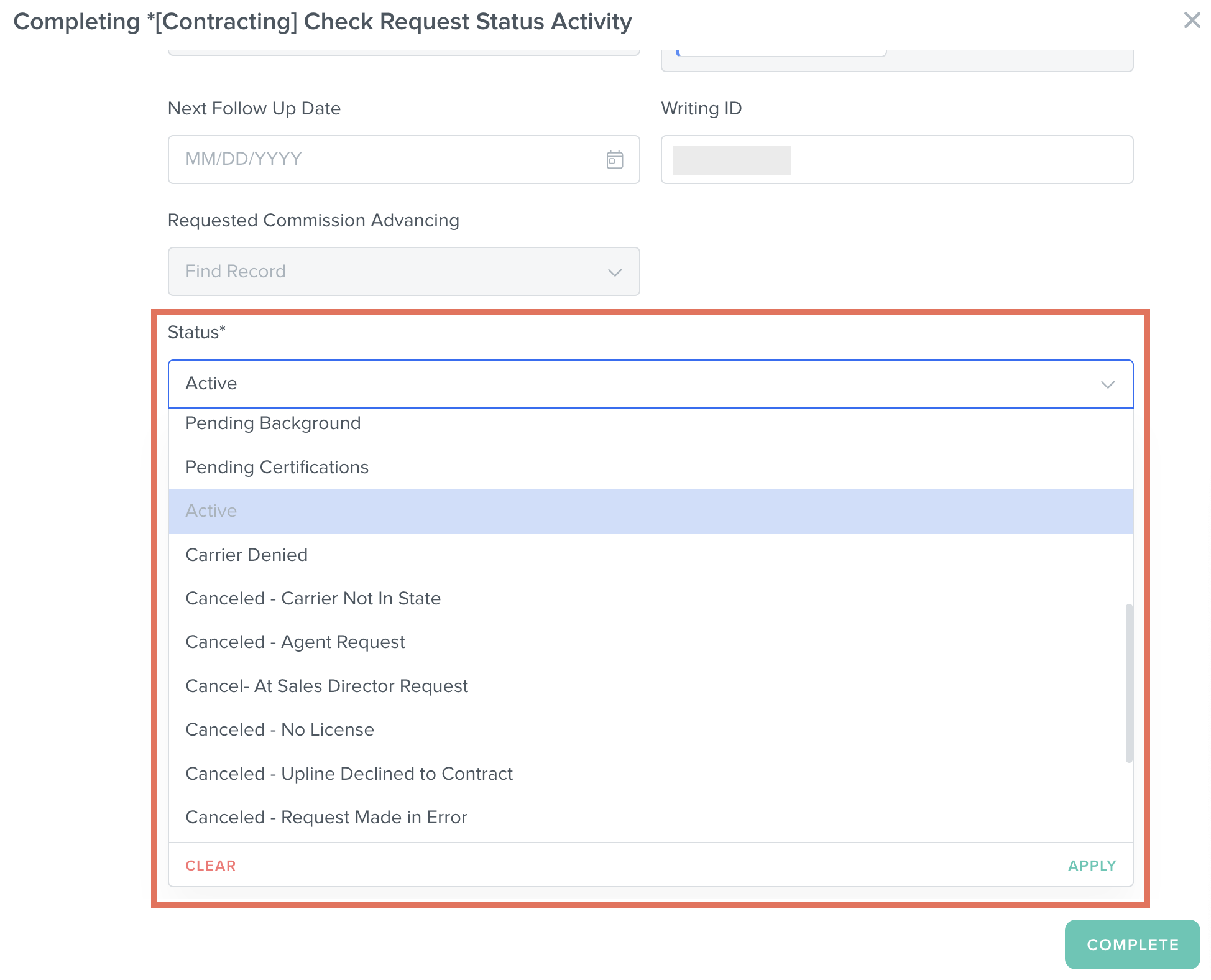
- Click the Complete button.
- Refresh the page to confirm the Contracting Request Status has been updated to "Active."
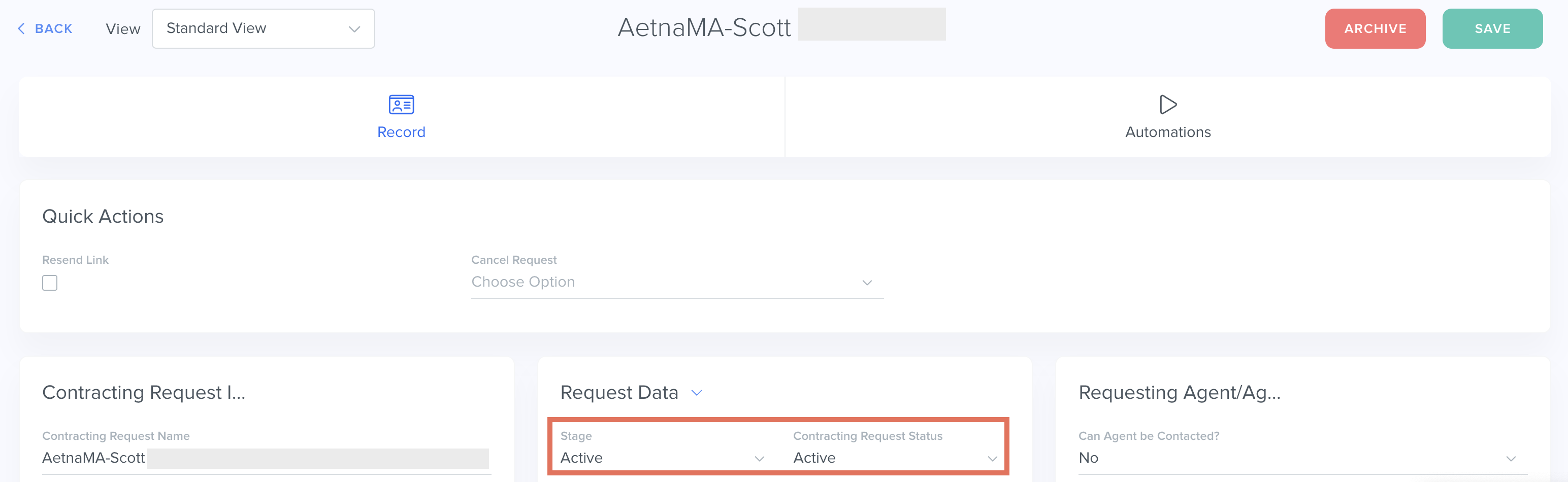
- Find the related contract record (in the "Related Records" category > "Linked Contract" field) and confirm that the Contract "Stage" field now reflects as "Active."
Related Articles
- Contracting CoPilot: How to Find the Principal Agent(s) on a Contract
- Contracting CoPilot: How to Request a Manual Contract in Kizen
- Contracting CoPilot: How to Activate a Pending Contracting Request
- Contracting CoPilot: How to Cancel a Contracting Request
Still Need Help?
If you encounter any issues, contact support@kizen.com.
Was this article helpful?
That’s Great!
Thank you for your feedback
Sorry! We couldn't be helpful
Thank you for your feedback
Feedback sent
We appreciate your effort and will try to fix the article