Purpose: Learn how to cancel an outdated, irrelevant, or incorrect Contracting Request to maintain the accuracy of your Kizen Contracting CoPilot workflow.
After a Contracting Request is initiated, you may need to cancel it for several reasons, including the following:
- The need for the contract has been eliminated or is no longer relevant.
- The terms or details of the Contracting Request have fundamentally changed, requiring a completely new submission.
- The Contracting Request was submitted in error or is a duplicate of an existing request.
To cancel the Contract Request:
- In the Contracting Requests object, search for the specific Contracting Request record you want to cancel.
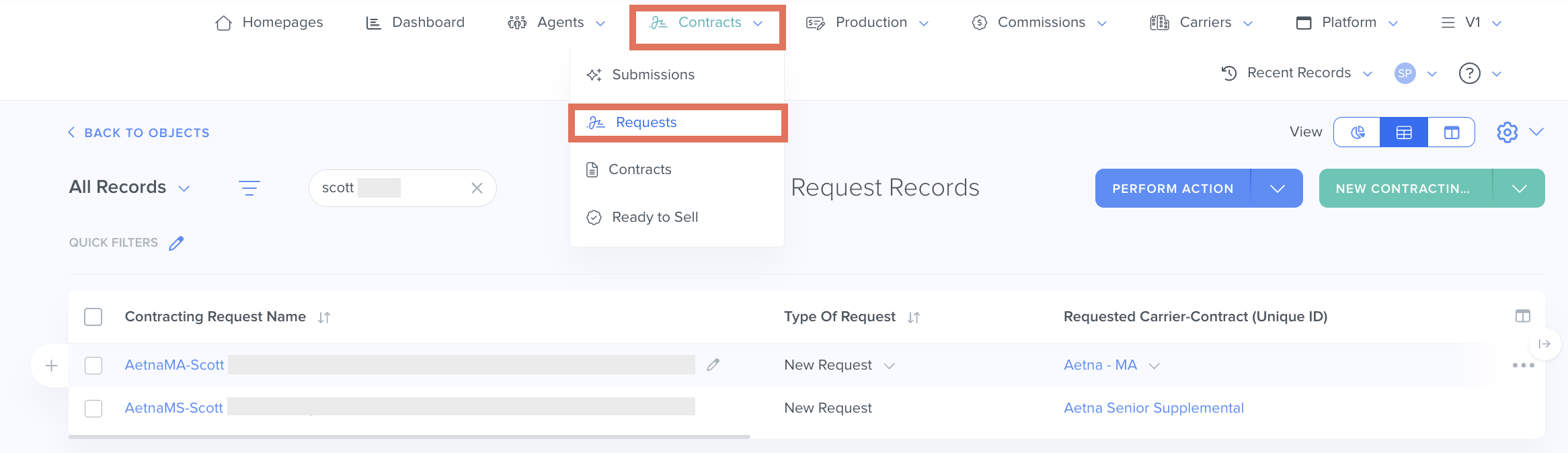
- Select the hyperlinked Contracting Request name to open the record.
- At the top of the record page, select the "Cancel Request" field under the "Quick Actions" category.
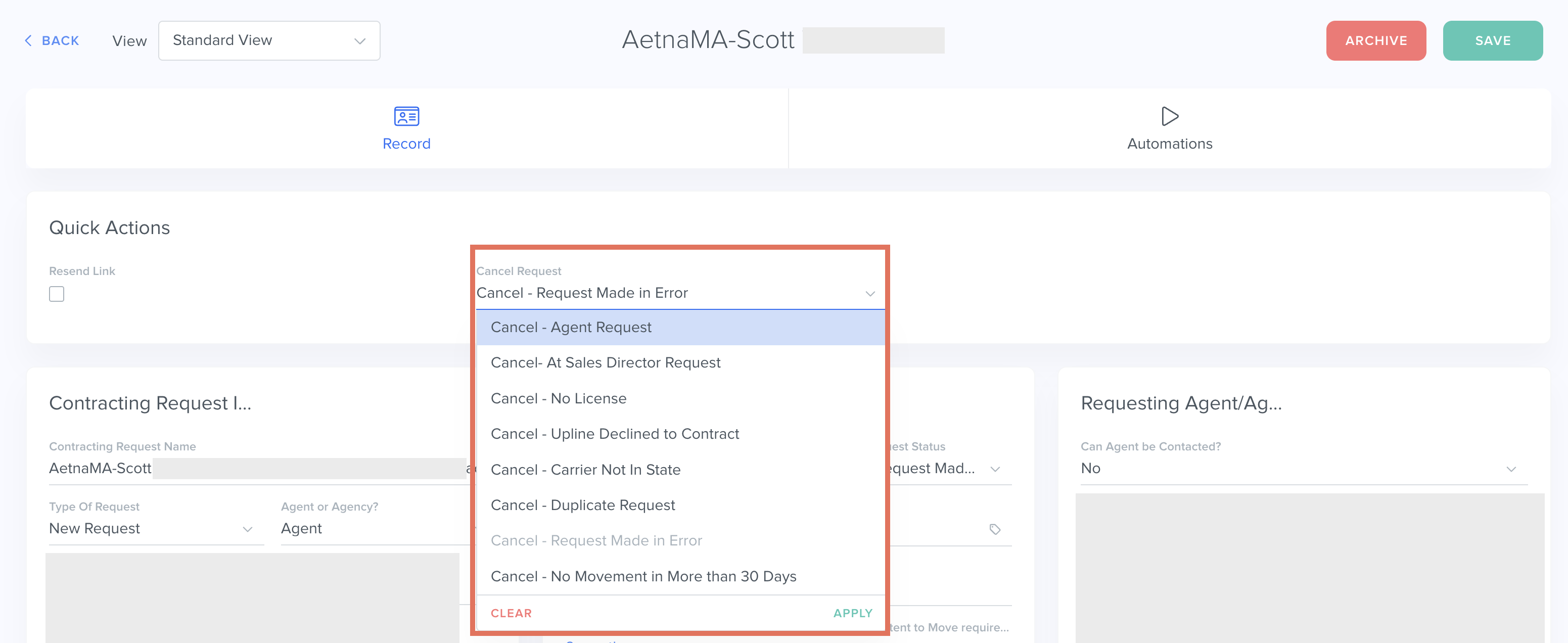
- Select the option from the dropdown menu that most closely matches the reason for cancellation.
- Select Apply.
- Select the Save button in the top right of the record page. This will trigger a Kizen Agentic Workflow to do the following:
- Delete all the Scheduled Activities on the Contracting Request.
- Change the Status and Stage of the Contracting Request, depending on the cancellation reason selected.
- Close any pending Contracts related to the Contracting Request you are canceling.
Related Articles
- Contracting CoPilot: How to Request a Manual Contract in Kizen
- Contracting CoPilot: How to Reactivate a Contract
- Contracting CoPilot: How to Activate a Pending Contracting Request
Still Need Help?
If you encounter any issues, contact support@kizen.com.
Was this article helpful?
That’s Great!
Thank you for your feedback
Sorry! We couldn't be helpful
Thank you for your feedback
Feedback sent
We appreciate your effort and will try to fix the article