Purpose: Learn how billing for your Kizen subscription works, how to add or update your payment method, and how to cancel your Kizen subscription.
TABLE OF CONTENTS
- Overview
- How Billing Works
- Adding or Updating Your Payment Method
- Upgrading or Downgrading Your Plan
- Switching Between Monthly and Annual Billing
- How Overages Work
- Overage Budgets
- Invoice Schedule
- How to Troubleshoot Failed Payments
- How to Cancel Your Kizen Account
- Refund Policy
- Plan Restrictions for Agent CRM Users
- Need Help?
Overview
Kizen offers flexible subscription plans with automated billing on the cadence you choose, whether monthly or annual. This guide will help you understand how billing works, what's included in your plan, and how to manage your subscription.
How Billing Works
Subscription Structure
Your Kizen subscription is billed on the cadence you choose (monthly or annual), starting from the date you purchase your account, and includes the following:
- Core Platform plan - Charged per user seat. The plan sets limits on the volume of data in the system. The limits don’t scale with the number of users.
- Agentic Workflows plan - Includes a set number of Agentic Workflow step executions.
- Marketing plan - Includes a set number of emails that you can send per month.
The Agentic Workflow and Marketing plans offer the ability to separately purchase additional step executions or emails if you need additional capacity.
Choosing Monthly or Annual Billing
You can be billed either monthly or annually:
- Monthly billing charges you each month on your billing date.
- Annual billing charges you once per year and is offered at a discounted rate compared to paying monthly for twelve months.
A few things to know about annual billing:
- It applies to your entire subscription at once. You can't put one plan on monthly billing and another on annual.
- Your usage limits are still monthly. The Agentic Workflow step executions and emails included in your plan are measured and reset every month, no matter which cadence you choose. Annual billing does not pool or increase your monthly limits.
You can still incur overage charges between invoices (see How Overages Work).
Payment Processing
Your credit card is charged automatically on your billing date:
- If you're on monthly billing, you're charged each month.
- If you're on annual billing, you're charged once a year at your renewal date.
Overage charges may be billed separately from your regular subscription charge (see How Overages Work).
Adding or Updating Your Payment Method
Upon logging in for the first time, you will be greeted with a pop-up window prompting you to enter your billing information. As soon as an accepted payment method is entered, you’ll have immediate access to your Kizen platform.
You can also add a new or update your payment method anytime:
- Confirm that your business address is populated in Settings > Business Information.
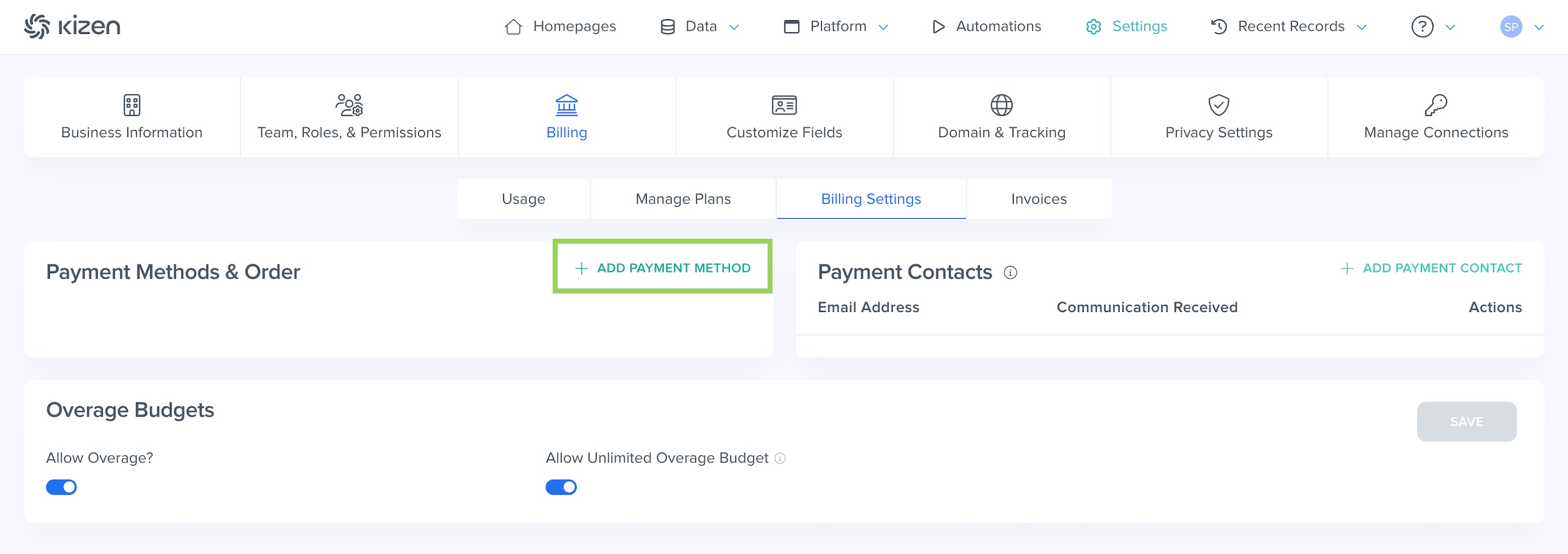
- Navigate to Settings > Billing > Billing Settings.
- Click on Add Payment Method under Payment Methods & Order.
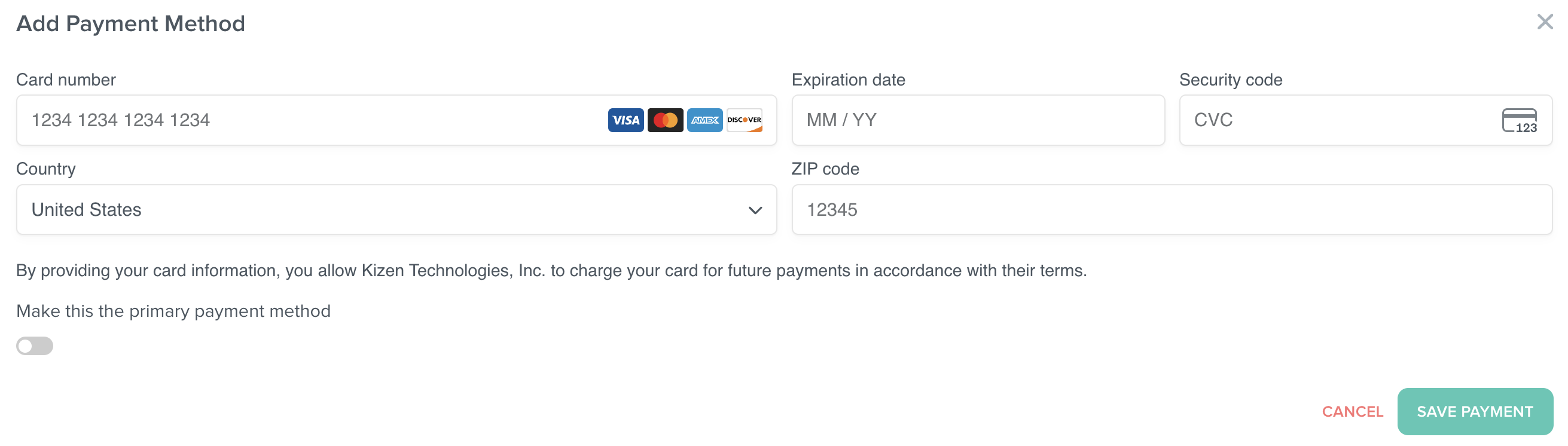
- Fill out the card number and details, and click on the Save Payment button.
Upgrading or Downgrading Your Plan
Upgrading Your Plan
When you upgrade your plan or add user seats:
- Changes take effect immediately.
- You will be charged a prorated amount for the remaining days in your current billing cycle.
- The charge is processed right away.
- Any overage charges already incurred under your previous plan still apply and aren't refunded.
Downgrading Your Plan
When you downgrade your plan or reduce user seats:
- Changes take effect on the first day of your next billing cycle.
- You'll continue to have access to your current plan features until then.
- Refund requests are handled by support on a case-by-case basis (see Refund Policy).
Switching Between Monthly and Annual Billing
You can change your billing cadence between monthly and annual. Cadence changes take effect at the end of your current billing cycle:
- If you switch cadence on the same plan, or as part of a downgrade, the change takes effect at your next renewal date.
- If you switch as part of an upgrade, the upgrade takes effect immediately at your current cadence, and your new cadence takes effect at your next renewal date.
Refund requests are handled by support on a case-by-case basis (see Refund Policy).
How Overages Work
If your usage exceeds your plan's monthly limits for Agentic Workflows or emails, you may incur overage charges. Overages are always based on your monthly limits, whether you're billed monthly or annually. You can keep track of your usage in Settings > Billing > Usage:
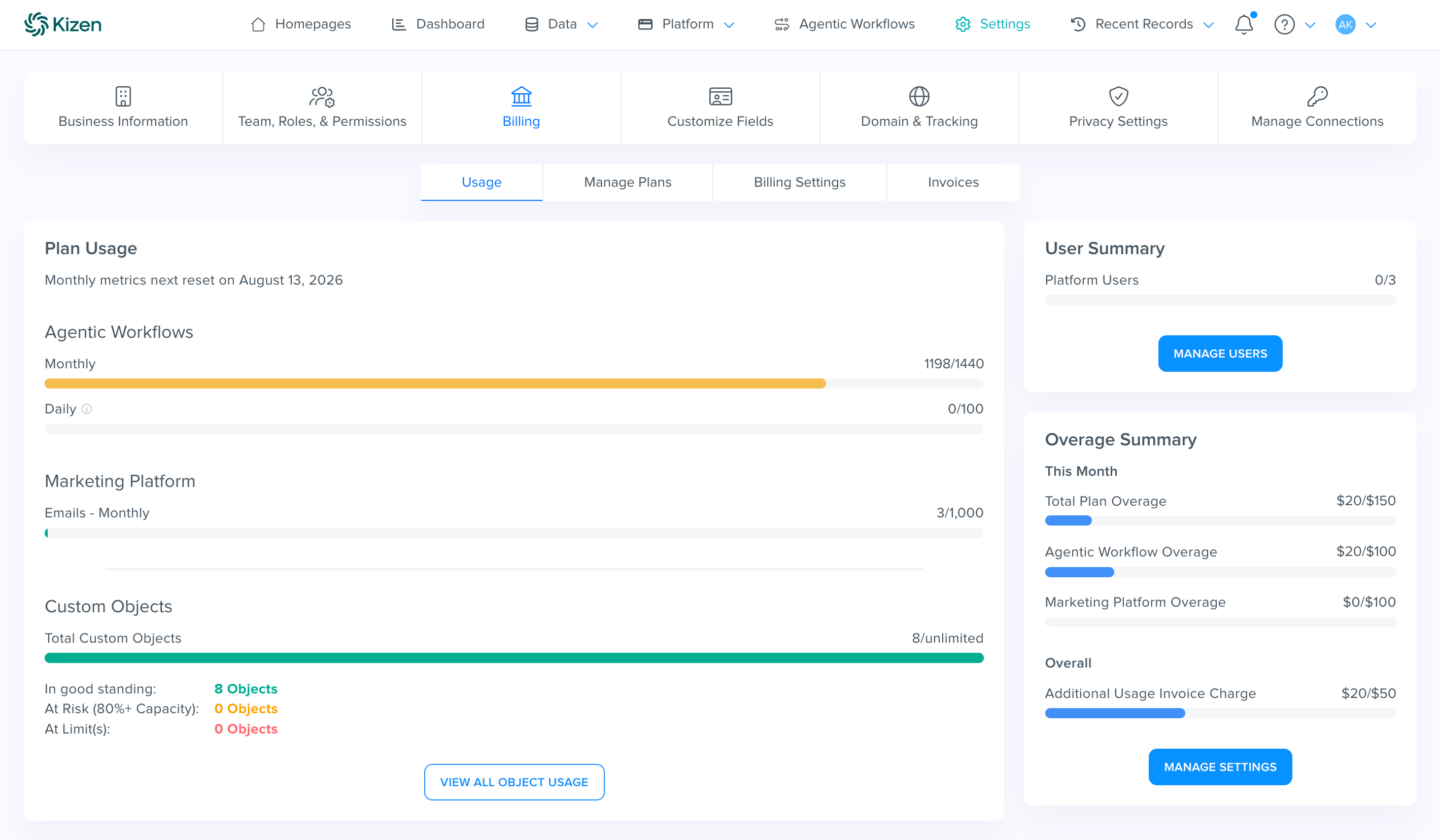
To limit how much you can be charged for overages, see Overage Budgets.
Agentic Workflow & Email Overages
- Charged in incremental "packs" (typically 1,000 units at a time).
- Overage charges may be billed mid-month once your accrued overage charges reach the minimum invoice amount for your account.
Mid-Month Overage Billing
- Once your accrued overage charges reach the minimum invoice amount set for your account, Kizen issues an Additional Usage invoice and charges your payment method for the accrued amount.
- Any remaining overages are included on your next regular invoice. That's your monthly invoice if you're on monthly billing, or your annual renewal invoice if you're on annual billing.
- If you're on annual billing, you won't receive a monthly invoice, so overages are billed either when you reach the threshold or on your annual renewal invoice.
Overage Budgets
Overage budgets help you balance two goals: controlling how much you spend on usage overages each month, and making sure your business work is never interrupted. You manage your budgets in Settings > Billing > Billing Settings, in the Overage Budgets section.
You can choose to:
- Allow no overages
- Allow overages up to a limit you set
- Allow unlimited overages
If you allow overages up to a limit, you set an overall monthly budget, plus separate budgets for Agentic Workflow overages and for email overages.
Your overall monthly budget is the ceiling on your total overage spending. The other budgets don't need to add up to it. For example, say your overall budget is $50, your Agentic Workflow budget is $50, and your email budget is $10. If you spend $10 on email overages, you can spend only $40 on Agentic Workflow overages, because your total can't exceed $50.
If you switch to another option and then back to allowing overages up to a limit, your budget amounts reset to zero, so you need to enter them again.
You can view your budgets and how much you've accrued toward each one in Settings > Billing > Usage, even if you don't have permission to change them.
Invoice Schedule
Regular Invoices:
If you're on monthly billing, you receive a monthly invoice that includes:
- The upcoming month's base subscription fees
- A Core Platform plan charge, proportional to the number of users
- An Agentic Workflow plan charge (if applicable)
- A Marketing plan charge (if applicable)
- Any unpaid overages accrued since your last invoice
If you're on annual billing, you receive one invoice per year at renewal. It includes:
- The upcoming year's base subscription fees
- A Core Platform plan charge, proportional to the number of users
- An Agentic Workflow plan charge (if applicable)
- A Marketing plan charge (if applicable)
- Any unpaid overages accrued since your last invoice
You won't receive monthly invoices while on annual billing.
Immediate Invoices are generated for:
Plan upgrades
Adding user seats
Additional Usage Invoices are issued whenever overage charges exceed the invoice threshold.
How to Troubleshoot Failed Payments
If your payment method fails:
You'll receive an email notification: "Warning: Payment Failed - Account at Risk"
Kizen retries the failed payment automatically once each day for three days, and deactivates your account if payment hasn't succeeded 14 days after the first attempt.
Once deactivated, your data will be automatically deleted after 6 months unless you reactivate your account
What to Do: Update your payment method as soon as possible to avoid service interruption. If you need assistance reactivating a deactivated account, please contact our support team.
How to Cancel Your Kizen Account
Contact our support team with your cancellation request in writing and confirmation that you have exported your account data.
We'll process your cancellation and confirm the details.
Your subscription will remain active through the end of your current billing period.
Depending on your permissions, your specific Kizen plan, and your account balance, you may be able to cancel your account yourself. Go to Settings > Billing > Billing Settings and scroll to the bottom of the page.
Important: Cancelled subscriptions cannot be reactivated, so you must export all your data before cancellation. Data is permanently deleted 6 months after account deactivation.Refund Policy
Refunds are handled on a case-by-case basis by our support team rather than issued automatically. To request a refund, contact support@kizen.com and our team will review your situation. Refunds are not issued for previous billing cycles. If a refund is approved, it can take 7-10 business days to appear on your credit card statement.
Plan Restrictions for Agent CRM Users
If you're using Kizen through a Field Marketing Organization (FMO) partner:
- You cannot directly modify your plan level or number of user seats.
- Contact your FMO to request changes to your subscription.
- Your pricing may differ from standard Kizen pricing based on your FMO agreement.
Need Help?
If you have questions about your billing, invoices, or subscription:
View your current plan and billing history in your account's Billing section.
Contact our support team at support@kizen.com.
For payment method issues, ensure your credit card information is up to date in your account settings.
Note: All prices and features vary by plan. Visit our Pricing page for current plan details.
Was this article helpful?
That’s Great!
Thank you for your feedback
Sorry! We couldn't be helpful
Thank you for your feedback
Feedback sent
We appreciate your effort and will try to fix the article