Purpose: Learn what service accounts are, when to use each type, and how to create and manage them in Kizen, including creating integration service accounts, managing API keys, controlling access through permissions, and archiving accounts when they are no longer needed.
TABLE OF CONTENTS
- Overview
- Why Use a Service Account?
- The Two Types of Service Accounts
- Account Status
- Creating an Integration Service Account
- API Keys for Integration Service Account
- Service Account Archiving
- Permissions
- Important Considerations
- Related Articles
- Still Need Help?
Overview
A service account is a non-human account your business uses to perform automated actions in Kizen. Rather than being tied to a person, it represents a system or integration, giving your Agentic Workflows and connected tools a stable identity that won't break when employees join, leave, or change roles.
Service accounts are excluded from billing seat counts, the employee list, and team typehead by default. They appear in the timeline and can be assigned permission groups, but cannot sign in to the application.
Why Use a Service Account?
Service accounts address several common problems with automation and integration setup:
Stability: Automations and integrations don't break when the employee who configured them leaves the company or loses access.
Clear audit trail: Every action taken by an automation or integration is attributed to the service account, making it easy to distinguish system actions from human ones.
Scoped access: You can give a service account only the permissions it needs, without granting that access to a real person.
No billing impact: Service accounts do not count toward your plan's user seat total.
The Two Types of Service Accounts
Two types of service accounts exist in Kizen:
Agentic Workflow Code Account: Every business automatically has one built-in service account for running Agentic Workflow code steps. You do not need to create, configure, or manage it. Kizen uses it behind the scenes whenever a code step runs.
When a code step runs, the built-in kizen.api client automatically uses this account, not your personal account or any Integration Service Account. There is currently no UI indicator showing which account a given automation is connected to; for code steps, the Agentic Workflow Code Account is always used by default.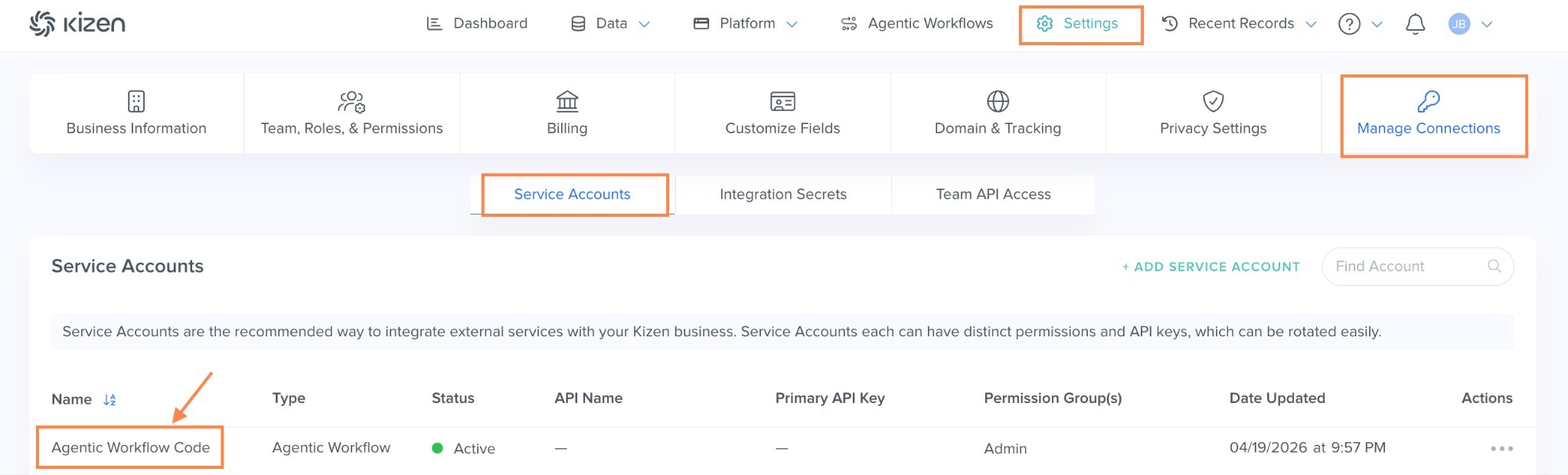
Integration Service Account: When you want a third-party service, such as Zapier, a webhook, or a custom integration, to read from or write to Kizen, you create an Integration Service Account. The external tool authenticates using the service account's API key.
There are differences between the two accounts:
Agentic Workflow Code Account | Integration Service Account | |
| How it's created | Automatically, one per business | Manually, by an admin |
| What it's for | Running Agentic Workflow Code Steps | Connecting third-party tools and integrations |
Can you rename it? | No | Yes |
| Can you delete it? | No, protected | Yes, archive only |
| Do you manage its credentials? | No, handled automatically | Yes, you receive an API key on creation |
Account Status
Each service account has a derived status; it is not a field you set directly:
Active: the account has at least one permission group assigned and can perform actions.
Disabled: the account has no permission groups assigned. It still exists but cannot perform any actions until a permission group is restored.
To temporarily disable an Integration Service Account:
Locate the service account in the Service Accounts list and click the permission groups column to open the group selector.

Click CLEAR then APPLY.

A dialog will appear warning that integrations using this account's API key will stop working. Click PROCEED to confirm.
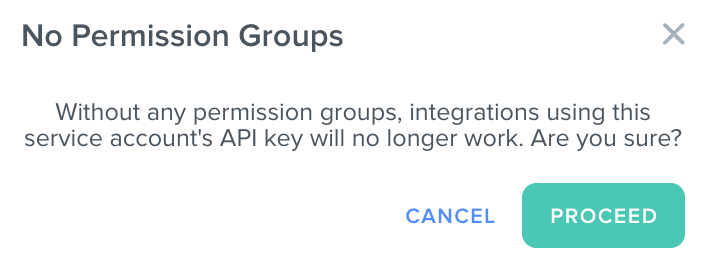
The account status will update to Disabled, indicated by an orange status indicator.

To re-enable the account, assign at least one permission group back using the same permission groups column, and select APPLY.
Creating an Integration Service Account
Note: You need the Manage Service Accounts permission to access this page. If you don't see it, ask a business admin to grant you access.
- Go to Settings → Manage Connections → Service Accounts
- Select + ADD SERVICE ACCOUNT

- Name the account and assign Permissions Group
Use a clear, descriptive name that identifies the integration — for example, "Zapier Sync" or "Marketing Webhook". Assign one or more permission groups based on what this integration needs to do.
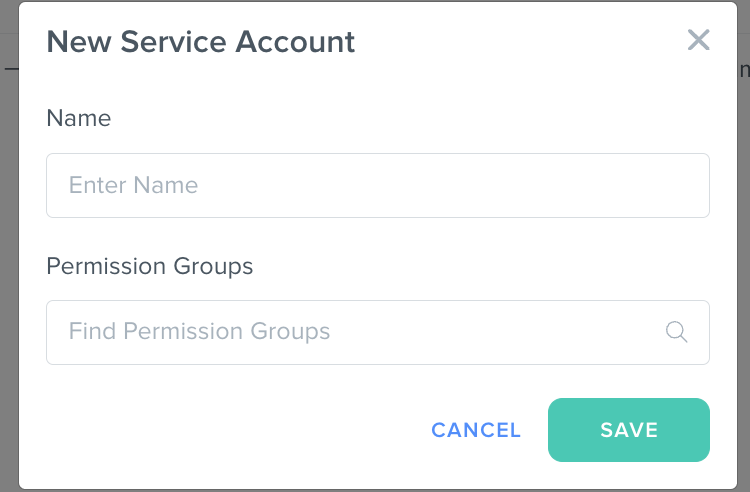
- Select SAVE.
- View and copy the API key
On the Service Account page, find your service account and select the three dot menu, then select View API Key(s).
Then, copy the API key from the API Keys modal.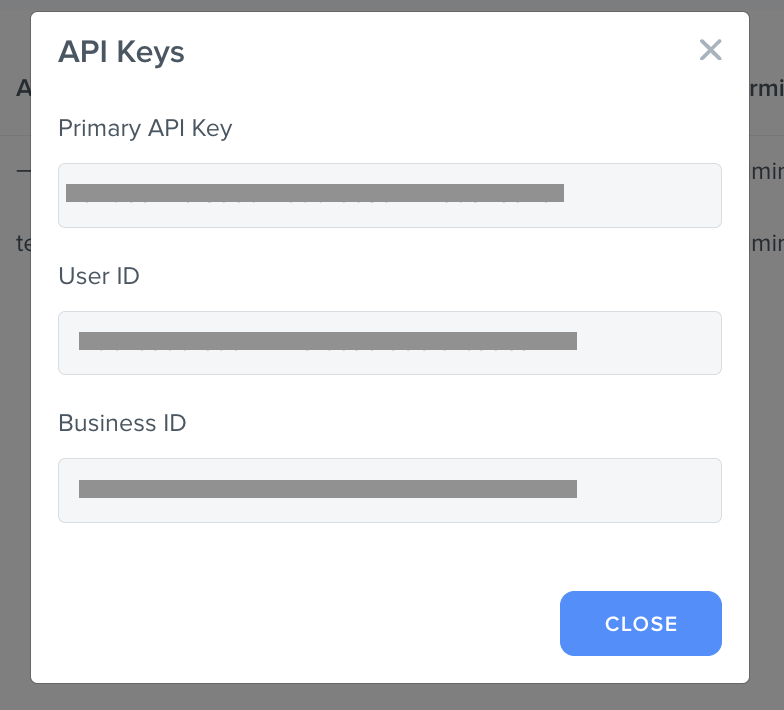
- Paste the API key into your external tool
Use the API key to authenticate the third-party service or integration against Kizen.
API Keys for Integration Service Account
Each integration service account can hold up to two API keys at a time:
- Primary key: the newest key, used by default.
- Secondary key: the previous primary key, kept available so you can update external systems without downtime.
Rotating a Key
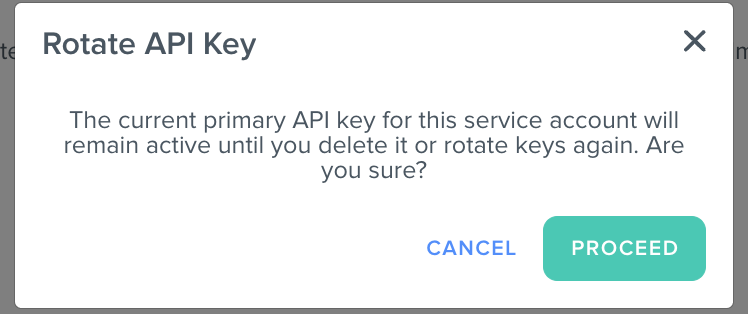
When you rotate a key, a new key is generated and becomes the primary, the previous primary is demoted to secondary, and any older secondary key is permanently deleted. This lets you update external integrations gradually: switch each one over to the new primary key, then delete the secondary once nothing depends on it.
To rotate, go to the service account's detail page and select Rotate Key.
Viewing a Key
You can reveal the full value of the primary or secondary key at any time from the service account's detail page.
Archiving a key
If you no longer need the previous key, you can archive the secondary directly from the service account's detail page. This action cannot be undone.
Service Account Archiving
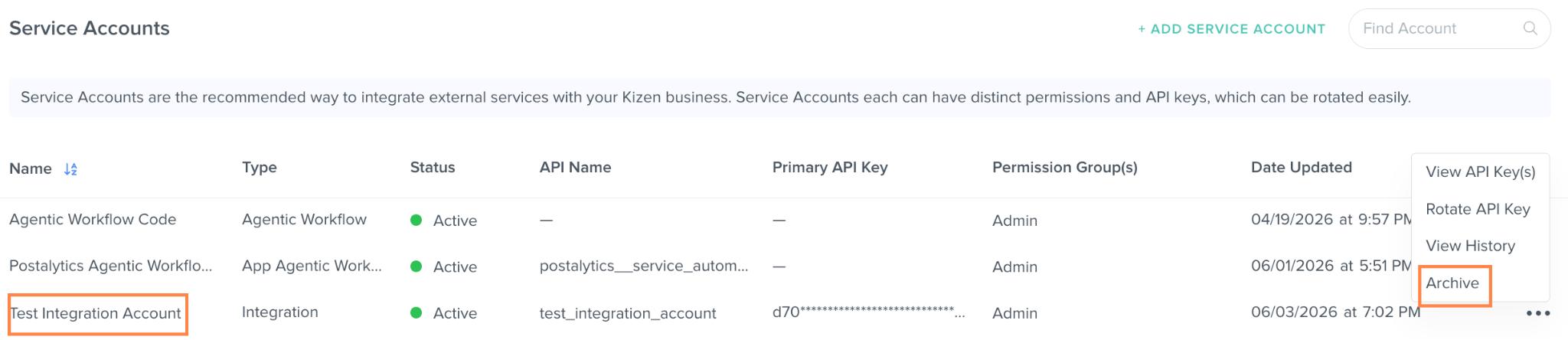
Only Integration Service Accounts can be archived. The Agentic Workflow Code Account is protected and cannot be deleted.
When you archive an Integration Service Account, all of its API keys are permanently deleted and any external system using those keys immediately loses access. Make sure to update or disconnect external integrations before archiving.
To archive, go to the service account's detail page and select Archive.
Permissions
Access to service account management is controlled through Permission Groups.
Permission Groups are configured in Settings > Team, Roles, & Permissions > Permission Groups.
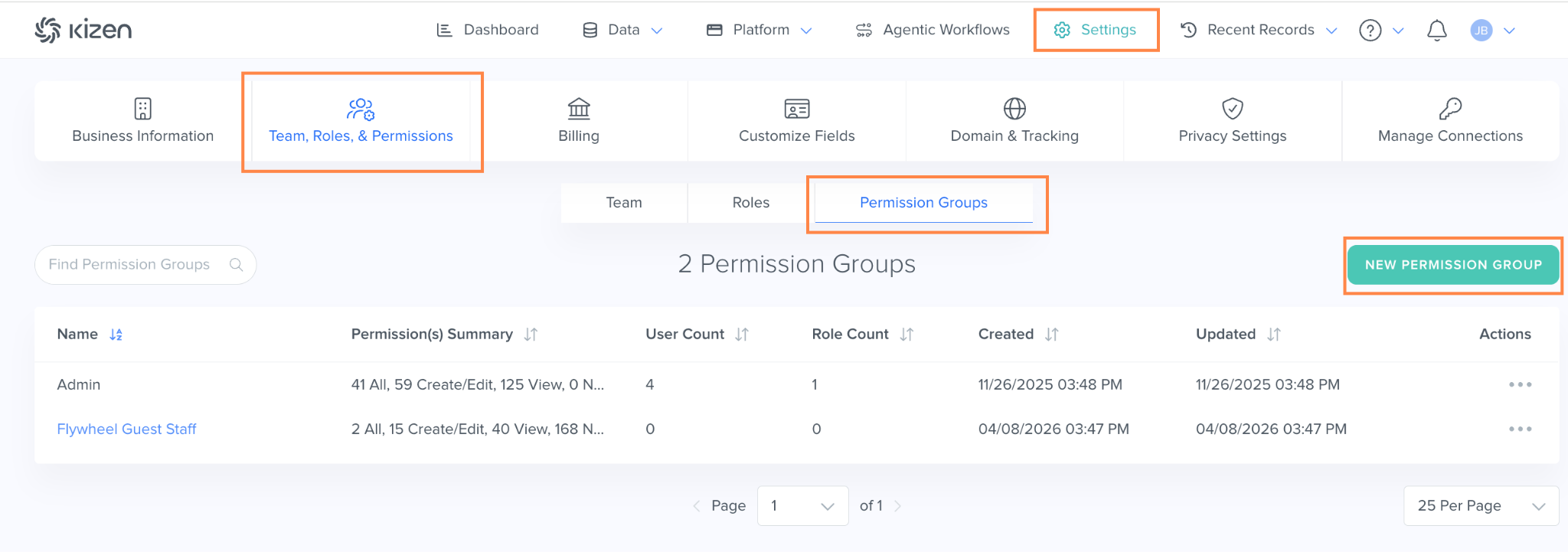
To create or edit a group, select ADD PERMISSION GROUP (or edit an existing one) and locate the API Connection Management section in Settings.
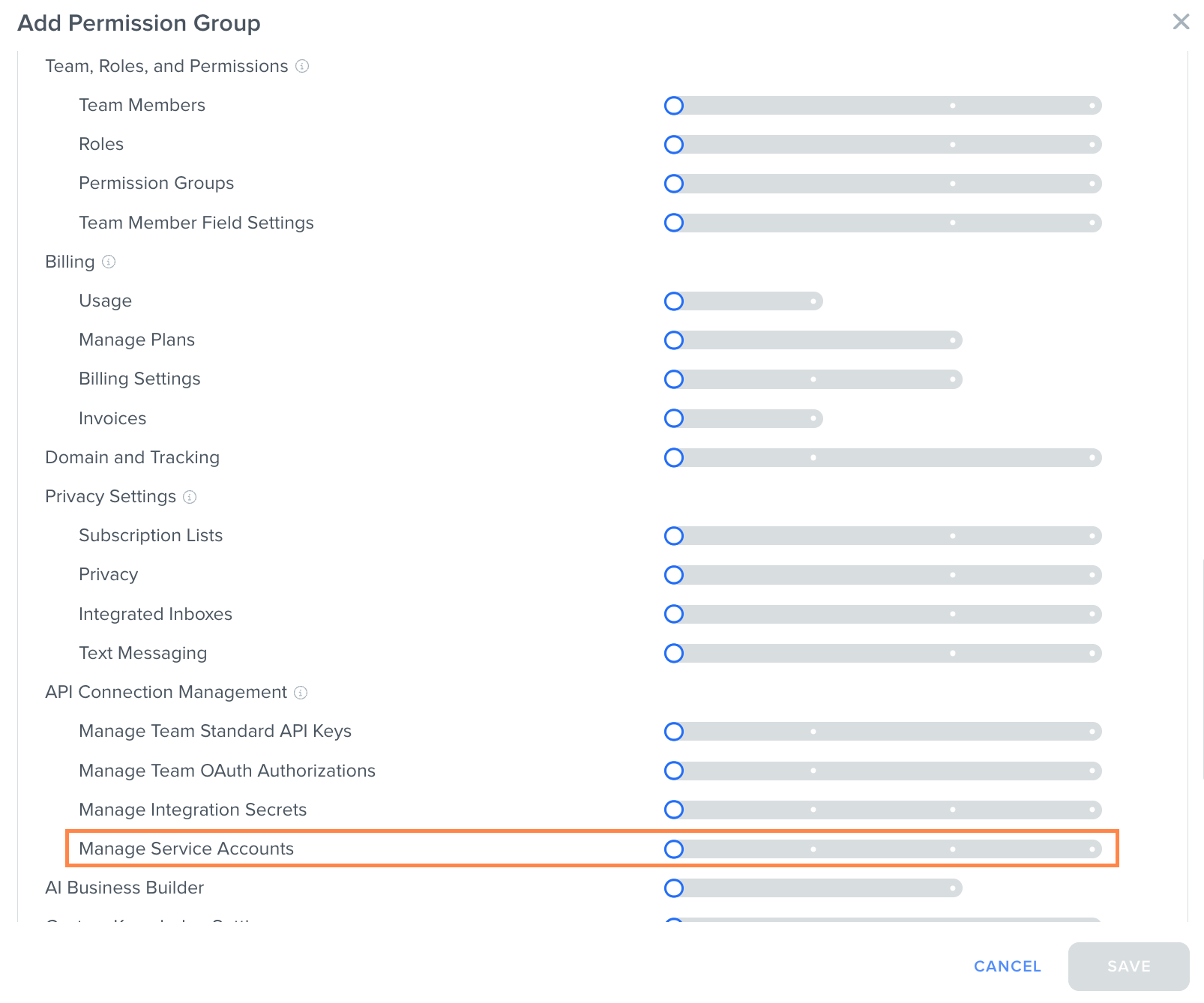
The Manage Service Accounts settings permission is enforced at three levels:
| Level | What It Allows |
| View | See the list of service accounts and view key values |
| Create/Edit | Create accounts, edit them, and rotate or delete secondary keys |
| Delete/All | Archive integration service accounts |
Important Considerations
Keep the following in mind when working with service accounts:
Service accounts cannot sign in to the application. They exist only to authenticate automated actions.
Service accounts can export business configuration but cannot import it.
The Agentic Workflow Code Account cannot be deleted, renamed, or modified.
Service accounts are hidden from team typeahead, the employee list, and billing counts.
A service account with no permission groups is automatically disabled until a group is reassigned.
Was this article helpful?
That’s Great!
Thank you for your feedback
Sorry! We couldn't be helpful
Thank you for your feedback
Feedback sent
We appreciate your effort and will try to fix the article