Purpose: Learn how to invite new team members to your Kizen account; how to edit your team members' user details and assign your team members roles and Permission Groups; and how to remove team members.
TABLE OF CONTENTS
Prerequisites
Before inviting team member to your Kizen account, it's crucial to define Team Roles and Permission Groups to ensure you are creating the new user with the correct permission restrictions. That way, you can control what each team member can see and do with your data.
✅ How to Manage Team Roles & Permission Groups
⚠️ Note: If you are an Agent CRM user, only Kizen Admins will be able to view and make changes on your behalf to the "Team, Roles, & Permissions" section in your account settings. If you would like to add team members to your Agent CRM account, reach out to your FMO for assistance!How to Manage Your Team Members in Kizen
How to Add Team Members
- Click on "Settings" in the top toolbar menu > "Team, Roles, & Permissions."
- Click on the "New Team Member" button in the top right of your window.

- Fill out the team member's personal information, including First Name, Last Name, Email (Username), Phone Number, and Start Date. This is the email address where they will receive the invitation link to the account, as well as all system emails.
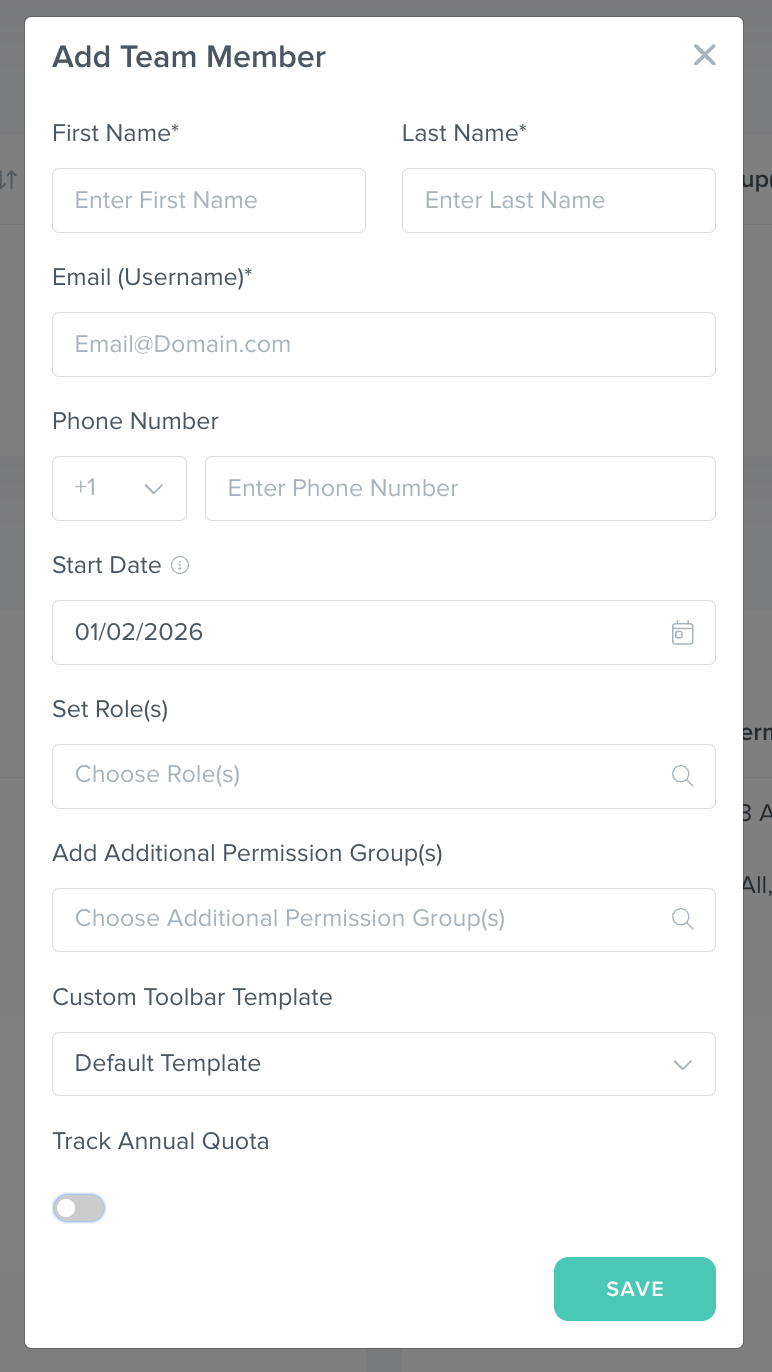
- Choose the user's Team Role, and any additional Permission Groups they may require, as well as the toolbar template. (This will apply a specific toolbar template so that the team member only sees the menu options at the top of their screen that they need to focus on for their specific job functions.)
- [Optional] Toggle "Track Annual Quota" on if you would like to track this user's annual sales goals.
- Click on the "Save" button. The newly invited team member will then receive an invitation link in their inbox, and they will remain unverified until they click on that invitation link and log into your Kizen account and create a password for the first time.
How to Edit and Delete Team Members
- Click on "Settings" in the top toolbar menu > "Team, Roles, & Permissions."
- Click on the "..." menu under the "Actions" column next to the name of the team member you would like to edit.
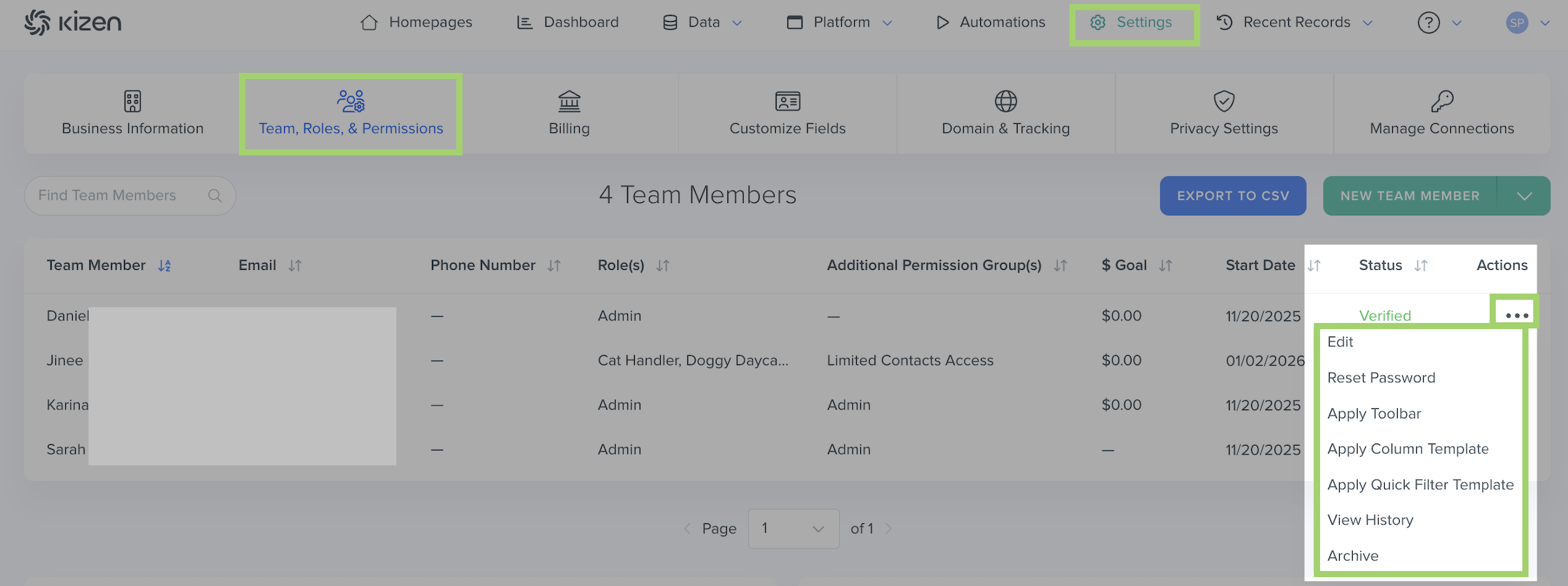
You can take the following actions:- Edit: This will pull up the same window as above where you can edit the team member's personal information and roles and permissions.
- Reset Password: This will send an email to the team member's email address with a link to reset their Kizen password. You can use this feature when your team member is experiencing login issues and cannot remember their password.
- Apply Toolbar: This will apply a specific toolbar template so that the team member only sees the menu options at the top of their screen that they need to focus on for their specific job functions.
- Apply Column Template: This will apply a specific column template for the Contacts and/or Custom Objects so that the team member only sees the columns on the object page that are most relevant for their specific job functions.
- Apply Quick Filter Template: This will apply a quick filter template for the Contacts and/or Custom Objects so that the team member only sees the relevant quick filters for their specific job functions.
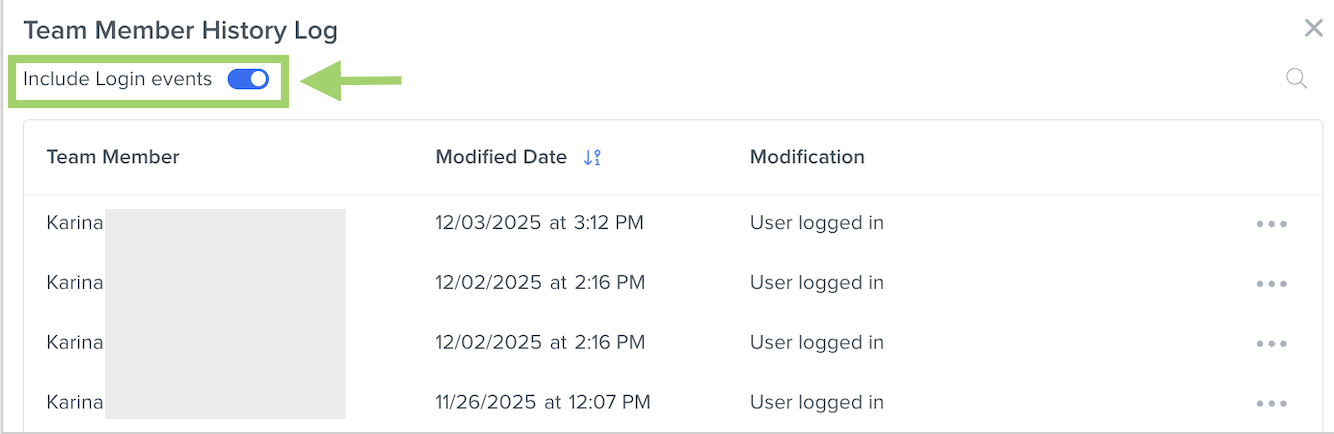
- View History: This will display the timestamps and details for when the team member was added to your Kizen account, as well as any time their team member details were modified. In the pop-up window, you can also toggle "Include Login events" to see timestamps for every time the team member logged into your Kizen account.
- Archive: This will permanently delete the team member from your Kizen account. If the team member is assigned as an Owner on any Custom Object records, this will clear the Owner field for those records.
- Edit: This will pull up the same window as above where you can edit the team member's personal information and roles and permissions.
Related Articles
- Getting Started with Kizen (Set-Up Checklist)
- How to Manage Team Roles & Permission Groups
- Agent CRM: Default User Roles Overview
Still Need Help?
If you encounter any issues, contact support@kizen.com.
Was this article helpful?
That’s Great!
Thank you for your feedback
Sorry! We couldn't be helpful
Thank you for your feedback
Feedback sent
We appreciate your effort and will try to fix the article