Purpose: Learn how to add, edit, and delete Team Roles and Permission Groups in order to easily control what your team members can see and do in your Kizen account.
TABLE OF CONTENTS
- What are Team Roles and Permission Groups?
- How to Manage Team Roles
- How to Manage Permission Groups
- Best Practices
- Related Articles
- Still Need Help?
What are Team Roles and Permission Groups?
As an Admin, you can create Team Roles to easily manage team members and their Permission Groups. You can assign your team members to their respective Team Roles so that you can identify their job functions in your business organization, assign tasks, and automate role-based workflows. You can then set default Permission Groups for each Team Role so that you can precisely control what your team members can see and do in your Kizen account, only giving access to the necessary data each team member requires for their specific job. This ensures better security and scalability.
⚠️ Note: We recommend defining Team Roles and Permission Groups before inviting new team members to your account to prevent unauthorized access and changes to your account data.How to Manage Team Roles
How to Add a Team Role
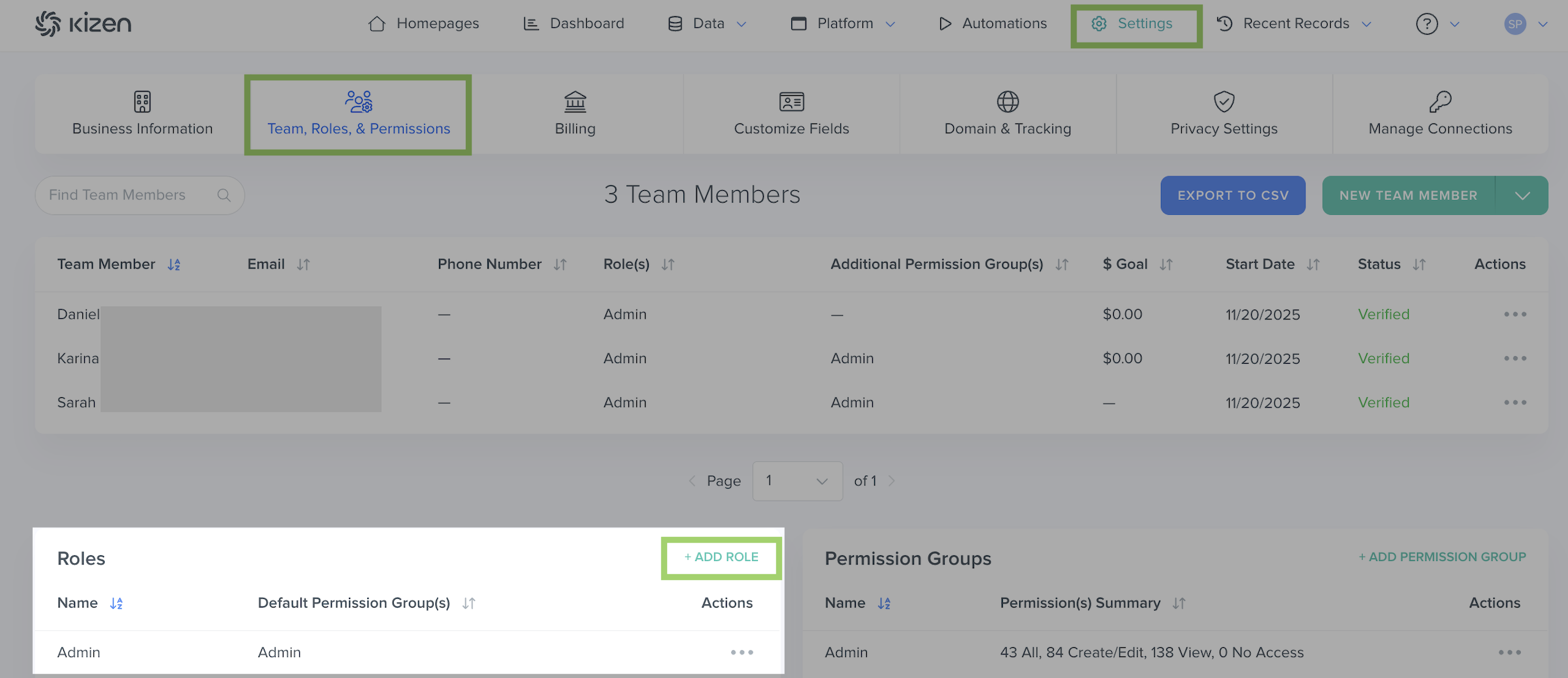
- Click on "Settings" in the top toolbar menu > "Team, Roles, & Permissions."
- In the "Roles" section on the bottom left, click on "+ADD ROLE."
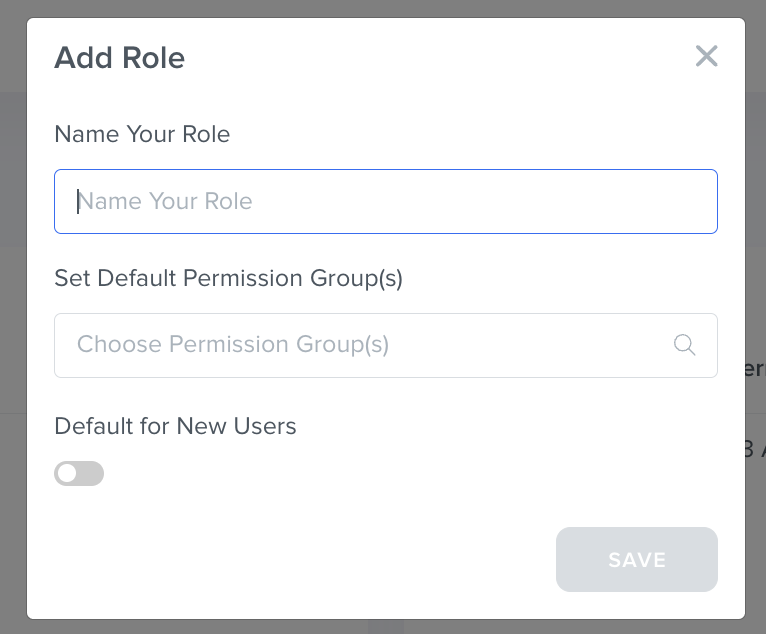
- In the pop-up window, add a name for the new Team Role.
- Select the default Permission Group. (If you haven't created Permission Groups yet, you can come back and edit this later.)
- [Optional] Toggle "Default for New Users" on if you want this Team Role to be the default role whenever you invite a new team member to your Kizen account.
- Click on the "SAVE" button.
How to Edit and Delete a Team Role
- Click on "Settings" in the top toolbar menu > "Team, Roles, & Permissions."
- Click on the "..." menu under the "Actions" column, next to the Team Role you want to edit or delete.
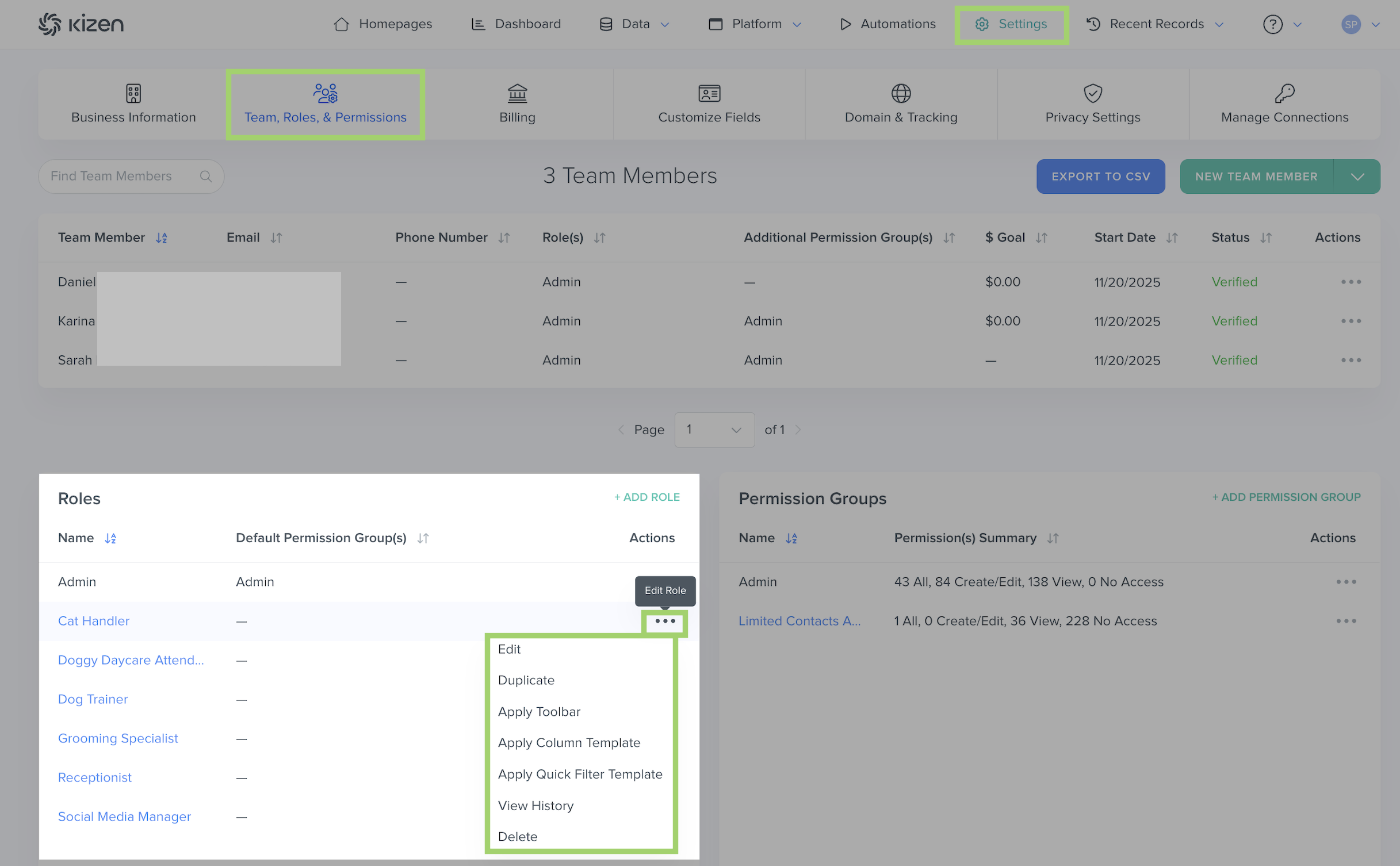
You can select from the following options:
- Edit: To change the name of the Team Role or set default permission group(s).
- Duplicate: To duplicate the Team Role to create a new role with the same name and permission groups.(Make sure to edit the name to prevent redundancy and confusion.)
- Apply Toolbar: To apply a specific toolbar template so that this Team Role only sees the menu options at the top of their screen that they need to focus on for their specific job functions.
- Apply Column Template: To apply a specific column template for the Contacts and/or Custom Objects so that this Team Role sees the columns on the object page that are most relevant for their specific job functions.
- Apply Quick Filter Template: To apply a quick filter template for the Contacts and/or Custom Objects so that this Team Role sees the relevant quick filters for their specific job functions.
- View History: To view the timestamps and details for when the Team Role was created and modified.
- Delete: To permanently delete the Team Role.
How to Manage Permission Groups
How to Add a Permission Group
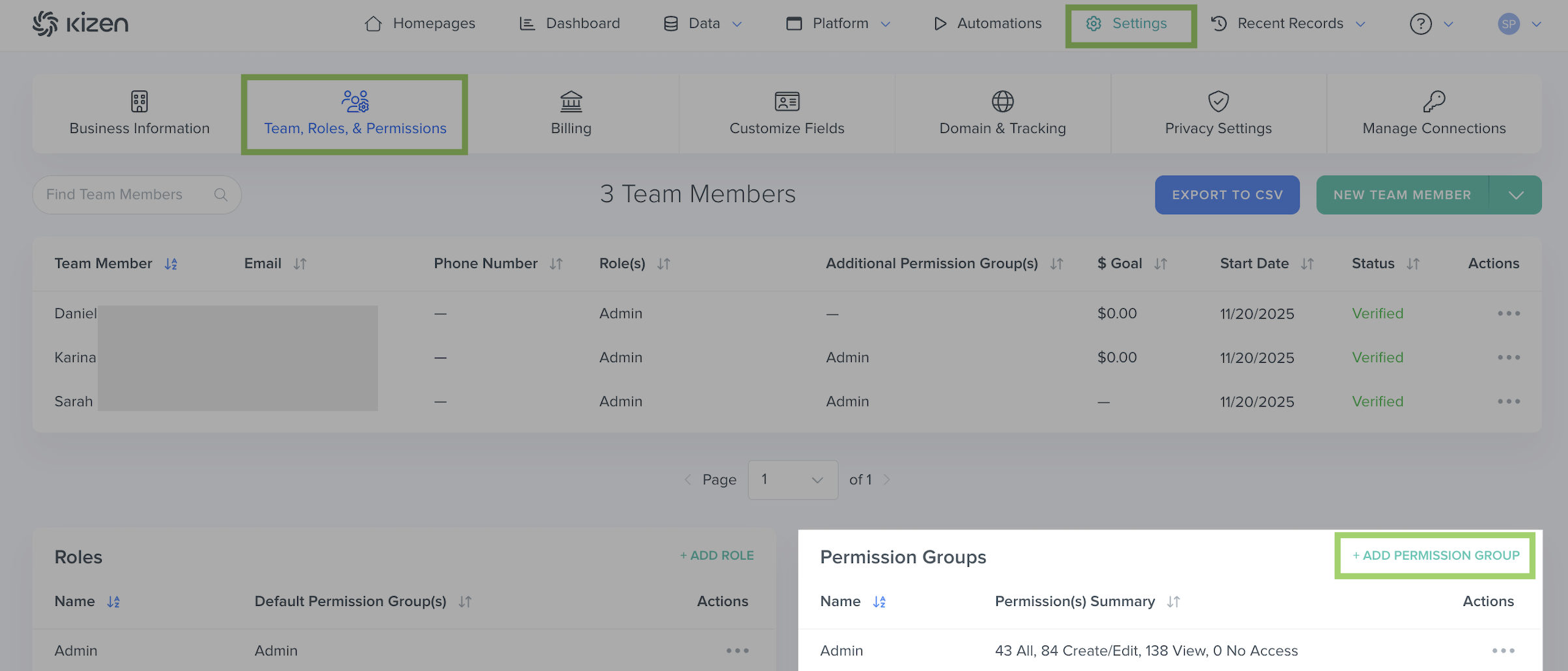
- Click on "Settings" in the top toolbar menu > "Team, Roles, & Permissions."
- In the "Permission Groups" section on the bottom right, click on "+ADD PERMISSION GROUP."
- Add a name for your Permission Group.
- Scroll through the menu and toggle specific features and objects on to grant access or off to restrict access.
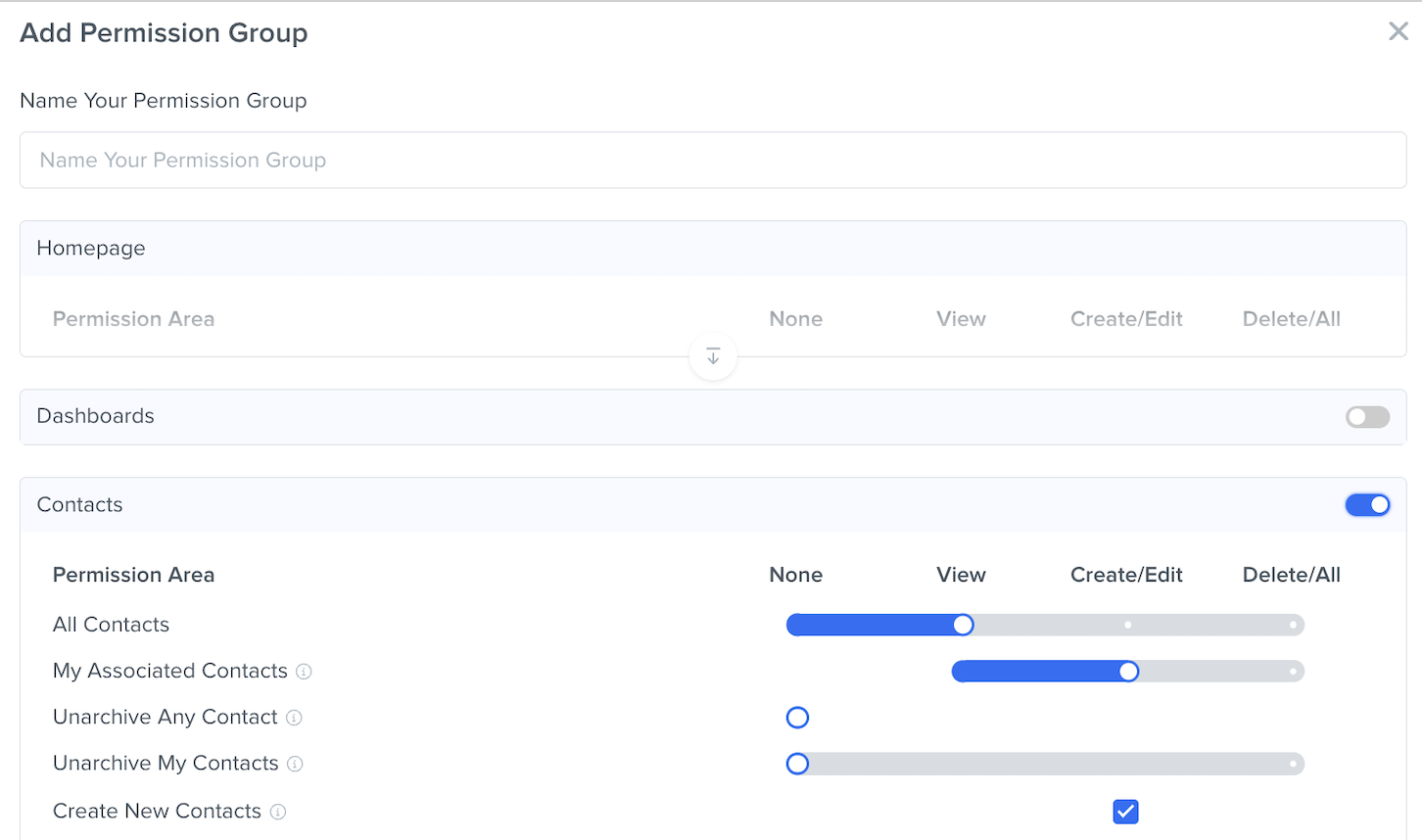
Click on the dropdown arrow in each section to further customize which specific actions team members in this Permission Group can take for each feature/object:- None: The team member will not be able to view this feature/object at all.
- View: The team member will be able to view this feature/object, but they will not be able to make any changes.
- Create/Edit: The team member will be able to add new information and edit existing information to this feature/object, but they will not be able to delete any information.
- Delete/All: The team member will be able to create, edit, and delete information in this feature/object.
- None: The team member will not be able to view this feature/object at all.
- Click on the "SAVE" button.
Tip: To restrict team members to only be able to see the Contacts that they are specifically associated with, choose "None" for "All Contacts" and "View" for "My Associated Contacts."

How to Edit and Delete a Permission Group
- Click on "Settings" in the top toolbar menu > "Team, Roles, & Permissions."
- Click on the "..." menu under the "Actions" column, next to the Permission Group.
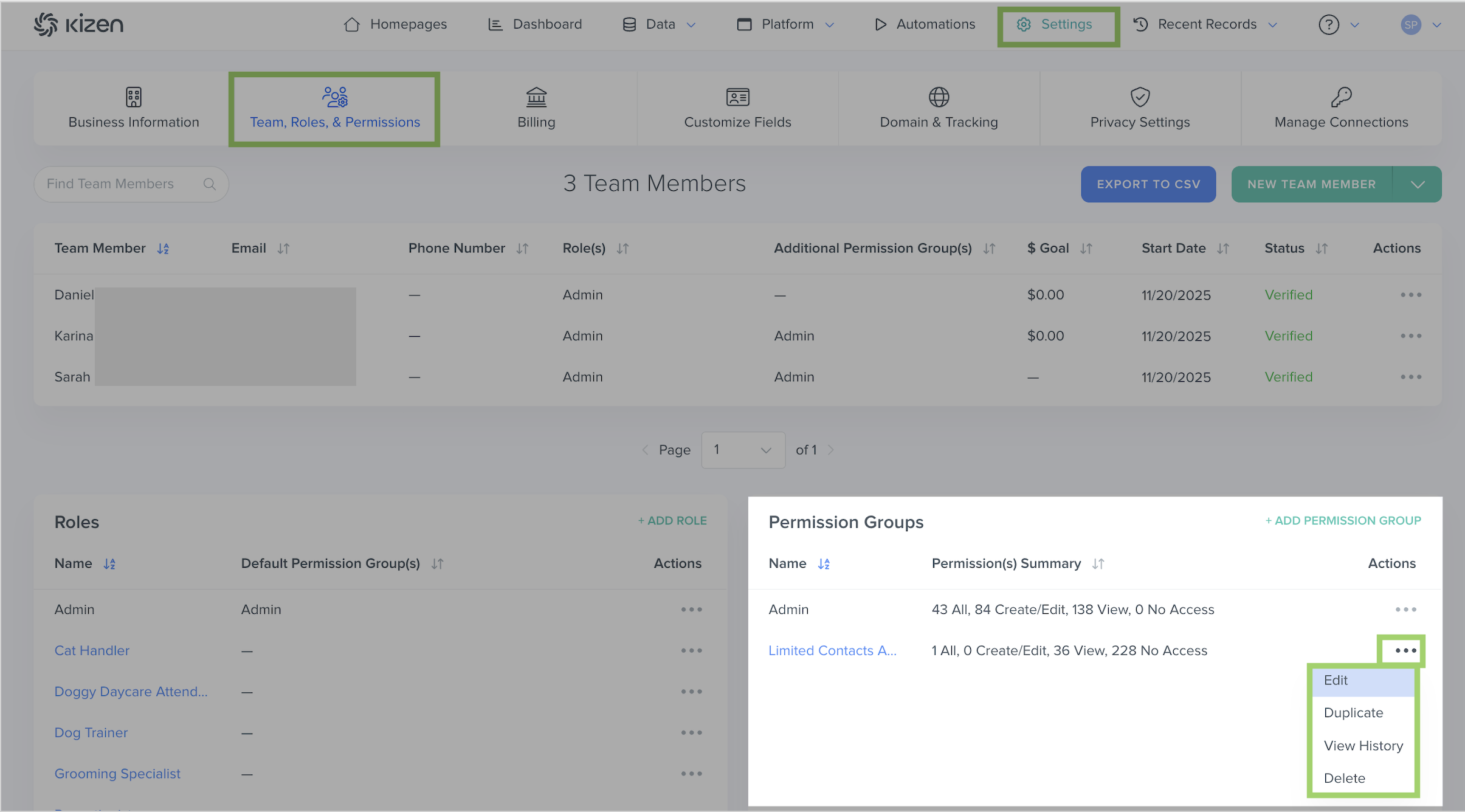
- Click on "Edit" to change the specific permissions settings.
- Click on "Delete" to permanently delete the Permission Group.
- Click on "Duplicate" to duplicate the Permission Group to create a new Permission Group with the same name and permission settings.(Make sure to edit the name to prevent redundancy and confusion.)
⚠️ Note: The Admin Permission Group is a default permission group with access to ALL features, and it cannot be edited or deleted.Related Articles
- Getting Started with Kizen (Set-Up Checklist)
- How to Add, Edit, and Delete Team Members
- Agent CRM: Default User Roles Overview
Still Need Help?
If you encounter any issues, contact support@kizen.com.
Was this article helpful?
That’s Great!
Thank you for your feedback
Sorry! We couldn't be helpful
Thank you for your feedback
Feedback sent
We appreciate your effort and will try to fix the article