Purpose: Chart View transforms your data into dynamic, easy-to-understand visuals, helping you spot trends and uncover insights at a glance. It's an invaluable tool for streamlining your workflow, enhancing collaboration, and making data-driven decisions with confidence. In just a few steps, you can transform complex datasets into actionable charts, giving you the clarity and control you need to succeed
TABLE OF CONTENTS
How to Access Chart View
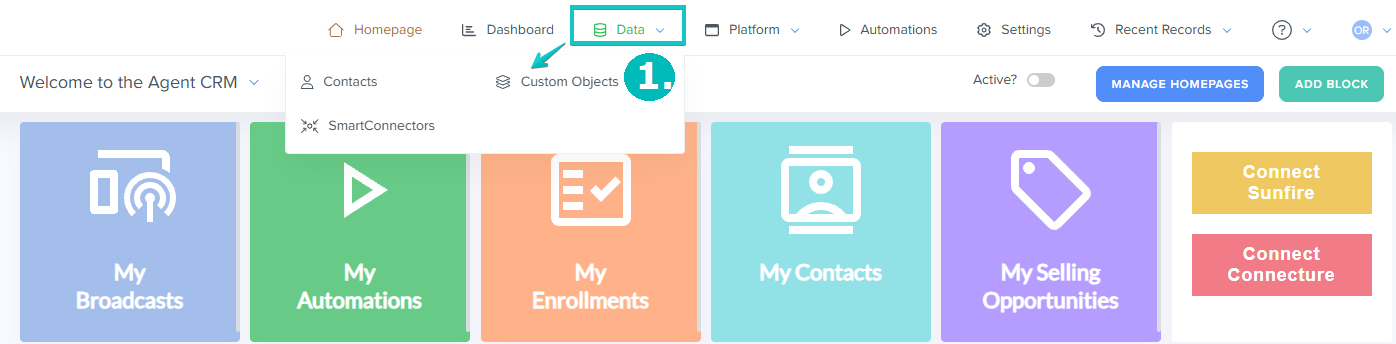
1. Navigate to Data > Contacts or Custom Objects tab
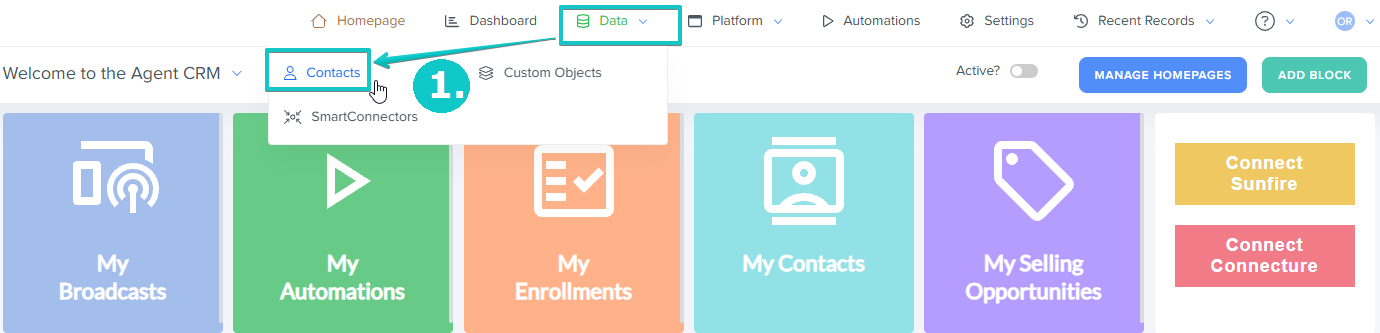
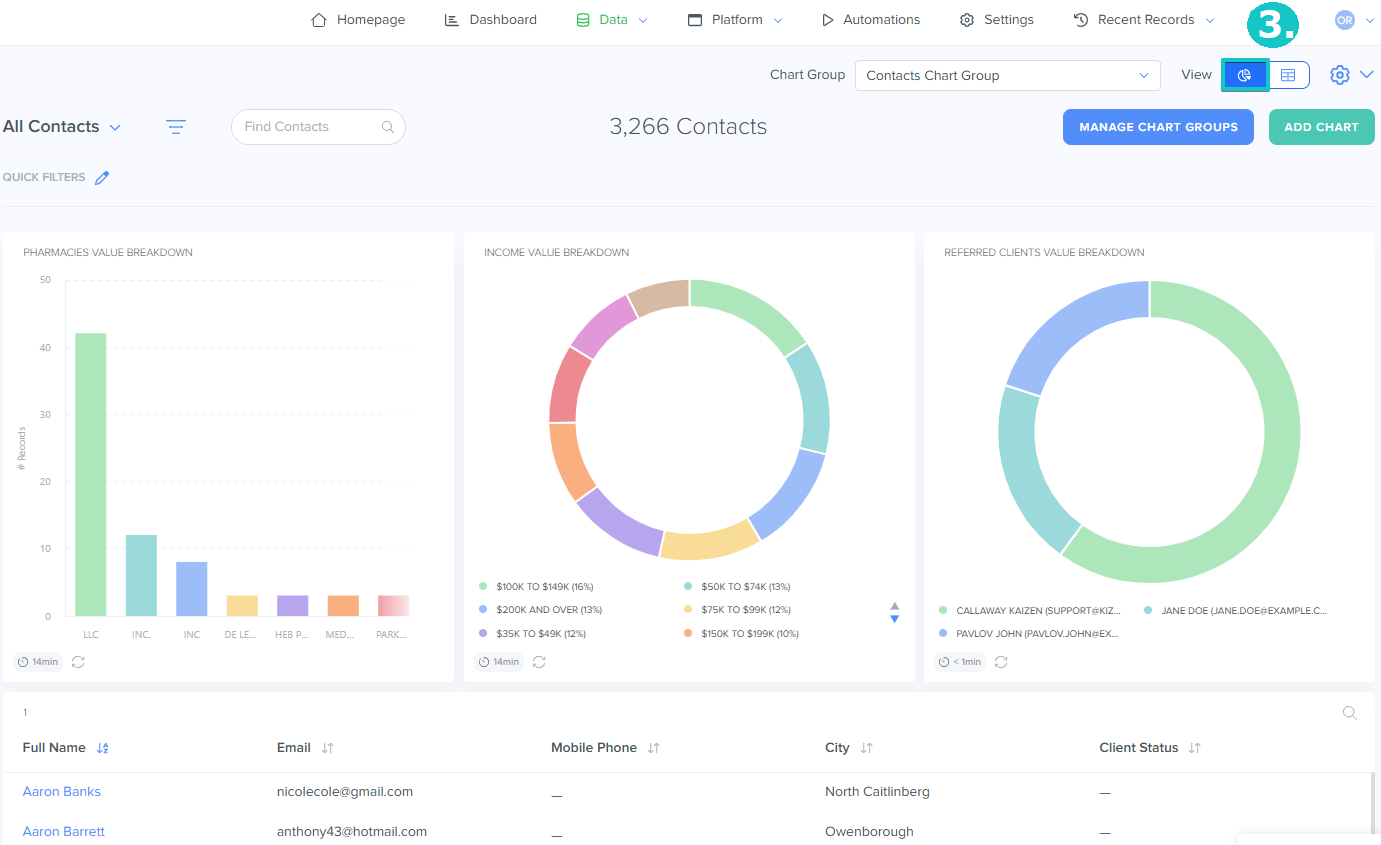
2. Locate the View menu at the top right corner
3. Click on the Chart  icon to apply a Chart View
How to Use Chart View
Manage Chart Groups
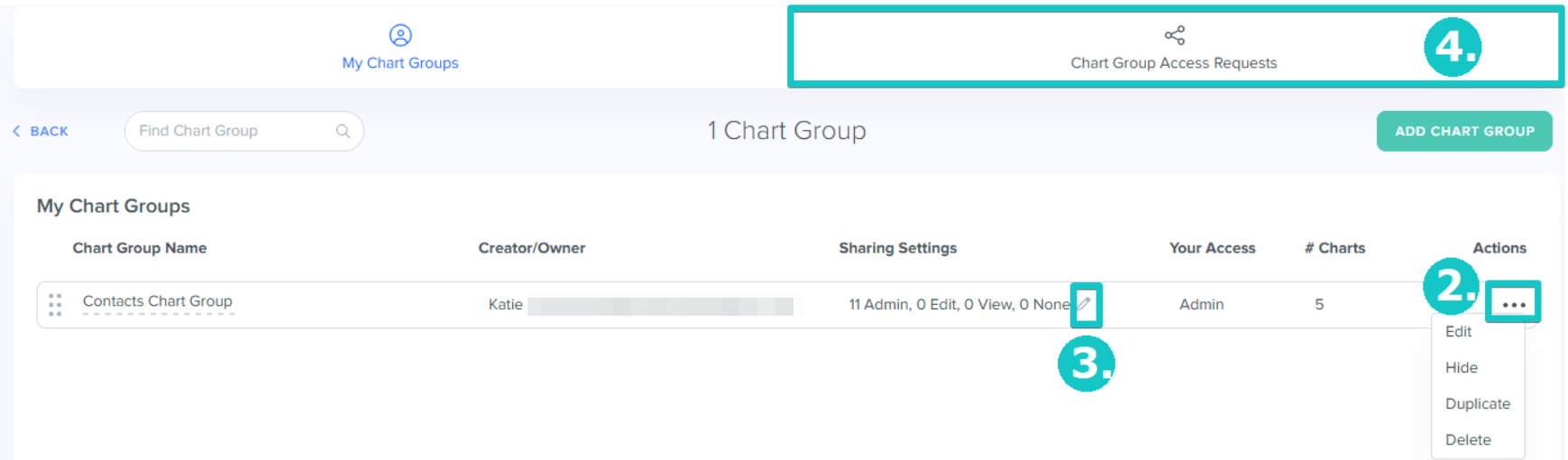
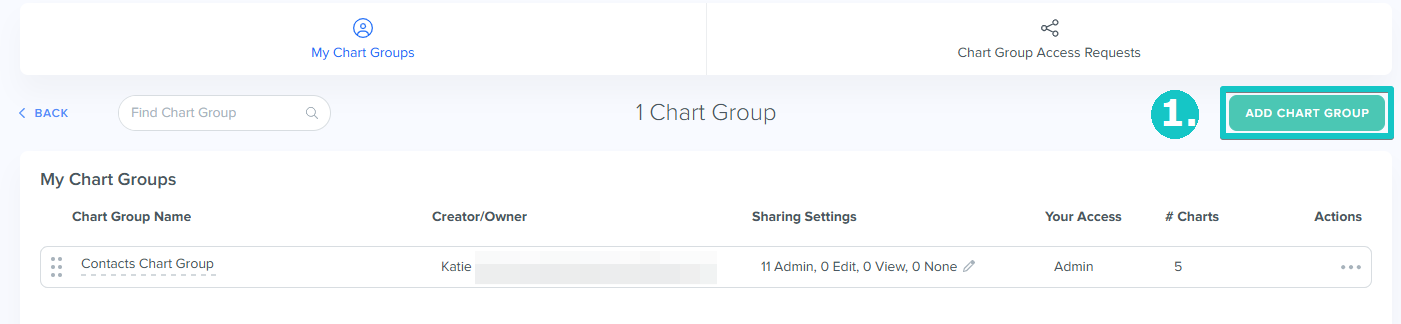
1. Click on the Manage Chart Groups button

2. Edit, hide, duplicate and delete available chart groups by clicking on the "..." icon under Actions column (the options may vary depending on your access level)
3. Click on the  icon to customize sharing settings
4. Decide who can access your Chart Group by approving/discarding requests on the Chart Group Access Requests tab
Add Chart Group
1. Click on the Add Chart Group button
2. Enter the Chart Group Name
3. Apply Sharing Settings:
3.1 for All Team Members: Grants the selected access level to every user in your account
3.2 by Specific Roles: Grants the selected access level to all users assigned to the chosen role
3.3 by Specific Team Members: Grants the selected access level only to the users you select
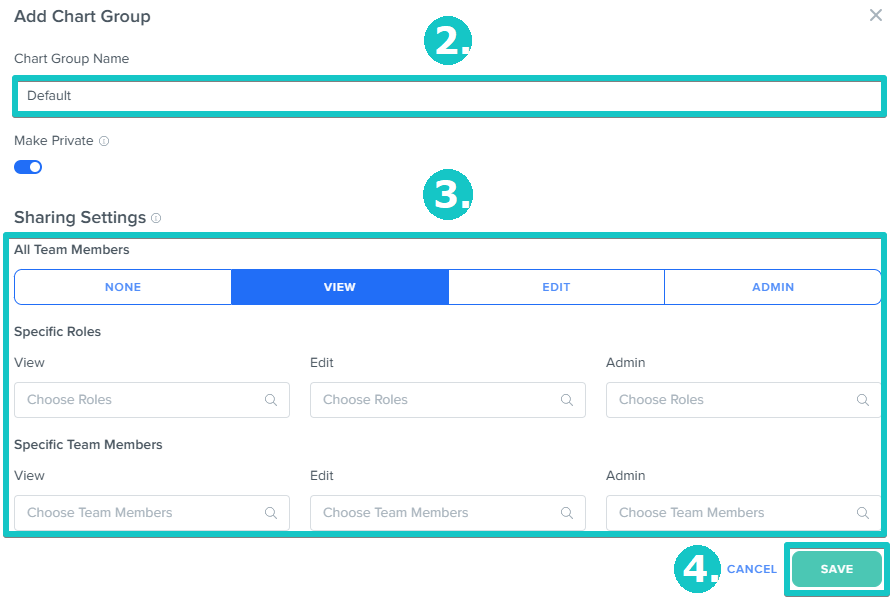
4. Click Save
Hint: Enable the Make Private toggle to restrict access. Users will not be able to search for and request access to this chart group unless they have View/Use permissions or higher
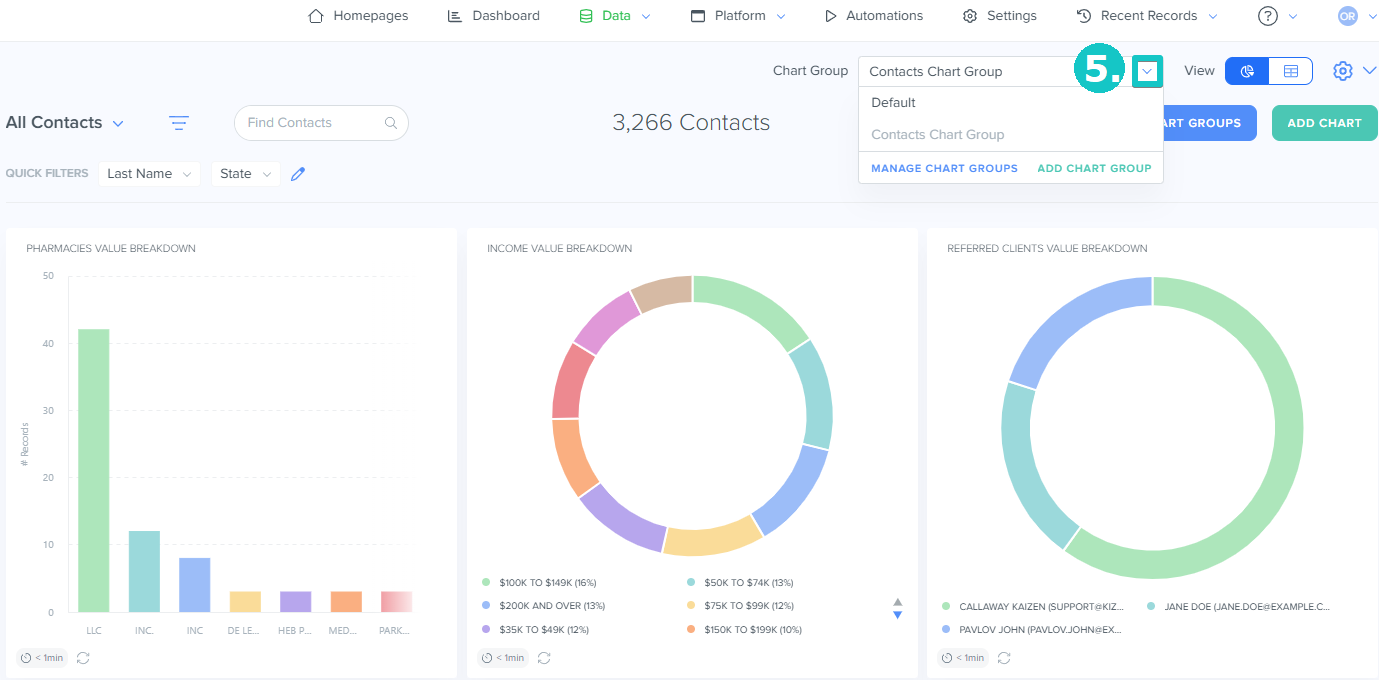
5. Apply a chart group by selecting the one from the drop-down list near the View menu. You would need to go back to the previous screen (Data > Contacts or Custom Objects) to access this option
Add a Chart
1. Click on the Add Chart button

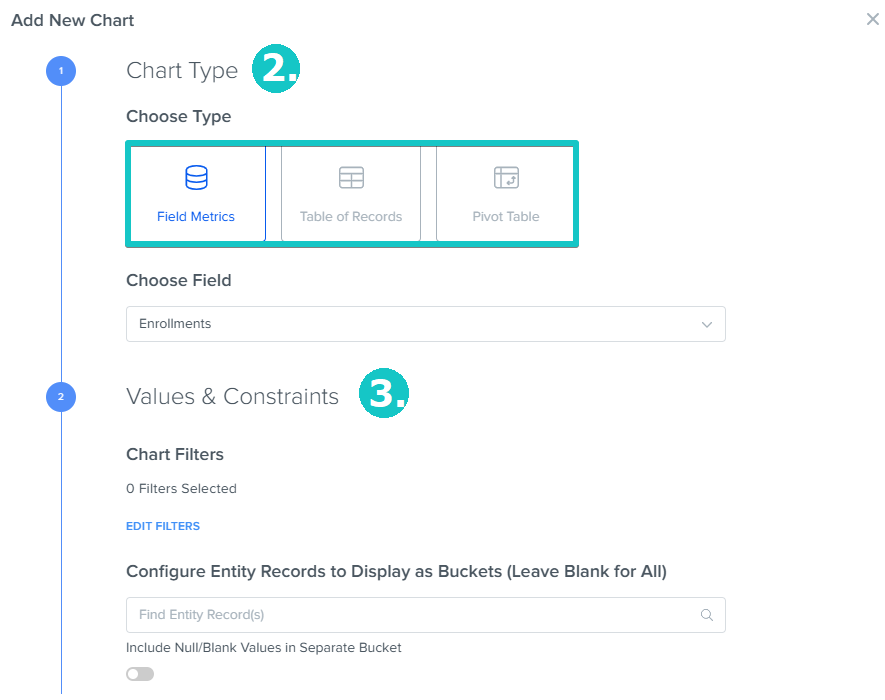
2. Select the Chart Type
2.1 For the Field Metrics type, you must also Choose Field from the list
3. Configure Values & Constraints
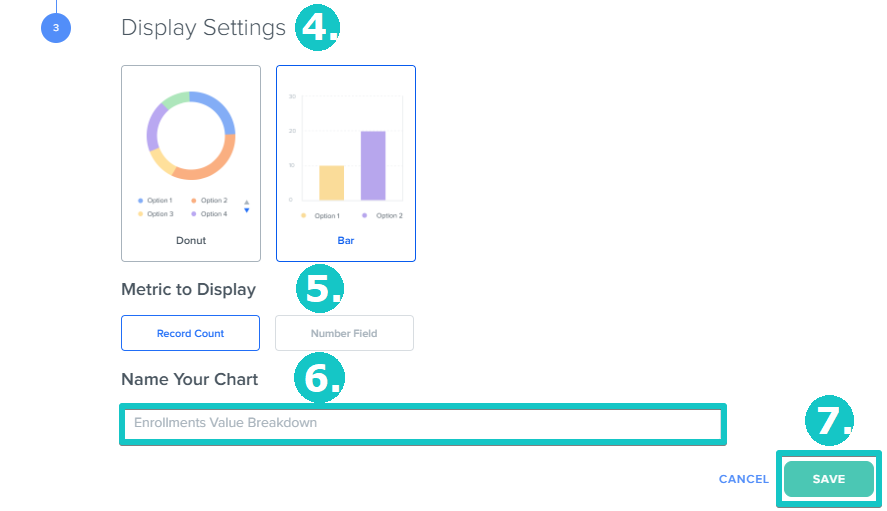
4. Choose Display Settings
5. Pick a Metric to Display
6. Enter the chart name (optional)
7. Click Save
Related Articles
- How to Use the Table View for Contacts / Custom Objects
- How to use the Board View for Custom Objects
- View Layout Options for Contacts / Custom Objects
Was this article helpful?
That’s Great!
Thank you for your feedback
Sorry! We couldn't be helpful
Thank you for your feedback
Feedback sent
We appreciate your effort and will try to fix the article