Purpose: Learn how to add a new Dashboard and edit or delete an existing Dashboard in Kizen for your custom data reporting needs.
TABLE OF CONTENTS
- How to Add a Dashboard
- How to Share a Dashboard
- How to Edit, Duplicate, or Delete a Dashboard
- What's Next?
- Need Help?
How to Add a Dashboard
In Kizen, you can build one Dashboard to centralize your team's Activities or reports and metrics, or you can build as many Dashboards as you want, each with their own purpose for your different business operations.
To add a new Dashboard:
- Click on "Dashboard" in your toolbar menu at the top of your screen > Click on the down caret next to the Dashboard name > Click on the green "Add Dashboard" button.

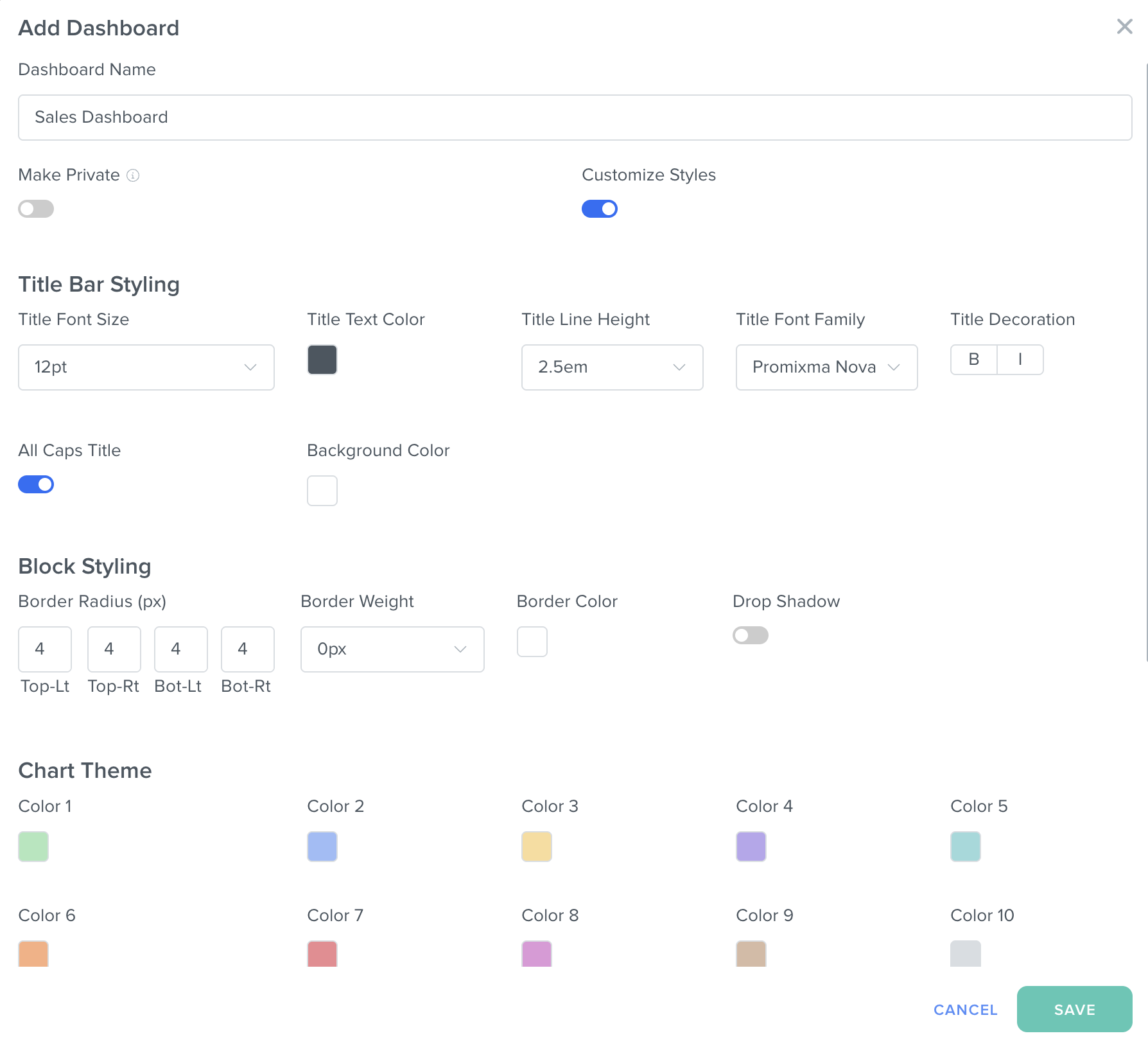
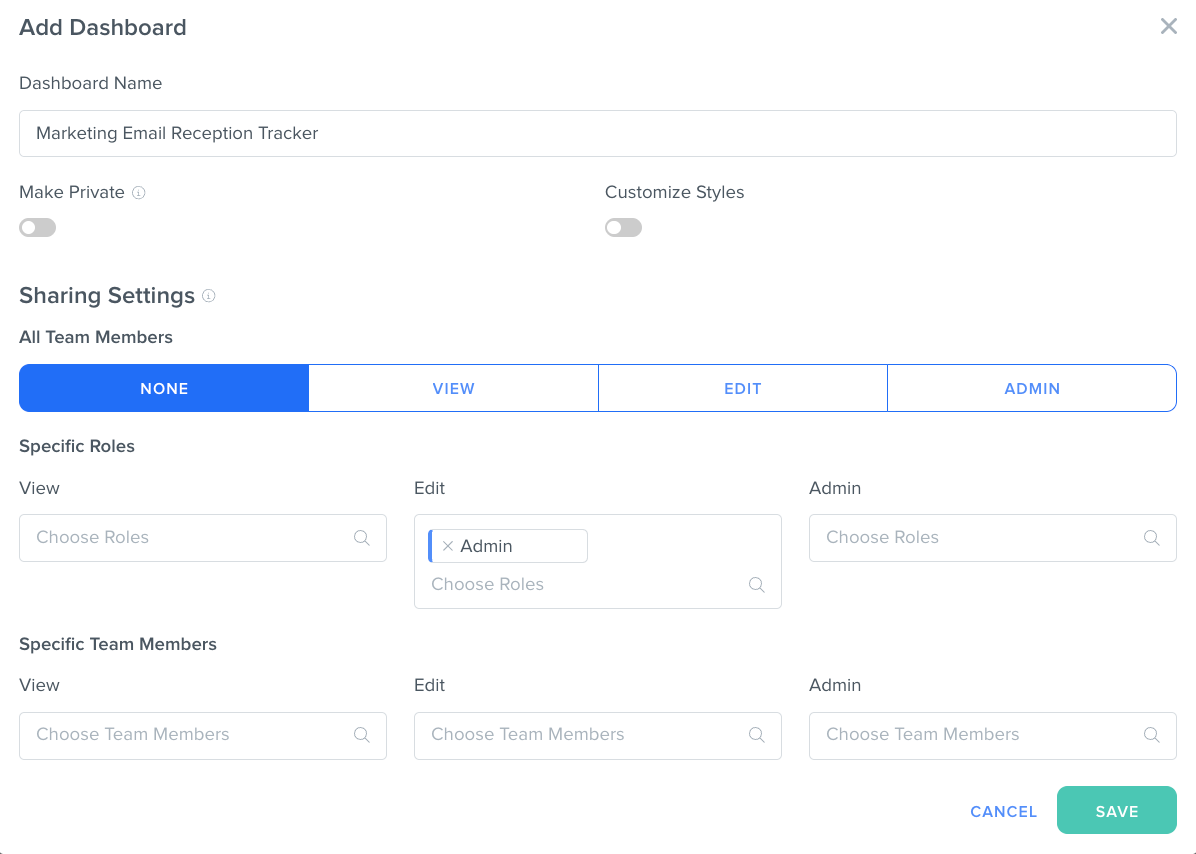
- In the pop-up window, type in the name of your new Dashboard. Make sure to give your Dashboard a unique name that makes its purpose clear.
- Toggle "Make Private" on if you would like to prevent other team members from being able to search for and request access to your Dashboard unless you grant them "View" access or greater (in step 5).
- Toggle "Customize Styles" on if you would like to customize the text font, block formatting, and colors in your Dashboard.
- Choose your Sharing Settings to select the default permissions for this Dashboard for all team members in your account. (For example, "None" prevents access to this Dashboard unless you specify which specific roles or which specific team members can view, edit, or have admin access to your Dashboard.)
- Click on the green "Save" button at the bottom right of the window.
How to Share a Dashboard
Depending on the privacy settings, you might need to share your existing Dashboard with teammates or ask for access to their Dashboard.
To Request Access to a Team Member's Dashboard
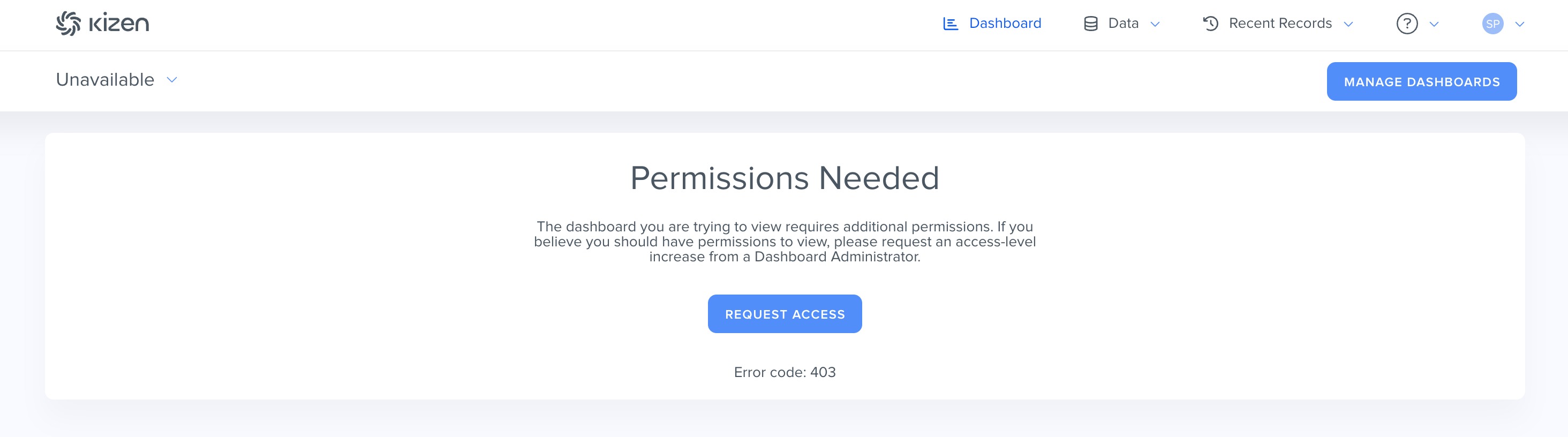
- On the restricted Dashboard page, click the blue "Request Access" button.
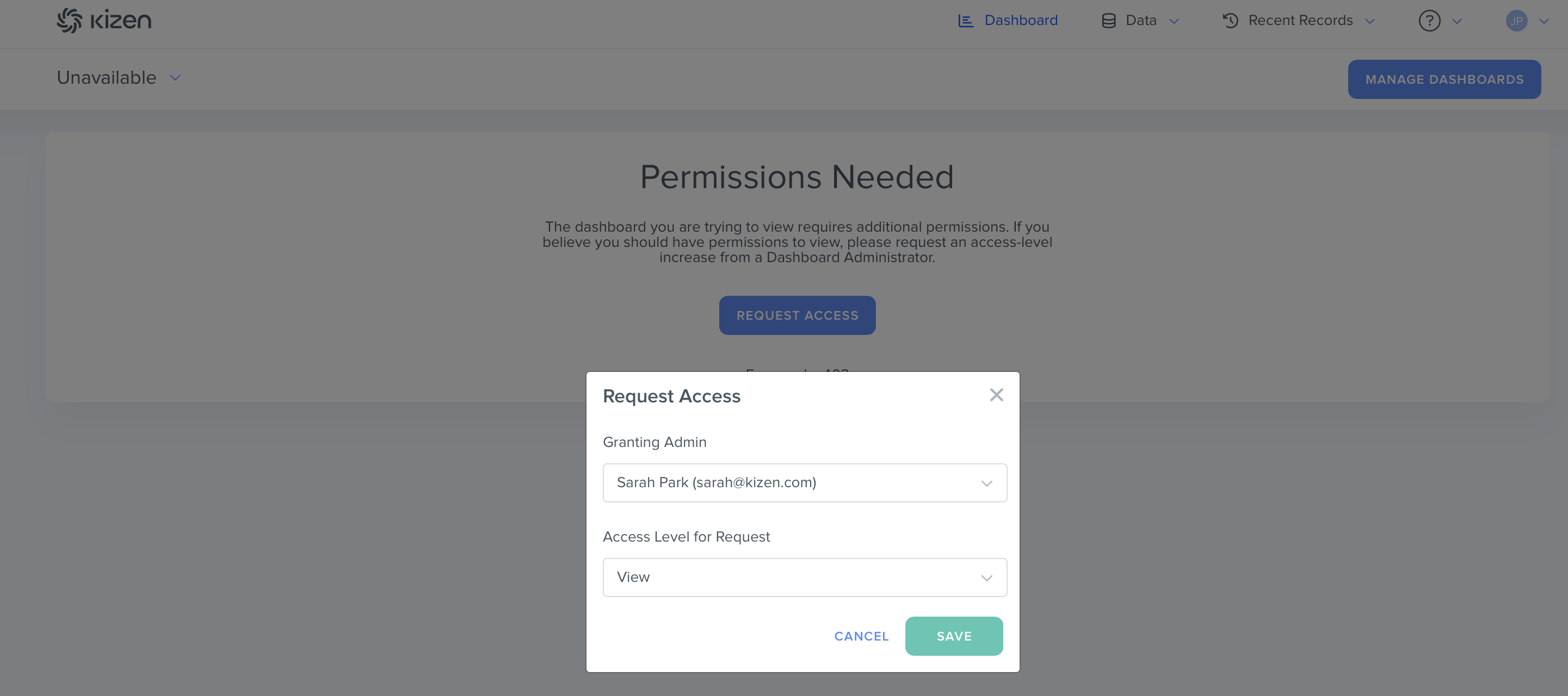
- In the pop-up window, select the admin of the Dashboard you want to alert and the level of access you need (view, edit, or admin).
- Click on the "Save" button. This will send an email to the Dashboard owner.
- To check if your request went through, click on the down caret next to the name of the Dashboard > "Manage Dashboards."

- Click on the "Dashboard Access Requests" tab to see the status of your request.
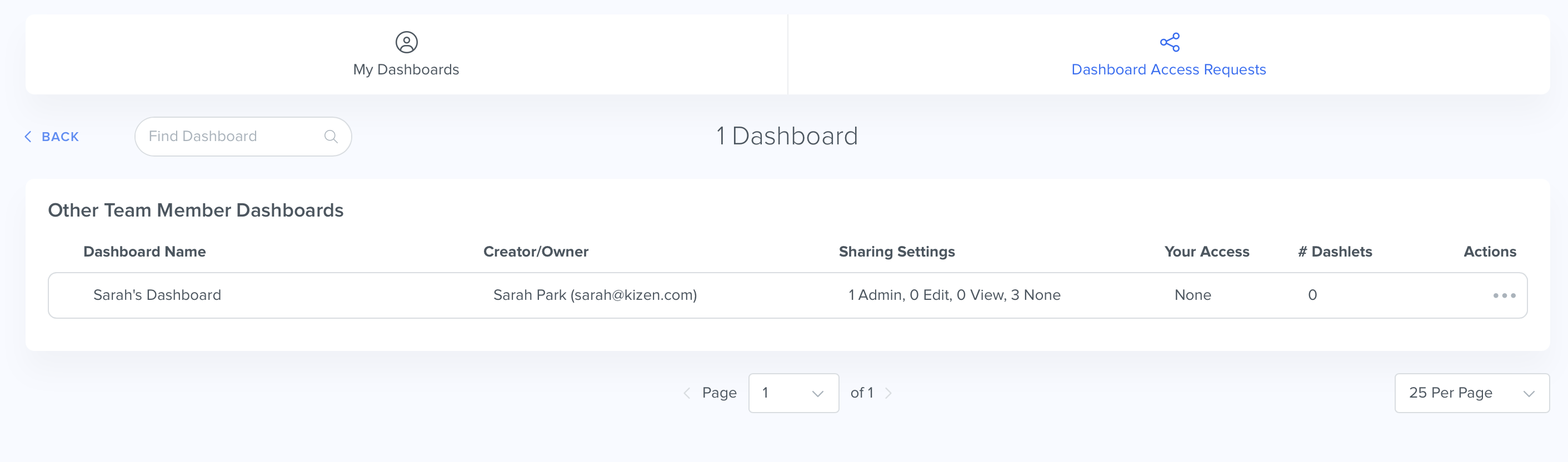
To Grant Access to Your Dashboard
Whenever a team member in your Kizen account requests access to one of your Dashboards, you will receive an email notification.
- In the body of the email request, click on the "Grant Access" button or the "Deny" button.
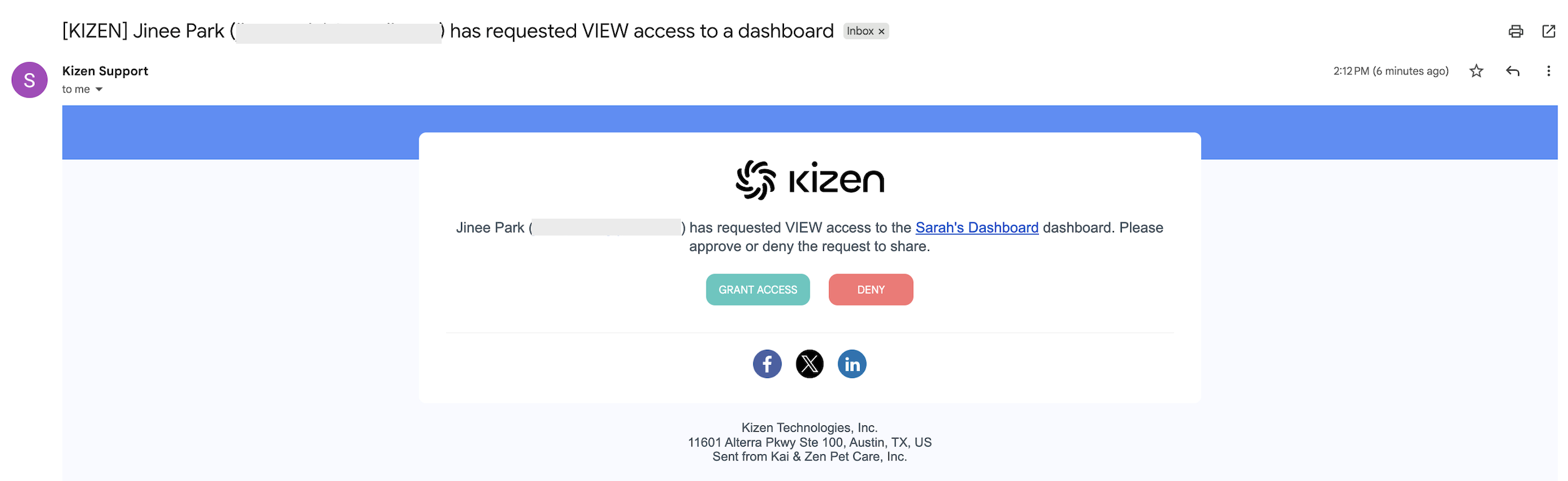
- This will route you to the "Manage Dashboards" screen, where you will see a green message banner confirming that access has been granted.
How to Edit, Duplicate, or Delete a Dashboard
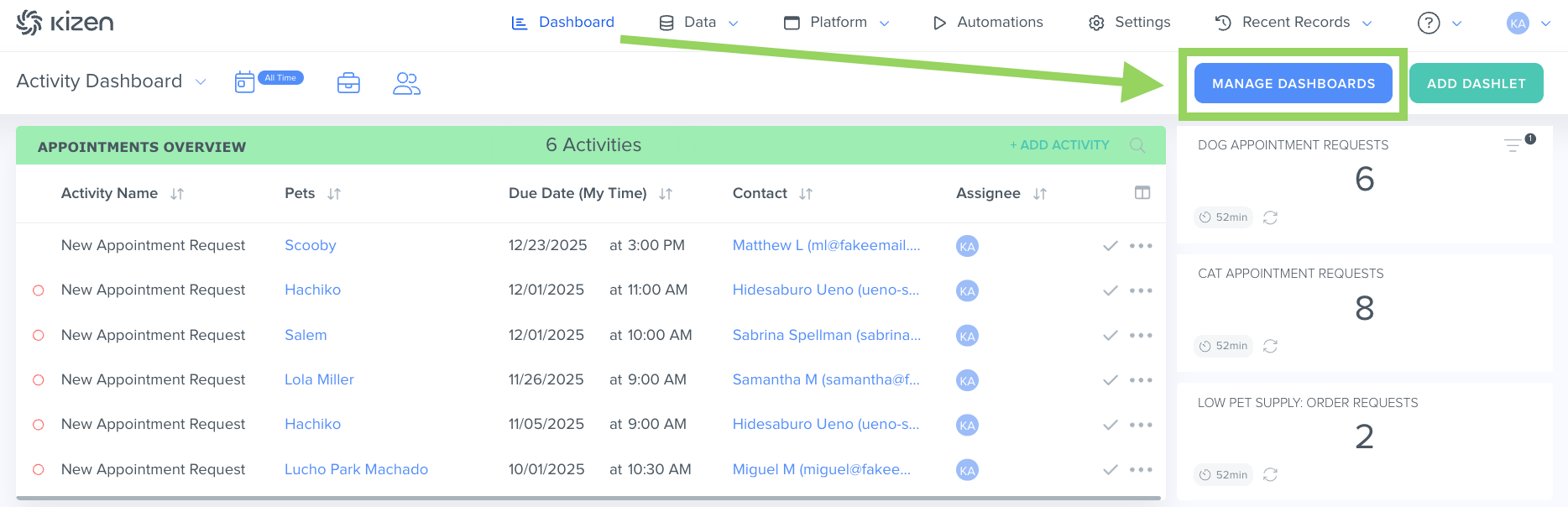
- Click on "Dashboard" in your toolbar menu at the top of your screen > Click on the down caret next to the Dashboard name and select the Dashboard you want to edit or delete.
- Click on the blue "Manage Dashboard" button to the right of your screen.
- Click on the "..." menu to the right of the Dashboard name in the "Actions" column and select the option you want:
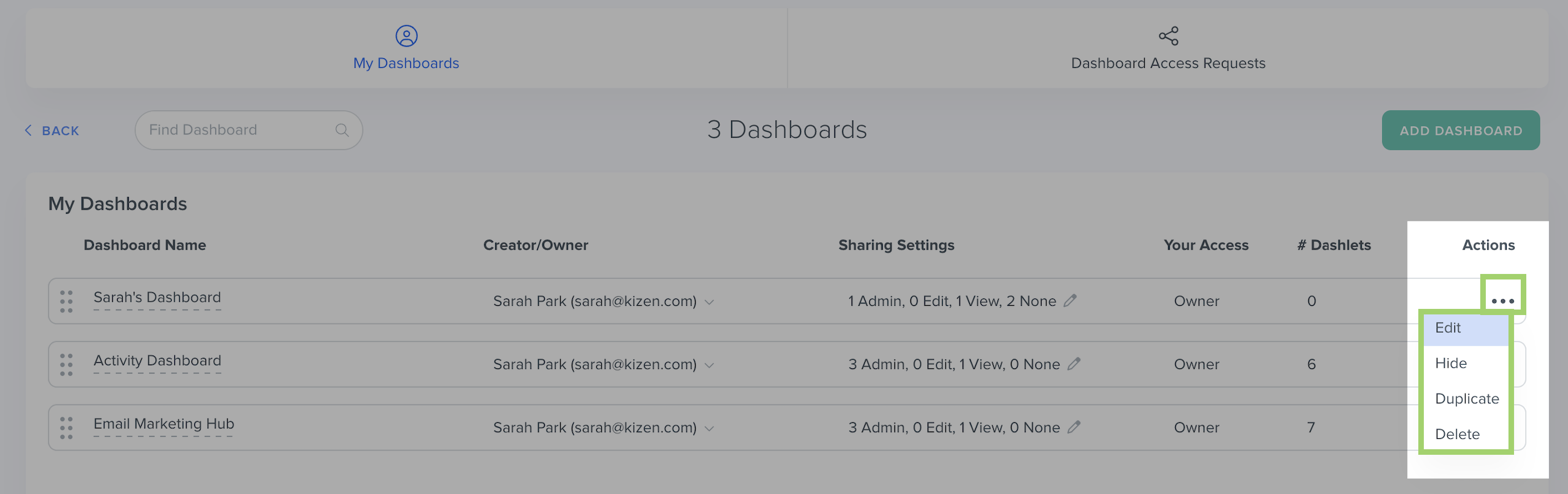
- Edit: Update your Dashboard's name, privacy settings, and style and formatting.
- Hide: Hide your Dashboard from the Dashboard dropdown menu. (You can always choose to unhide it later.)
- Duplicate: Need to make changes, but don't want to break anything? Create a copy of this Dashboard to test your edits safely and allow room for error. You can also choose to duplicate existing Dashboards as "templates" to create new Dashboards with the same Dashlets, but for different purposes.
- Delete: Remove the Dashboard permanently. Double-check you've selected the right one—once you delete a Dashboard, you cannot recover or restore it.
- Edit: Update your Dashboard's name, privacy settings, and style and formatting.
What's Next?
- How to Manage Your Activity Dashboard
- How to Schedule an Activity
- How to Edit, Add, Or Delete A Dashlet
Need Help?
If you encounter any issues, reach out to us at support@kizen.com.
Was this article helpful?
That’s Great!
Thank you for your feedback
Sorry! We couldn't be helpful
Thank you for your feedback
Feedback sent
We appreciate your effort and will try to fix the article