Purpose: Learn how to add an Email Dashlet in your Dashboards to track client engagement with your business email communications.
TABLE OF CONTENTS
What is an Email Dashlet?
Email Dashlets help you track how your emails are performing with your clients, whether you want to track marketing campaigns, sales outreach, or other communications. You can view how many emails are successfully sent and delivered, or flagged as spam, lead to clients unsubscribing, and more.
These Dashlets track emails sent from your Kizen Broadcasts, bulk or single sends through the "Perform Action" feature, and Agentic Workflows.
Attention: System emails (i.e. password resets, login, emails to team members, etc), and text messages sent through the platform are not included in these metrics.
Prerequisites
To see data in your Email Dashlets, make sure to connect your email account to the Integrated Inbox feature and send emails to your clients from Kizen. Check out the articles below to get started:
✅ Integrated Inbox Overview: Connect Your Email Account to Send and Track Emails
✅ How to Create a Custom Email in Kizen
✅ Schedule Emails From Broadcast Calendar
Make sure to review the basics of Dashboards and Dashlets as well:
✅ Getting Started with Dashboards & Dashlets
✅ How to Add, Edit, and Delete Dashboards
✅ How to Add, Edit, or Delete Dashlets
How To Add An Email Dashlet
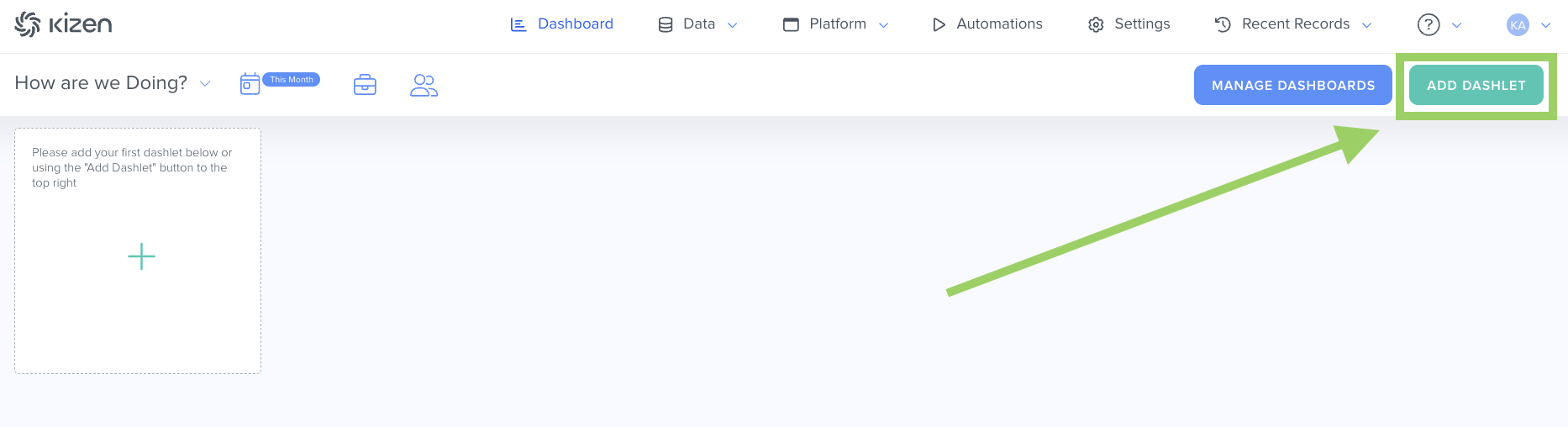
- On your Dashboard, click on the green "Add Dashlet" button at the top right.
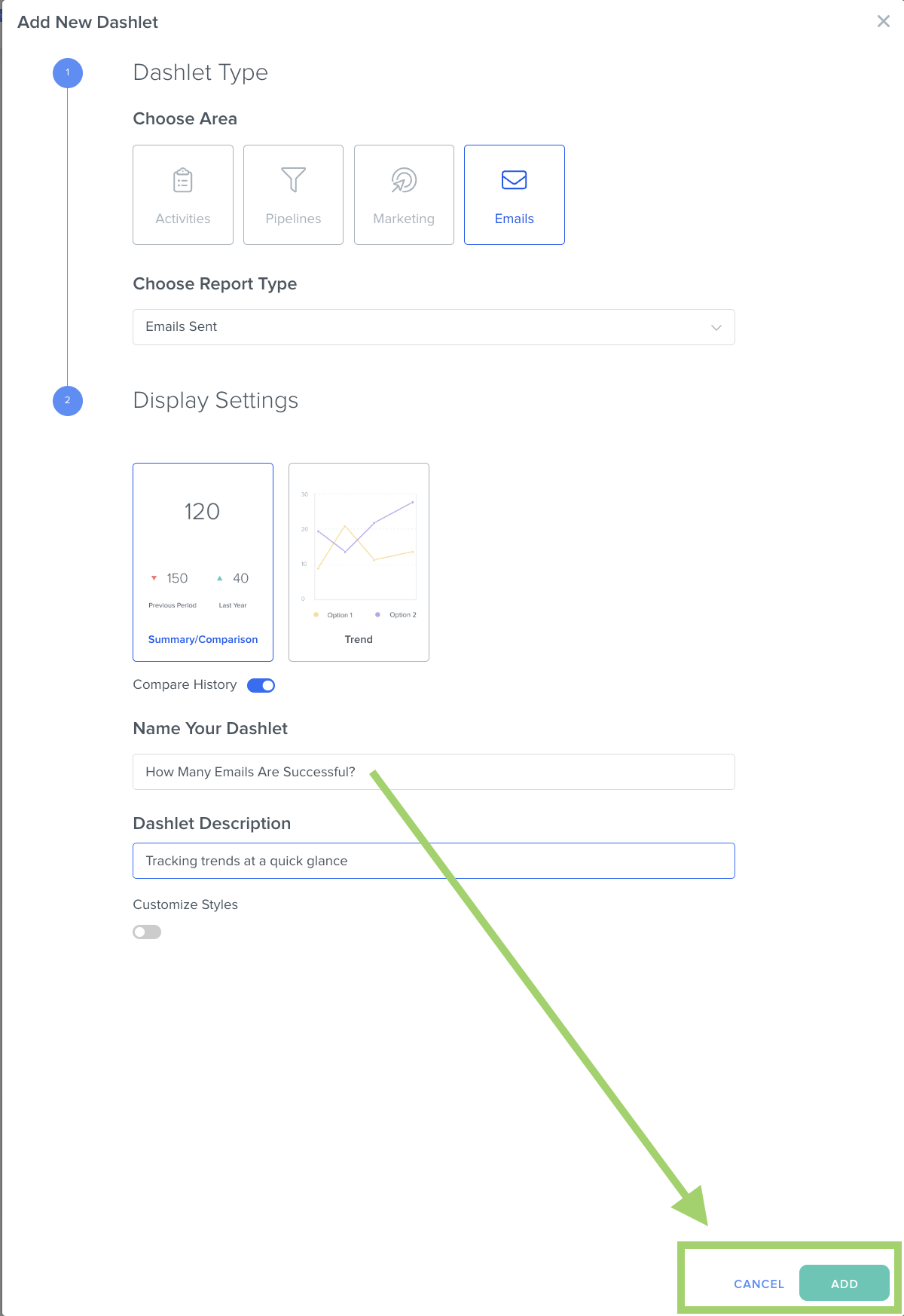
- In the pop-up window, click on "Emails" as your Dashlet Type.
- Choose the "Report Type":
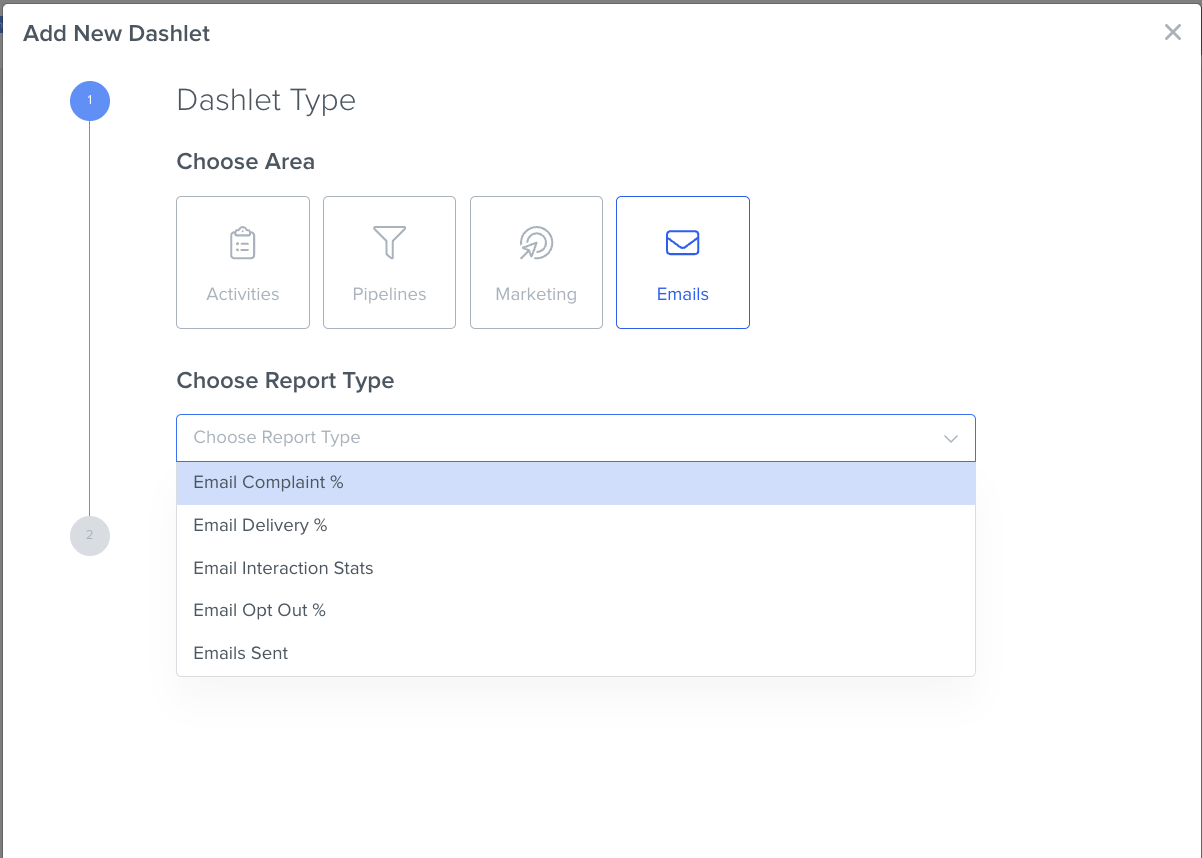
Email Complaint %: Percentage of total emails sent that have been marked as spam.
Emails Opt Out %: Percentage of emails that resulted in Contacts opting out (unsubscribing) from receiving further communication.
Emails Delivery %: Percentage of emails delivered to contacts' inboxes.
Email Interaction Stats: Trends for email delivery, opens, clicks, unsubscribes, and complaints.
Emails Sent: Total number of emails sent.
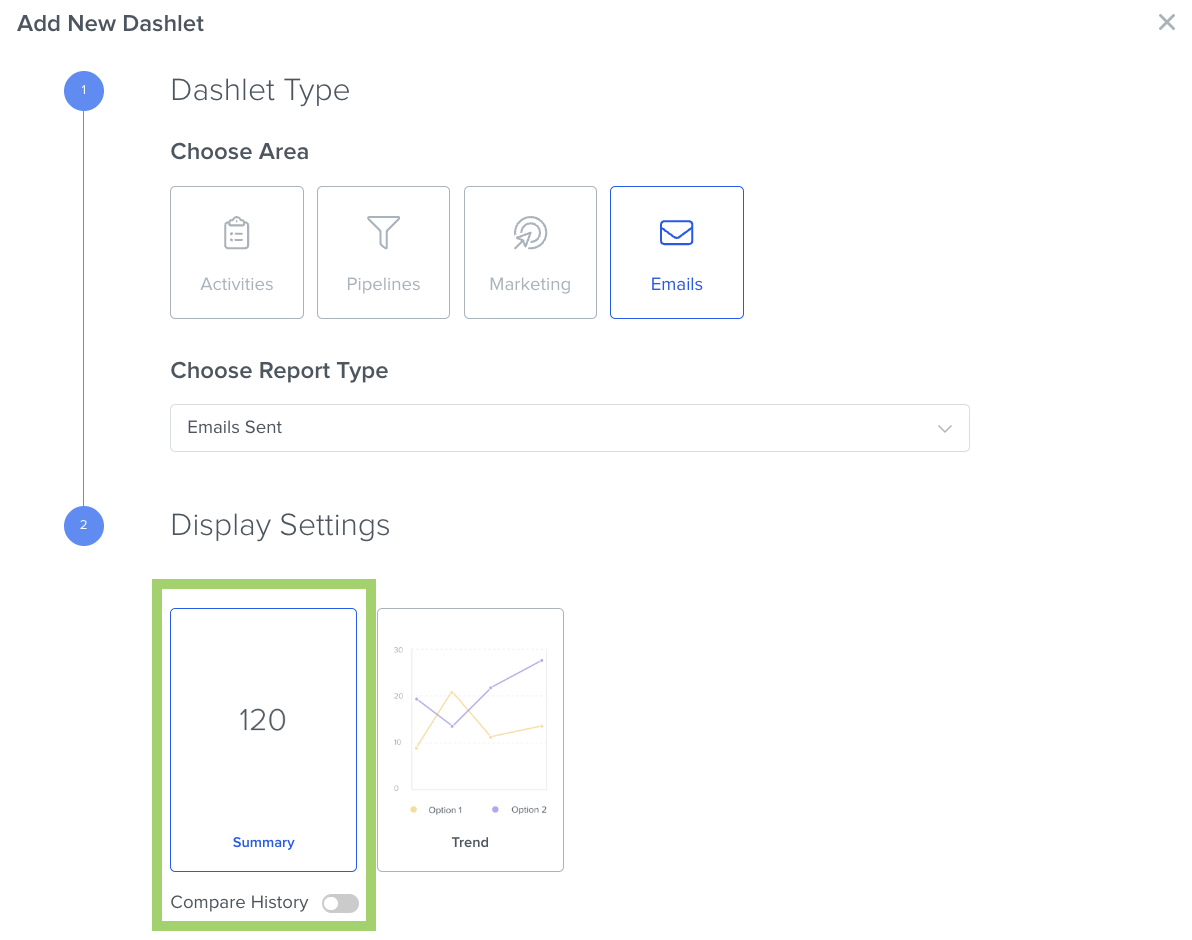
- Choose your Display Settings as a number summary or as a chart (Trend).
- If you click "Summary", you can toggle "Display History" on to see how the numbers change each time the data refreshes.
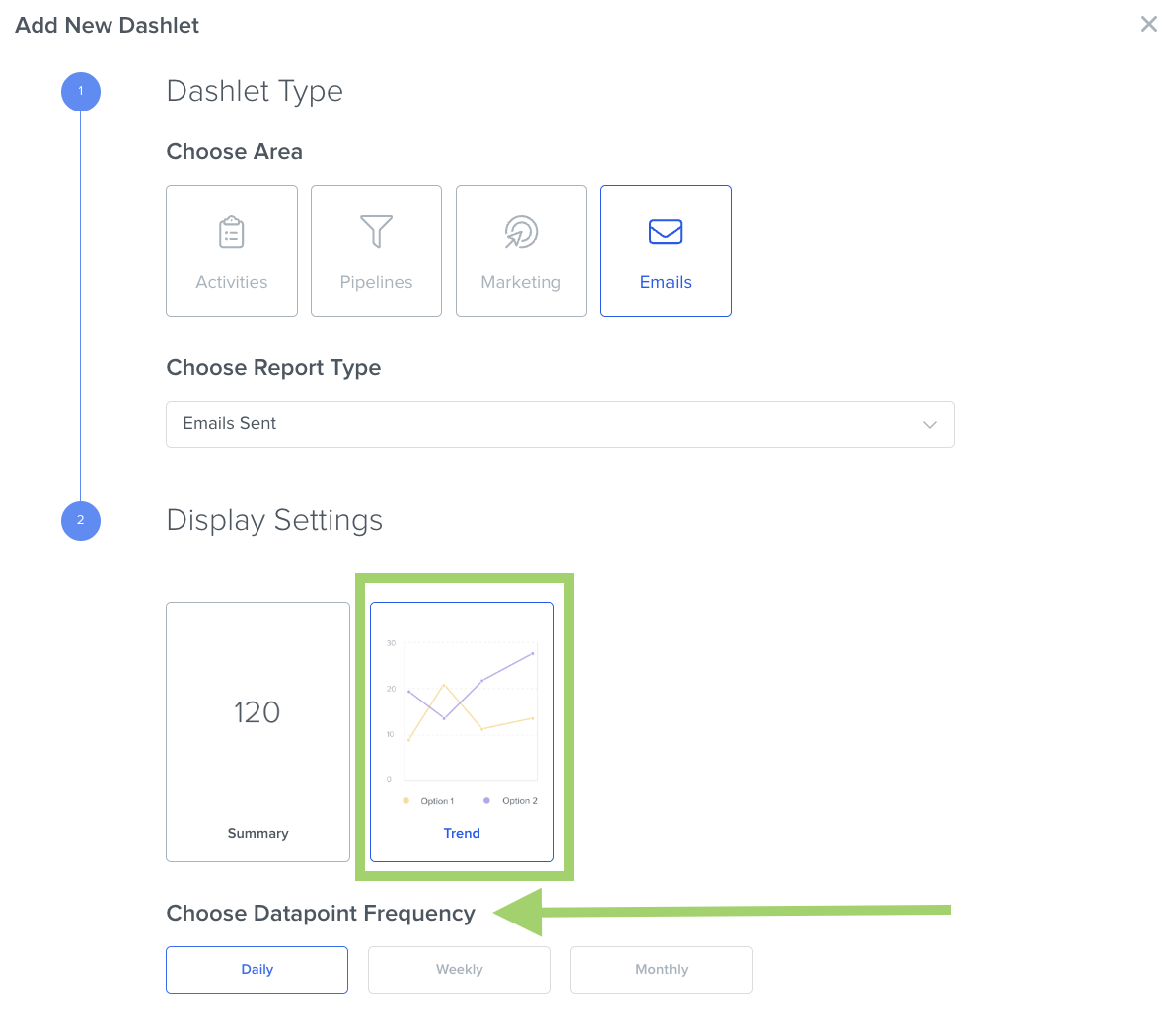
- If you click on "Trend", you can choose the timeframe you want to see the chart broken down by: daily, weekly or monthly.
- If you click "Summary", you can toggle "Display History" on to see how the numbers change each time the data refreshes.
- Give your Dashlet a unique, easy-to-understand name that makes its purpose clear, as well as a description.
- (Optional) Toggle "Customize Style" on to personalize the display colors and font of the Dashboard.
- Click the green "Add" button at the bottom right corner.
Related Articles
- Email Deliverability: Suppression List
- How to Filter Dashboards and Dashlets
- How to Add Marketing Dashlets
Still Need Help?
If you encounter any issues, contact support@kizen.com
Was this article helpful?
That’s Great!
Thank you for your feedback
Sorry! We couldn't be helpful
Thank you for your feedback
Feedback sent
We appreciate your effort and will try to fix the article