Purpose: Learn how to add a new Dashlet to your Dashboard and how to edit, delete, or rearrange an existing Dashlet to fully customize your charts and reports for your specific business needs.
TABLE OF CONTENTS
- Prerequisites
- What are the Different Types of Dashlets?
- How to Add a Dashlet to Your Dashboard
- How to Edit or Delete a Dashlet from Your Dashboard
- What's Next?
- Need Help?
Prerequisites
Before adding or editing Dashlets to your Dashboard, make sure you to review the following guides:
✅ Getting Started with Dashboards & Dashlets
✅ How to Add, Edit, and Delete Dashboards
✅ How to Manage Your Activity Dashboard
What are the Different Types of Dashlets?
Dashlets are the building blocks of your dashboards. They're visual summaries, charts, or key numbers that show past or future events relevant to your goals. You can mix and match different types of Dashlets within the same Dashboard, or you can create a Dashboard focused on one specific type of goal or metric.
There are four types of Dashlets you can choose from to build and customize your Dashboard:
- Activities: Track your scheduled and completed activities however you prefer: Calendar, Table, or Summary view.
- Pipelines: Get the full picture of your sales pipeline. See which clients converted, which opportunities you won or lost, how your pipeline value is trending, where deals are in the pipeline, and how your team is performing.
- Marketing: Track where your leads are coming from with lead source breakdowns, trends over time, and totals added by each source.
- Emails: Keep track of your organization's email marketing performance: delivery rates, complaint and opt-out percentages, interaction stats, and total emails sent.
How to Add a Dashlet to Your Dashboard
To add a Dashlet to your Dashboard:
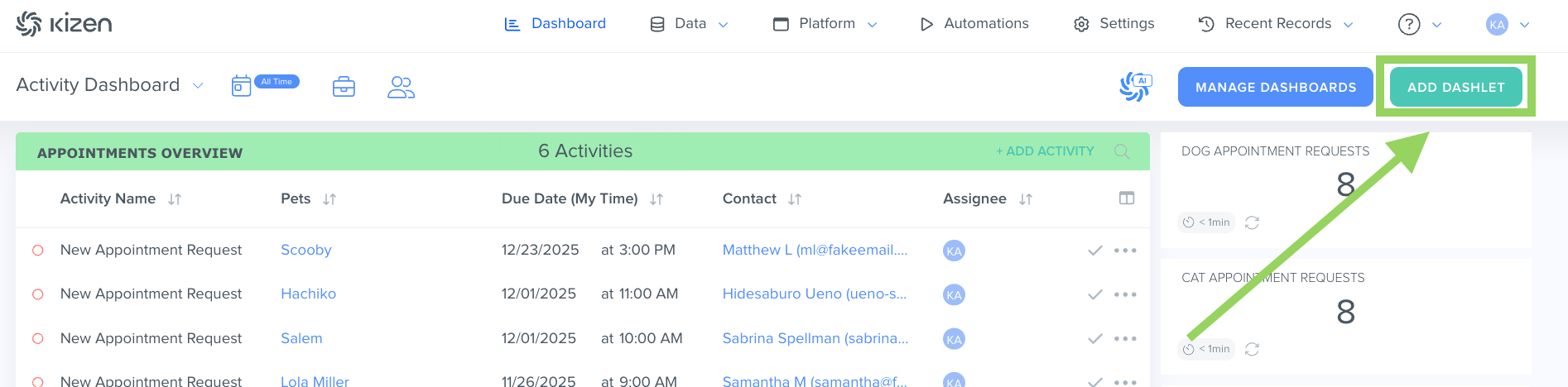
- Click on the green "Add Dashlet" button in the top right of your Dashboard.
- Choose the Dashlet Type you want to add: Activity, Pipelines, Marketing, or Emails.
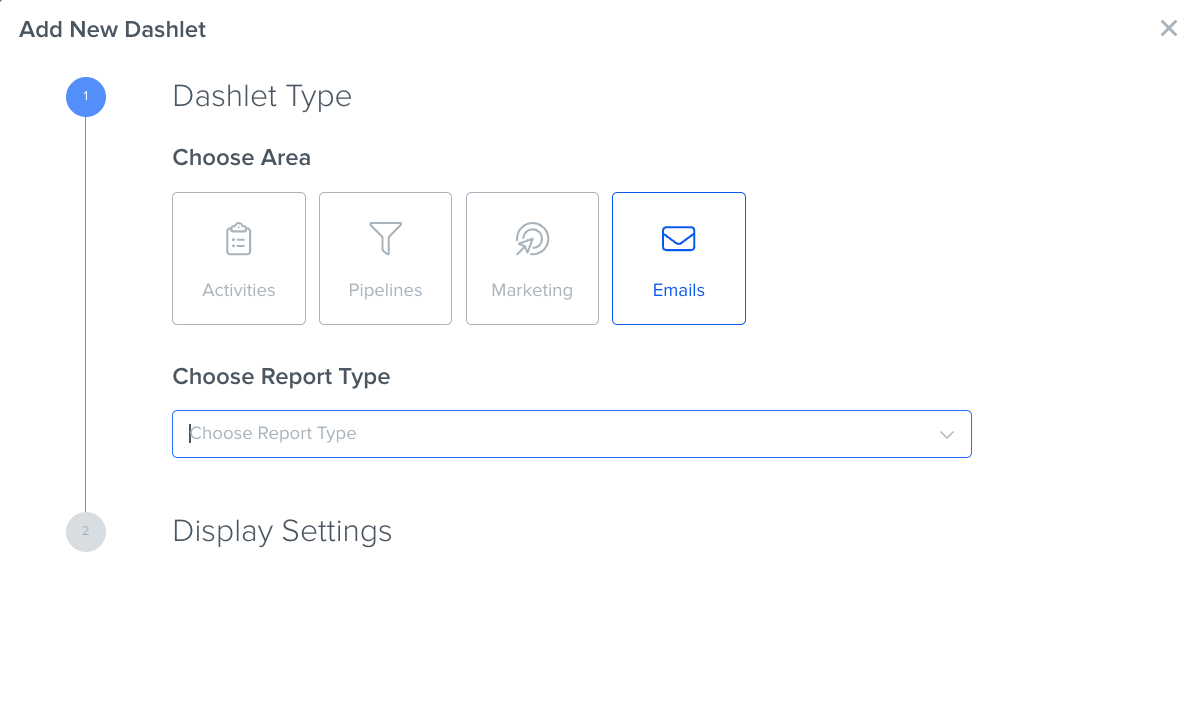
- Choose the Report Type of the Dashlet. These options will differ based on the Dashlet Type, allowing you to pick the specific type of data you want to display in this Dashlet.
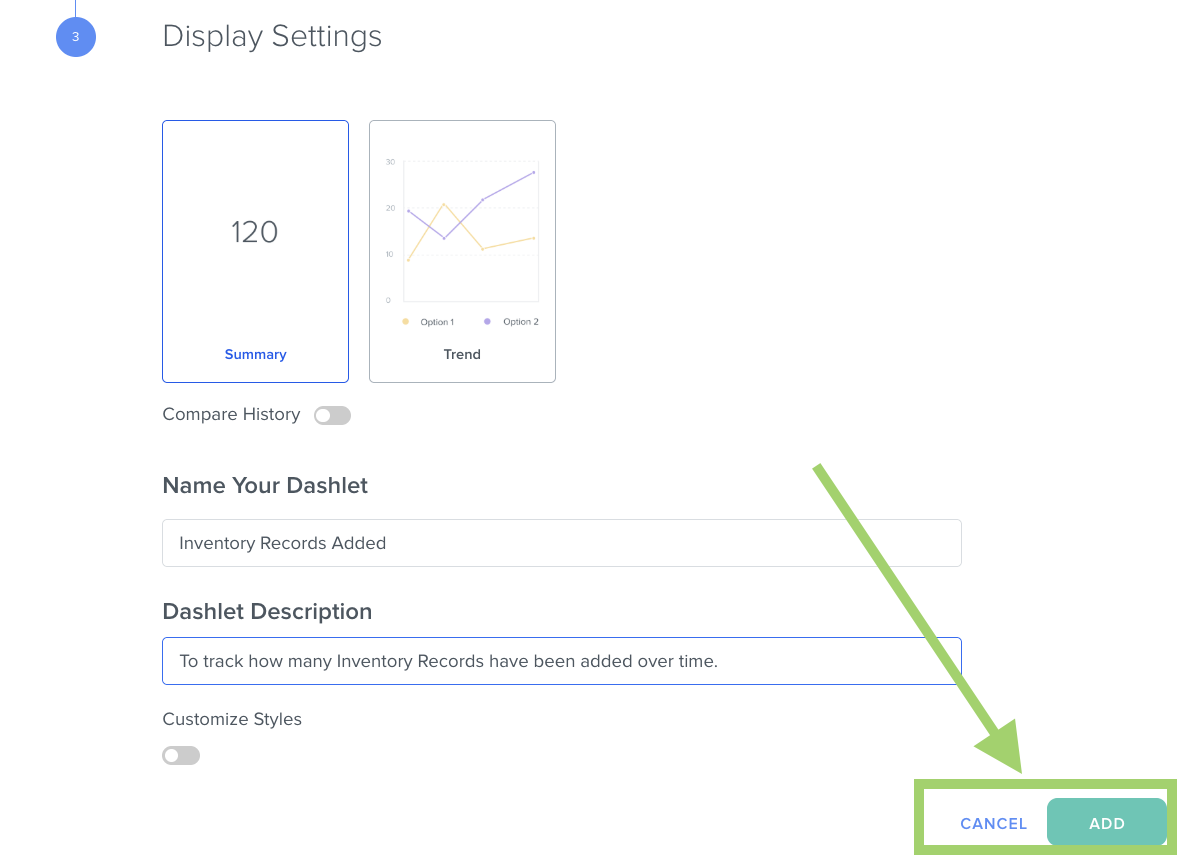
- Choose your Display Settings, including the name and description for your Dashlet. Make sure to give your Dashlet a unique, but easy-to-understand name that makes its purpose clear.
- [Optional] Toggle "Customize Styles" on if you would like to customize the text font, block formatting, and colors in this Dashlet.
- Click on the green "Add" button in the bottom right.
How to Edit, Delete, or Rearrange a Dashlet from Your Dashboard
To edit or delete a Dashlet:
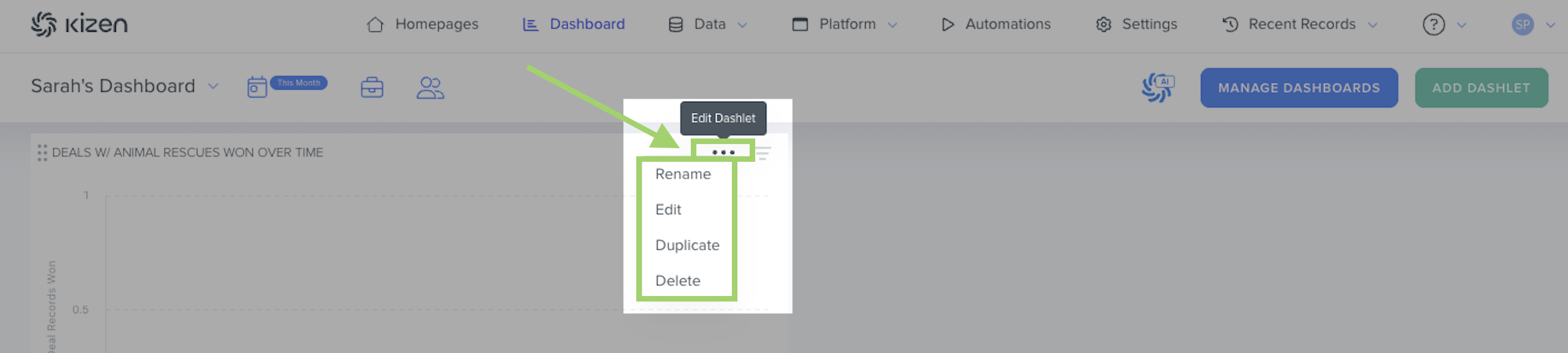
- Click on the "..." menu in the top right corner of the Dashlet you want to modify.
- Click on the option you want: Rename, Edit, Duplicate, or Delete:
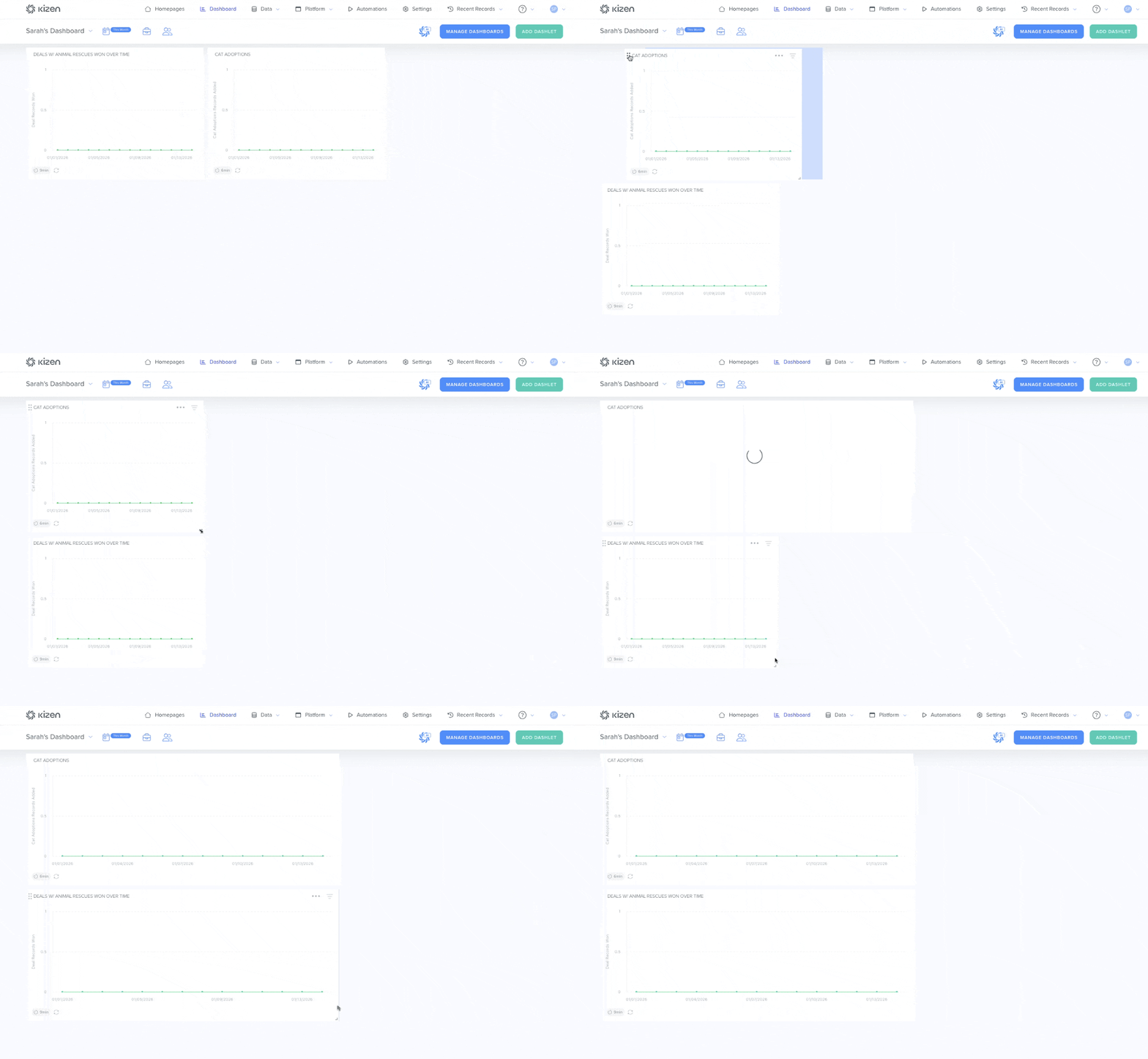
To rearrange or resize the Dashlets on your Dashboard:
- Hover over the top left corner of the Dashlet you want to move. You should see a six dot-icon.
- Click and drag the six-dot icon, and drop the Dashlet to the desired position on the Dashboard.
- To change the size of the Dashlet, click on the bottom right corner of the Dashlet and drag the Dashlet to make it smaller or larger.
What's Next?
- How to Filter Dashboards and Dashlets
- How to Manage Your Activity Dashboard
- How to Schedule an Activity
Need Help?
If you encounter any issues, reach out to us at support@kizen.com.
Was this article helpful?
That’s Great!
Thank you for your feedback
Sorry! We couldn't be helpful
Thank you for your feedback
Feedback sent
We appreciate your effort and will try to fix the article