Purpose: Learn how to add a Pipeline Dashlet to your Dashboard to analyze deal flow, value trends, sales projections, and stage breakdowns.
TABLE OF CONTENTS
What is a Pipeline Dashlet?
A Pipeline Dashlet provides a visual representation of where prospects are in your sales process, from initial contact through closing the deal. It tracks how your team progresses toward individual or team goals and monitors revenue generated, as deals advance through each pipeline stage.
Prerequisites
Before adding a Pipeline Dashlet, set up your Custom Objects. The Dashlet pulls data from these objects to generate the pipeline visualizations:
✅ How to Add a Custom Object in Kizen
✅ Custom Object (Workflow/Pipelines)
✅ How to use the Board View for Custom Objects
Make sure to review the basics of Dashboards and Dashlets as well:
✅ Getting Started with Dashboards & Dashlets
✅ How to Add, Edit, and Delete Dashboards
✅ How to Add, Edit, or Delete Dashlets
How to Add a Pipelines Dashlet
- On your Dashboard, click on the green "Add Dashlet" button at the top right.
- In the pop-up window, click on "Pipelines" as your Dashlet Type.
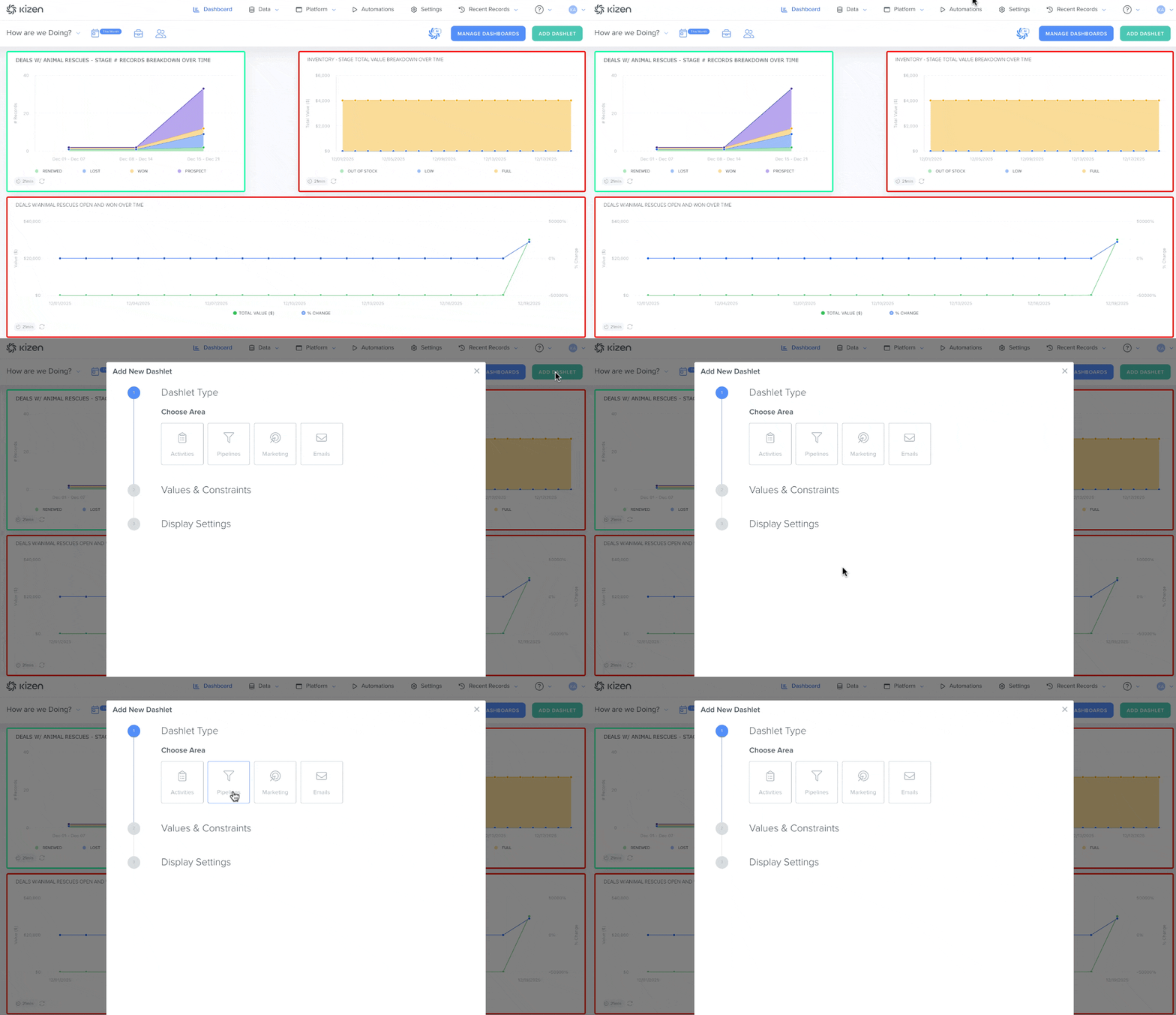
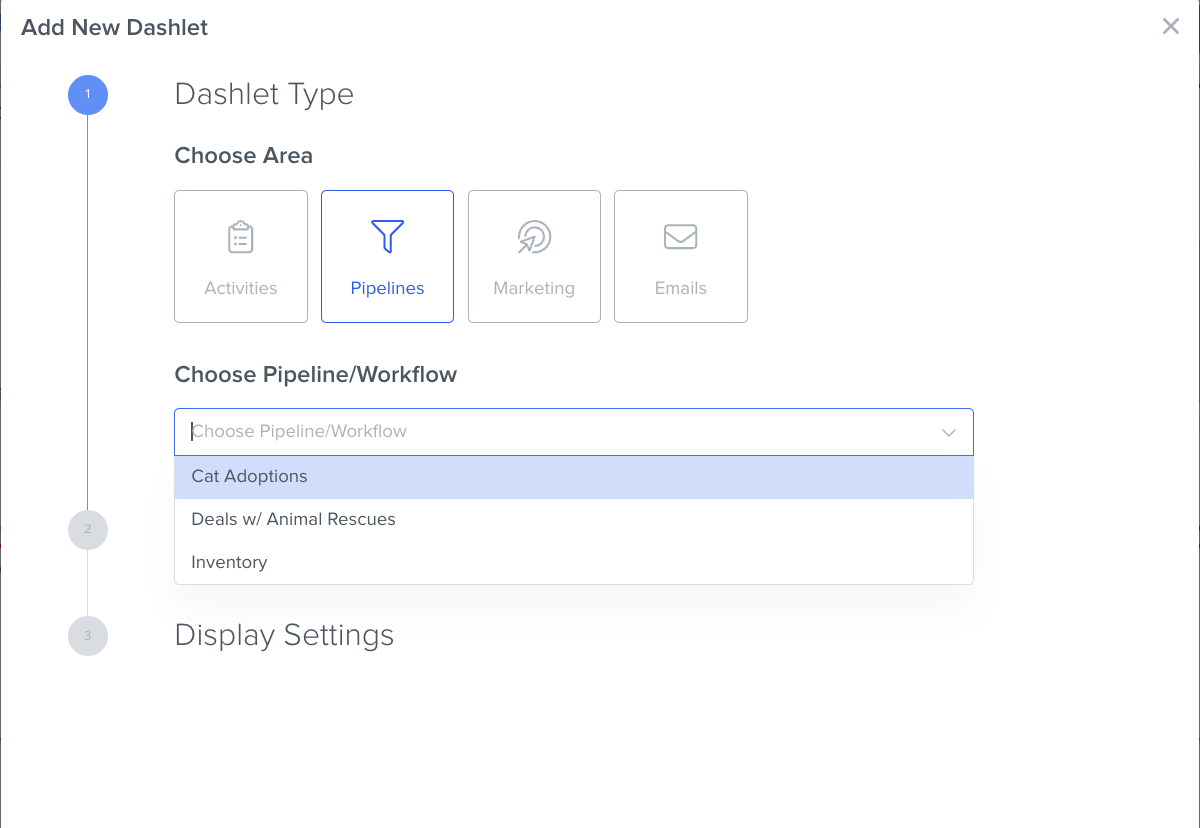
- Choose the Custom Object you want to see the Pipeline/Workflow. (You will only see Custom Objects that have the Pipeline setting enabled.)
- Choose the Report Type you want to see the Pipeline for.
- [Object Name] Records Added: The total number of opportunities entered into the pipeline, representing all potential sales regardless of whether they ultimately close.
- [Object Name] Records Lost: Opportunities that have been moved to a pipeline stage designated as "Lost," indicating they will not result in a sale.
- [Object Name] Records Won: Opportunities that have successfully progressed through all pipeline stages and closed as won deals.
- Opportunity Conversion: Tracks how deals flow through your pipeline stages, displaying both the number of opportunities and their total dollar value as they move from stage to stage.
- Pipeline Value Over Time: Shows the trend of your pipeline by tracking the number of deals (open, won, or both) or their dollar value as a percentage change over a selected time period.
- Sales Leaderboard with Projections: Compares team member performance by showing historically closed deals plus future opportunities with estimated close dates, weighted by their likelihood to close. Performance is measured against individual Team Member Goals.
- Stages Over Time: Provides a snapshot or breakdown of where deals currently sit in your pipeline, showing either the count of opportunities or their total dollar value in each stage.
- [Object Name] Records Added: The total number of opportunities entered into the pipeline, representing all potential sales regardless of whether they ultimately close.
- Choose the Metric of Interest: either the count of records matching your criteria or the total dollar value associated with those records.
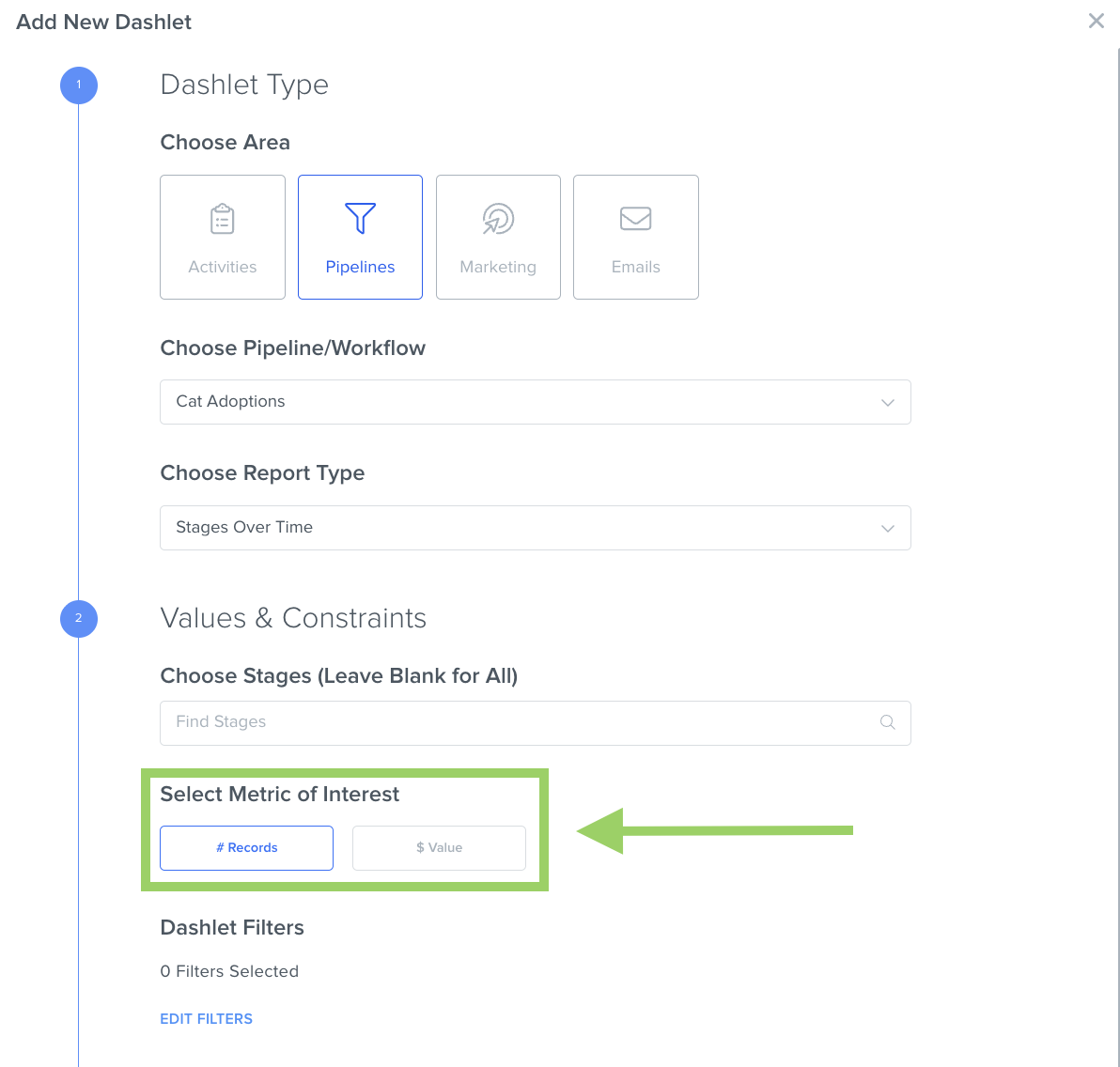
- (Optional) Click "Edit Filters" under "Dashlet Filters" to add additional filters to your Dashlet. This lets you narrow your view—for instance, showing metrics for only a specific filtered group in your Custom Object.
- Give your Dashlet a unique, easy-to-understand name that makes its purpose clear, as well as a description.
- (Optional) Toggle "Customize Style" on to personalize the display colors and font of the Dashboard.
- Click the green "Add" button at the bottom right corner.
Related Articles
- How to Manage Your Activity Dashboard
- Integrated Inbox Overview: Connect Your Email Account to Send and Track Emails
- How to Create a Custom Email in Kizen
Still Need Help?
If you encounter any issues, contact support@kizen.com.
Was this article helpful?
That’s Great!
Thank you for your feedback
Sorry! We couldn't be helpful
Thank you for your feedback
Feedback sent
We appreciate your effort and will try to fix the article