Purpose: Learn how to filter your entire Dashboard and how to filter a Dashlet (an individual component within a Dashboard) for insightful, granular reports.
TABLE OF CONTENTS
Prerequisites
Before diving into filtering your Dashboard, we recommend first learning the basics of Dashboards and filtering:
✅ Getting Started with Dashboards
✅ How to Manage Your Activity Dashboard
✅ How to Filter Your Contacts & Custom Object Records
How to Filter Your Dashboard
How to Filter Your Entire Dashboard
The simplest way to filter your Dashboard is to apply a universal filter to all of the Dashlets on your Dashboard. There are three types of Dashboard-level filters which you can find in the top left next to the name of your Dashboard:
Calendar : This date filter lets you view Dashboard data within a specific timeframe: today, the last week, all time, etc. To select a custom range, click on the start and end dates in the calendar.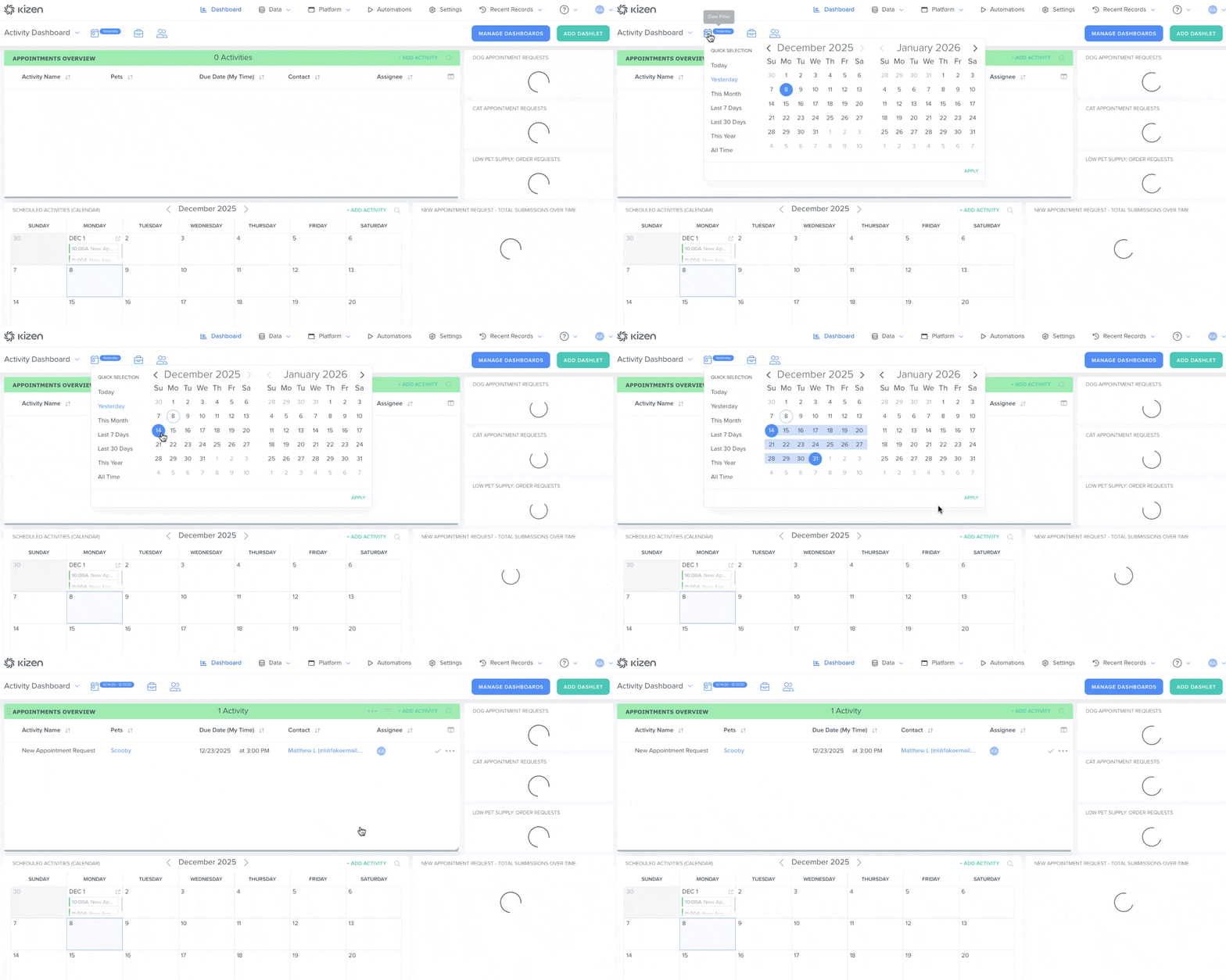
 Role: The role filter allows you to filter by a specific user role. Some examples include Marketing, Sales, Admin, etc.
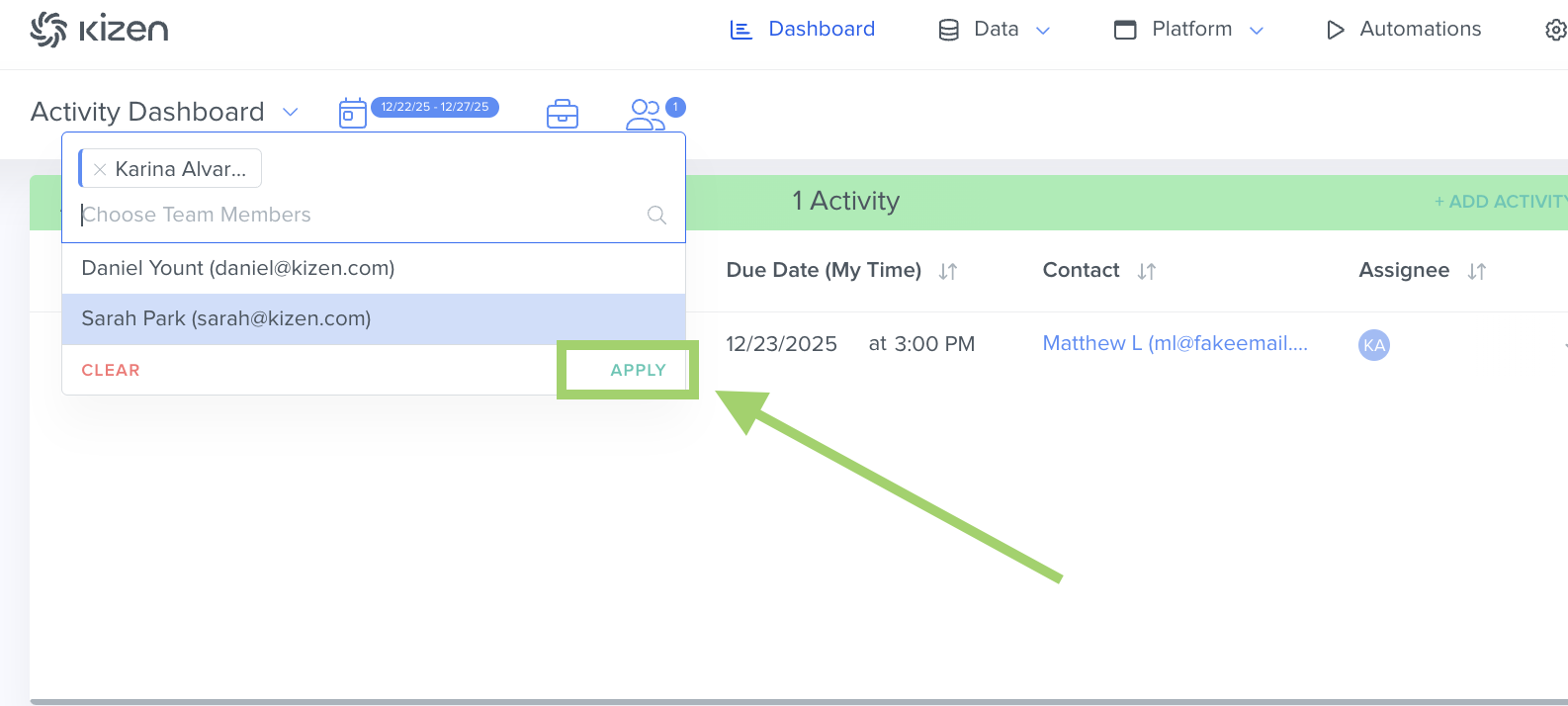
 Team: The team filter allows you to filter by individual team members in your account. For example, you can use it to quantify the number of activities assigned to one individual.
To apply these filters:
- Click on "Dashboard" in the top menu bar.
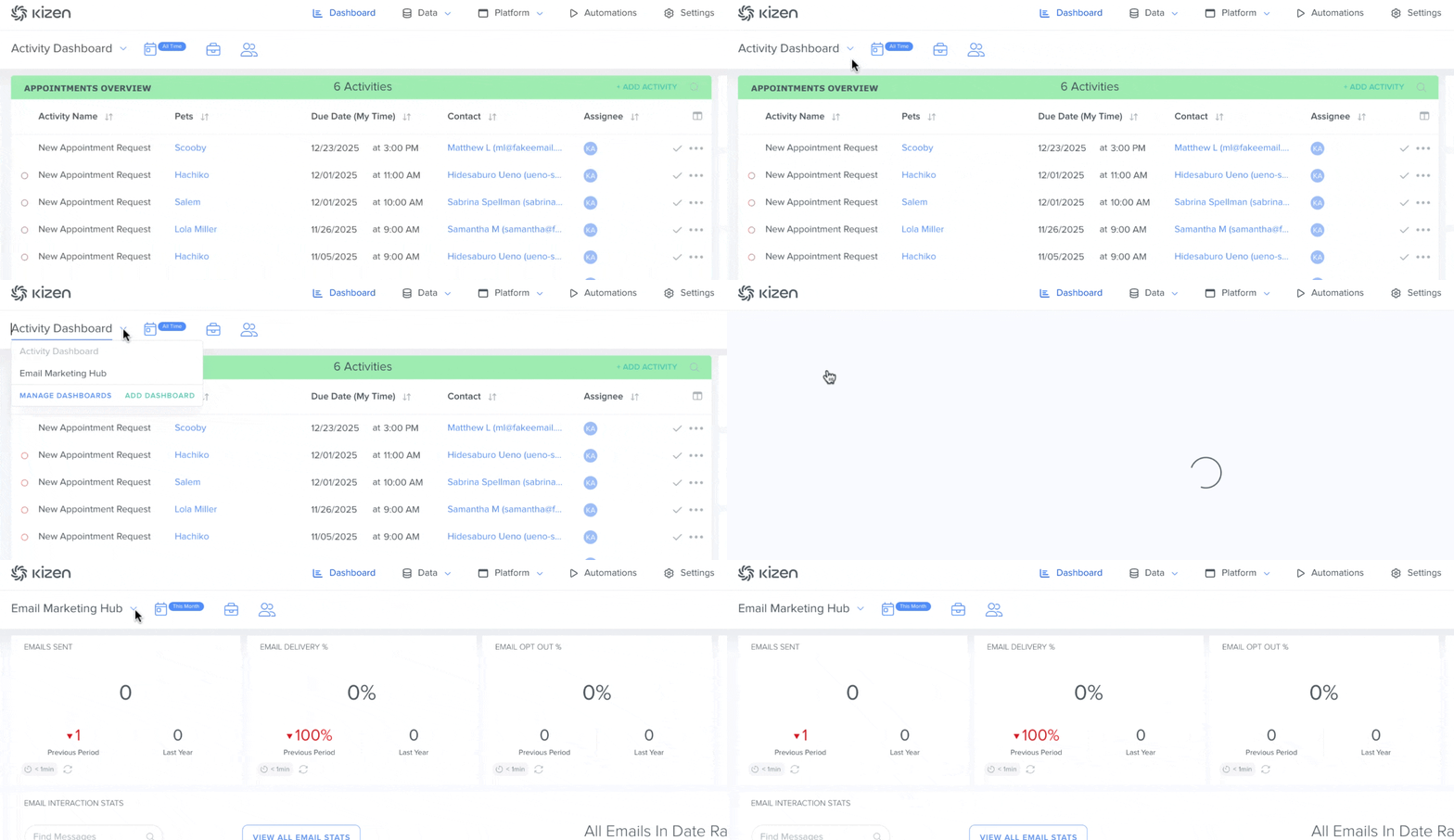
- If you have created multiple Dashboards, click on the caret down symbol next to the Dashboard name > Click on the Dashboard you want to filter.
- Select your universal filter: Calendar, Role, or Team Member.
- Click the green "Apply" button to set the filter.
⚠️ Note: If you don't see data that you're expecting to see in your Dashboard, you may have a filter applied and need to clear the filter settings.How to Filter an Individual Dashlet
You can also narrow down the data you want to see in the individual dashlet on your Dashboard. For example, if you run a pet spa and want to compare upcoming cat and dog appointments, you can filter a Dashlet to display each group separately on your Dashboard in a concise and readable way.
- Go to the Dashlet you want to filter and hover over it.
- Click on the filter icon
 that appears on the top-right side of the Dashlet.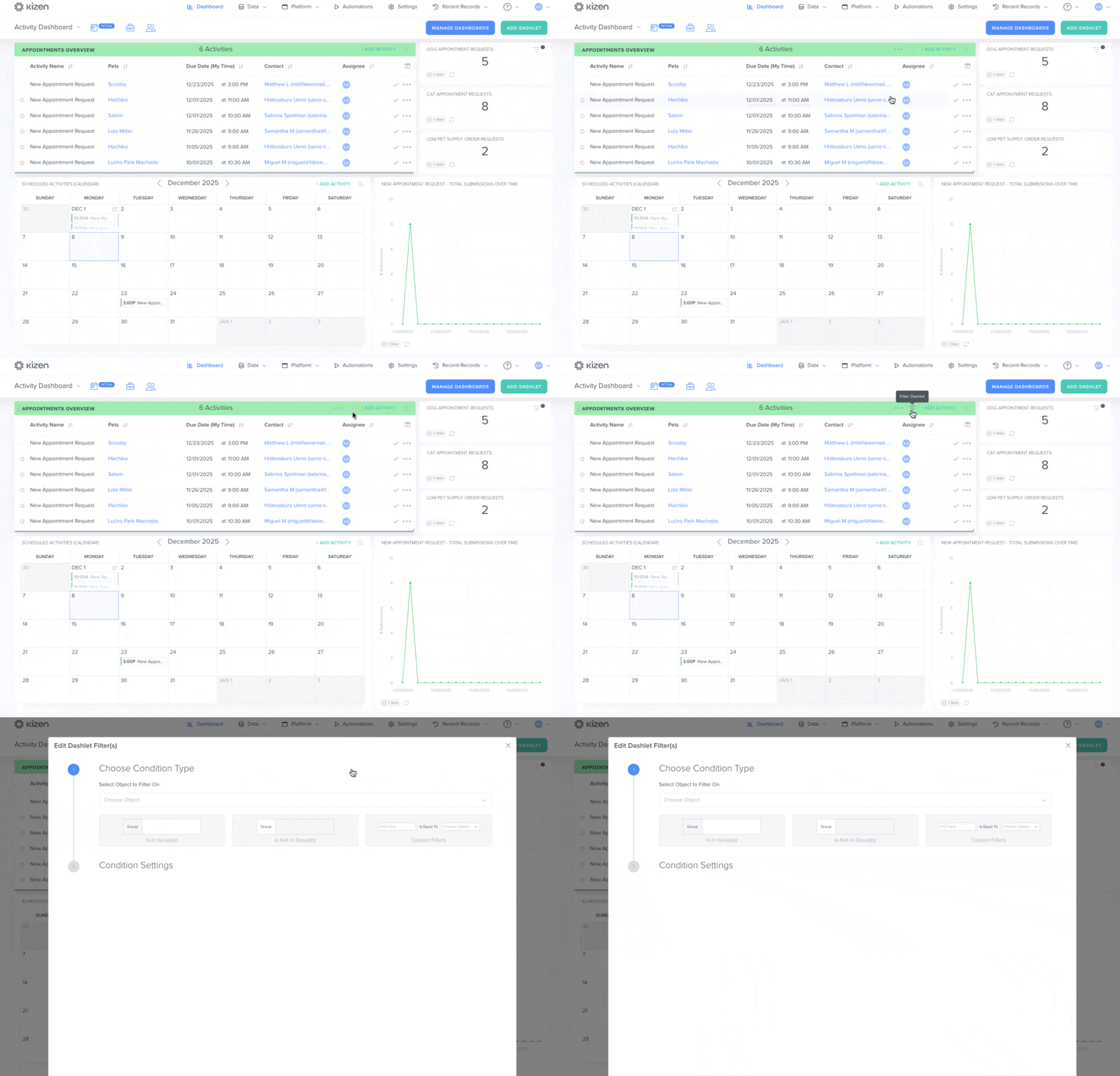
- In the pop-up window, choose the Object you want to filter on.
- Select a filter type. (Learn more about filter types here.)
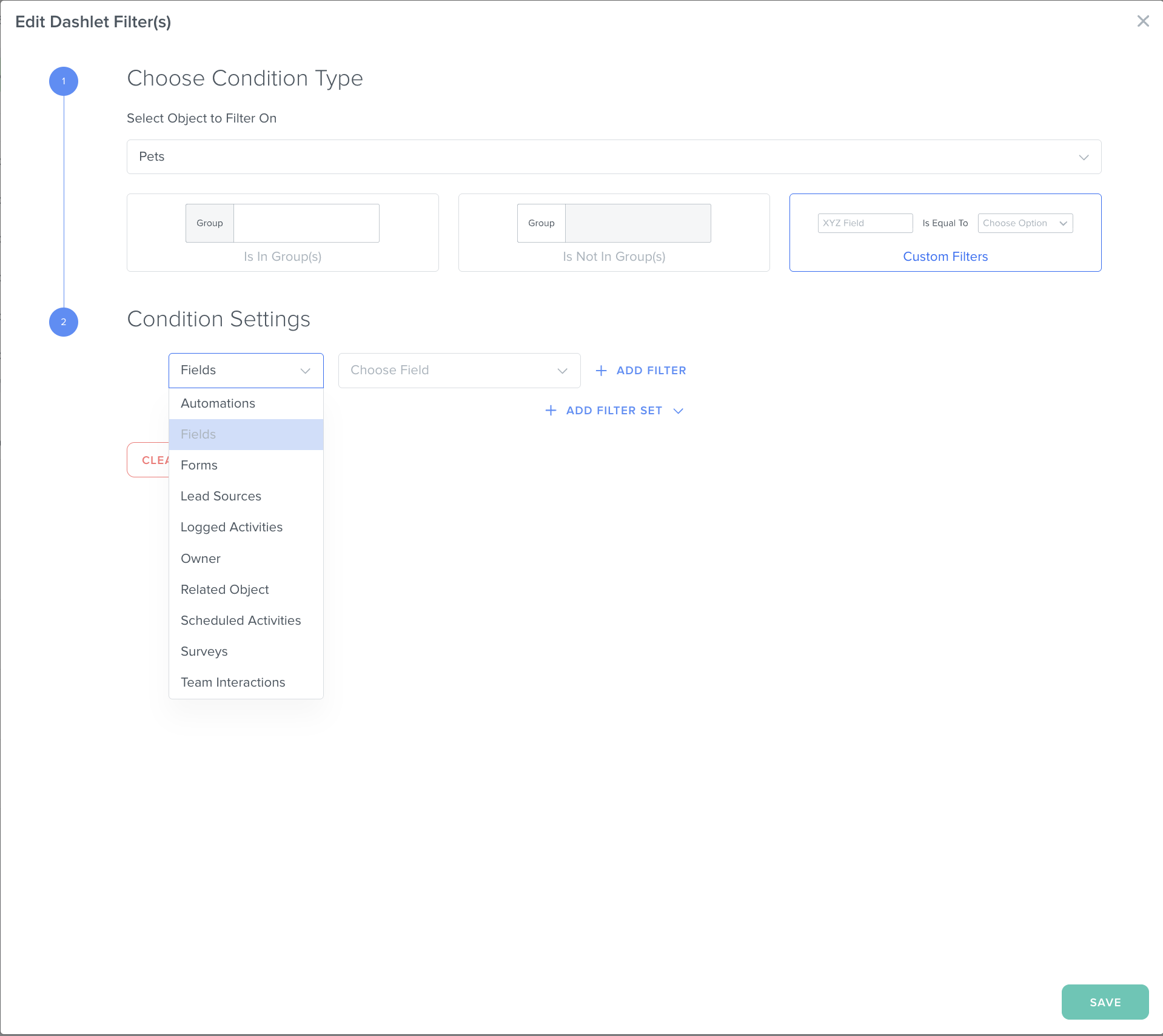
- You can choose between filtering by a specific Group OR
- You can filter by a specific field value.
- Fill out any required fields > Click the green "Save Button."
✅ Tip: You can add more filters before hitting "Save" by clicking on the "+ Add Filter" text in blue and choose either the "Any" or "All" setting:

Any: The object record must meet the requirements of least one of the filters to be included.

All: The object record must meet all of the filter requirements to be included.
Related Articles
- How to Filter Your Contacts & Custom Object Records
- How to Filter by Scheduled Or Completed Activities
- How to Manage Your Activity Dashboard
Still Need Help?
- If you encounter any issues, contact support@kizen.com
Was this article helpful?
That’s Great!
Thank you for your feedback
Sorry! We couldn't be helpful
Thank you for your feedback
Feedback sent
We appreciate your effort and will try to fix the article