Purpose: Learn how to add your own Business Logo to personalize your company's branding in your Kizen account.
TABLE OF CONTENTS
Overview
The Business Logo feature allows you to reinforce your brand identity by adding a custom logo to your Kizen account. This automatically adds your logo to the top of your custom emails, forms, and surveys that you send to your team and clients!
⚠️ Note: Make sure you have filled out your Business Information (including address and phone number fields) before adding your Business Logo. You will not be able to save changes to the business information section otherwise.How to Upload Your Business Logo
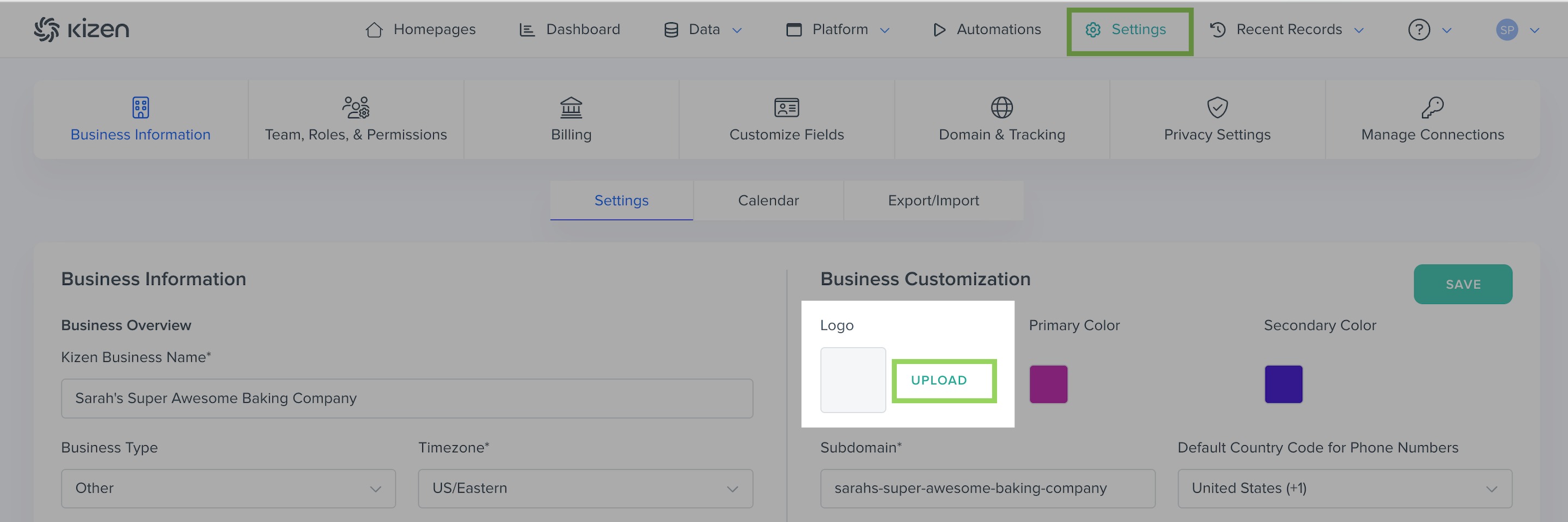
- Click on "Settings" in the toolbar menu at the top of your screen > "Business Information" > "Settings."
- In the Business Customization section, click on "UPLOAD" next to the blank "Logo" box:
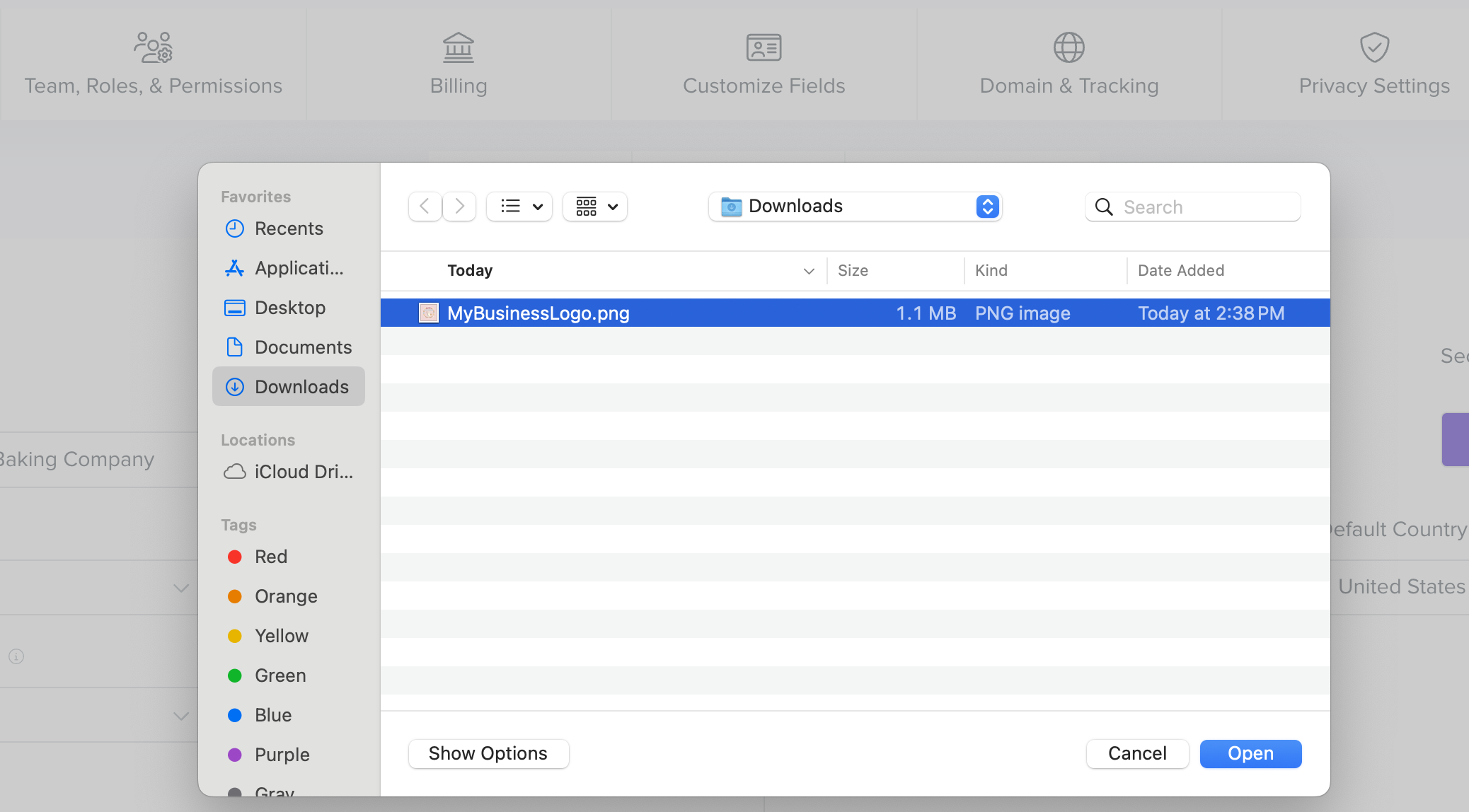
- Select the image file on your device (.png, .jpg, ) and click on the "Open" button.
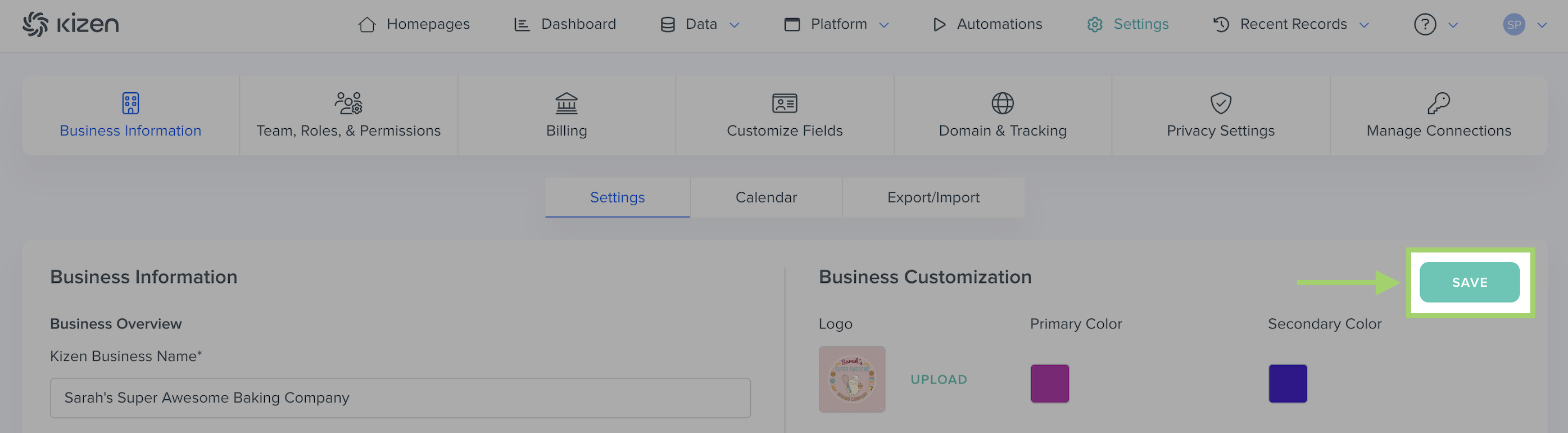
- Click on the "Save" button.
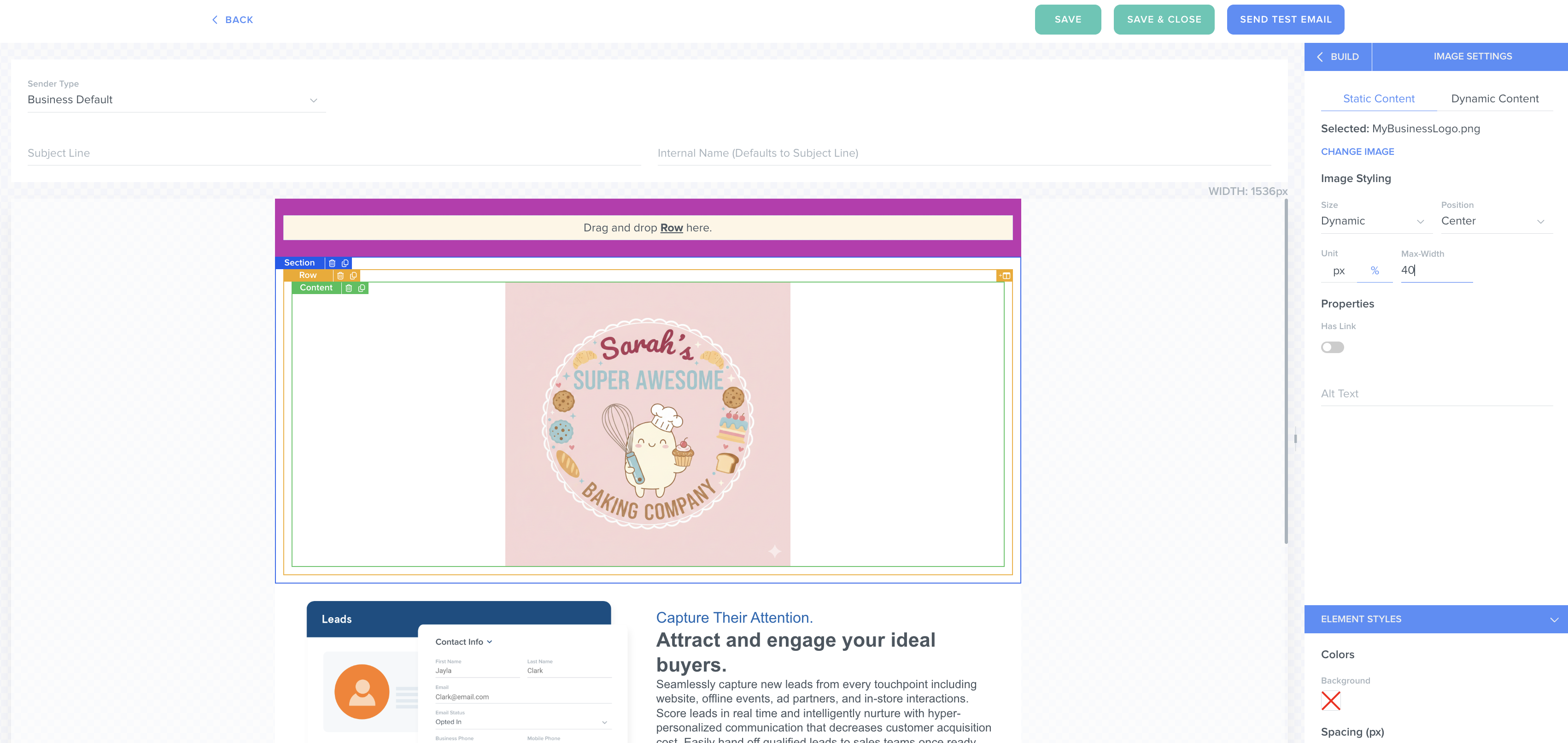
✅ Success Indicator: To confirm your business logo was added correctly, go to add a new custom email. Your logo should be added automatically to the top of your email body in the email builder.
Related Articles
- Getting Started with Kizen (Set-Up Checklist)
- How to Customize Your Kizen Business Information
- How to Create a Custom Email in Kizen
Still Need Help?
If you encounter any issues, contact support@kizen.com.
Was this article helpful?
That’s Great!
Thank you for your feedback
Sorry! We couldn't be helpful
Thank you for your feedback
Feedback sent
We appreciate your effort and will try to fix the article