Purpose: Follow this step-by-step guide to set up your new Kizen account.
TABLE OF CONTENTS
Kizen Set-up Checklist
Step 1: Set Up Your Business Account Settings
When you log into your Kizen account for the first time, it's important to fill out your business information. This is where you can customize your business branding, add your contact information, and fill out necessary fields for your email integration.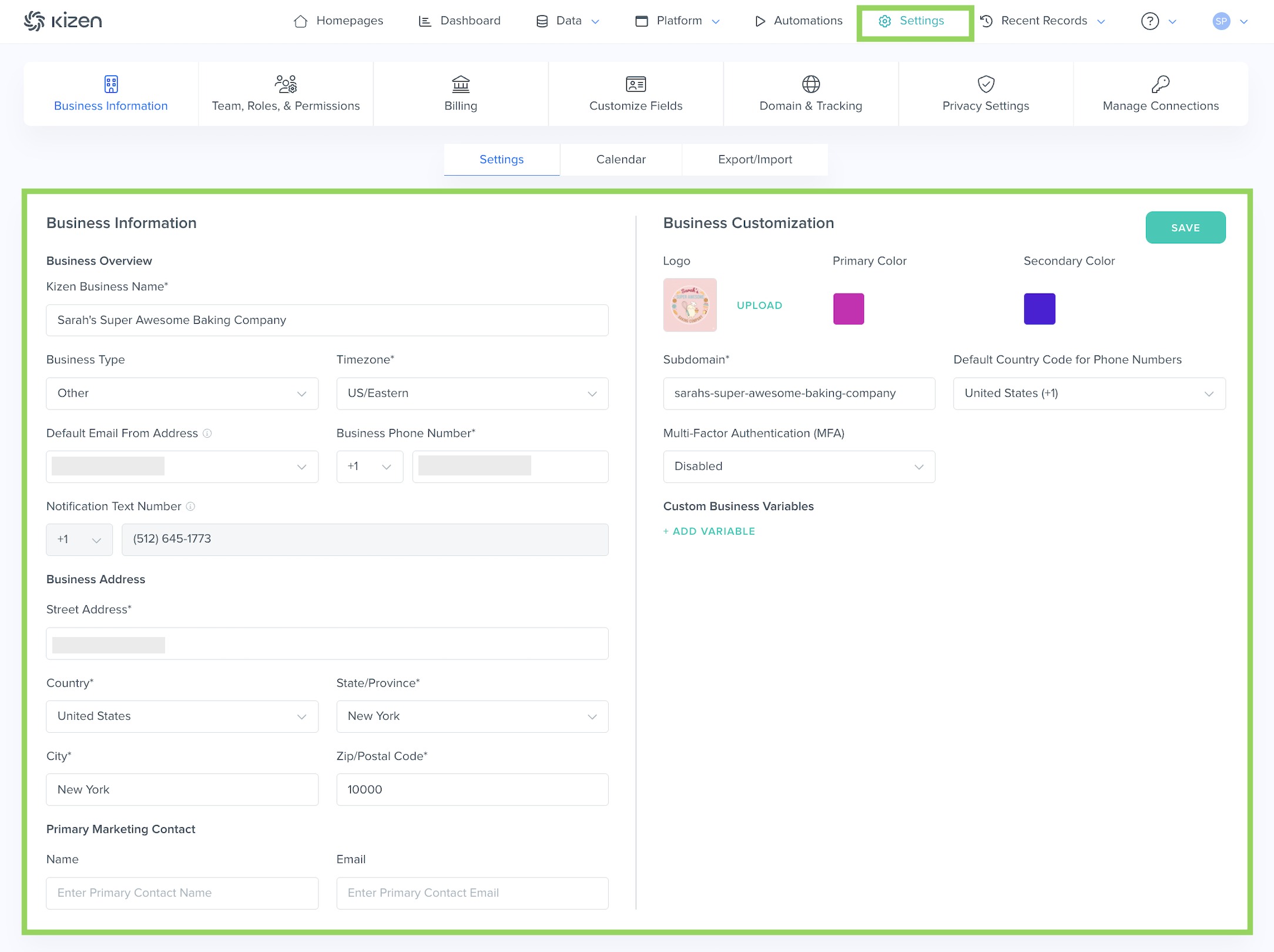
- Add your business information.
⚠️ Attention: Federal law requires a valid physical postal address to be included on all commercial emails. Emails sent from Kizen will automatically include the "Business Address" listed in your settings, as well as the option to opt out of future marketing emails, at the bottom of your emails. Learn more about CAN-SPAM Act requirements here. - Add your business logo.
- Set your business calendar.
- Add your payment method.
Step 2: Connect Your Email Inbox to Kizen
Once you integrate your Gmail or Outlook inbox to your Kizen account, you can send outgoing emails to (and receive incoming emails from) your clients, keep a log of all your client interactions, and schedule email outreach, all from one place.
- Connect your email inbox to Kizen.
- Add your custom email signature — this is the signature that will appear at the bottom of emails that you send directly from a Contact record.
Step 3: Upload and Manage Your Data
Now that you've set up your account, it's time to set up and import your data! Make sure to review the existing Contacts object and its pre-existing fields, and add new Custom Objects and new fields for any additional data you wish to track.
- Click on "Data" > "Contacts" or "Data" > "Custom Objects" in the top toolbar menu.
- Add new Custom Objects for any data you plan on tracking in your Kizen account.
- Click on the Settings icon in the upper right.

- Click on "Customize Fields."
- Review the different Custom Field types and add Custom Fields for any additional data you want to track.
- Upload your data to your Contacts and Custom Objects.
⚠️ Note: In Kizen, each Contact must have their own email address; no two Contacts can share the same email address. This is the only way to prevent duplicate Contacts in your CRM and to prevent multiple Contacts with the same email address from overwriting each other when uploading from a CSV file.

We recommend first creating dummy emails for Contacts who are missing email addresses before uploading your csv file.
- Create filtered Groups to easily categorize and perform bulk actions on your object records.
Step 4: Invite Your Team Members to Your Account
Now that you've set up your account, you can invite your team members to your account to begin collaborating and creating together.
Step 5: Build Your Email Templates, Forms, and Surveys
Now that your account is set up, you can start sending emails, forms, and surveys out to your Contacts! You can click on "Platform" in the top menu and find Broadcasts (for email blasts), Forms, Surveys, etc. and you can click on "Platform" > "Library" to find existing and create new email templates.
- Create your own custom Email Templates.
- Create and schedule mass email blasts from the Broadcast Calendar.
- Create your own custom Form.
- Create your own custom Survey.
Step 6: Streamline Your Workflow With Agentic Workflows and Activities
Kizen's Agentic Workflows and Activities that can help your clients stay top of mind through automated marketing, reminders, and updates, as well as centralized tracking of client interactions and scheduled tasks.
- Learn about the basics of Kizen's Agentic Workflows and what they can do for your business.
- Create your own Agentic Workflows.
- Learn about the basics of Kizen's Activities and what they can do for your business.
- Create your own Activities.
Verify Your Setup
To confirm everything is working correctly:
- Add yourself as a "test" Contact, ideally using a different email address from your Integrated Inbox email account. NOTE: You can use "plus addressing" to use your same email address.
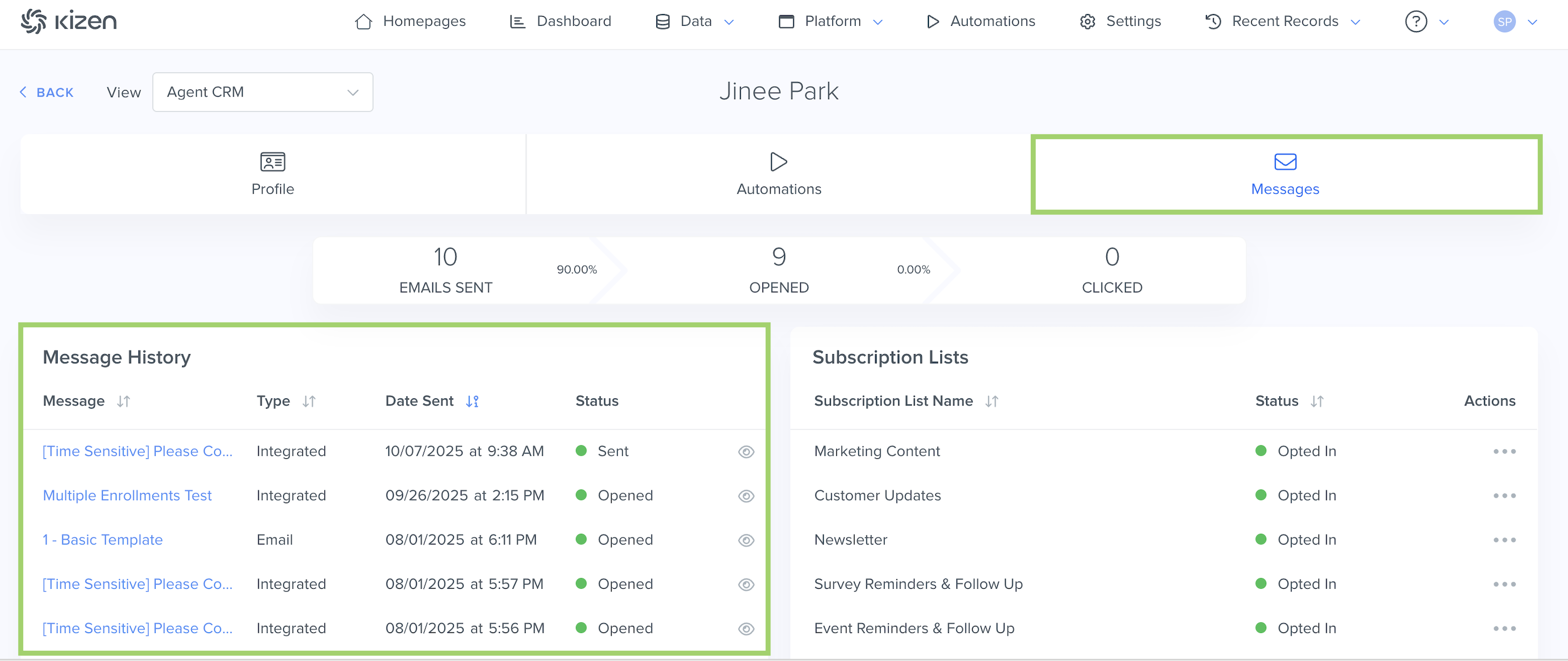
- Trigger the Agentic WorkflowS to send yourself the pre-built emails and/or your custom emails. The emails should appear in your Contact's Timeline as well as your Contact's "Messages" tab.
What's Next?
Now that you've completed the basic Kizen account set-up, you can delve into our more advanced features:
- Getting Started with Dashboards & Dashlets
- How to Add, Edit, and Delete Dashboards
- Related Workflows/Pipelines
Need Help?
If you encounter any issues, contact us at support@kizen.com.
Was this article helpful?
That’s Great!
Thank you for your feedback
Sorry! We couldn't be helpful
Thank you for your feedback
Feedback sent
We appreciate your effort and will try to fix the article