Purpose: Follow this step-by-step guide to learn how to upload your data from a CSV (Comma-Separated Value) file to Kizen's Contacts or Custom Objects.
TABLE OF CONTENTS
- Prerequisites
- How to Upload Your Data to Kizen
- How to Troubleshoot Common Uploading Errors
- Related Articles
- Still Need Help?
Prerequisites
Importing all of your data into Kizen is easy when you set up your Contacts object and Custom Objects, and their respective Custom Fields, beforehand. Make sure to follow these steps before uploading your CSV file:
✅ Review your Contacts object or add a new Custom Object in Kizen for each type of data you want to import.
✅ Make sure you have added all relevant Custom Fields and field values to your Contacts or Custom Object in Kizen for each column in your CSV file. You can choose from 20 different field types.
✅ Make sure each line item in your CSV file has a unique record name and identifier.
⚠️ Note: In Kizen, each Contact must have their own email address; no two Contacts can share the same email address. This is the only way to prevent duplicate Contacts in your CRM and to prevent multiple Contacts with the same email address from overwriting each other when uploading from a CSV file.

We recommend creating dummy emails for Contacts who are missing email addresses in your CSV file.
How to Upload Your Data to Kizen
- Click on Data > Contacts or Data > Custom Objects in your toolbar menu at the top of your Kizen window.

- Click on the down caret in the green "New Contact" or "New [Custom Object Name]" button > "Upload Records."

- [Optional] In the pop-up window, click on the "Download Template" button. This will download a CSV file with all of the names of the Object Fields currently configured in your Contacts or Custom Object settings. It will also display sample field values so that you can see how your data should be formatted.
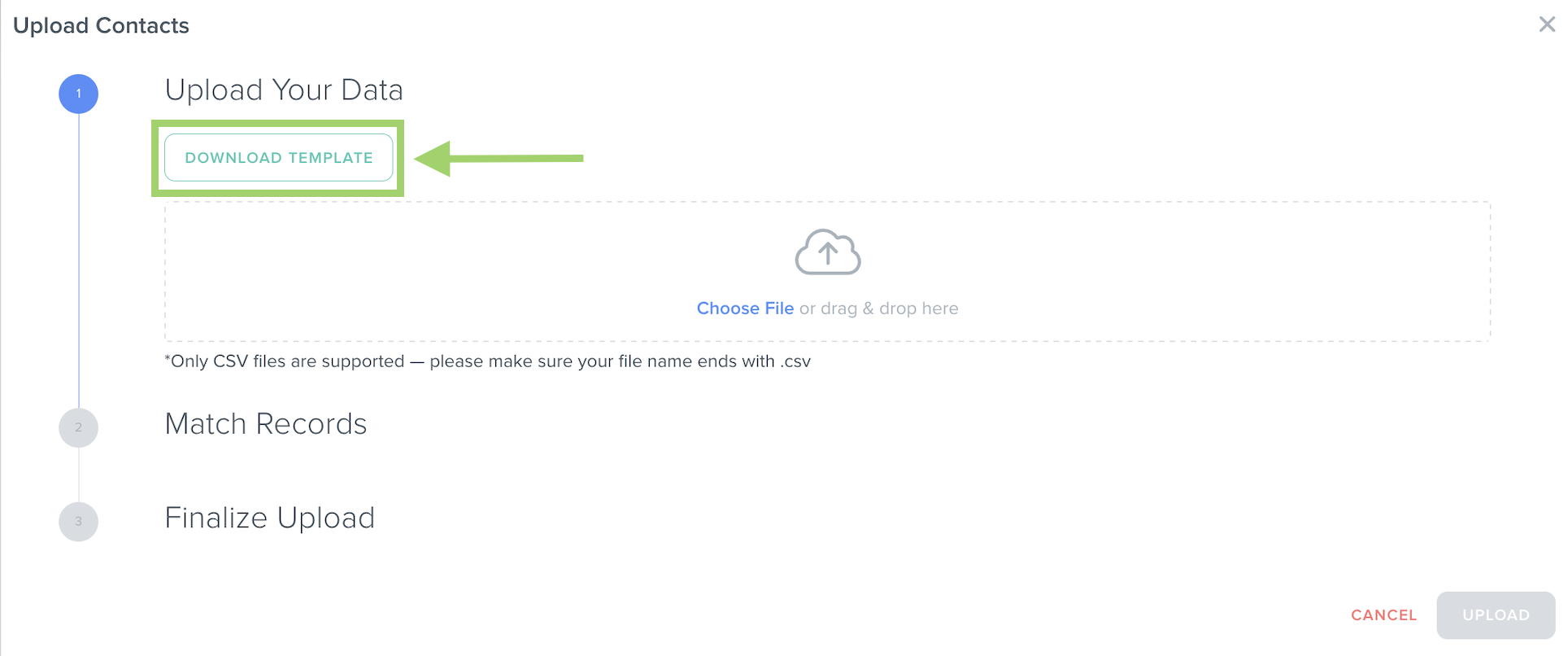
You can either copy your data directly into this template CSV file and upload it, OR use this template as a reference point and copy and paste the names of each Custom Field to your existing spreadsheet.Tip: If the names of each column in your CSV file are identical to the corresponding Custom Field names in Kizen, the system can automatically match your data during the upload process, saving you time and reducing the possibility of errors. - Save your spreadsheet that you want to upload as a CSV file. Your file must end with ".csv" in order to upload successfully.
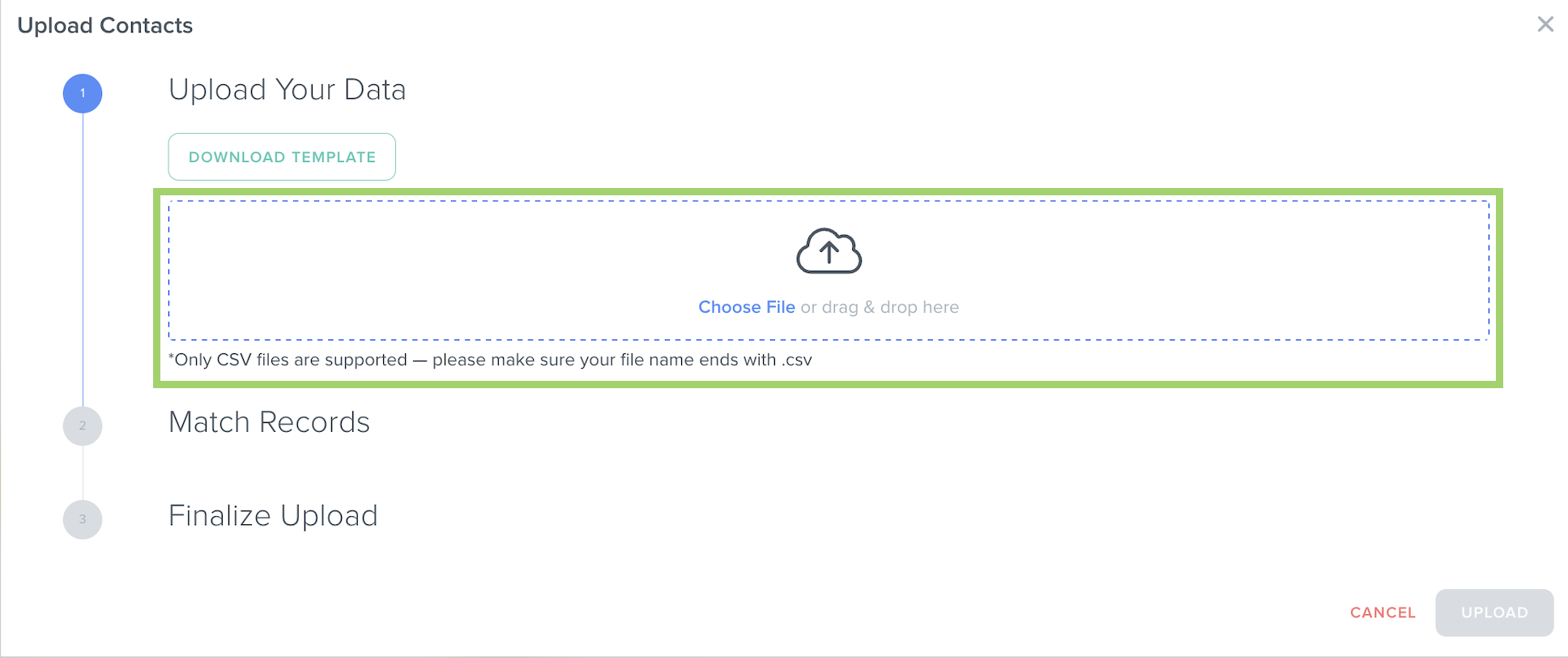
- Next, click on "Choose File" and select your CSV file that you want to upload, or drag and drop your CSV file to the box.
- If you skipped step 3, manually match each Kizen Field (on the left) to each CSV Field (on the right) in the Match Records section. If the field names do not match exactly, the dropdown setting is "Don't Upload" and the column values in your CSV file will not upload successfully.
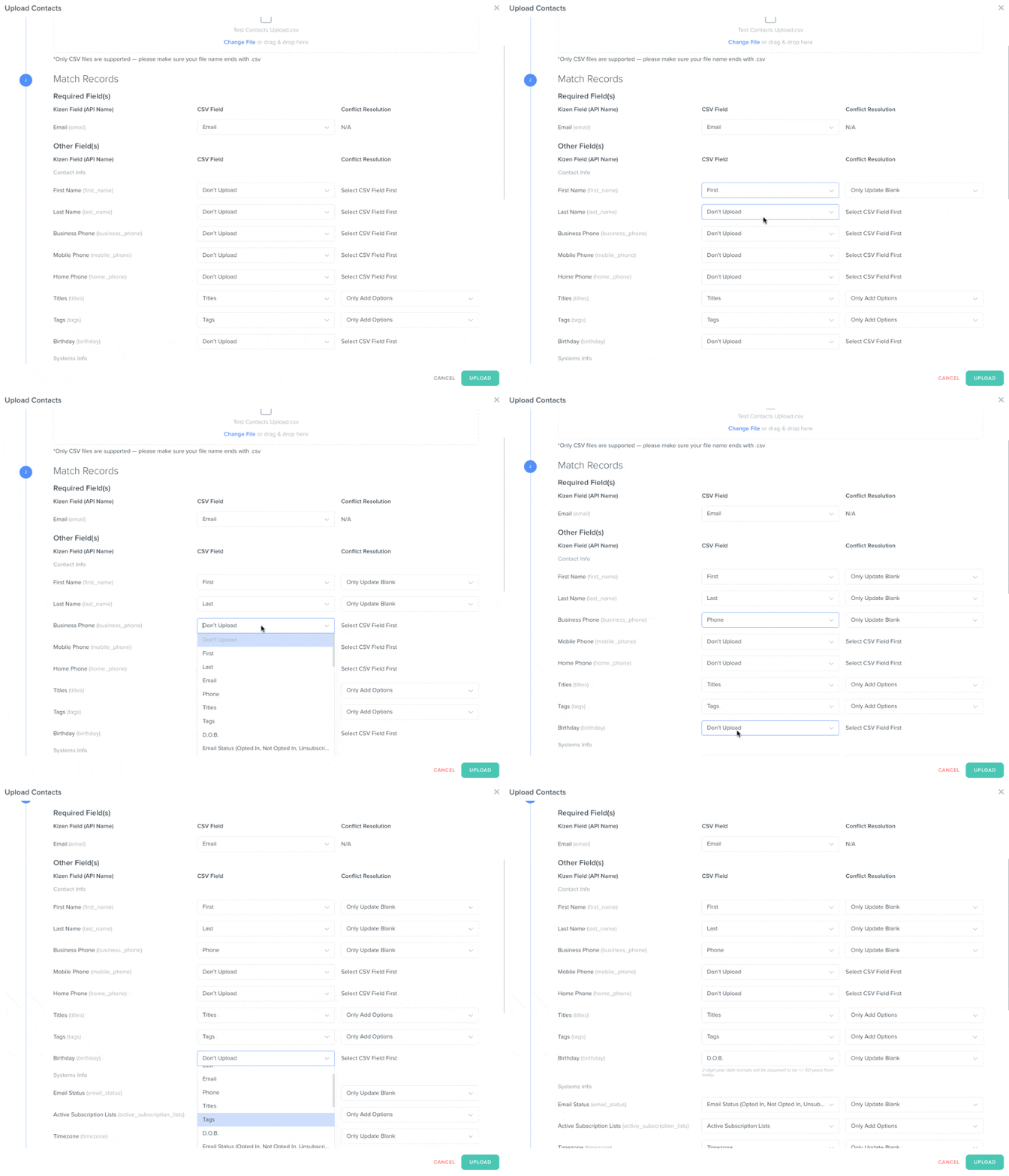
- Next, select the Conflict Resolution settings for each field. This is useful to configure if you are uploading data that may already exist in your Kizen account, meaning there is a matching record with the same email address existing in your Contacts object or the same name existing in your Custom Object.
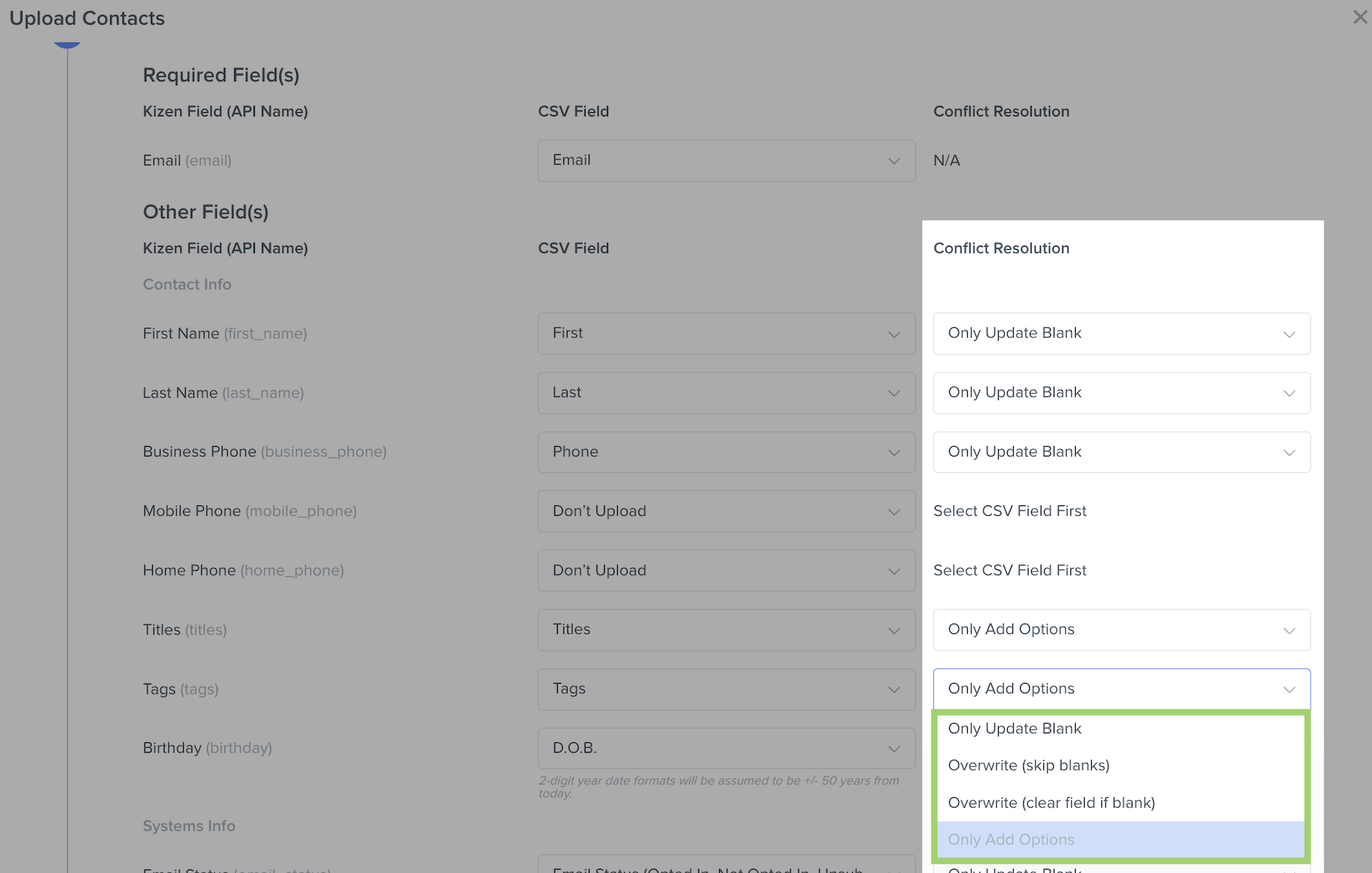
- Only Update Blank: The CSV field will only fill the Kizen field if the Kizen field is currently blank. It will not change the existing field values in Kizen. (This will be the default setting, which you can keep if you are uploading data that does not already exist in your Kizen account.)
- Overwrite (skip blanks): The CSV field will change the Kizen field if the CSV field is not blank. If the CSV field is blank, it will not clear the Kizen field; it will leave the existing Kizen field value as is.
- Overwrite (clear field if blank): The CSV field will always change the Kizen field. If the CSV field is blank, it will clear the existing Kizen field value.
- Only Add Options: The CSV field will add the field value to the existing Kizen field value. This is only available for multi-select field types: the Checkboxes field, Dynamic Tags field, and Relationship field (depending on the relationship type).
- Only Update Blank: The CSV field will only fill the Kizen field if the Kizen field is currently blank. It will not change the existing field values in Kizen. (This will be the default setting, which you can keep if you are uploading data that does not already exist in your Kizen account.)
- Scroll to the right through the "Finalize Upload" section to preview the first 5 rows of your data and ensure your fields are correctly matched.
- Click on the "Upload" button.
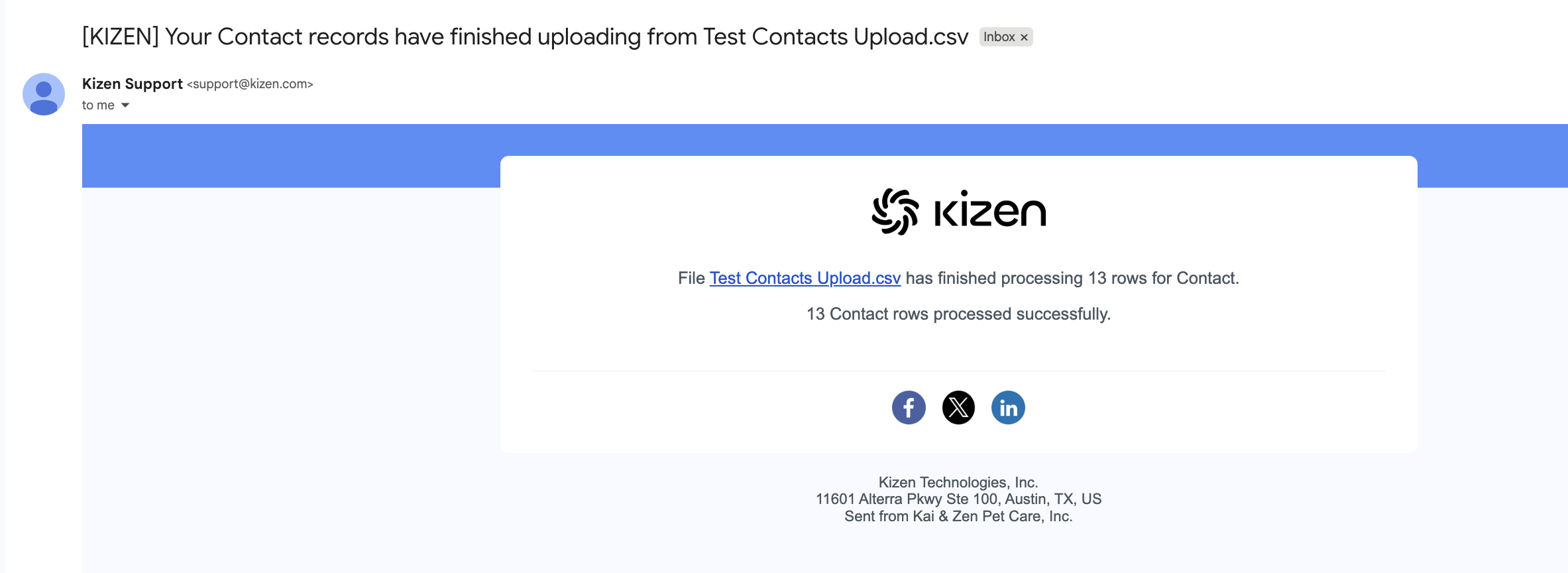
- You should see a green banner stating "Your upload has been successfully started. You will be emailed once the upload is complete."

✅ Success Indicator: Check your user email inbox for the upload report to ensure that all rows in your CSV file were processed successfully. If the system was unable to process any data, you will see a failure report linked in the same email with detailed errors.
How to Troubleshoot Common Uploading Errors
If the upload report email states that rows in your CSV file either failed to process completely or partially failed to process, you can click on the "Download Failed Records and Warnings Report" link in the body of the email. This will download the failure report to your device.
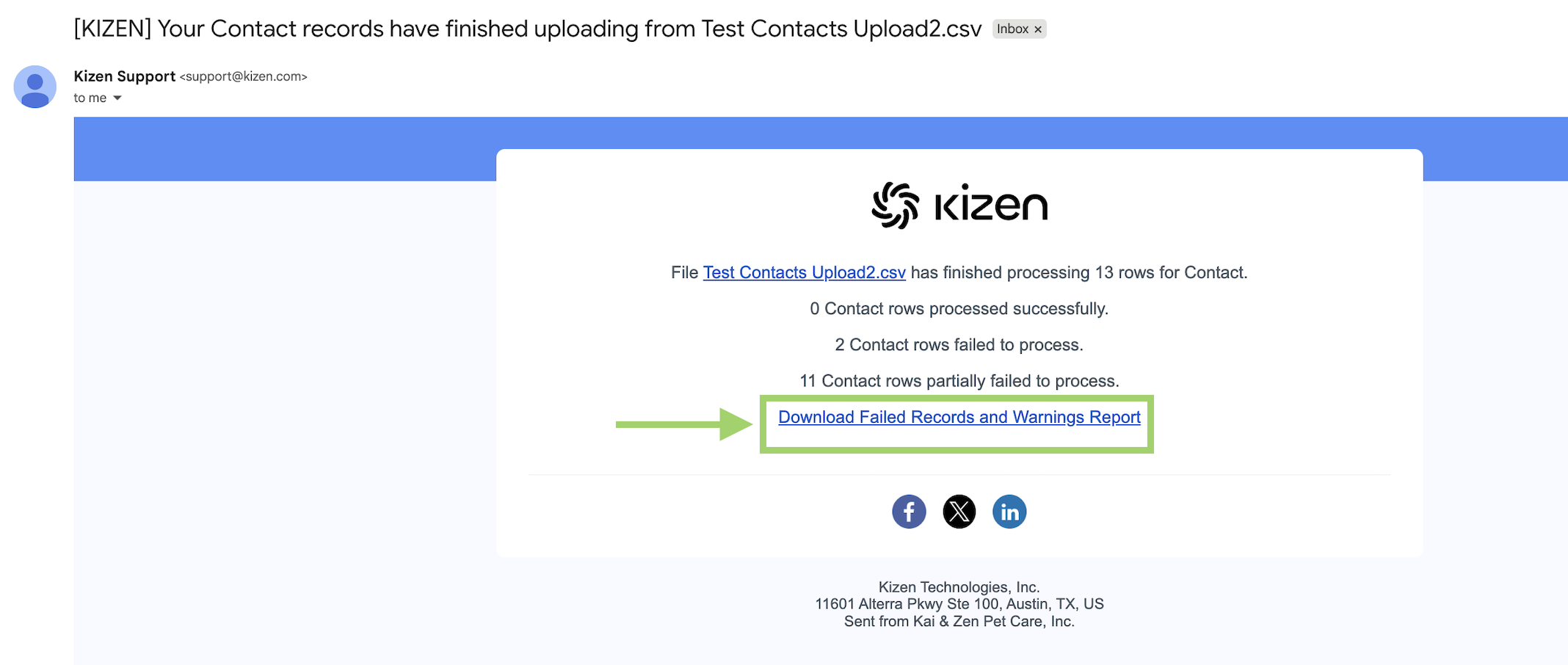
⚠️ Note: For security reasons, you must be logged into your Kizen account in the same browser to download this failure report.In the "Error Messages" column, you will see the specific failure reasons for each row that failed to process.
"[CSV field value] isn't a valid option value for field [Kizen field name]"
This error means you are attempting to map a Field option that does not exist in that specific field. You cannot add new field values via CSV file to single-select fields such as Checkbox fields, Dropdown fields, or Status fields. You must add these field value options to the field settings before uploading your CSV file.
"Provided email is not a valid email address"
This error means you are attempting to add an email address in an invalid format (such as "david@gmail" or "davidgmail.com") to the Email Address field. The email address, even if it's a fake email address, must be formatted like username@domain.tld.
"[CSV field value] isn't valid value for field [Phone Number]"
This error means you are attempting to add a phone number in an invalid format. The Phone Number field value must have a valid area code.
There are missing records in Kizen that were in your CSV file.
If you notice the number of records that were uploaded to Kizen do not align with the number of rows in your CSV file, it is most likely because there are records with the same unique identifier, such as contacts with the same email address. As noted above, each object record must have a completely unique identifier. If there are rows with the same unique identifier in your CSV file, the upload will merge them and overwrite the same object record in Kizen. To prevent this from happening, make sure each Contact has their own unique email address and each Custom Object record has a unique name.
Related Articles
- How to Add a Custom Object in Kizen
- How to Add a New Custom Field to Your Object
- How to Edit, Delete, or Hide a Custom Field
- Custom Fields Overview: Field Types & Purpose
- How to Manage Contacts without Emails
Still Need Help?
If you encounter any issues, contact support@kizen.com.
Was this article helpful?
That’s Great!
Thank you for your feedback
Sorry! We couldn't be helpful
Thank you for your feedback
Feedback sent
We appreciate your effort and will try to fix the article