Purpose: Learn what Custom Fields are, and how the different Custom Field types can help you categorize and track your data.
TABLE OF CONTENTS
What is a Custom Field?
Custom Fields are fields that you can create to track all of your data for your Custom Objects. You can choose from 20 different Custom Field types, each with a different purpose and functionality, to create an easy-to-use data model specifically tailored for your business!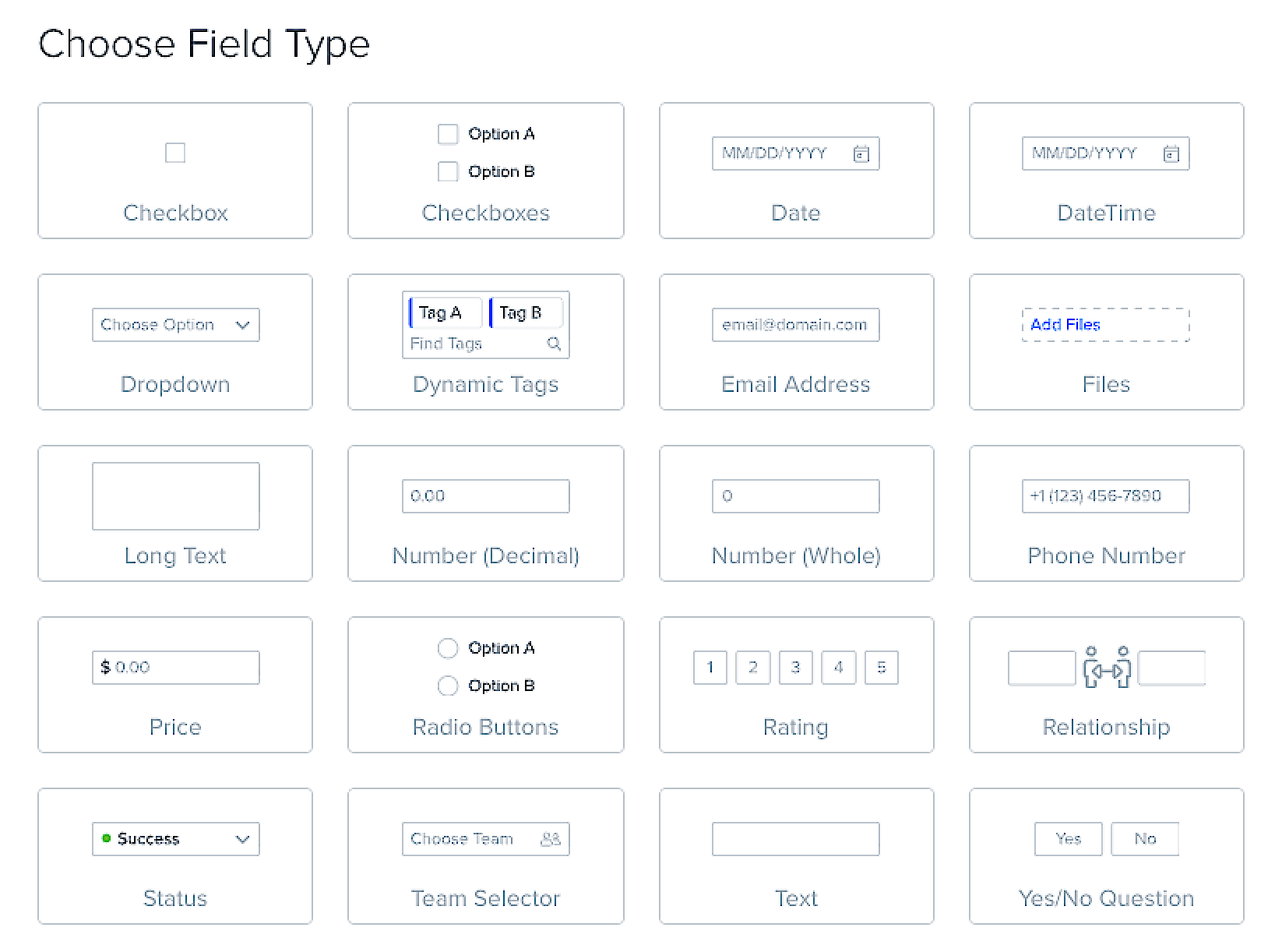
Custom Field Types
| Field Type | Field Description | Notes |
| Checkbox | The Checkbox field is a single checkbox that you can tick when making a binary decision. | When uploading a csv file of new object records, you can map the following field values into a Checkbox field:
|
| Checkboxes | The Checkboxes field is a multi-select field that allows you to tick multiple checkboxes. | |
| Date | The Date field displays a date in the format of [MM/DD/YYYY]. | |
| DateTime | The DateTime field displays a date in the format of [MM/DD/YYYY] and a time in the format of HH:MM AM/PM. | Make sure your timezone is accurate in your account's Business Settings. |
| Dropdown | The Dropdown field is a single-select field that allows you to choose a single value from a dropdown menu. | When uploading a csv file of new object records, the column values in your csv file must exactly match the dropdown values in the corresponding Custom Field. They will not upload successfully otherwise. Make sure to add the dropdown options to your Dropdown field before uploading your csv file. |
| Dynamic Tags | The Dynamic Tags field allows you to add multiple tags to an object record for easy searchability and categorization. | When uploading a csv file of new object records, you can select "Only Add Options" to add new tags to your Dynamic Tags fields. |
| Email Address | The Email Address field displays an email address. | Although you can add "dummy emails" for Contacts with missing email addresses, it's important to note that the email address must be a valid email format: text@text.com. You will get an error otherwise. |
| Files | The Files field allows you to upload and attach files to your object record. | At this time, you can upload the following file types: pdf, csv, tsv, xlsx, xls, ods, ppt, pptx, odp, png, jpeg, jpg, tiff, svg, doc, docx, rtf, txt, odt, zip, gzip, mp3, wav, ogg, css. The file size cannot exceed 50MB. |
| Long Text | The Long Text field is a free form text field that can store more characters than a usual Text field. | At this time, the Long Text field has a 50,000 character limit. |
| Number (Decimal) | The Number (Decimal) field displays a number with decimals, i.e. in the format of 0.00. | |
| Number (Whole) | The Number (Whole) field displays a whole number, i.e. in the format of 0. | |
| Phone Number | The Phone Number field allows you to add a phone number to the object record. | Phone number fields are formatted in the E.164 format, which ensures that phone numbers are stored and correctly routed to individual phones in different countries. Numbers in the E.164 format include [+] [country code] [subscriber number including area code] and can have a maximum of fifteen digits. For example, a number with a US country code would look like this: Ex: +1 123 456 7890. (The phone number must have a valid area code.) You can set the default country code in your account's Business Settings. |
| Price | The Price field allows you to add a monetary value to the object record. | The default currency will be $USD, but you can customize the currency setting. |
| Radio Buttons | The Radio Buttons field allows you to select a single option from multiple values. | Unlike the Dropdown field, which contains all options in a dropdown menu, the Radio Buttons can display a list of 4 options on the object record. If there are more than 4 options, the Radio Buttons options will also display in a dropdown menu. |
| Rating | The Rating field allows you to select a rating on either a scale of 1 to 5, or a scale of 1 to 10. You can also customize how the Minimum Label and Maximum Label are displayed, for example "Unsatisfied" and "Satisfied." | |
| Relationship | The Relationship field allows you to display a related object record to the object record, according to the relationship type: one-to-one, many-to-one, or many-to-many. This will also create an inverse Relationship field on the other related object record. | Relationship fields can be used to link object records within the same object (such as spouses in your Contacts object) or object records in completely different objects (such as multiple Deals or RSVPs to a single Contact). Learn more about relationships here. |
| Status | The Status field is a single-select field that allows you to choose the current state of the object record. You can manually add or import custom options and select specific colors to display next to each status. | |
| Team Selector | The Team Selector field is a single-select field that displays the name of the specific Kizen team member you want to associate with or assign to the object record. | The Team Selector field will only display existing, active users in your Kizen account. When uploading a csv file of new object records with assignees, make sure to put the existing user email addresses (and only the email addresses — no names) as the column values. The Team Selector field will not map successfully otherwise. |
| Text | The Text field is a free form text field that you can use to display names, addresses, short notes, and more. | At this time, the Text field has a 255 character limit. |
| Yes/No Question | The Yes/No Question field is a single-select field that allows you to choose "Yes" or "No." You can also choose to enable "Maybe" as a third option. |
⚠️ Note: Depending on your plan, there may be a limit of Custom Fields per Custom Object. We recommend keeping track of all of your Custom Fields to ensure they are relevant and necessary, and deleting any duplicate Custom Fields to prevent confusion. Reach out to our Support team if you have any questions--we'll be happy to help!What's Next?
Now that you've learned the different custom field types, you can:
Need Help?
If you encounter any issues, reach out to us at support@kizen.com.
Was this article helpful?
That’s Great!
Thank you for your feedback
Sorry! We couldn't be helpful
Thank you for your feedback
Feedback sent
We appreciate your effort and will try to fix the article