Purpose: Learn how to create a form in Kizen and other tips and tricks, such as embedding your form on your website, setting up notifications whenever you receive new form submissions, and creating a thank you page for your clients.
TABLE OF CONTENTS
- What are Kizen's Forms?
- Prerequisites
- How To Create A Form
- How To Customize Your Form Settings
- Related Articles
- Still Need Help?
What are Kizen's Forms?
Kizen’s forms make it easy to gather and store any information you need for your business operations. Whether you want to collect leads for your CRM, appointment requests, applications, or event RSVPs, you can create beautiful custom forms that you can then embed on your website or send out directly to your clients or internal team members. Best of all, these form submissions funnel directly into your Contacts and Custom Objects, either creating new records or updating existing records.
Once you've created your custom form, you have several options for what happens next. You can customize the post-submission page with a friendly thank you message or follow-up instructions, set up notifications to alert specific team members, and build Agentic Workflows to automatically kick off workflows based on the form submission data.
Prerequisites
Before building your form, make sure to set up your Contacts object or Custom Object where this form data will go. It’s crucial that you add all of the necessary fields to the object settings first in order for form submissions to create or update their respective records successfully.
✅ How to Add a Custom Object in Kizen
✅ How to Edit and Delete a Custom Object
✅ Custom Fields Overview: Field Types & Purpose
✅ How to Add a New Custom Field to Your Object
How To Create A Form
How to Add a Form
- Click on “Platform” in your toolbar menu at the top of your screen > “Forms”:

- Click on the green “New Form” button on the top right.

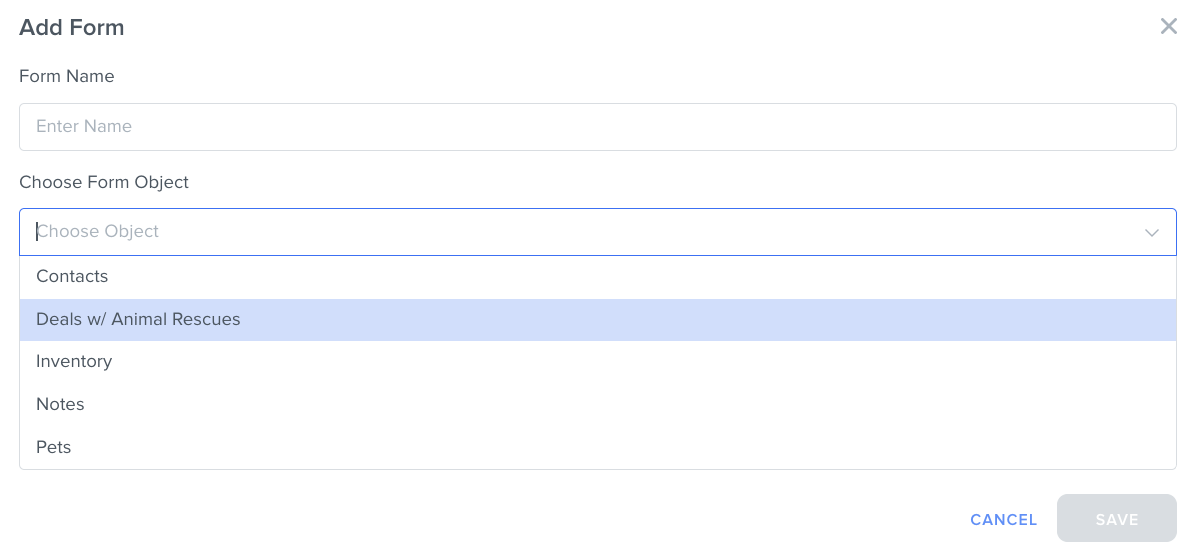
- In the pop-up window, give your form a name that is unique and makes its functionality clear and easy to understand.
- Choose the Contacts object or Custom Object that you would like to connect to this form. Each form submission will either create a new record or update an existing record in this object.
- Next, click on the "Build" tab.

- In the form builder, your Business Logo is automatically added to the top of your form. Additionally, any required fields to create the object record will automatically be added to the form.
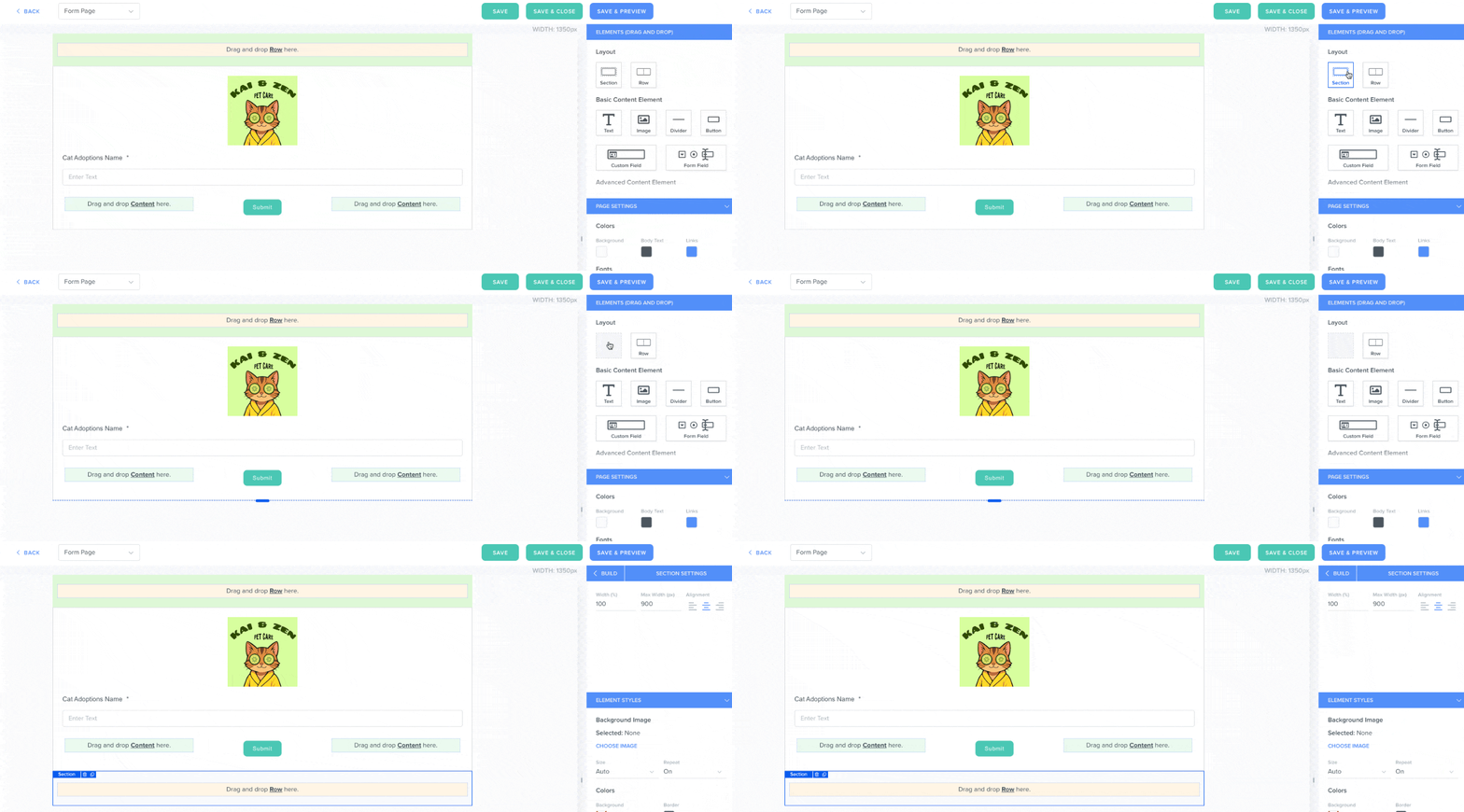
- To add a completely new section to your form layout, drag and drop a section from the “Elements (Drag and Drop)” menu on the right over to the desired position on your form.
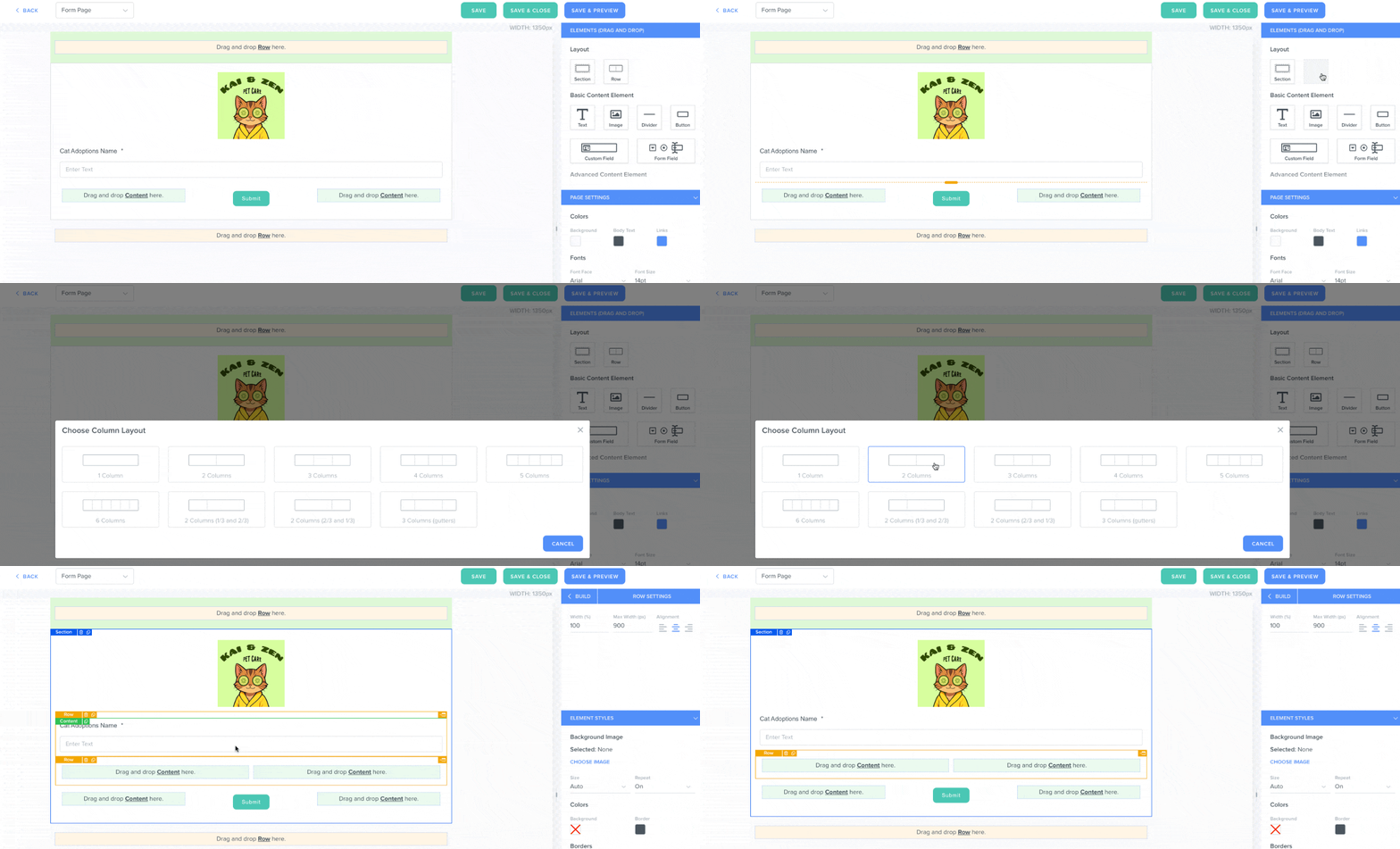
- To add more rows to an existing section in your form layout, drag and drop a row from the “Elements (Drag and Drop)” menu on the right over to the desired position in the section. Then, choose the number of columns you want within this row. (For example, in our gif below, we want to add more form questions to our form, so we are adding another row with two columns below the object record name.)
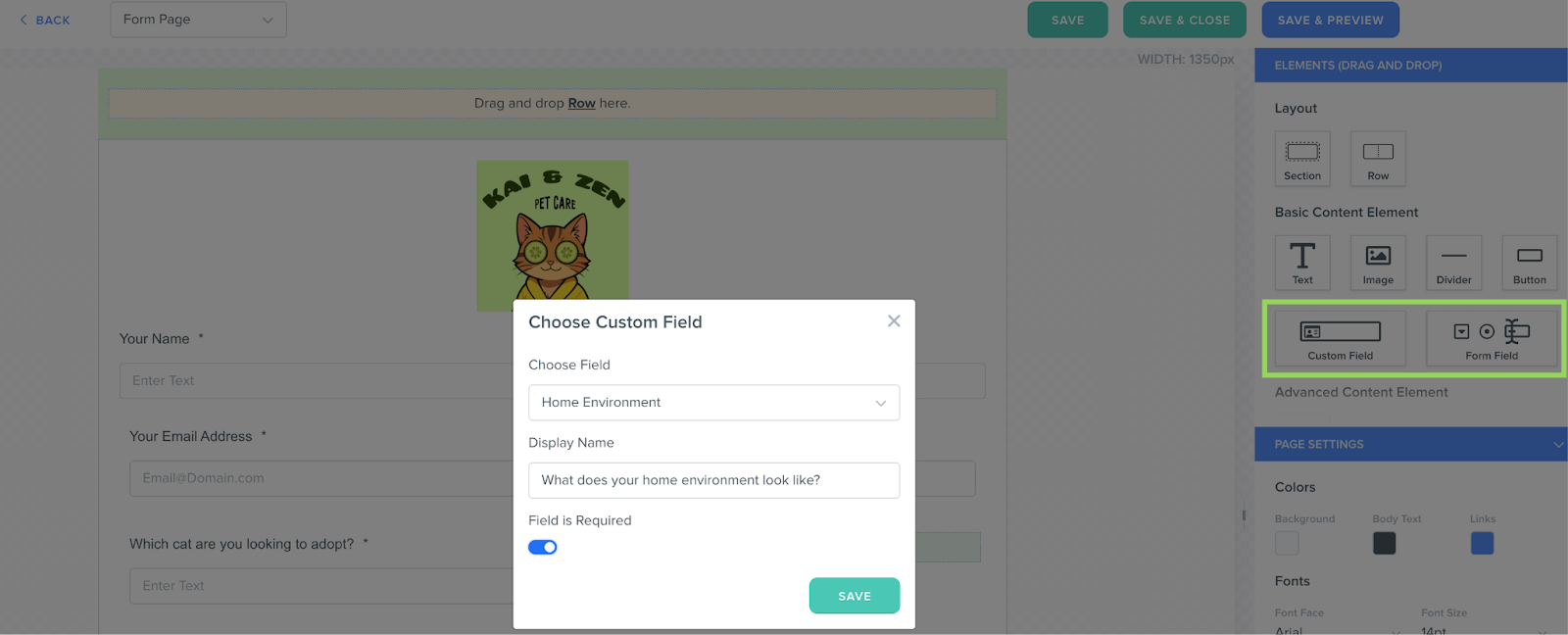
- To add new fields for the form submitter to fill out, drag and drop either Custom Field or Form Field from the “Elements (Drag and Drop)” menu on the right over to the desired “Drag and drop Content here” box in the row.
- Adding one of the object’s existing Custom Fields to your Form will populate the submitted field value directly in the object record’s fields. (For example, if you add the address fields from the Contacts object to your form, the new form submission will create or update a Contact record with those address fields filled out.) You can choose to change how the Custom Field name appears on the form and to make the form field required.
- Adding Form Fields to your form will not change any field values on the object record created or updated by the form submission. This is useful if you only want the form submission data to live in the form without changing anything on the object record.
- Adding one of the object’s existing Custom Fields to your Form will populate the submitted field value directly in the object record’s fields. (For example, if you add the address fields from the Contacts object to your form, the new form submission will create or update a Contact record with those address fields filled out.) You can choose to change how the Custom Field name appears on the form and to make the form field required.
- To customize your form further, drag and drop the following content elements from the same menu on the right: Text, Image, Divider, Button, or HTML block (for example, to upload a video to your form).
- Click on the blue "Save & Preview" button in the top right corner to preview how your form looks.

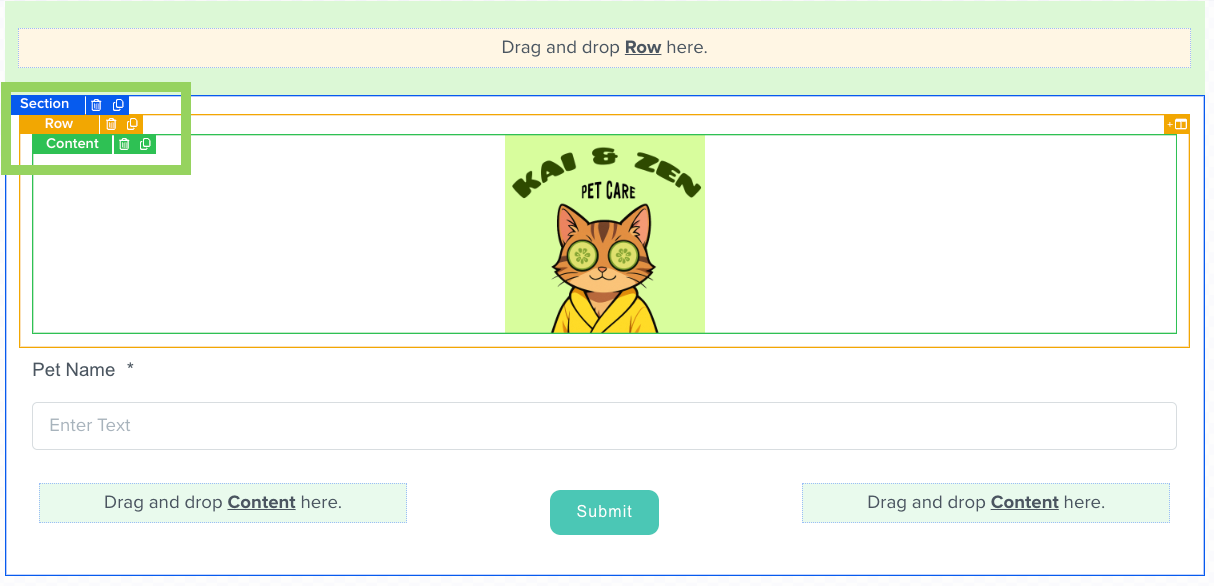
- To delete a content block, row, or section, hover over the content and click on the relevant trash bin icon:
How to Create a Default Submission Action
Once you’ve created your form, you can customize what the form submitter sees after they click on the “Submit” button: you can route them to a "Thank You" page, or you can redirect them to a specific URL, such as an external website.
- In the form builder, click on the “Back” button in the top right corner, which will take you to the "Form Settings" page.
- Click on the dropdown menu under "Default Action Submission."
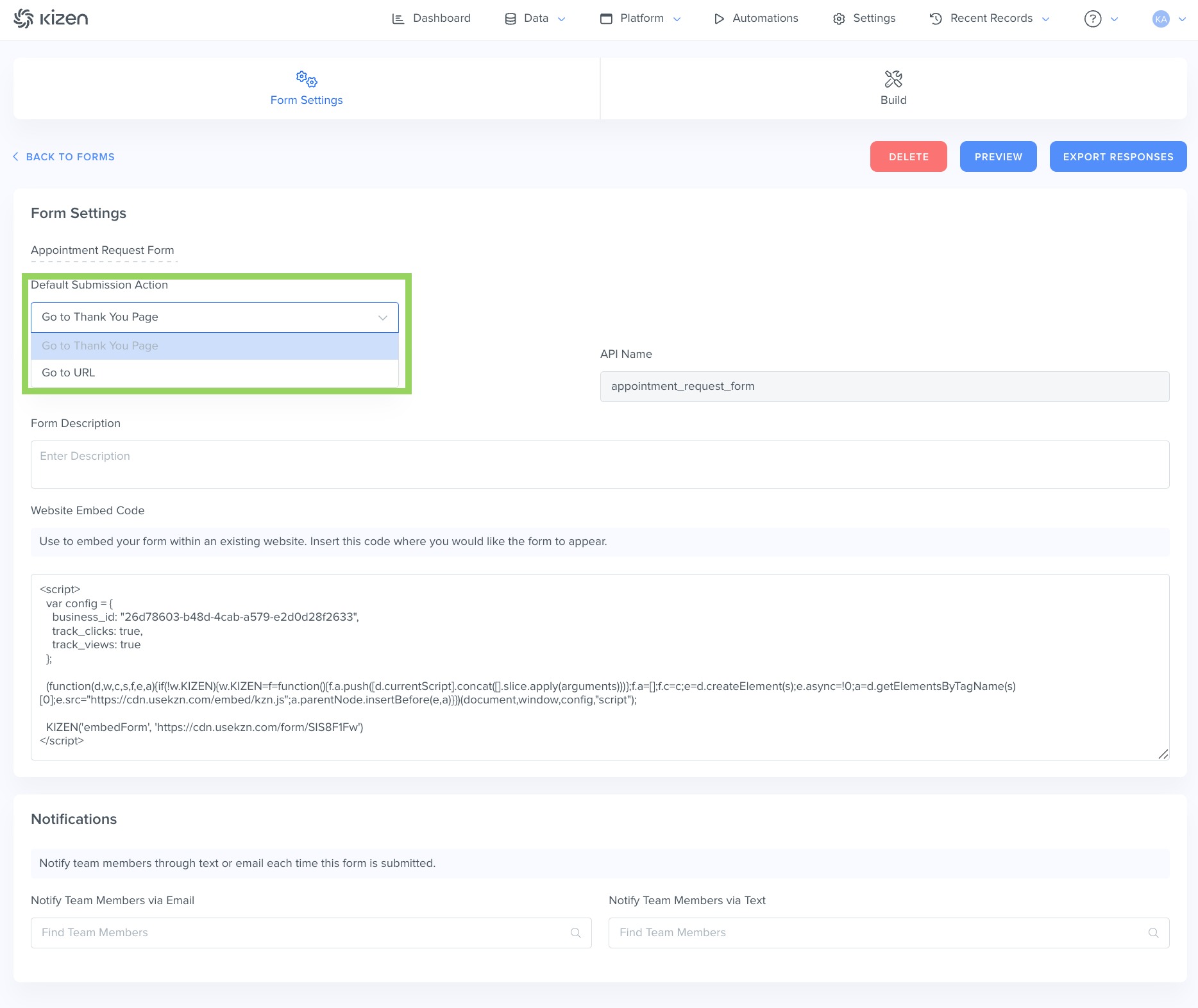
- Select “Go to URL” to automatically route the form submitter to a different webpage. Enter the specific URL of that webpage in the “Redirect URL” field.
 You can choose to toggle “Pass Parameters on Redirect” on if you would like to send user-specific data or source data to display personalized content, trigger specific actions, or track marketing analytics for the destination website. However, it’s crucial that you do not pass any sensitive data.
 - OR select "Go to Thank You Page" if you would like to build a custom page that confirms the form has been submitted successfully, and click on the "Build" tab again.
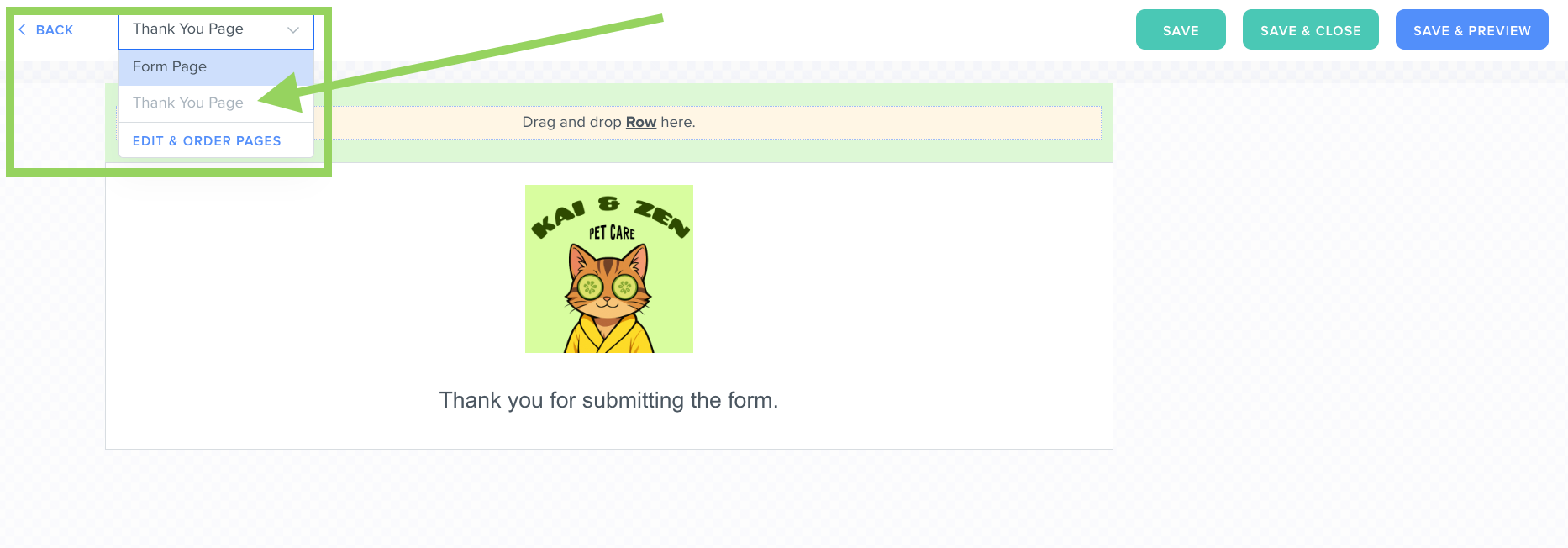 In the form builder, click on the dropdown menu and click on "Thank You Page." Customize the page using the same steps you used for your main Form Page: drag and drop sections, rows, and content blocks to fit your needs.
- Select “Go to URL” to automatically route the form submitter to a different webpage. Enter the specific URL of that webpage in the “Redirect URL” field.
How To Customize Your Form Settings
How to Embed Your Form in an External Website
To embed your form in your personal website, click on the “Form Settings” tab, and copy everything in the "Website Embed Code" box:
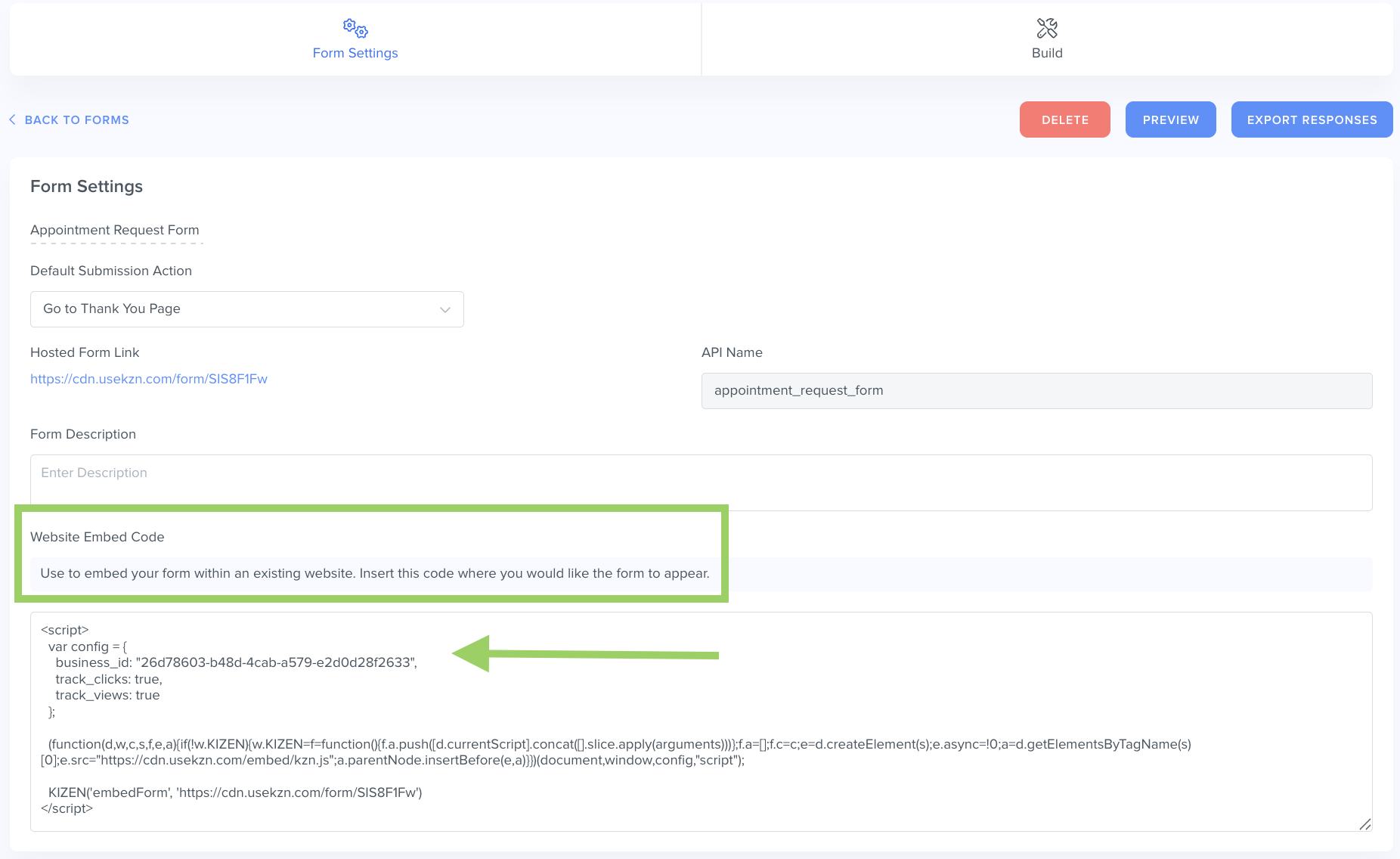
Then, paste this embed code into any webpage where you want to display this form. Whether it's your company site, a landing page, or a client portal, you have complete control over where your form appears and how you collect responses.
How to Enable Notifications for Form Submissions
To send an alert to a team member each time a form is submitted, click on the “Form Settings” tab and scroll down to the "Notifications" section.
Next, select your preferred notification method—either email or text—and choose the team member's name who will receive these notifications. The team member must be an activated team member in your Kizen account in order for them to appear in this list.

How to Export Form Responses
To export your form responses, click on the "Form Settings" tab and click the blue "Export Responses" button in the top right.

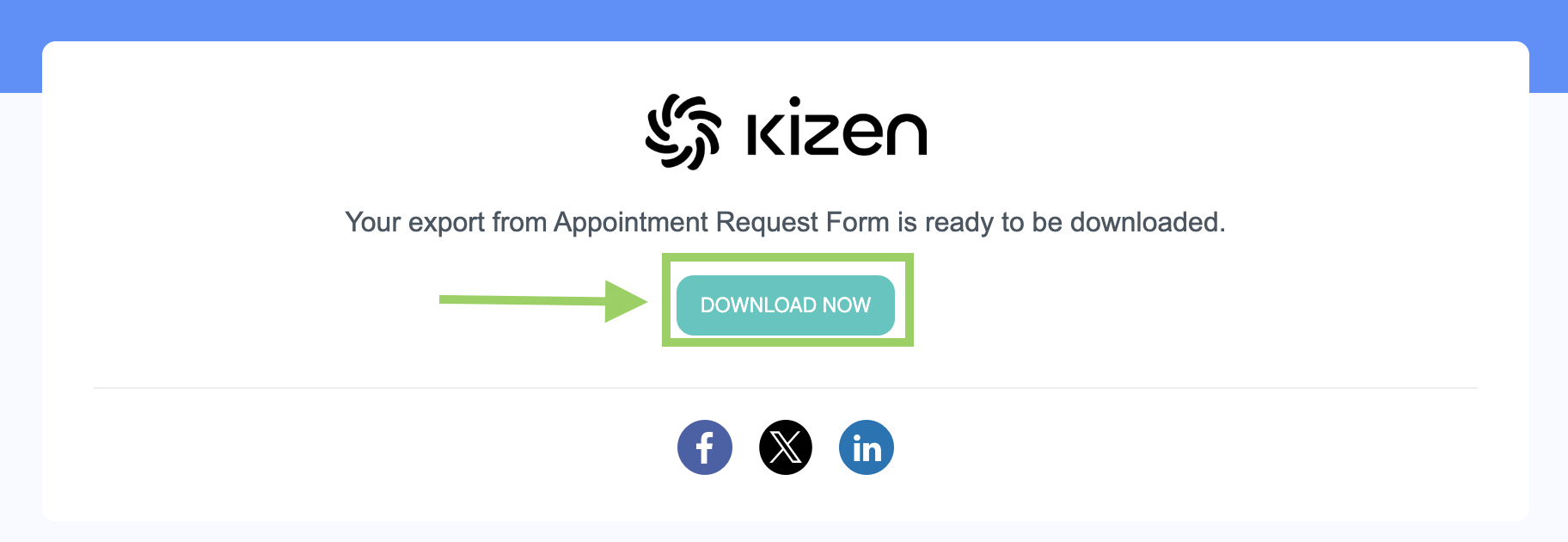
Once the report has been generated, you'll receive an email with a download link for your responses in CSV format, which you can open in Excel or any spreadsheet application.
Related Articles
- Getting Started with Kizen Agentic Workflows
- How to Add, Edit, and Delete an Agentic Workflow
- How to Create a Custom Activity
- How to Create a Custom Email in Kizen
Still Need Help?
If you encounter any issues, contact support@kizen.com
Was this article helpful?
That’s Great!
Thank you for your feedback
Sorry! We couldn't be helpful
Thank you for your feedback
Feedback sent
We appreciate your effort and will try to fix the article