Purpose: Learn how to create custom surveys within Kizen, as well as surveys tips and tricks such as embedding your survey on your website or setting up a thank you page for your clients.
TABLE OF CONTENTS
- What are Kizen's Surveys?
- Prerequisites
- How To Create A Form
- Survey Tips & Tricks
- Related Articles
- Still Need Help?
What are Kizen's Surveys?
Building surveys directly in Kizen is an easy way to stay connected with the clients in your CRM and understand what matters most to them. Use surveys to gauge interest in upcoming events, collect NPS scores, or discover areas where you can make their experience with your business even better.
While surveys and forms are built similarly in Kizen, they serve different purposes: forms help you collect critical information needed to create new or update existing object records in your Kizen account, while surveys give you valuable insights into how your clients feel about your business and your services.
Once you have created your survey, we offer you several options for next steps. You can customize the post-submission page, set up notifications to alert specific team members, or build Agentic Workflows to kick off workflows based on survey results.
Prerequisites
Before building your survey, make sure to set up Custom Objects or Contacts first. Like forms, survey data can populate fields in whichever option you choose. It's essential to add all necessary fields to the object settings beforehand to ensure survey submissions successfully create or update records.
✅ How to Add a Custom Object in Kizen
✅ How to Filter Your Contacts & Custom Object Records
✅ How to Customize Your Kizen Business Information
How To Create A Form
How to Create a New Survey
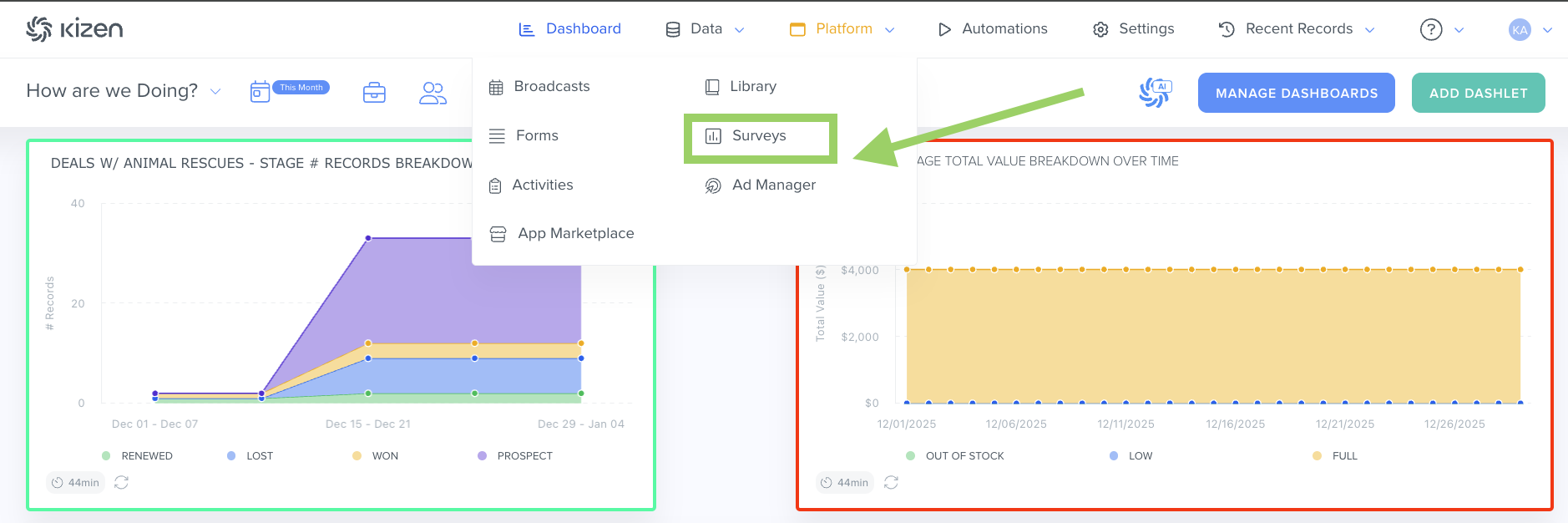
- Select "Platform" in your toolbar at the top of your screen > Select "Survey."
- Select the green "New Survey" button in the upper right-hand corner. (Your account may include a pre-built NPS survey by default. Feel free to delete the survey or edit it later.)
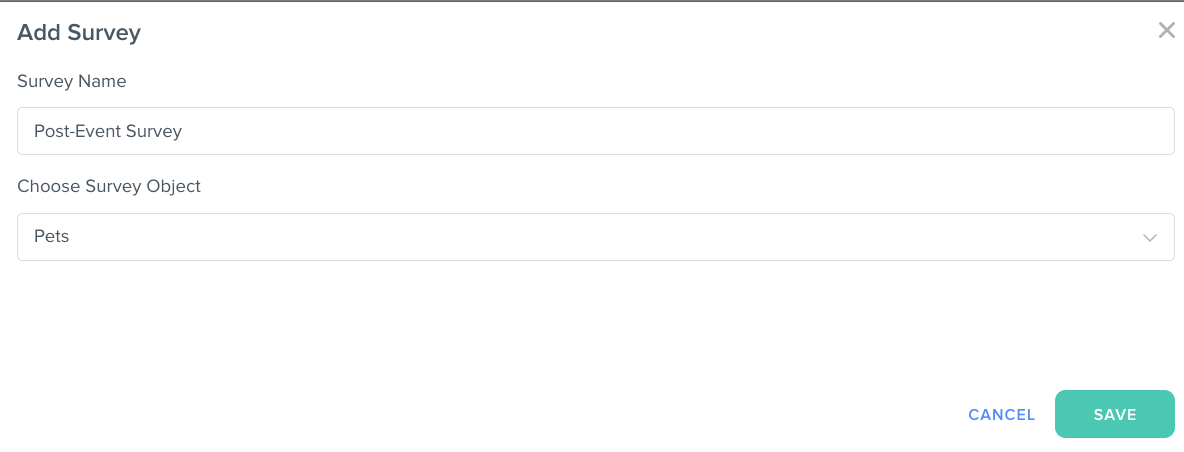
- When the window pops up, type in your new survey name. We recommend giving your survey a unique name that makes its purpose clear and easy to understand.
- Choose Contacts or the Custom Object you want to connect to the survey. Each survey submitted will either create a new record or update an existing record in this object.
- Select the green "Save" button.
- Select the "Build" tab.

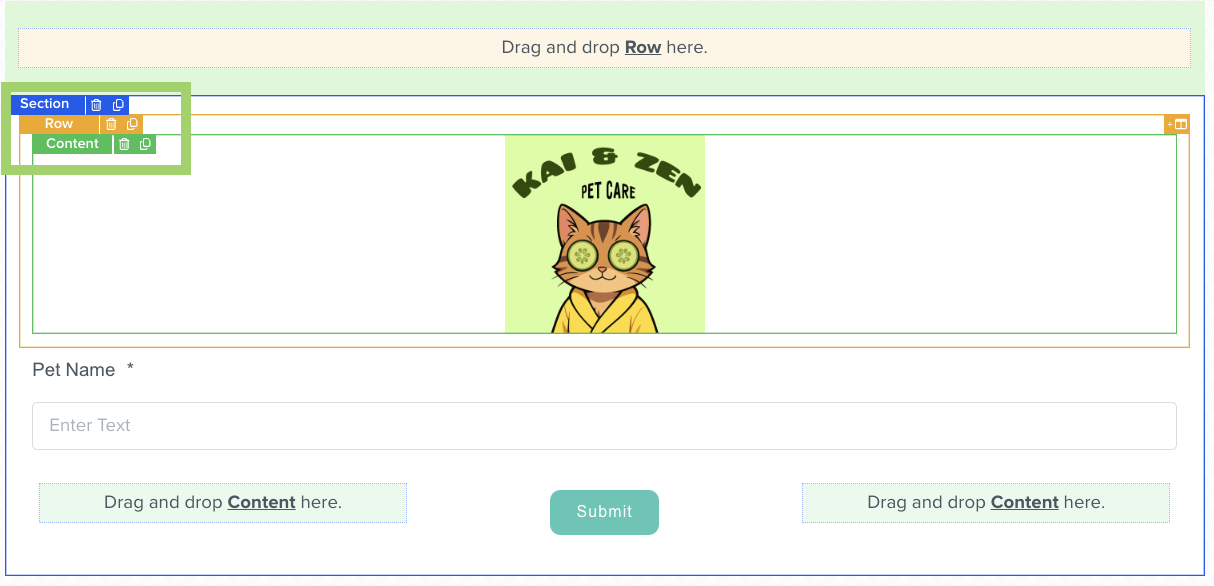
- In the survey builder, your business logo will be automatically added to the top. Additionally, any required fields to create the object record will automatically be added to the survey.
- Surveys are made up of sections, which contains rows. A row is the margin that determines how your content blocks will be arranged within your section.
- To start building, drag and drop a section, then add a row. Select and choose how you want the content blocks to be laid out.
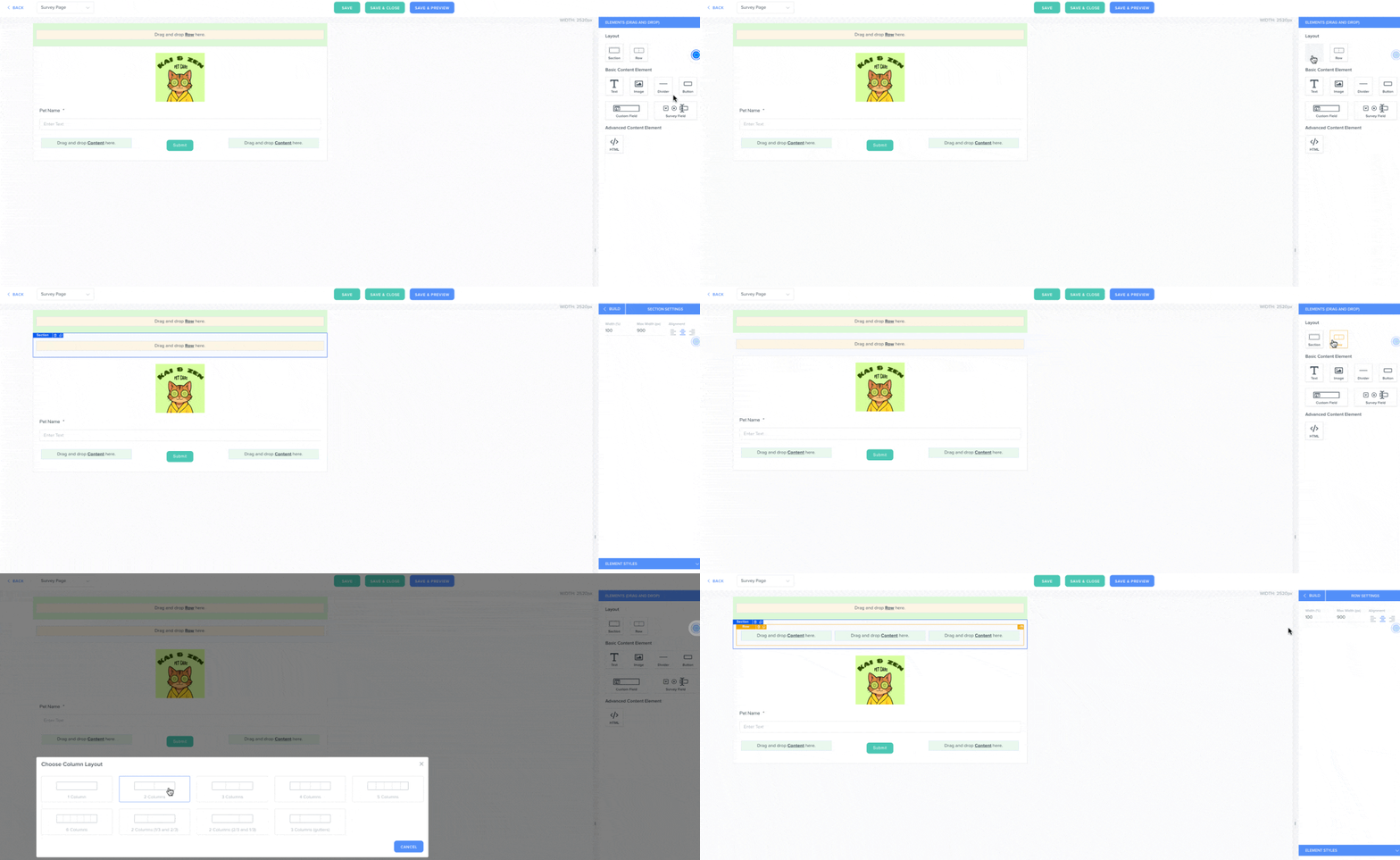
- Drag and drop either Custom Field or Survey Field into the row.
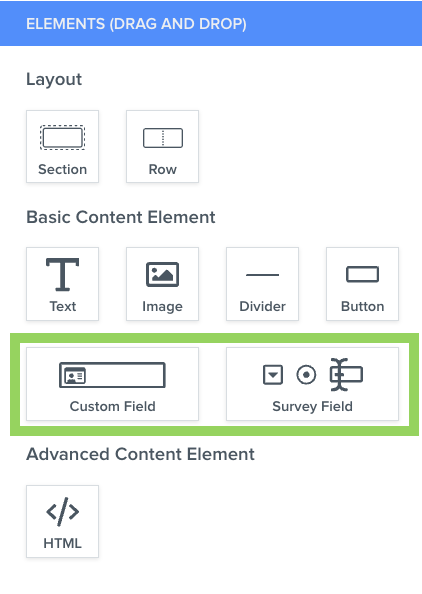
- Custom Field: Adding a custom field to your survey will populate the submitted field value directly into the object record's field. For example, if you pull in the address field from your object, the survey submission will create or update the record with those address fields filled out.
- Survey Field: Adding a survey field allows you to add standard inputs like email addresses, multiple-choice options, file uploads, and more. This will not change any values on the object record and is useful if you want the survey submission data to be independent of the object record.
- To continue creating your survey, you can drag and drop content elements from the same menu section. You can use them to add buttons, text, images, or even just a line divider to provide clearer separation between content rows.
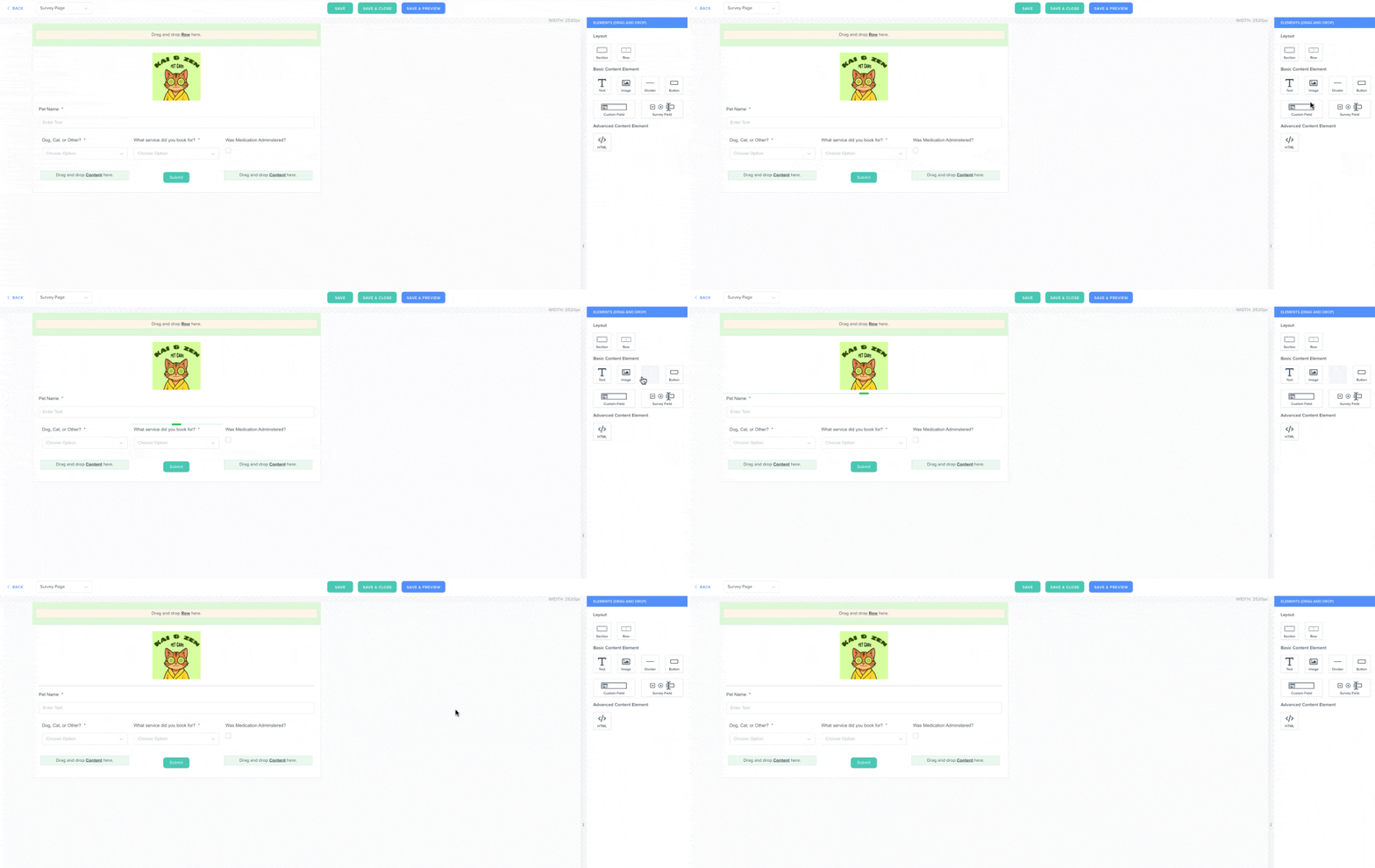
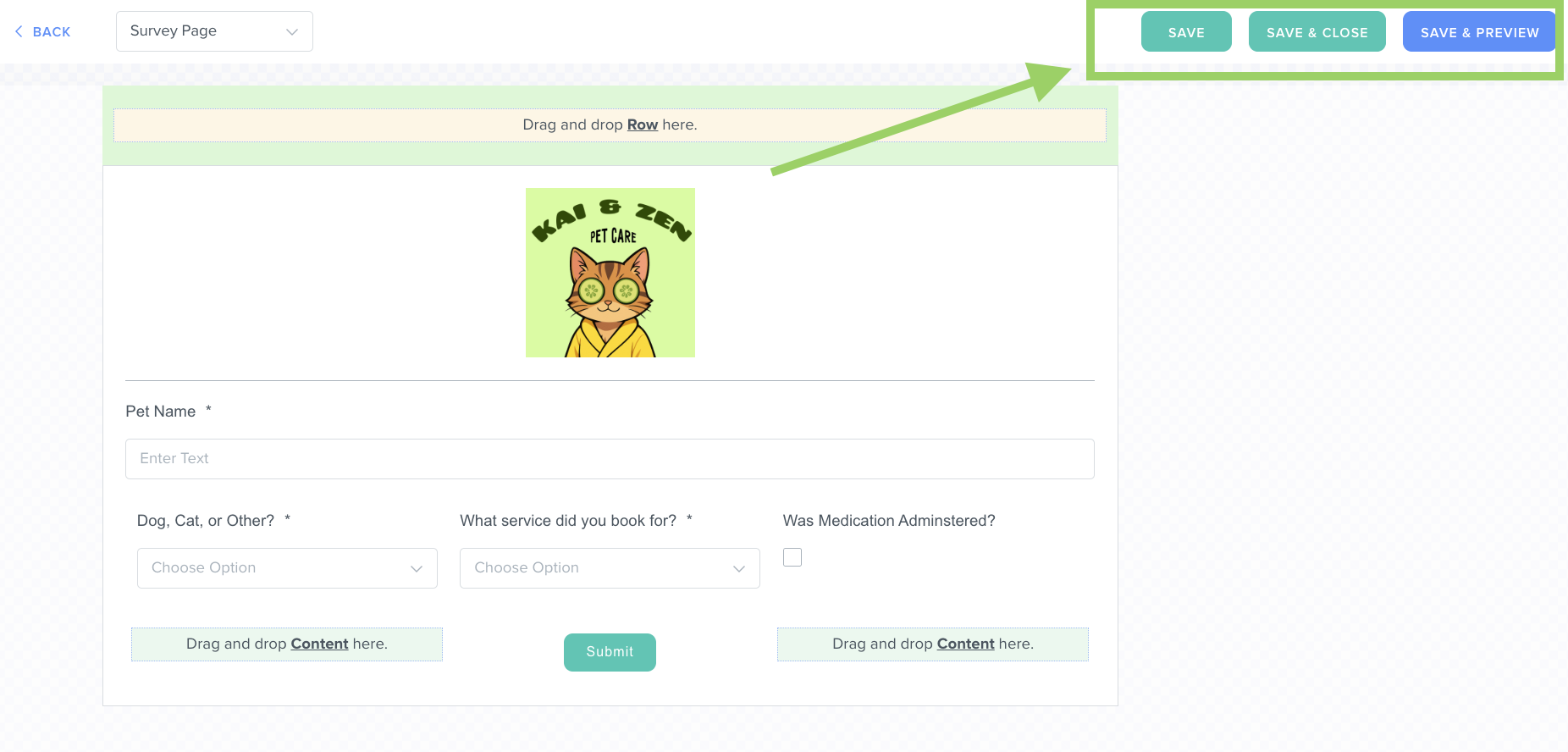
- Select the blue "Save & Preview" button in the top right corner to see how your survey will look to your clients. If the survey looks good to publish, select the green "Save & Close" button.
How To Create A Default Submission Action
Once you're happy with how your survey looks, you can customize what the client sees after they select the "Submit" button. You can direct them to a "Thank you" page, or you can redirect them to a specific URL, such as an external website.
- In the survey builder, select the back button in the top-right corner, which will take you to the "Survey Settings" page.
- Select the dropdown menu in the "Default Submission" field.
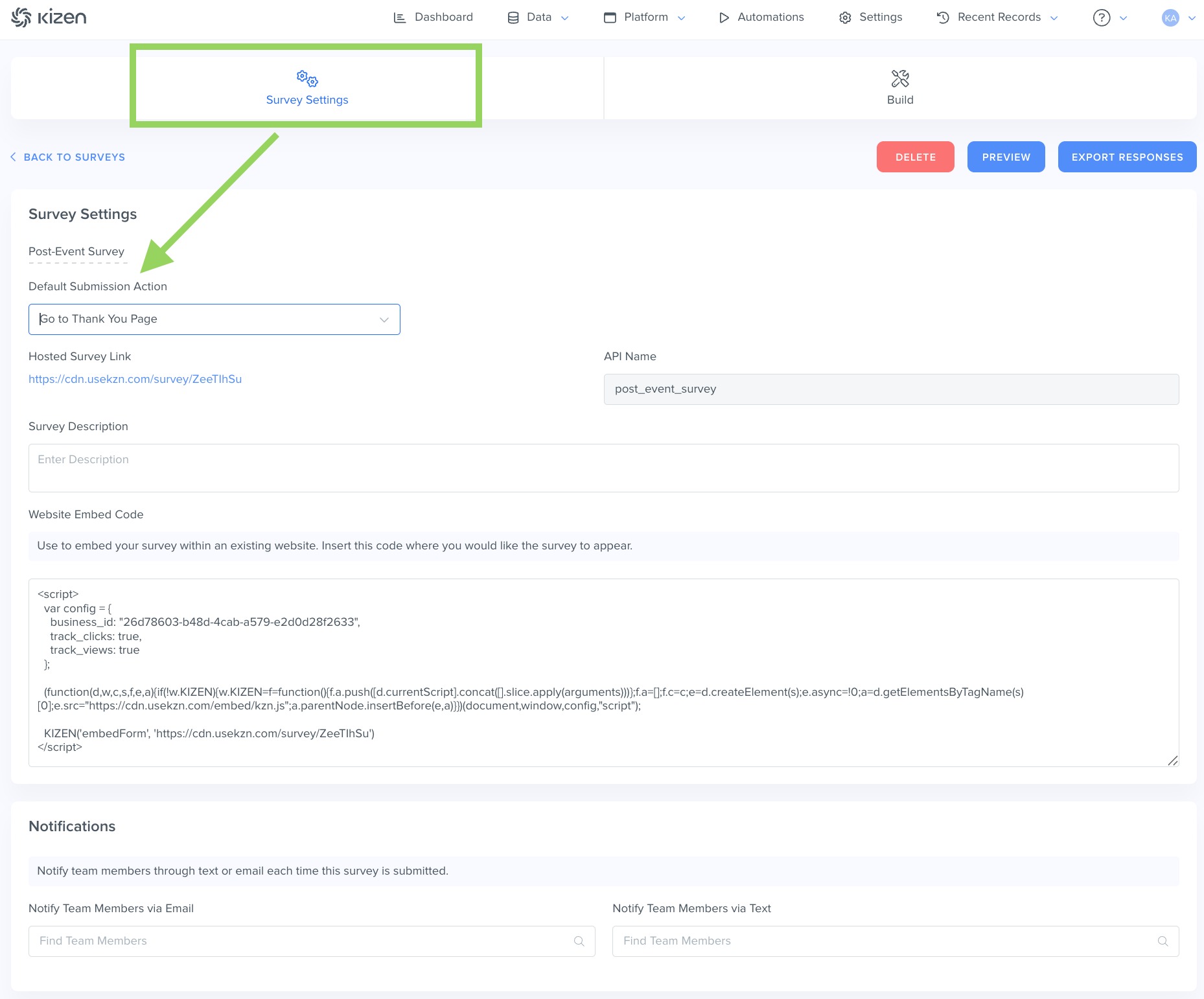
- Select "Go to URL" to automatically route the survey submitter to a different webpage and enter the specific URL of that webpage in the “Redirect URL” field.
 You can choose to toggle “Pass Parameters on Redirect” on if you would like to send user-specific data or source data to display personalized content, trigger specific actions, or track marketing analytics for the destination website. Make sure you do not pass any sensitive data.
 - Select "Go to Thank You Page" to build a custom page that acts as a confirmation screen. You can add this page by navigating to the "Build" tab again and select the dropdown menu > "Thank you Page."
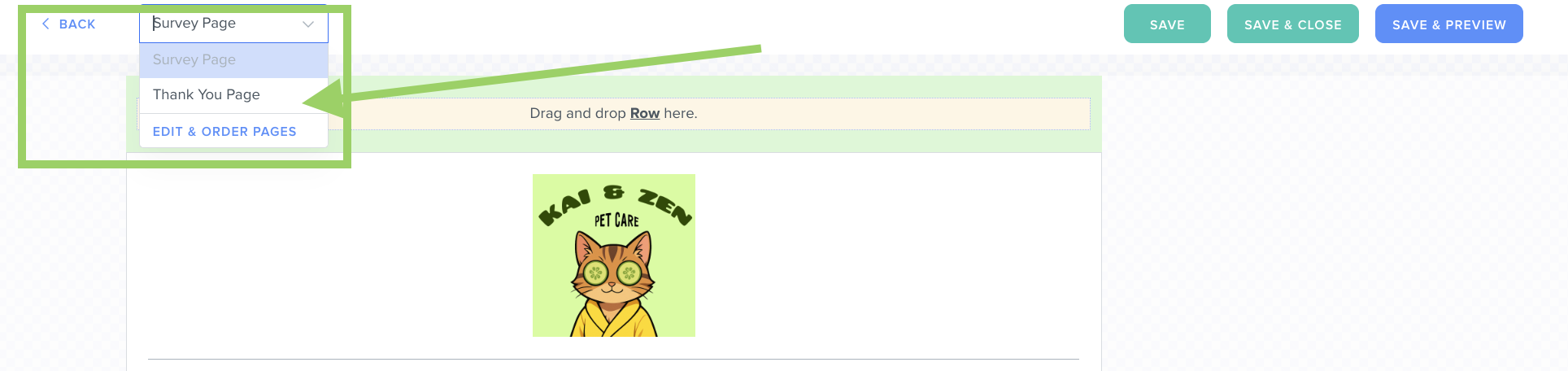 Here, you can customize the page using the same steps you used to create your survey: drag and drop sections, rows, and content blocks to fit your needs.
- Select "Go to URL" to automatically route the survey submitter to a different webpage and enter the specific URL of that webpage in the “Redirect URL” field.
Survey Tips & Tricks
How to Export Survey Responses
To export survey responses, select the "Survey Settings" tab and select the "Export Responses" button in the top right corner.

Once the report has been generated, you'll receive an email with a download link for your responses in a CSV format, which you can open in Excel or any spreadsheet application that can read CSV.
How to Embed Your Survey in an External Website
To embed your survey in your personal website, select the "Survey Settings" tab and copy the code in the "Website Embed Code" section.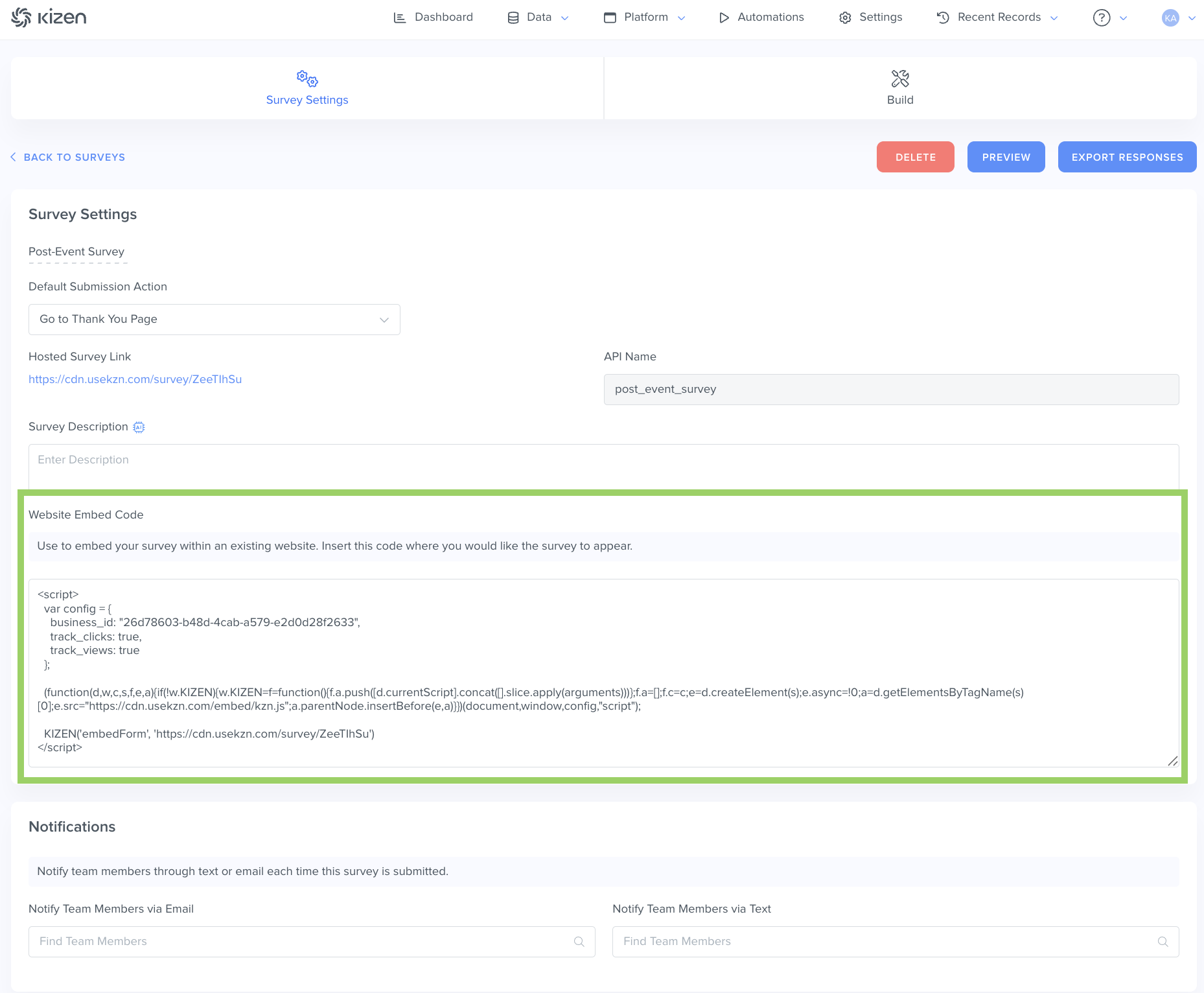 Paste this code into any webpage where you want to display this survey. This can be your personal website, a company site, client portal, etc.
How to Set Up Notifications For Submissions
To send an alert to a role level or individual from your team, select the "Survey Settings" tab and scroll down to "Notifications." Select your preferred notification method, either email or text, and choose which team member will receive these notifications.

The team member you select must be an activated individual within your account in order for them to appear in the list. Otherwise, you're all set!
Related Articles
- How to Create a Custom Activity
- How to Create A Form
- How to Create a Custom Email in Kizen
- How to Add, Edit, and Delete Team Members
Still Need Help?
If you encounter any issues, contact support@kizen.com
Was this article helpful?
That’s Great!
Thank you for your feedback
Sorry! We couldn't be helpful
Thank you for your feedback
Feedback sent
We appreciate your effort and will try to fix the article