Purpose: Build emails that personalize the images included, based on a contact's interests, age, previous purchasing history, or any other information you are collecting! Save time by using the same block within an email to send content variants to target different contacts/groups
Add an image to email builder, following these steps:
1. Select Platform in your Toolbar
2. Click on Library

Note: Depending on your Toolbar settings, Library may be located in a different place
3. Select an existing email template or create a new one

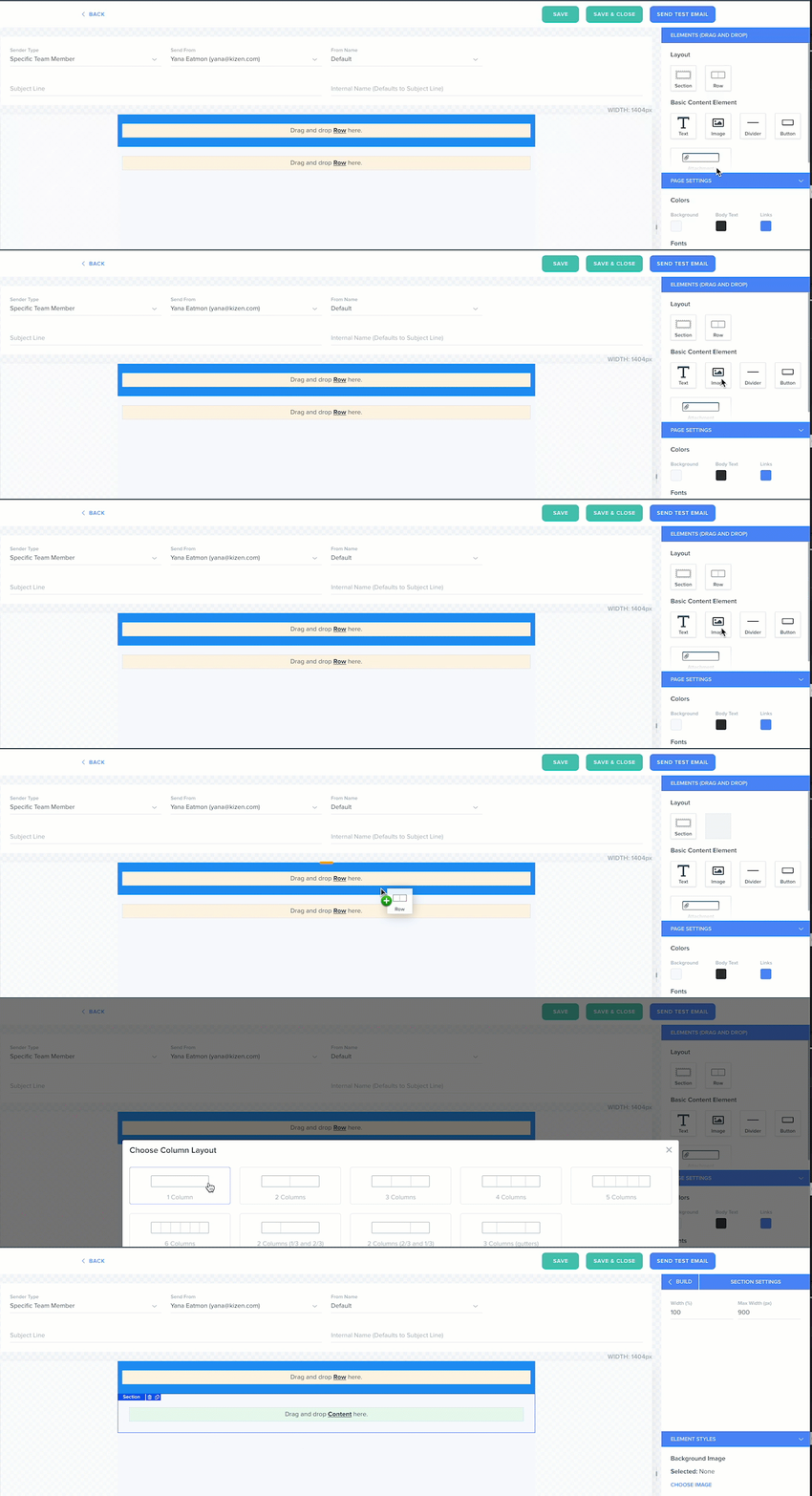
4. Drag a row content element
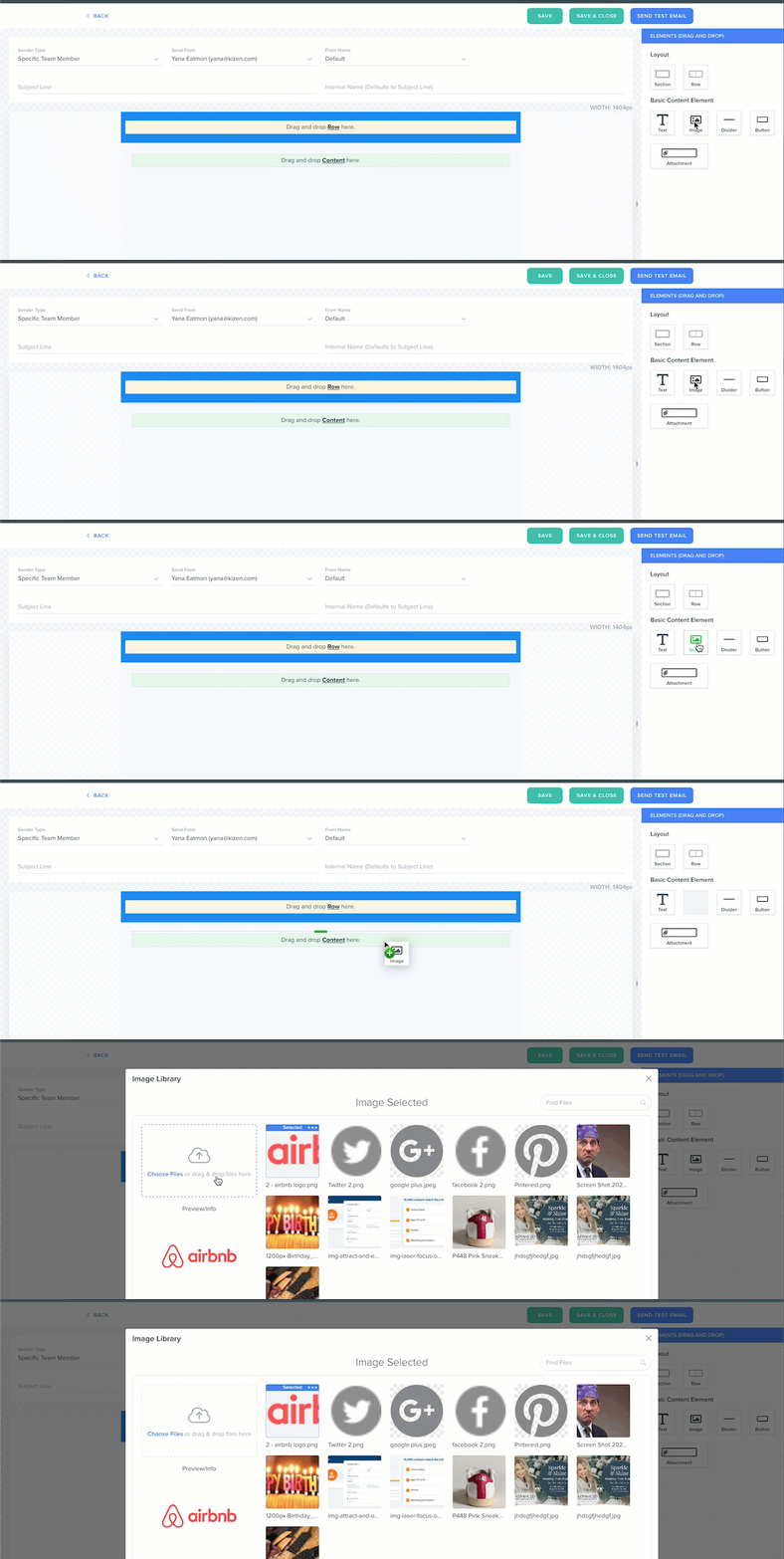
5. Drag an image content element and select a default image for the template
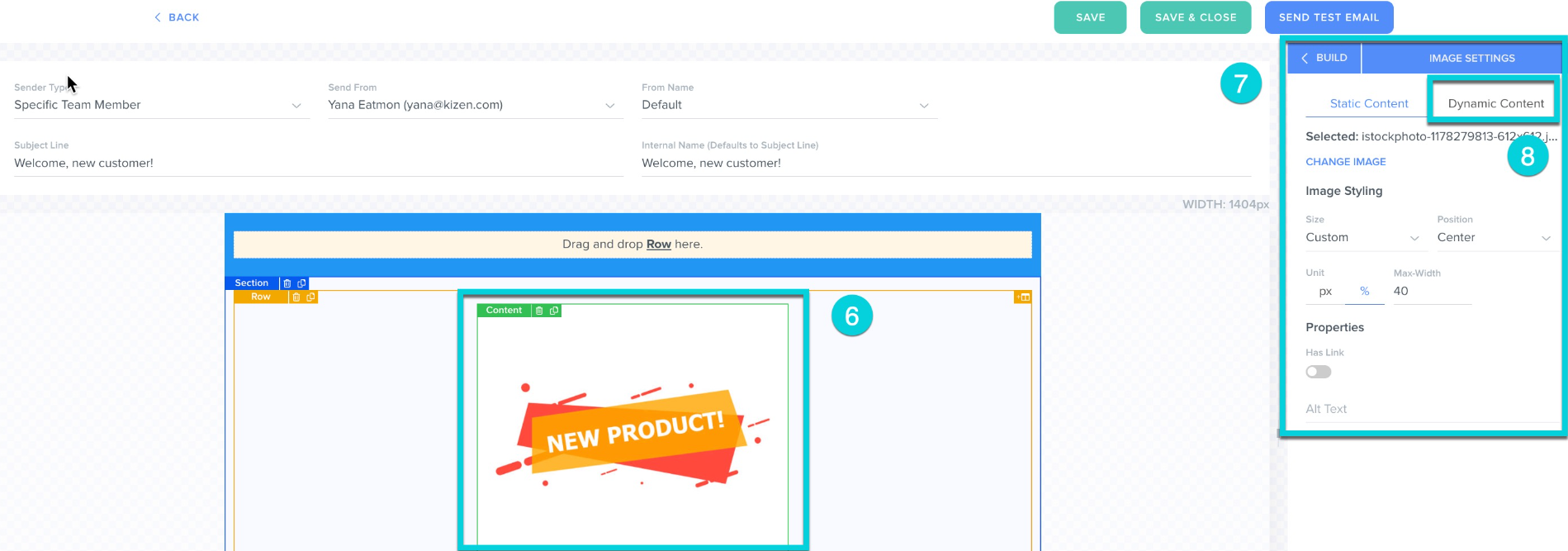
6. Click on the image content
7. Navigate to image settings
8. Click on Dynamic content
9. Click on Edit Rules
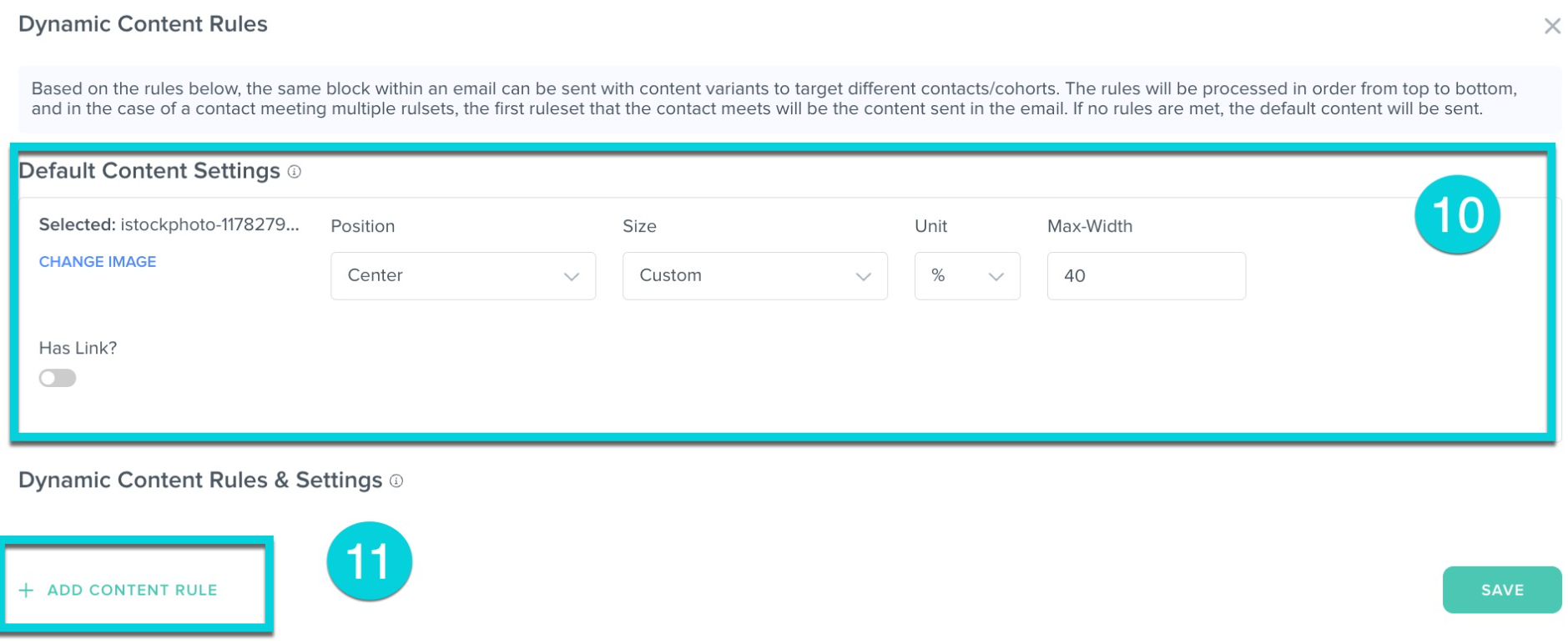
10. Review default image settings
Note: When none of the specific conditions are met, this image will be sent by default
11. Click Add Content Rules
12. Select Is/Isn't in a Contact Group or a Custom Filter
13. Select a specific group or set up filter parameters
For example: The field value for industry equals "Automotive"
14. Click on Change image to upload a specific image for this parameter
15. Click Add Content Rule, if needed to add more parameters
16. When done, click Save
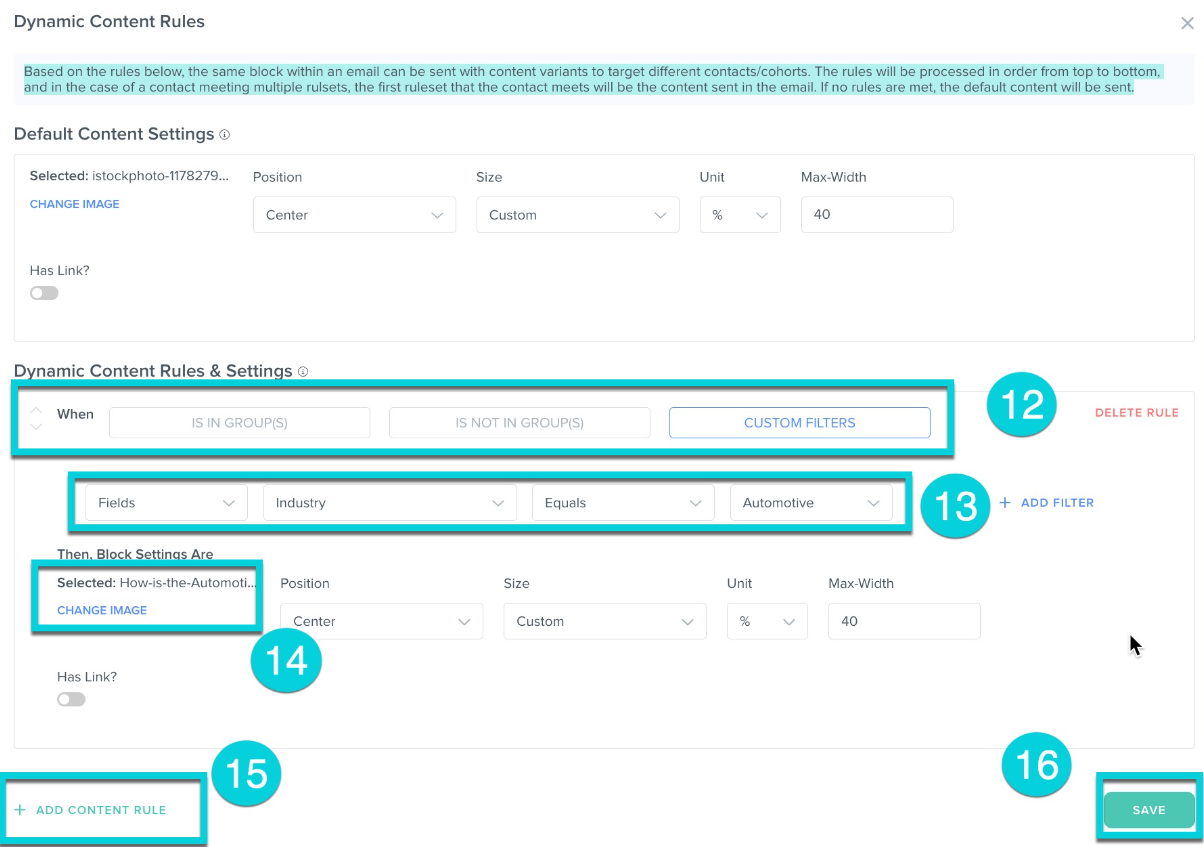
Hint: The rules are processed sequentially from top to bottom. If a contact matches multiple rule sets, the first matching rule set will determine the content sent in the email. If no rules are matched, the default content will be sent

Tip: To test, send an email to a contact that meets one of the specified parameters. When sending a test email, all dynamic options will be displayed
Was this article helpful?
That’s Great!
Thank you for your feedback
Sorry! We couldn't be helpful
Thank you for your feedback
Feedback sent
We appreciate your effort and will try to fix the article