Purpose: Learn how to download the Kizen Voice Assistant mobile app on iPhone or Android.
Prerequisites
Before setting up or using Kizen Voice, confirm each of the following. If any item is not in place, stop and contact your AgentCRM administrator before continuing.
✅ Device: This guide covers iPhone and Android experiences.
✅ Permissions: You must have “Create and Edit” permissions on the Integrated Phone Calls object in Kizen AgentCRM. Without this, recordings will not upload or process correctly.
✅ Kizen credentials: You will need your Kizen email address and your Kizen password. If you have trouble signing, contact Kizen support.
✅ Environment: During setup you will be asked to select your agency's Kizen environment (for example, Go or FMO). Selecting the wrong environment means your recordings will not be linked to the correct business.
How to Download the Kizen Voice App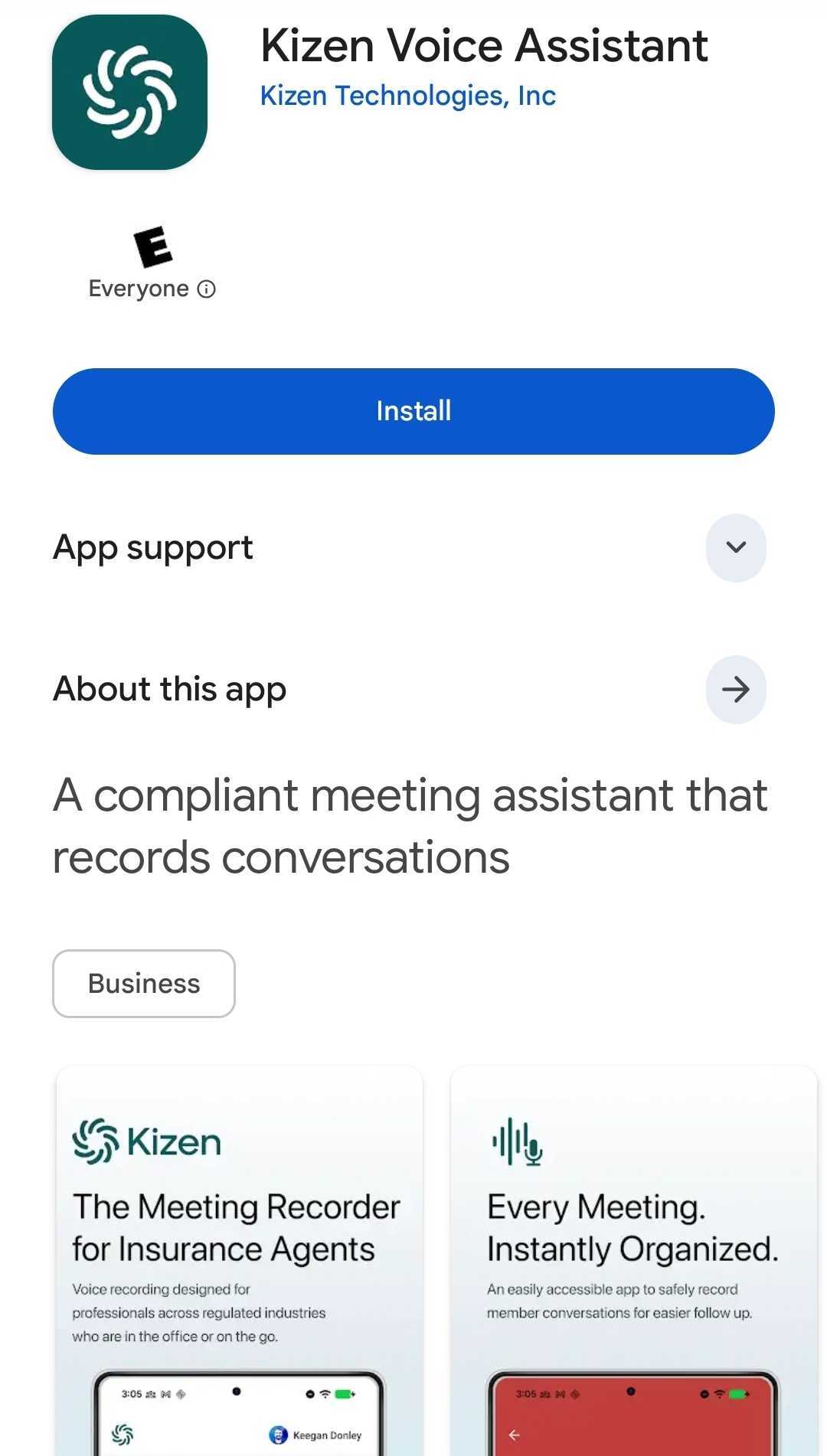
iOS Download
- Open the App Store on your iPhone.
- Tap the Search tab and type "Kizen Voice Assistant."
- When the app appears, download it, then confirm with Face ID, Touch ID, or your Apple ID password if prompted.
- Once the app finishes downloading, tap Open, or find it on your home screen.
- If prompted, allow the requested permissions (e.g., microphone access) so the app can function properly.
Android Download
- Open the Google Play Store on your Android device.
- Tap the search bar and type "Kizen Voice Assistant.”
- When the app appears in the Play Store, download it.
- Once the app finishes downloading, tap Open, or find it on your home screen.
- If prompted, allow the requested permissions (e.g., microphone access) so the app can function properly.
Related Articles
- AgentCRM: Kizen Voice App & Meeting Assistant User Guide
- AgentCRM: How to Log into the Kizen Voice App
Still Need Help?
If you encounter any issues, contact support@kizen.com.
Was this article helpful?
That’s Great!
Thank you for your feedback
Sorry! We couldn't be helpful
Thank you for your feedback
Feedback sent
We appreciate your effort and will try to fix the article