Purpose: Once you install the Kizen Voice app on your iPhone or Android, learn how to select the correct Kizen environment and log into your AgentCRM account on the app.
Prerequisites
Before setting up or using Kizen Voice, confirm each of the following. If any item is not in place, stop and contact your AgentCRM administrator before continuing.
✅ Device: This guide covers iPhone and Android experiences.
✅ Permissions: You must have “Create and Edit” permissions on the Integrated Phone Calls object in Kizen AgentCRM. Without this, recordings will not upload or process correctly.
✅ Kizen credentials: You will need your Kizen email address and your Kizen password. If you have trouble signing, contact Kizen support.
✅ Environment: During setup you will be asked to select your agency's Kizen environment (for example, Go or FMO). Selecting the wrong environment means your recordings will not be linked to the correct business.
How to Log into the Kizen Voice App
The first time you open Kizen Voice, you'll be asked to select your Kizen environment and sign in with your Kizen credentials before you can start recording. This is a one-time setup; once you're logged in, you won't need to repeat these steps unless you log out.
Open the Kizen Voice App on Your iPhone or Android
- Tap the Kizen Voice icon on your home screen.
- A prompt appears: "Kizen Would Like to Send You Notifications." Tap Allow or Don't Allow based on your preference.
Select Your Environment
- The screen reads: "Select the platform you use to access Kizen."
- Tap the environment where your AgentCRM account is hosted. (This will most likely be FMO.)
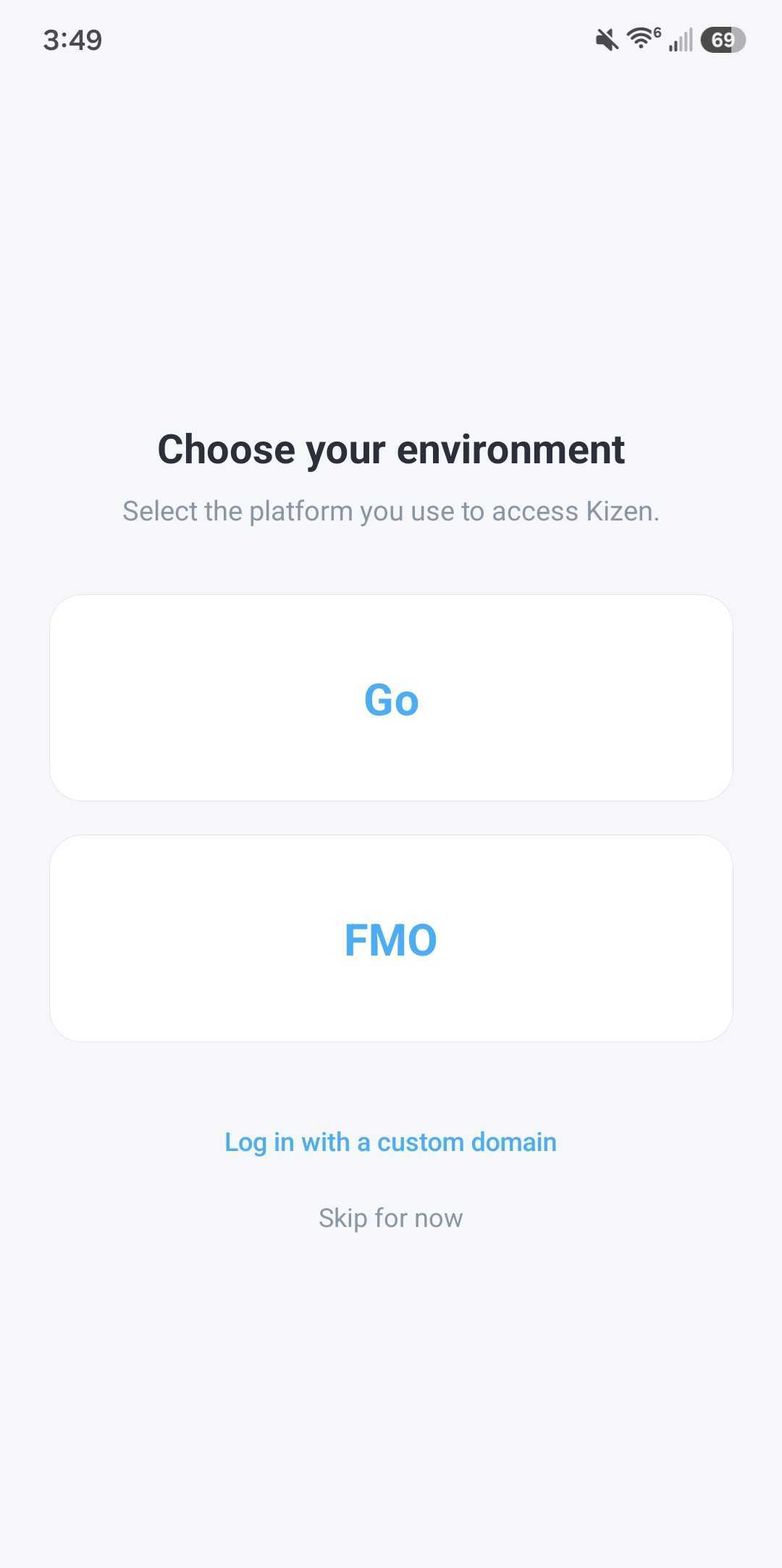
- If your environment is not listed, tap Log in with a custom domain.
- If you are unsure which environment to select, stop and contact your administrator before continuing.
Enter Your Email Address & Password
- A Login to Kizen screen appears. At the top it shows "Logging in to: [your environment]."
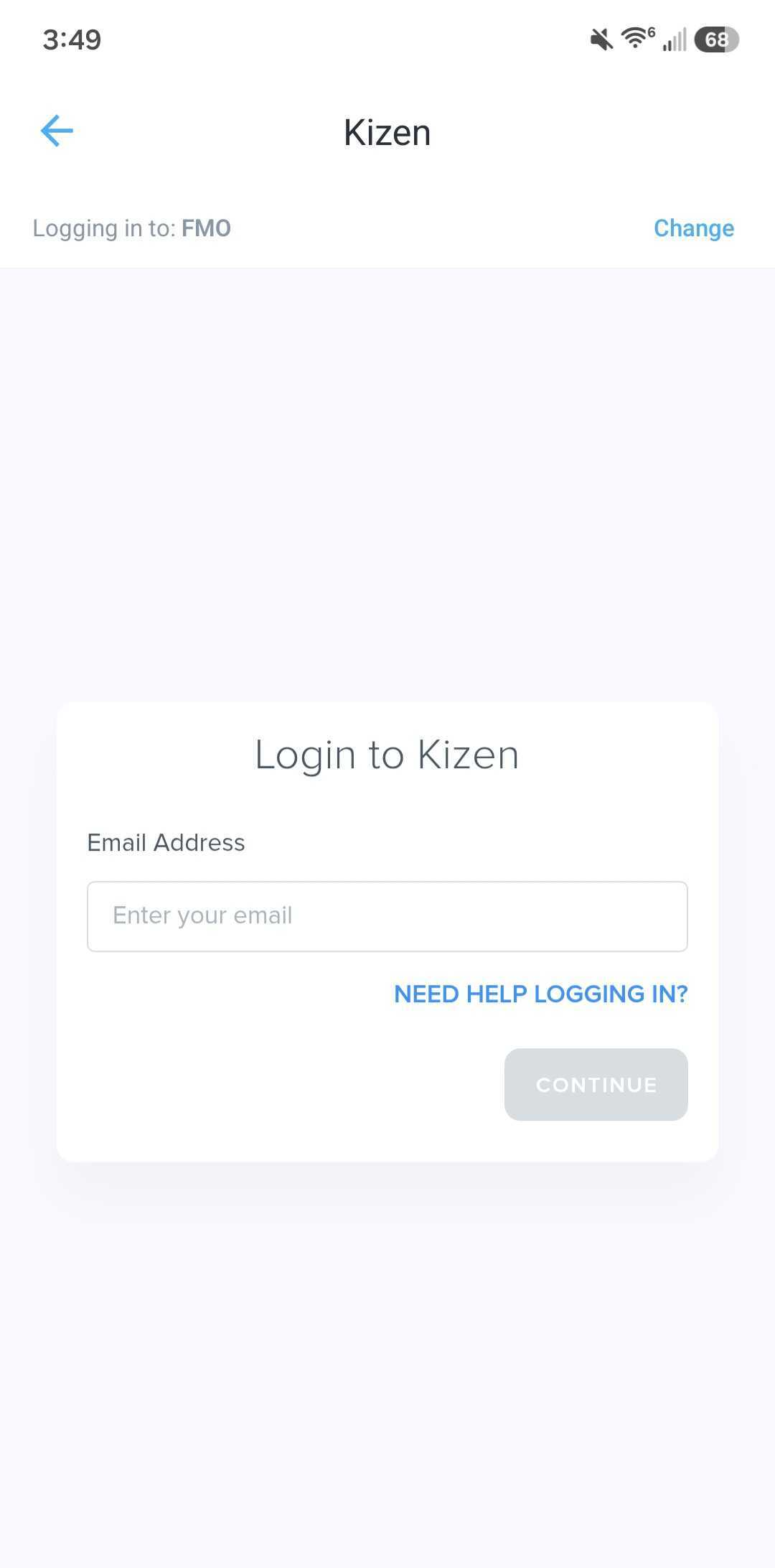
- Tap the Email Address field and type your AgentCRM user email address.
- Tap CONTINUE.
- Enter your Kizen password.
- Once signed in, you will land on the Kizen Voice homepage.
⚠️ Note: If you’ve selected the wrong environment, select the Change button on the top right corner, and that will bring you back to the environment selection. Related Articles
- AgentCRM: Kizen Voice App & Meeting Assistant User Guide
- AgentCRM: How to Download the Kizen Voice App
- AgentCRM: How to Record a Meeting in the Kizen Voice App
- AgentCRM: How to Use the Kizen Voice Assistant without Logging In
Still Need Help?
If you encounter any issues, contact support@kizen.com.
Was this article helpful?
That’s Great!
Thank you for your feedback
Sorry! We couldn't be helpful
Thank you for your feedback
Feedback sent
We appreciate your effort and will try to fix the article