Purpose: Once you log into the Kizen Voice App, learn how to start, pause, and finish recording a client interaction.
TABLE OF CONTENTS
Prerequisites
Before setting up or using Kizen Voice, confirm each of the following. If any item is not in place, stop and contact your AgentCRM administrator before continuing.
✅ Device: This guide covers iPhone and Android experiences.
✅ Permissions: You must have “Create and Edit” permissions on the Integrated Phone Calls object in Kizen AgentCRM. Without this, recordings will not upload or process correctly.
✅ Kizen credentials: You will need your Kizen email address and your Kizen password. If you have trouble signing, contact Kizen support.
✅ Environment: During setup you will be asked to select your agency's Kizen environment (for example, Go or FMO). Selecting the wrong environment means your recordings will not be linked to the correct business.
How to Start a Recording in the Kizen Voice App
Start Recording from Home Screen
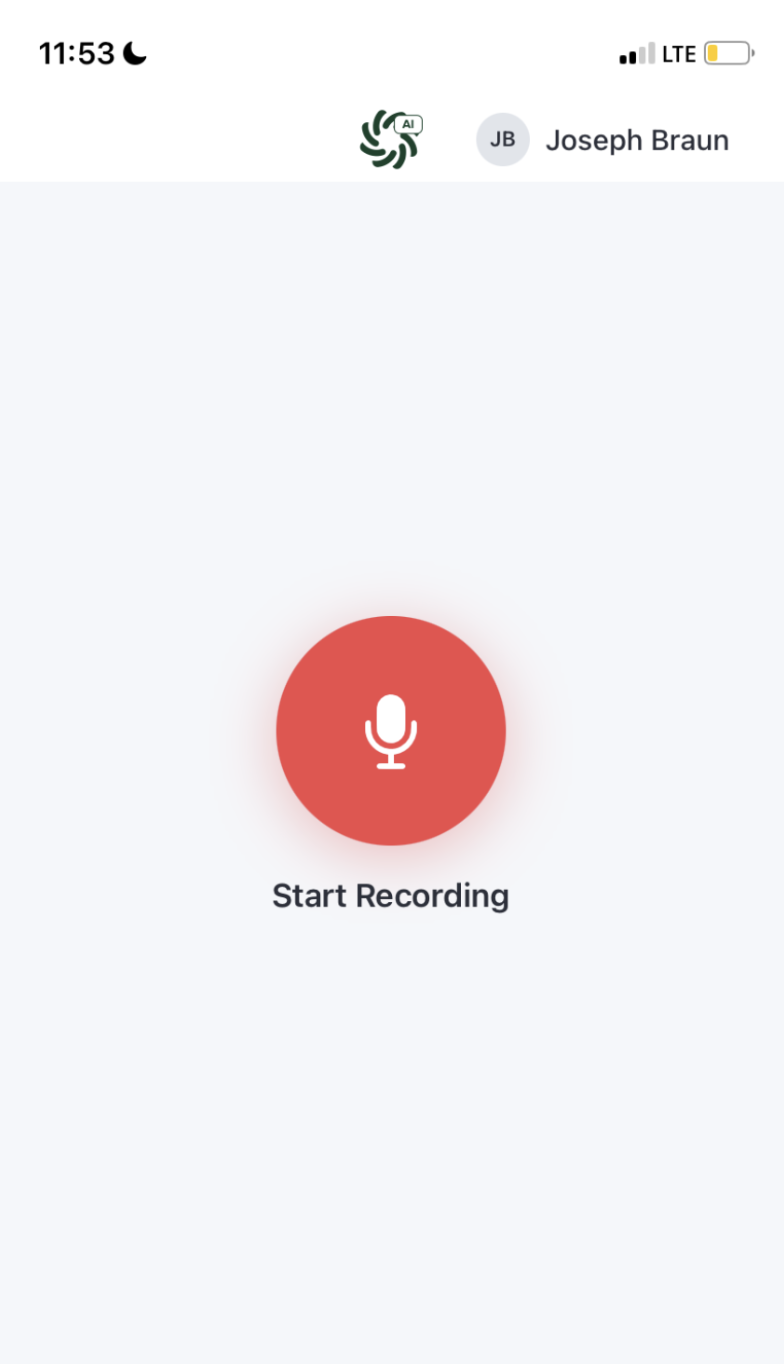
- The home screen shows a large red microphone button labeled Start Recording in the center. Your name and avatar appear in the top right corner.
- Tap Start Recording. The Recorder screen opens.
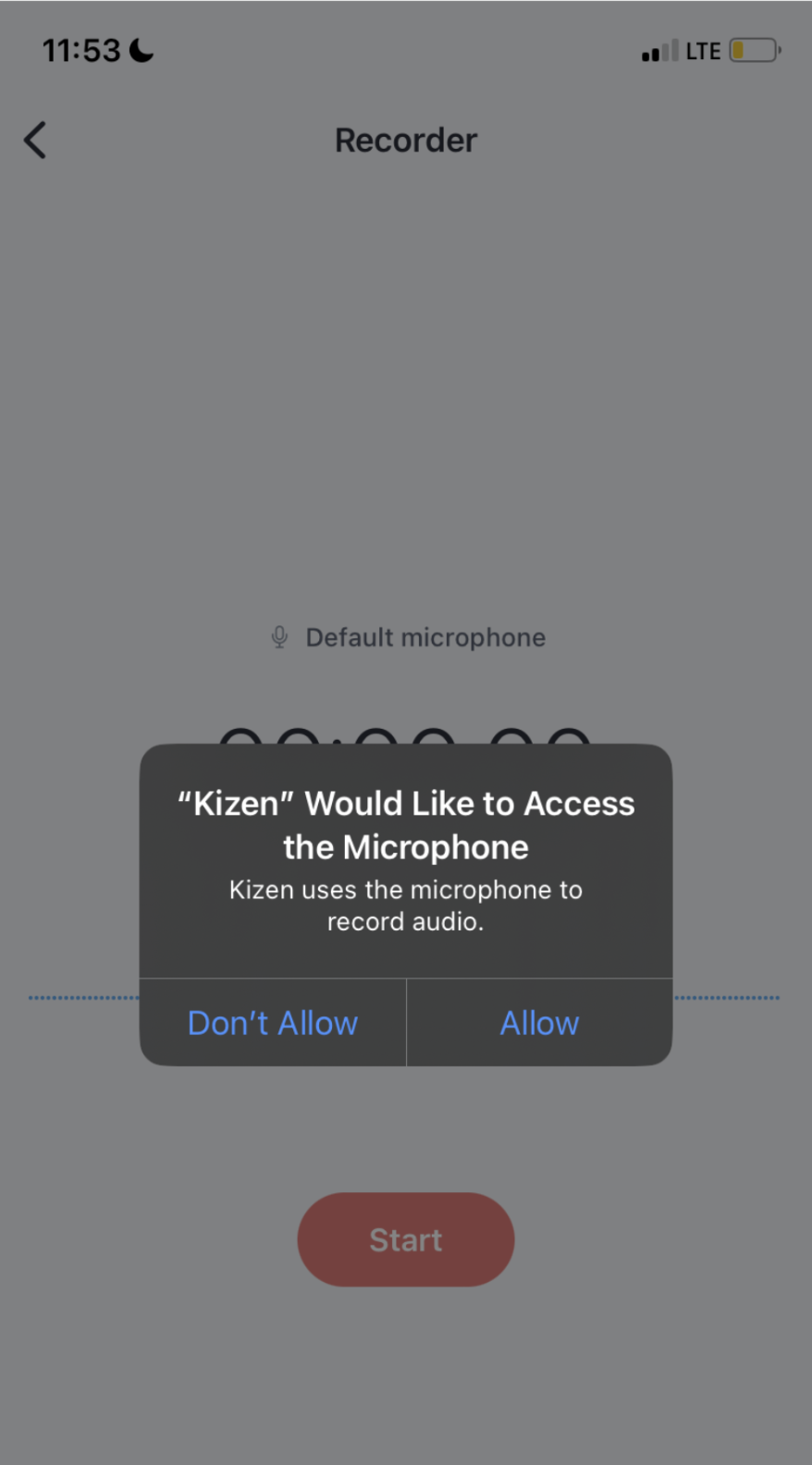
- If this is your first time recording, iOS/Android will display a prompt like: "Kizen Would Like to Access the Microphone. Kizen uses the microphone to record audio." Tap Allow. The app cannot record without this permission.
- The Recorder screen shows the microphone source (for example, "iPhone Microphone"), a waveform, and a Start button at the bottom. The recording will start automatically when permission is granted, since you already selected Start.
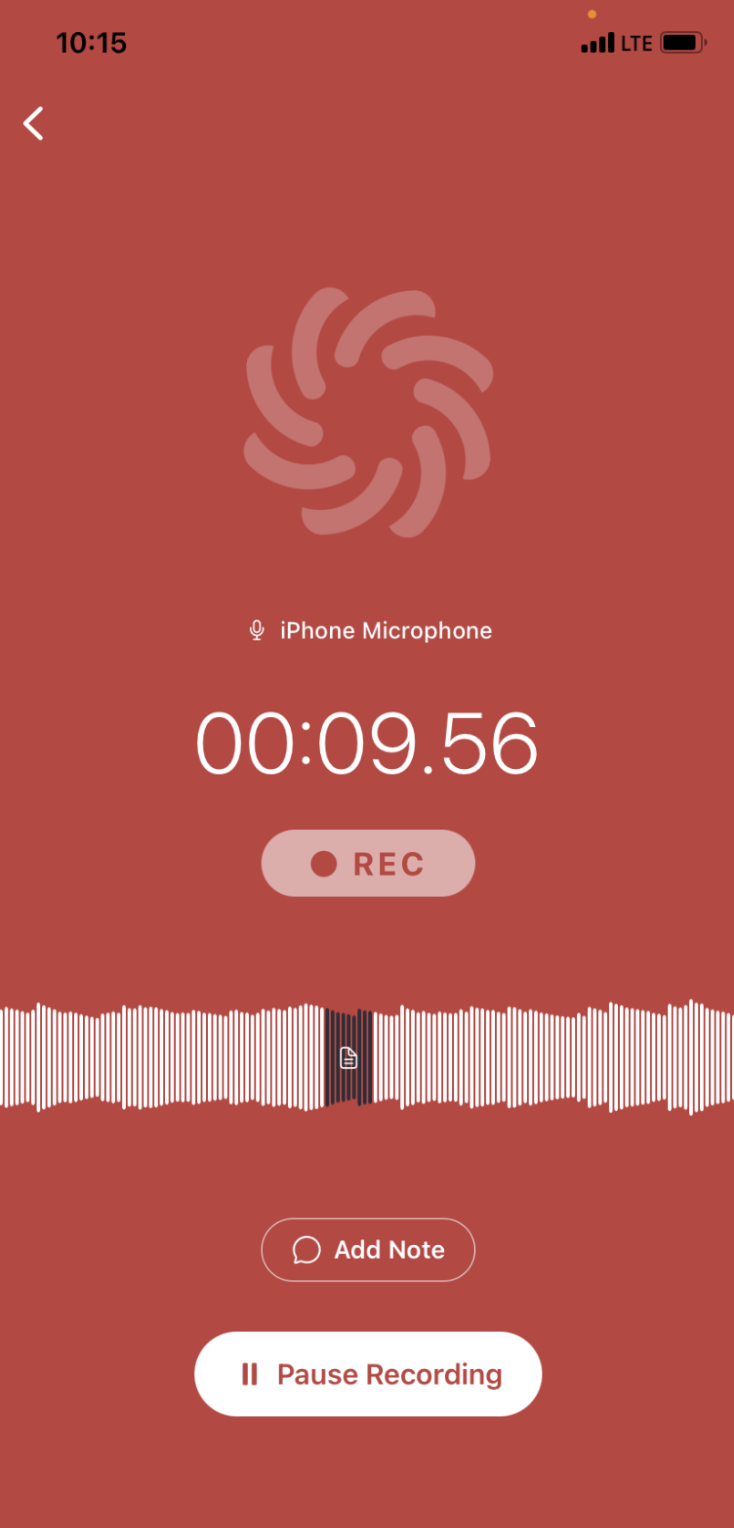
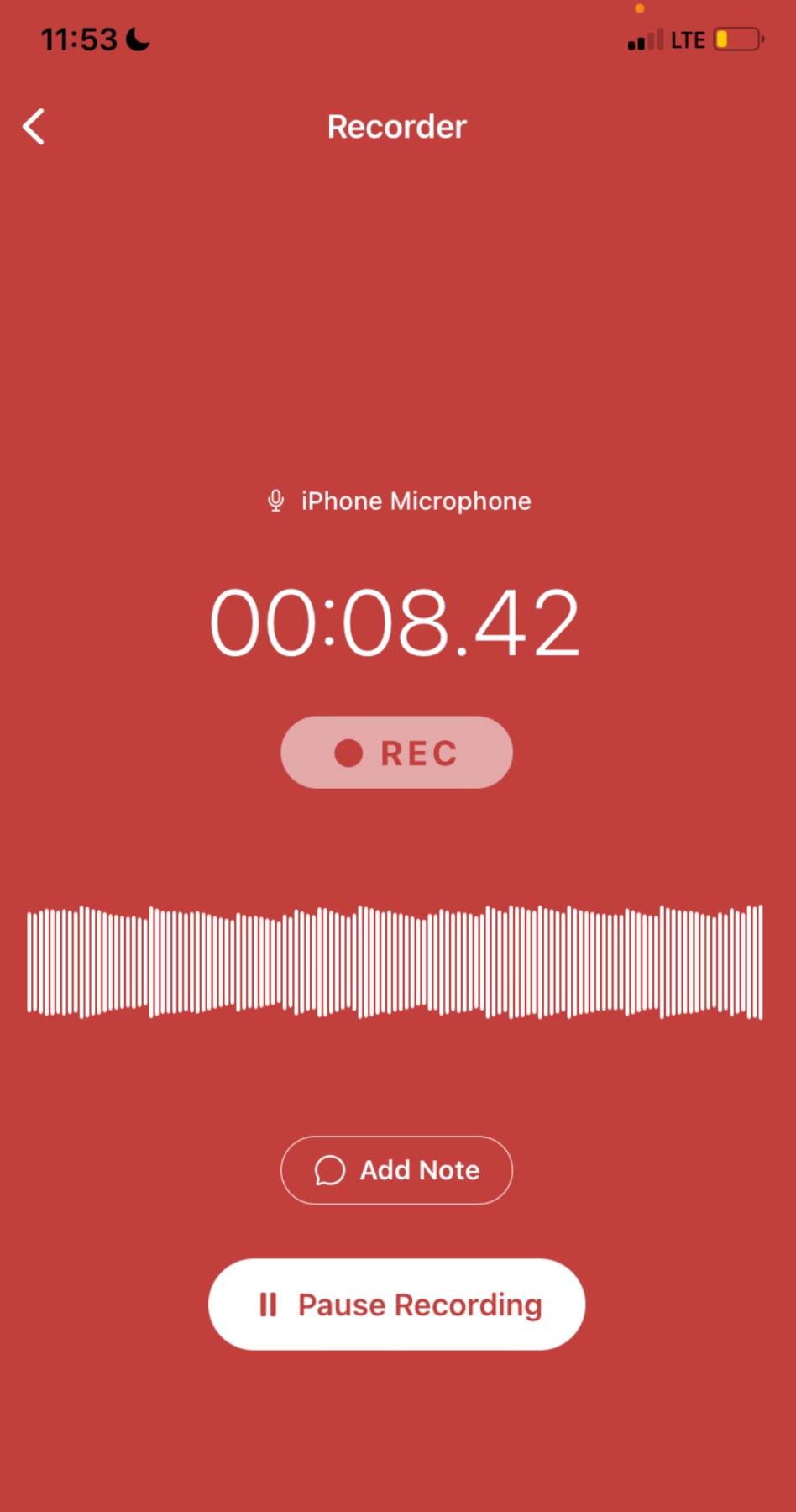 Once recording begins, the screen turns red and displays:
- The microphone in use
- A running timer
- A REC indicator
- A live audio waveform
- An Add Note button
- A Pause Recording button
- Background recording: You can switch to another app or minimize Kizen Voice at any point. The recording will continue running in the background. If you activate another voice app on your phone (such as Siri or another voice assistant) or get a phone call, the recording will get interrupted. However, as soon as you hang up, the app will automatically resume recording.
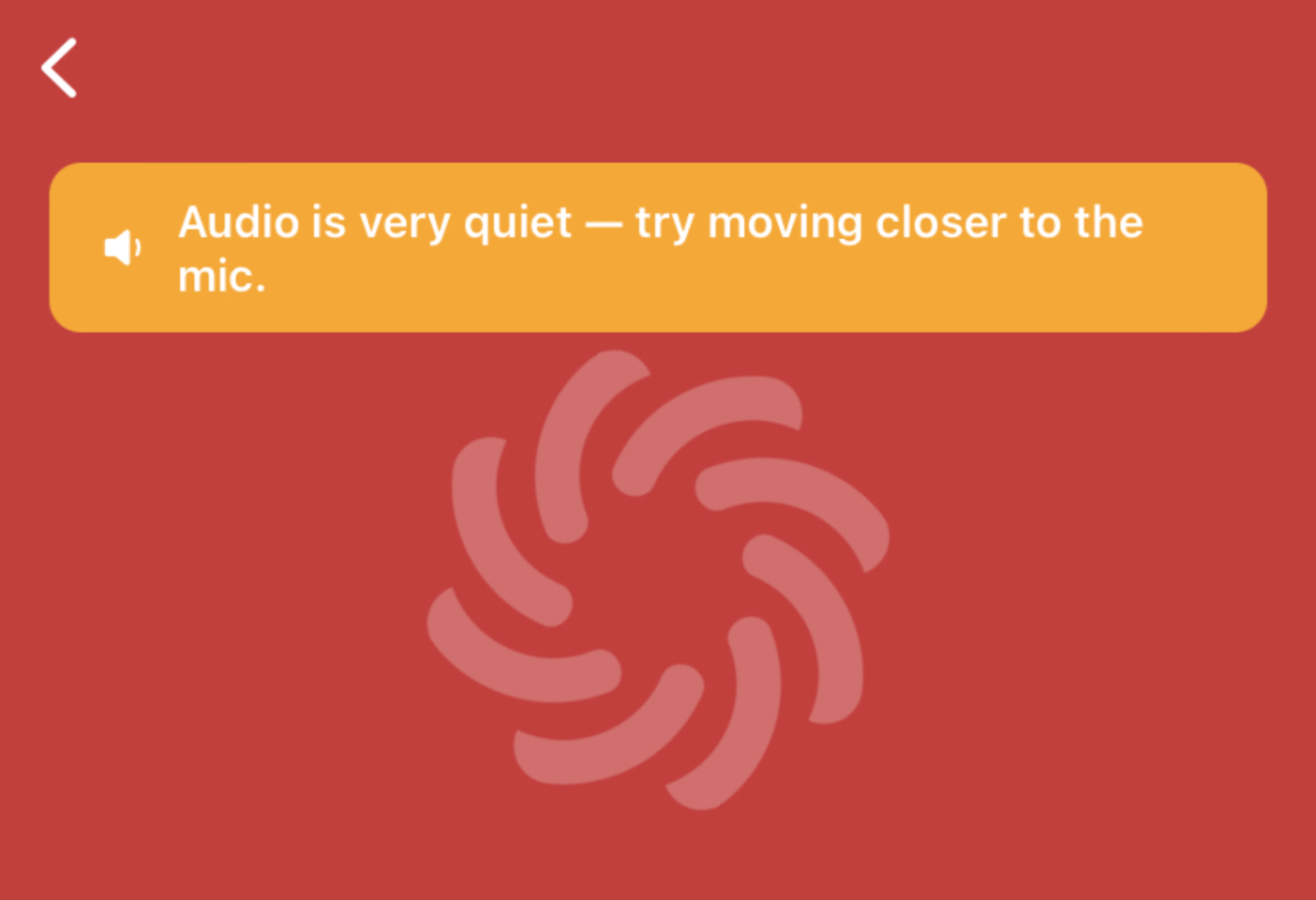
- Silence detection: If the app detects prolonged silence, it will alert you by displaying, "Audio is very quiet — try moving closer to the mic" on your screen.
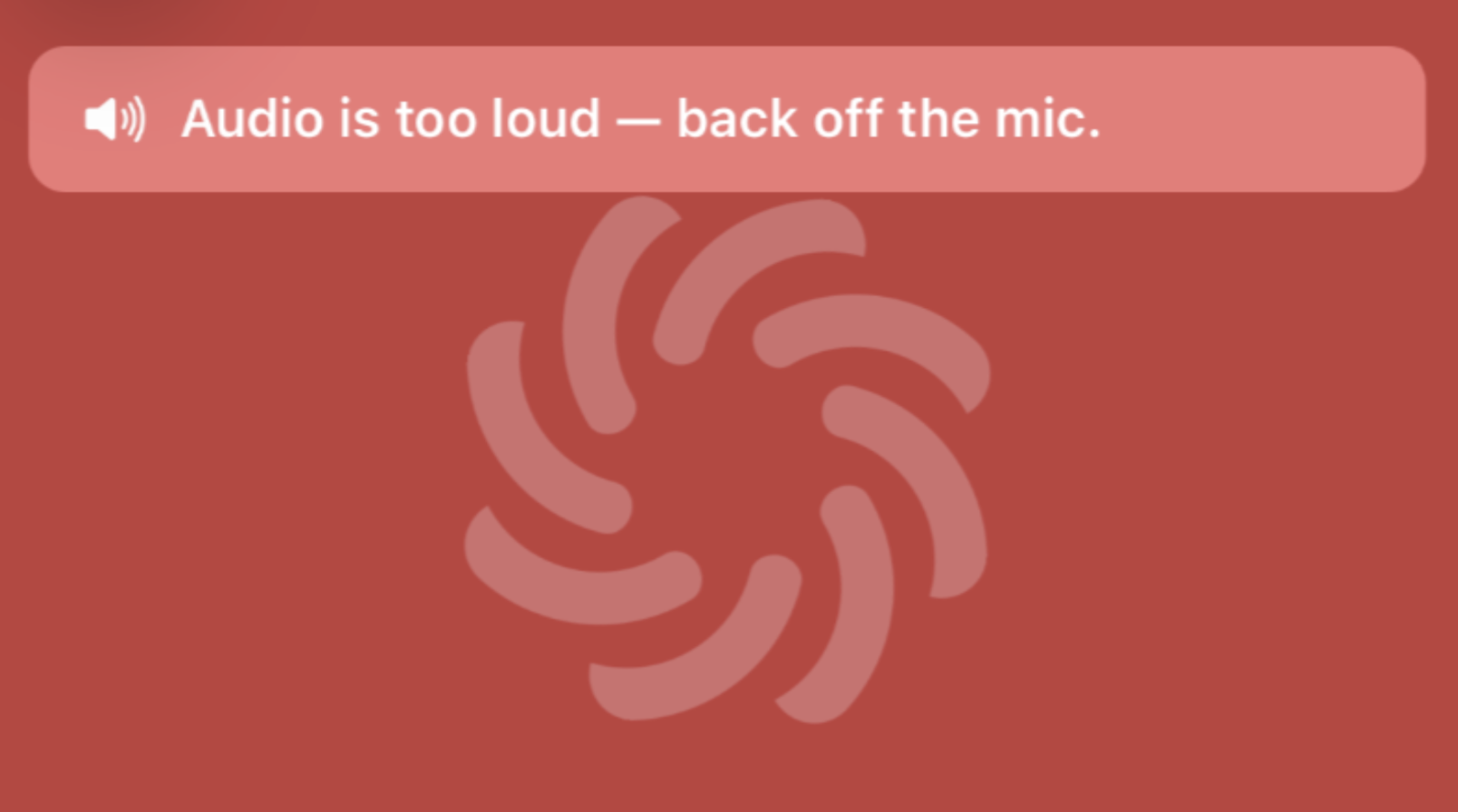
- Loudness detection: If the app detects that the audio volume is too loud, it will also alert you by displaying, "Audio is too loud — back off the mic."
Add Timestamped Notes (Optional)
You can add notes at any point during the meeting without pausing or stopping the recording. The app will keep recording while you enter the note, and will time stamp it to the recording when you hit Save.
- Tap Add Note.
- A panel slides up showing an Add a note... text field.
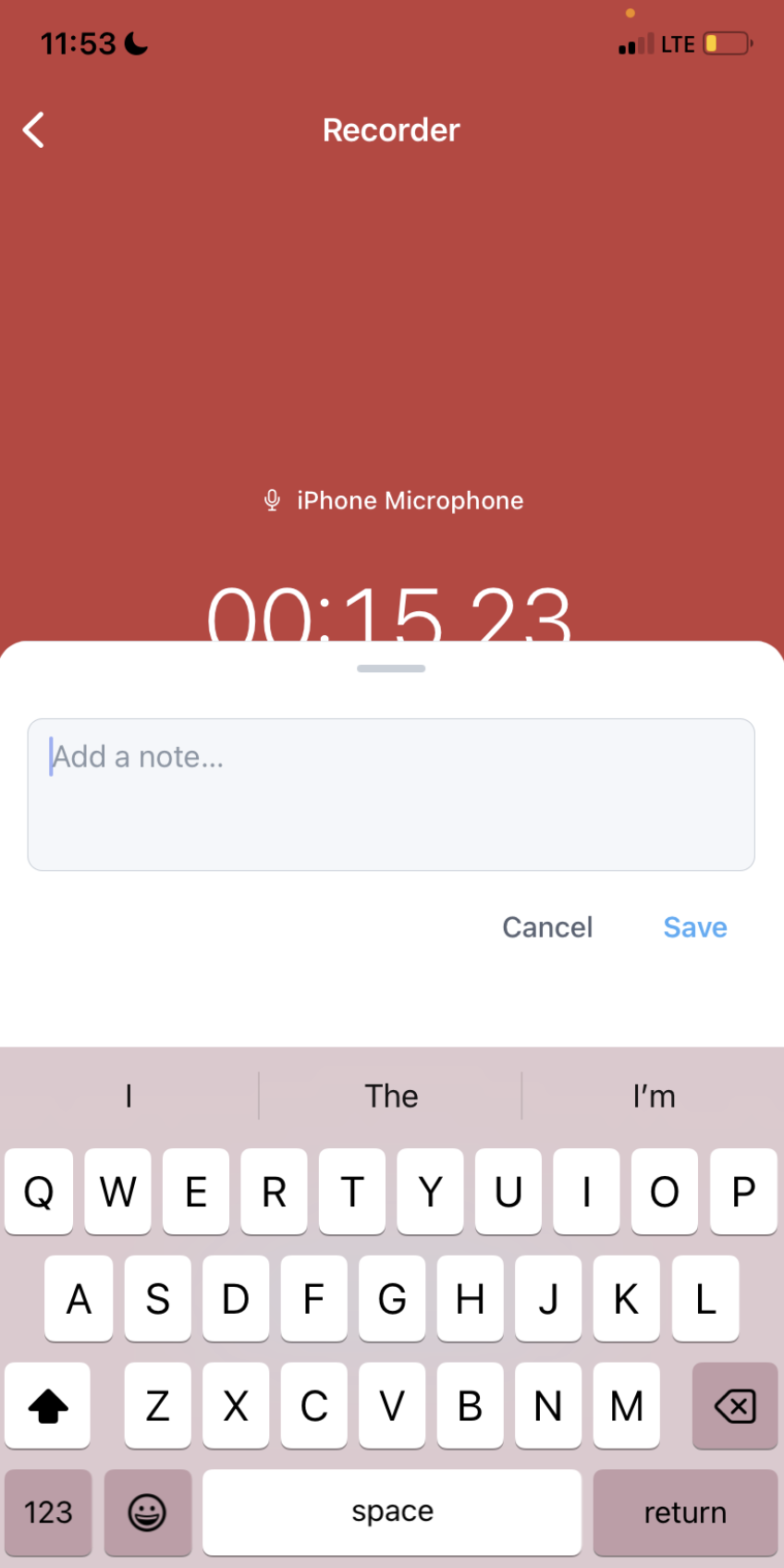
- Type your note.
- Tap Save to attach the note to the recording. The note is stamped with a time range, from the moment you tap Add Note to the moment you tap Save. During playback, the note is highlighted for that entire range, not just a single point in time.
 Notes appear in the Player screen after the recording is saved, listed with their timestamps in blue so you can reference them while listening back.
 - Tap Cancel if you decide not to save the note.
Pause the Recording
- Tap Pause Recording at any time to pause.
- The screen turns amber and displays a PAUSED status indicator.
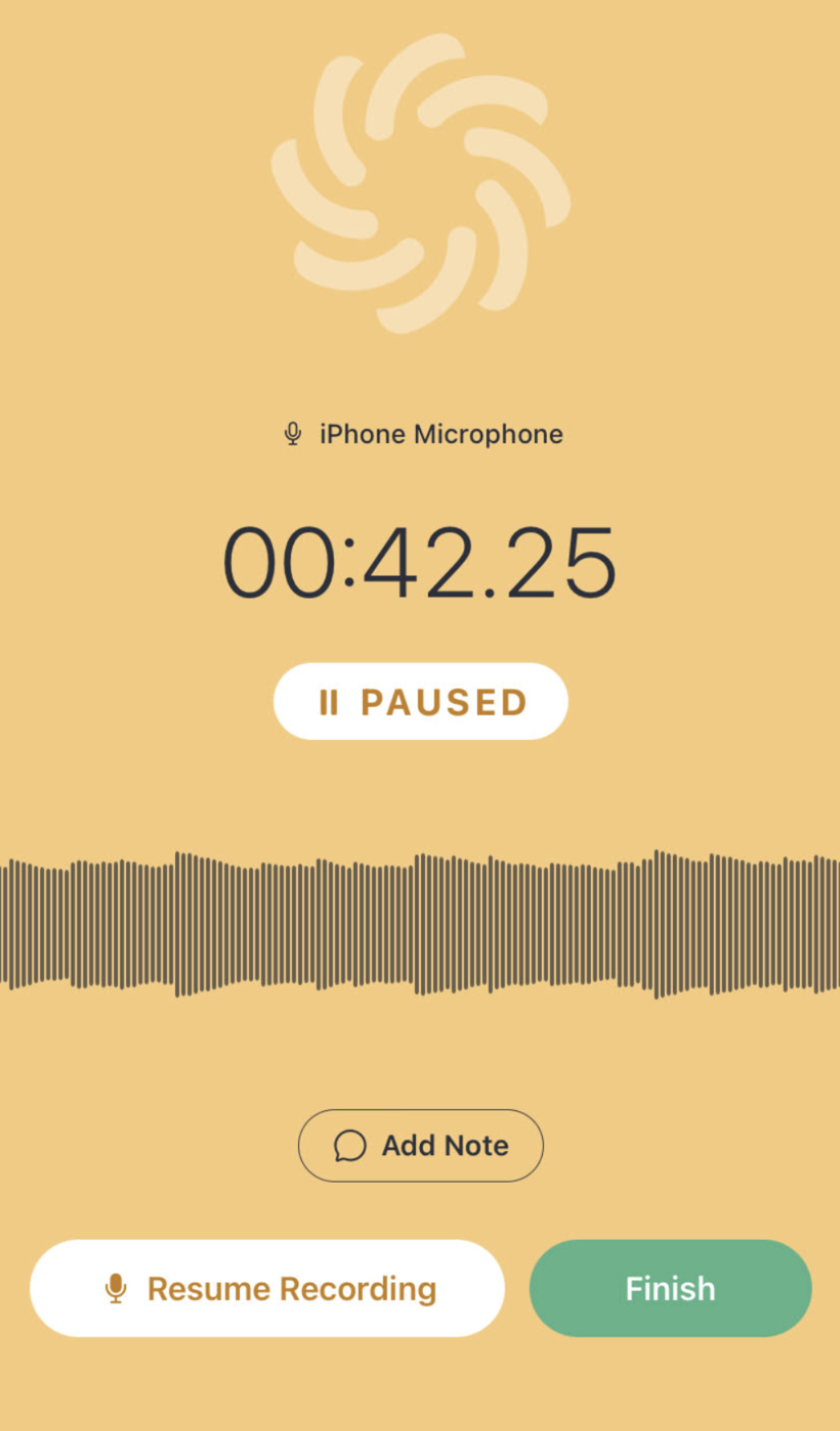
- Two buttons appear: Resume Recording and Finish. Tap Resume Recording to continue. You can pause and resume as many times as needed during a meeting.
- The Add Note button remains available while the recording is paused.
Finish the Recording
- When the meeting is complete, tap Pause Recording if you are not already paused.
- Tap Finish.
- The recording is saved to your device and the app takes you to the Upload Recording screen.
⚠️ Note: If the app crashes or your phone loses power during a recording, the app will automatically recover the audio up to the moment the session was interrupted when you reopen it.Related Articles
- AgentCRM: Kizen Voice App & Meeting Assistant User Guide
- AgentCRM: How to Download the Kizen Voice App
- AgentCRM: How to Log into the Kizen Voice App
- AgentCRM: How to Upload a Recording from Kizen Voice App
Still Need Help?
If you encounter any issues, contact support@kizen.com.
Was this article helpful?
That’s Great!
Thank you for your feedback
Sorry! We couldn't be helpful
Thank you for your feedback
Feedback sent
We appreciate your effort and will try to fix the article