Purpose: Learn how to manage recordings in your Kizen Voice App, including how to rename or delete an existing recording, or import a recording from a different app.
TABLE OF CONTENTS
- Prerequisites
- How to Rename a Recording in the Kizen Voice App
- How to Delete a Recording in the Kizen Voice App
- How to Import an External Recording to the Kizen Voice App
- Related Articles
- Still Need Help?
Prerequisites
Before setting up or using Kizen Voice, confirm each of the following. If any item is not in place, stop and contact your AgentCRM administrator before continuing.
✅ Device: This guide covers iPhone and Android experiences.
✅ Permissions: You must have “Create and Edit” permissions on the Integrated Phone Calls object in Kizen AgentCRM. Without this, recordings will not upload or process correctly.
✅ Kizen credentials: You will need your Kizen email address and your Kizen password. If you have trouble signing, contact Kizen support.
✅ Environment: During setup you will be asked to select your agency's Kizen environment (for example, Go or FMO). Selecting the wrong environment means your recordings will not be linked to the correct business.
How to Rename a Recording in the Kizen Voice App
- Open the recording from your recordings list to go to the Player screen.
- Tap the ... button in the top right corner.
- A menu slides up with five options: Rename, View Contact in Kizen, View voice Record in Kizen, Delete recording, and Cancel.
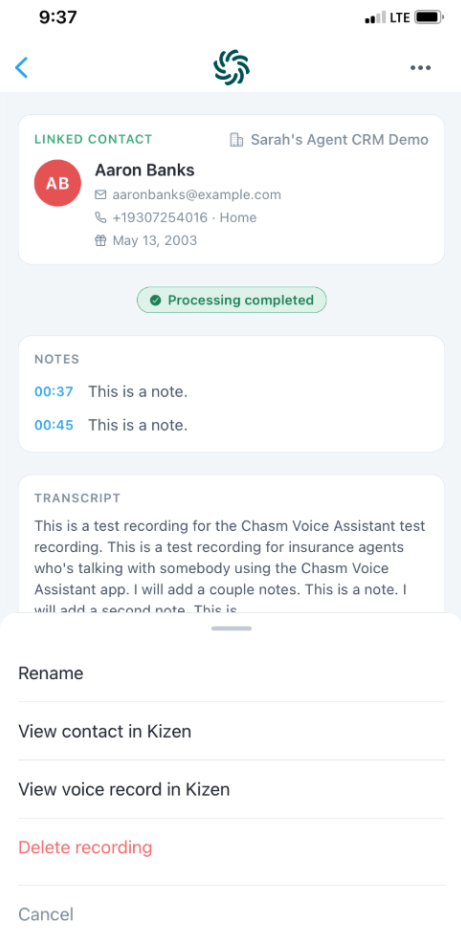
- Tap Rename.
- Type the new name of your recording (for example, the Contact's name, date, and/or purpose of the call).
- Tap Save.
How to Delete a Recording in the Kizen Voice App
- Open the recording from your recordings list to go to the Player screen.
- Tap the ... button in the top right corner.
- Tap Delete recording.
⚠️ Note: If the recording was already uploaded to your Kizen AgentCRM business, it remains in your CRM and is not affected by deleting it from the Voice app. You can always redownload the recording file from your AgentCRM if needed and re-import it to the Kizen Voice app.How to Import an External Recording to the Kizen Voice App
If you recorded a call using another app, such as your phone's built-in recording app or RingCentral, you can import that recording into Kizen Voice. Supported file formats: MP3, WAV, M4A, AAC.
- Locate the recording in its source app: Open the app you used to record the call (for example, Voice Memos) and find the recording in its list.
- Share the recording: Tap the Share button for that recording. Depending on the app, this may appear as a share icon, or under a menu of options (such as a "..." button).
- Select Kizen Voice: From the share menu, select Kizen Voice app.
- Attach the recording to a contact: The Upload Recording screen opens automatically. Search for and select the contact, and then follow the steps in the How to Upload a Recording from Kizen Voice App guide.
Related Articles
- AgentCRM: Kizen Voice App & Meeting Assistant User Guide
- AgentCRM: How to Record a Meeting in the Kizen Voice App
- AgentCRM: How to Upload a Recording from Kizen Voice App
Still Need Help?
If you encounter any issues, contact support@kizen.com.
Was this article helpful?
That’s Great!
Thank you for your feedback
Sorry! We couldn't be helpful
Thank you for your feedback
Feedback sent
We appreciate your effort and will try to fix the article