Purpose: Still have questions after going through the Kizen Voice App & Meeting Assistant User Guide? Here are answers to the questions agents might ask most often about logging in, recording, uploading, and reviewing Activities. If your question isn't covered here, contact Kizen support.
TABLE OF CONTENTS
- What If I Logged in to the Wrong Environment?
- Why Can't I Find My Contact in the Kizen Voice App?
- I Tapped "Skip." Where Did My Recording Go?
- Can I Record Without an Internet Connection?
- Can I Use Other Apps on My Phone While Recording?
- What Happens if the App Crashes During a Recording?
- Can I Add Notes After I Finish Recording?
- Can I Play Back an Old Recording While I am Recording a New One?
- My Upload Failed. What Should I do?
- How Long Does Processing Take?
- A Medication, Provider, or Pharmacy From My Recording Was Not Matched. What Does That Mean?
- I Deleted a Recording from the App. Is The Recording Gone From Kizen?
- Can I Import Recordings Made in Other Apps?
- Related Articles
- Still Need Help?
What If I Logged in to the Wrong Environment?
If you already logged in with the wrong environment (such as GO instead of FMO or vice versa), log out using Log out in the account menu, then log back in and select the Change button on the top right of your screen to get back to the Choose your environment screen. Then you can change your environment.
Why Can't I Find My Contact in the Kizen Voice App?
On the Upload Recording screen, tap + Create new contact to create the Contact record in your Kizen AgentCRM before uploading.
I Tapped "Skip." Where Did My Recording Go?
If you tapped "Skip" instead of selecting a Contact to upload your recording, don't worry. Your recording is saved on your device, within the Kizen Voice App. Open your recordings list and look under Not Uploaded. Tap Upload on the right side of the entry when you are ready to attach it to a contact.
Can I Record Without an Internet Connection?
Yes, you can open your Kizen Voice App and record your client interaction without connecting to the internet or logging in to your AgentCRM business. The recording will save to your device. Once you are back online and logged in, find your recording under Not Uploaded and tap Upload to link it to a contact and send it to Kizen.
Can I Use Other Apps on My Phone While Recording?
Yes, Kizen Voice supports background recording. You can switch to another app, such as your calendar to check your schedule or maps app to verify an address, at any time. The recording will continue running in the background.
What Happens if the App Crashes During a Recording?
If the Kizen Voice app crashes or your phone loses power during the meeting, it will automatically recover your audio right up to the moment you were interrupted. You’ll see your recording when you re-open the app.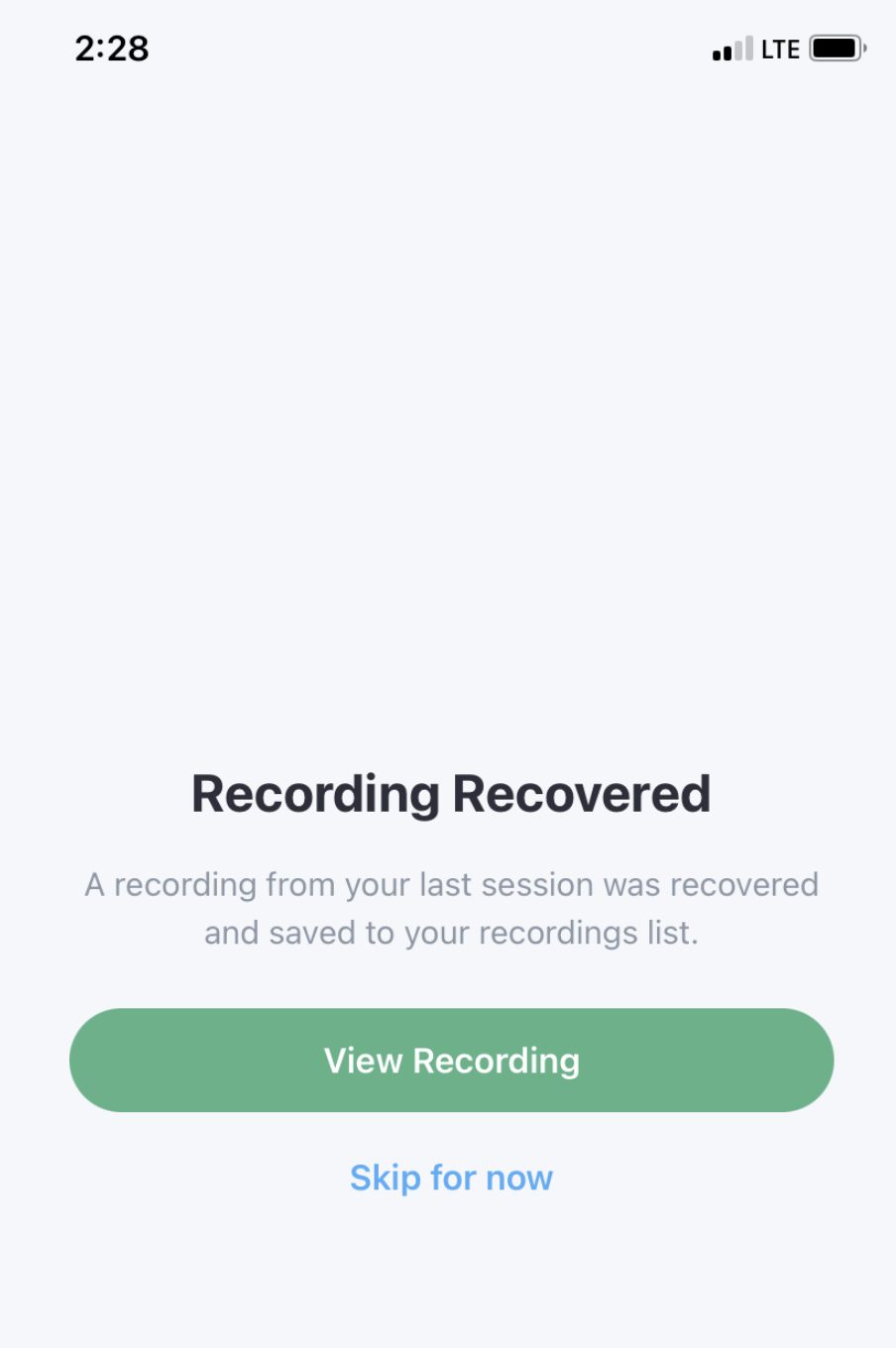
Can I Add Notes After I Finish Recording?
No. Notes within the Kizen Voice App can only be added during an active recording session using the Add Note button. They can also be added when the recording is paused. There is no option to add notes after the recording has been saved. However, you can add Notes directly to the call record or the Contact record in your AgentCRM at any time.
Can I Play Back an Old Recording While I am Recording a New One?
No. Playback is not available while an active recording session is in progress.
My Upload Failed. What Should I do?
Go to your recordings list and find the failed recording. Read the error message shown beneath it, then tap Retry to try uploading again.
If the error is due to a naming conflict, this means there is an existing recording with the same name. Use the rename option in the app to give the recording a unique name, then retry. If the recording still fails to upload after retrying, contact Kizen support with your error message.
How Long Does Processing Take?
The Meeting Assistant can typically take a few seconds to a few minutes to process a successful upload, depending on the length of the recording.
A Medication, Provider, or Pharmacy From My Recording Was Not Matched. What Does That Mean?
Kizen Meeting Assistant could not find a verified match for that item, possibly because the name was unclear, the dosage was missing, or multiple candidates were returned. During your Post-Call Review activities in Kizen, you will see an explanation of why it failed and any candidates found, so you can manually identify and link the Correct record. Nothing is added to the Contact until you confirm it. See our guide on Kizen Voice App Best Practices for Accurate Data Extraction for more information.
I Deleted a Recording from the App. Is The Recording Gone From Kizen?
Not necessarily. If the recording was already uploaded to a Contact in your AgentCRM, it remains stored in Kizen and can be accessed from your web browser version. Deleting a recording from the app only removes it from your device.
Can I Import Recordings Made in Other Apps?
Yes. Kizen Voice supports importing audio files in MP3, WAV, M4A, and AAC formats. Open the recording in its source app (such as Voice Memos), tap Share, and select Kizen Voice. This takes you directly to the Upload Recording screen, where you can search for and select a contact the same way as any recording made in the app.
Related Articles
- AgentCRM: Kizen Voice App & Meeting Assistant User Guide
- AgentCRM: How to Record a Meeting in the Kizen Voice App
- AgentCRM: How to Upload a Recording from Kizen Voice App
- AgentCRM: Kizen Voice App Best Practices for Accurate Data Extraction
Still Need Help?
If you encounter any issues, contact support@kizen.com.
Was this article helpful?
That’s Great!
Thank you for your feedback
Sorry! We couldn't be helpful
Thank you for your feedback
Feedback sent
We appreciate your effort and will try to fix the article