Purpose: Learn how to complete the AI Meeting Assistant Activities to confirm the data extracted from your Kizen Voice app recording before the Meeting Assistant takes follow-up actions in your AgentCRM.
TABLE OF CONTENTS
- How AI Meeting Assistant Works
- AI Meeting Assistant: Validate Contact
- AI Meeting Assistant: Medication Review
- AI Meeting Assistant: Pharmacy Review
- AI Meeting Assistant: Provider Review
- AI Meeting Assistant: Follow Ups
- Related Articles
- Still Need Help?
How AI Meeting Assistant Works
Once you record a client interaction in the Kizen Voice app and upload it to a Contact in your AgentCRM, your AI Meeting Assistant takes over in the web version of your AgentCRM:
- Kizen AI Meeting Assistant generates a transcript and recording summary.
- The Meeting Assistant then scans the transcript for any medications, providers, and pharmacies mentioned in the conversation.
- Each item is checked against verified registries to find a match. Because this depends on what was actually stated in the recording, not every item will match automatically. For example, a medication name may have been unclear, a dosage may have been missing, or multiple candidates may have been found.
- Any item that could not be matched is flagged for your review as a Scheduled Activity on the Contact record and your Main Dashboard. Open each AI Meeting Assistant Activity to see a plain-language explanation of what went wrong, along with any medication, pharmacy, and provider candidates the system found, so you can identify the correct records manually.
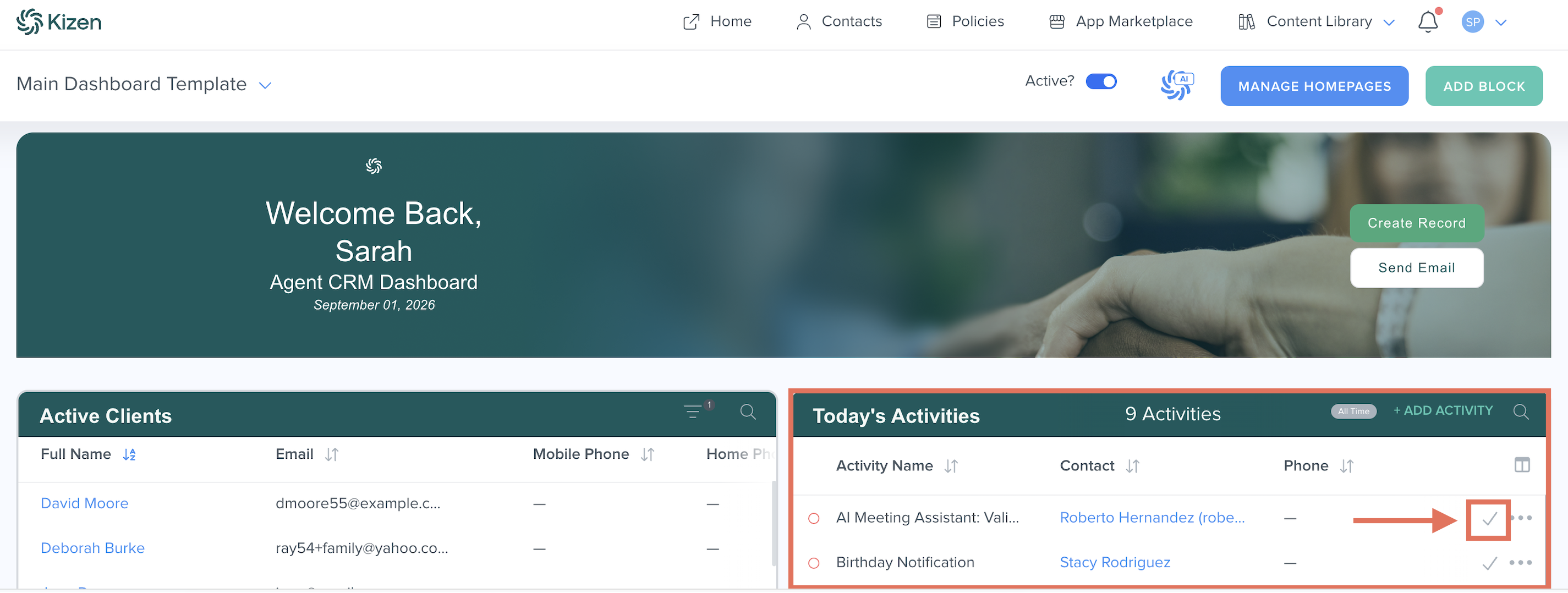
- Once you confirm the correct data, the Meeting Assistant will then update the Drugs, Pharmacies, and Providers on the Contact record and generate a follow-up summary email that you can choose to send or not send to the Contact.
Tip: Check out our Kizen Voice App Best Practices Guide for tips and tricks on how to structure client interactions so that the Kizen Meeting Assistant can accurately extract drug, provider, and pharmacy information.
AI Meeting Assistant: Validate Contact
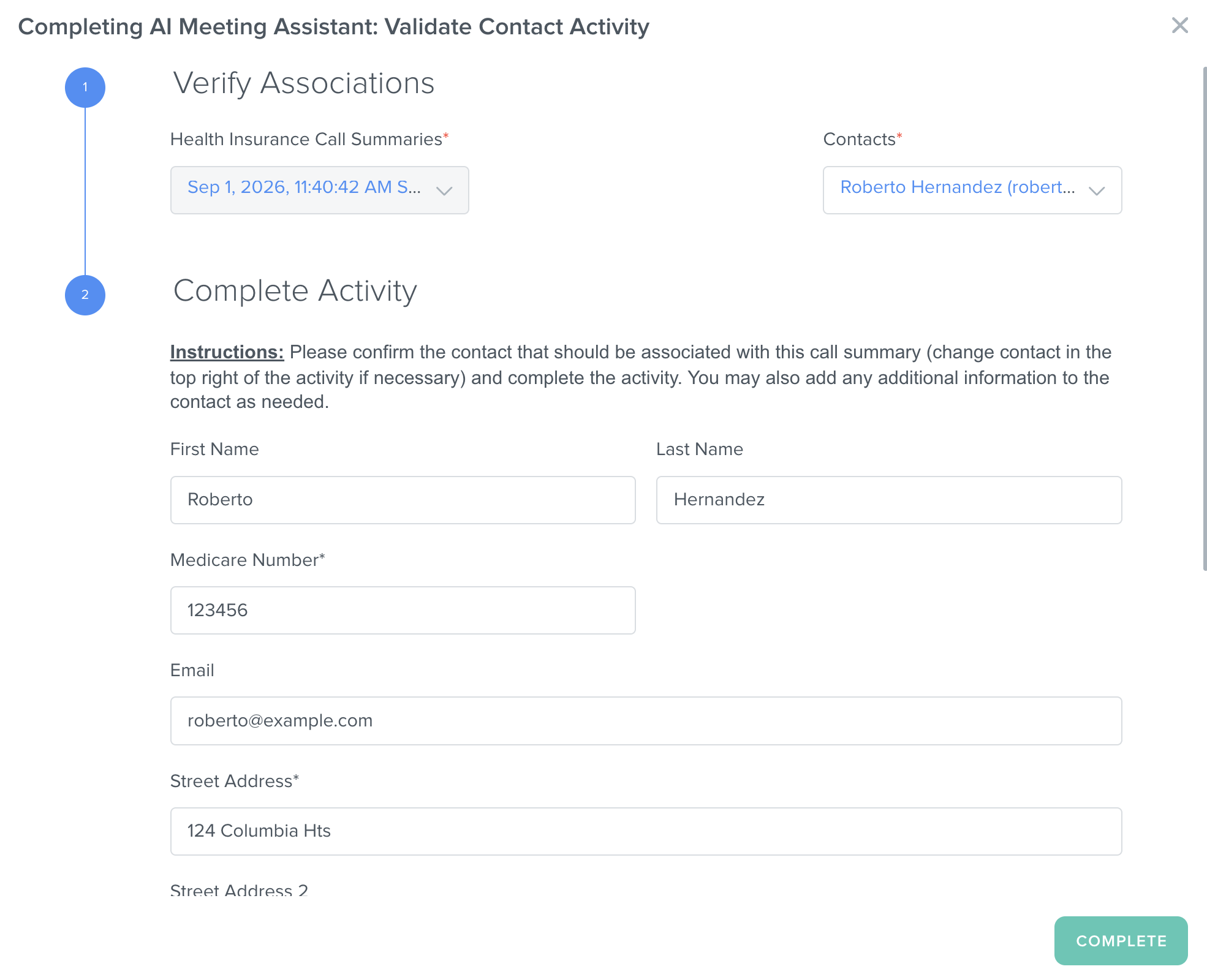
The AI Meeting Assistant: Validate Contact activity confirms that the correct Contact record is linked to the call summary. If the Contact needs to be corrected, change the name or email address in the Contacts* field at the top right of the activity before proceeding. (You can also add additional information to the Contact record directly from this activity.)
AI Meeting Assistant: Medication Review
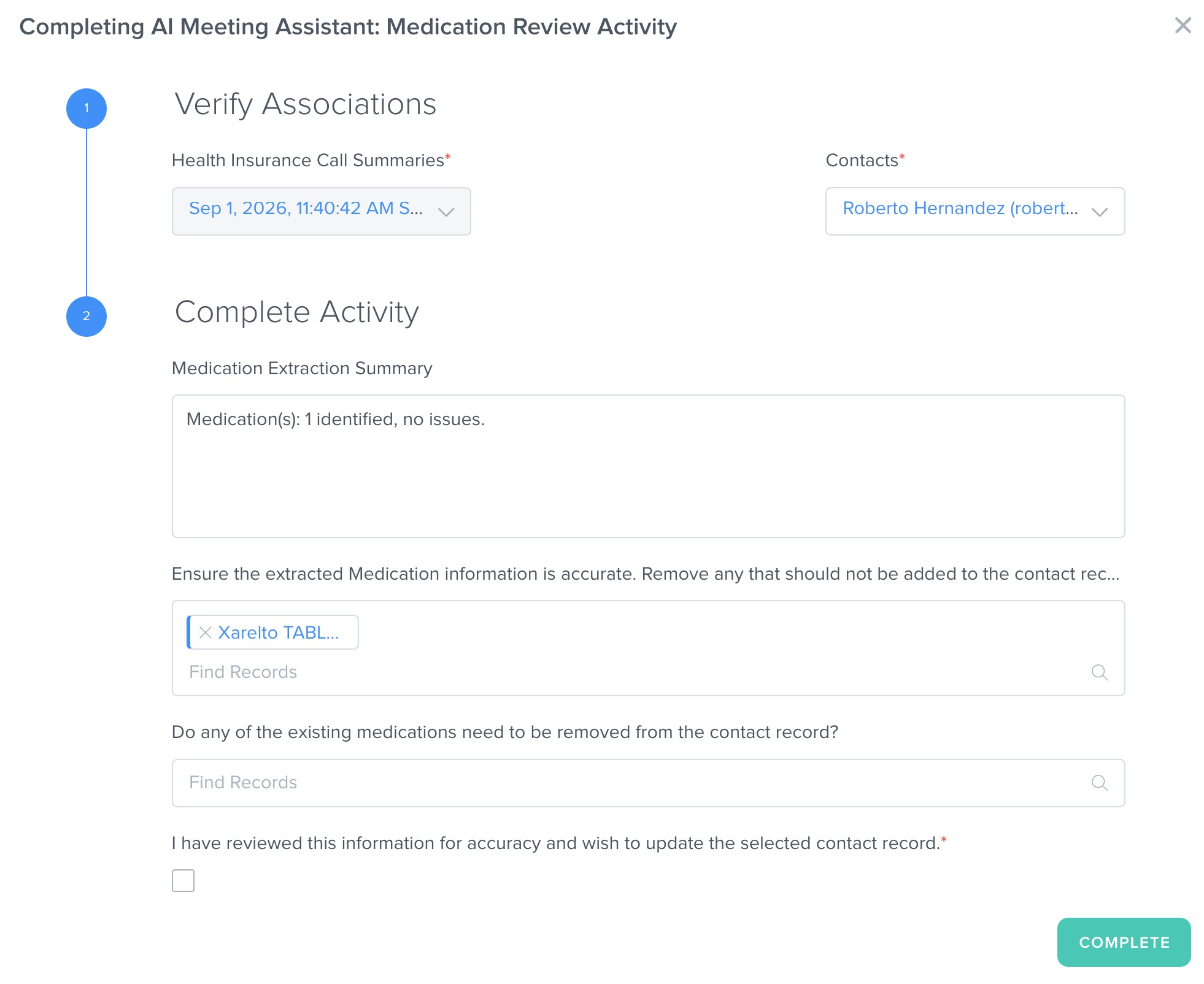
The AI Meeting Assistant: Medication Review activity confirms the following:
- Medications that matched successfully to a verified record in the FDA database before making any updates to the Contact record.
- Medications that could not be matched successfully to a verified record in the FDA database, with a detailed explanation and any other possible candidates found.
- Medications that currently already exist on the Contact record so that you can remove anything that is no longer accurate from the record.
AI Meeting Assistant: Pharmacy Review
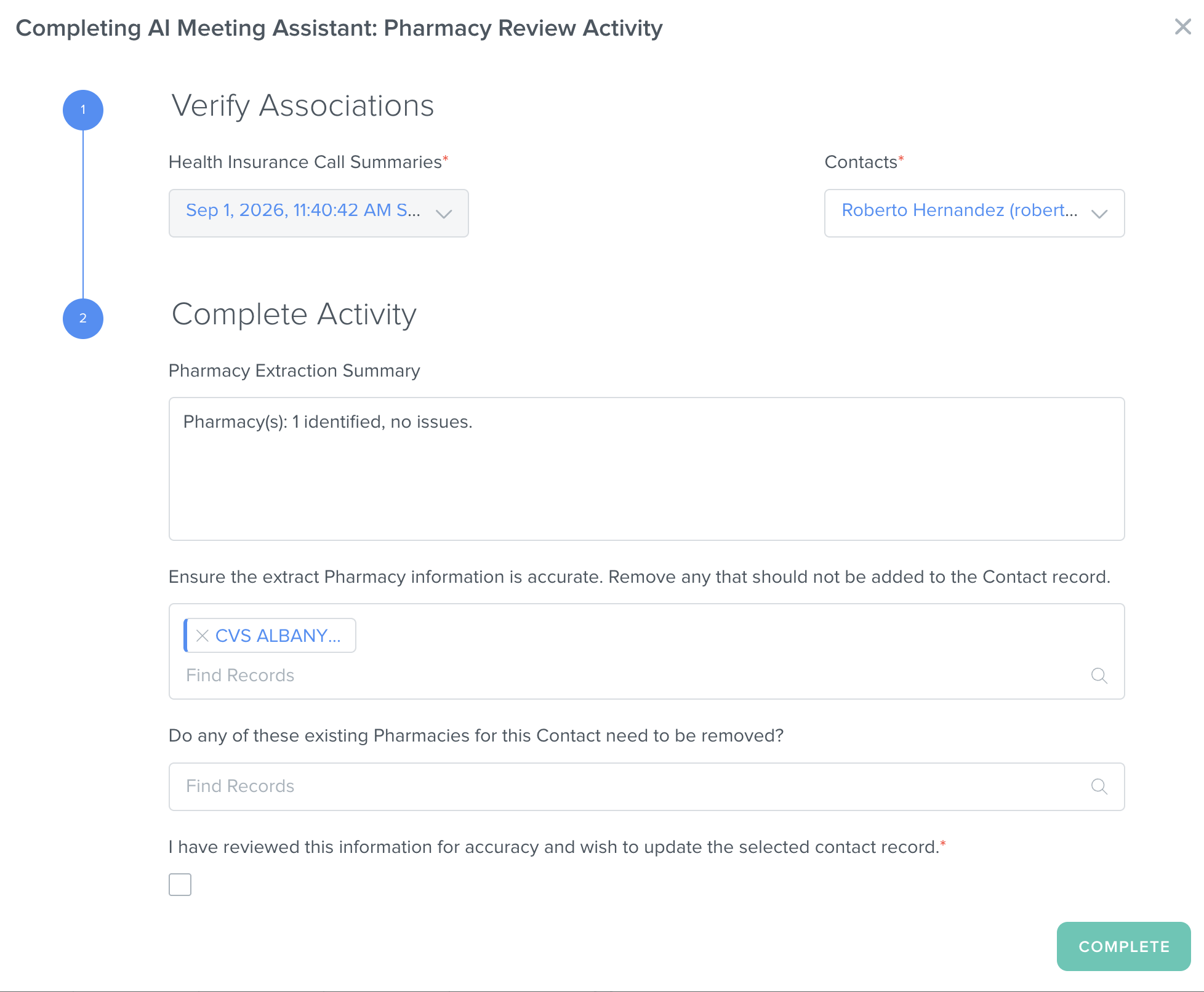
The AI Meeting Assistant: Pharmacy Review activity confirms the following:
- Pharmacies that matched successfully to a verified record in the National Library of Medicine (NLM) database before making any updates to the Contact record.
- Pharmacies that could not be matched successfully to a verified record in the National Library of Medicine (NLM) database, with a detailed explanation and any other possible candidates found.
- Pharmacies that currently already exist on the Contact record so that you can remove anything that is no longer accurate from the record.
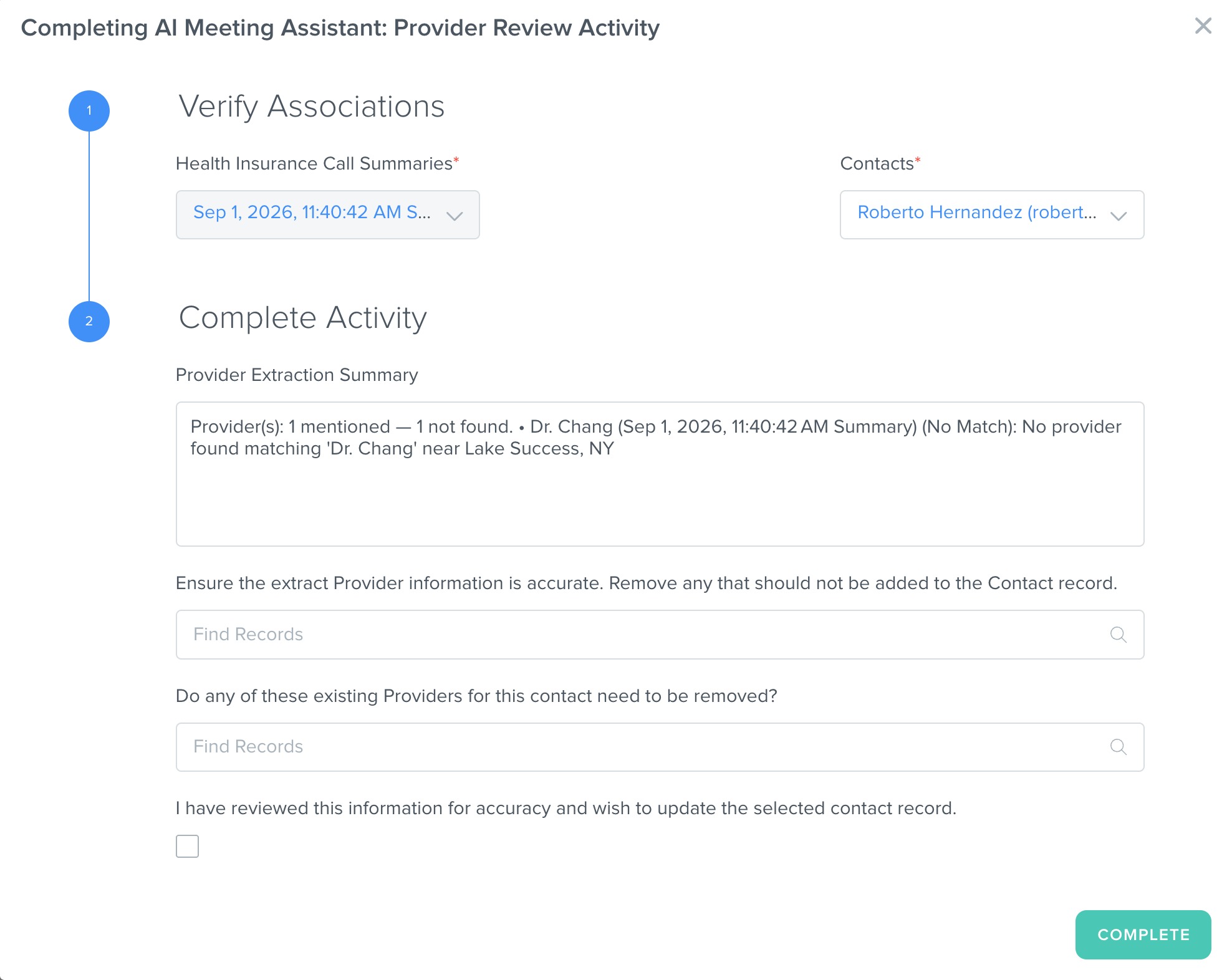
AI Meeting Assistant: Provider Review
The AI Meeting Assistant: Provider Review activity confirms the following:
- Providers that matched successfully to a verified record in the National Library of Medicine (NLM) database before making any updates to the Contact record.
- Providers that could not be matched successfully to a verified record in the National Library of Medicine (NLM) database, with a detailed explanation and any other possible candidates found.
- Providers that currently already exist on the Contact record so that you can remove anything that is no longer accurate from the record.
AI Meeting Assistant: Follow Ups
The AI Meeting Assistant: Follow Ups activity reviews the call summary, and generates a follow-up email draft to send to the linked Contact record. Feel free to edit the subject line and email message. To skip sending the email, scroll to Send Email? and select No.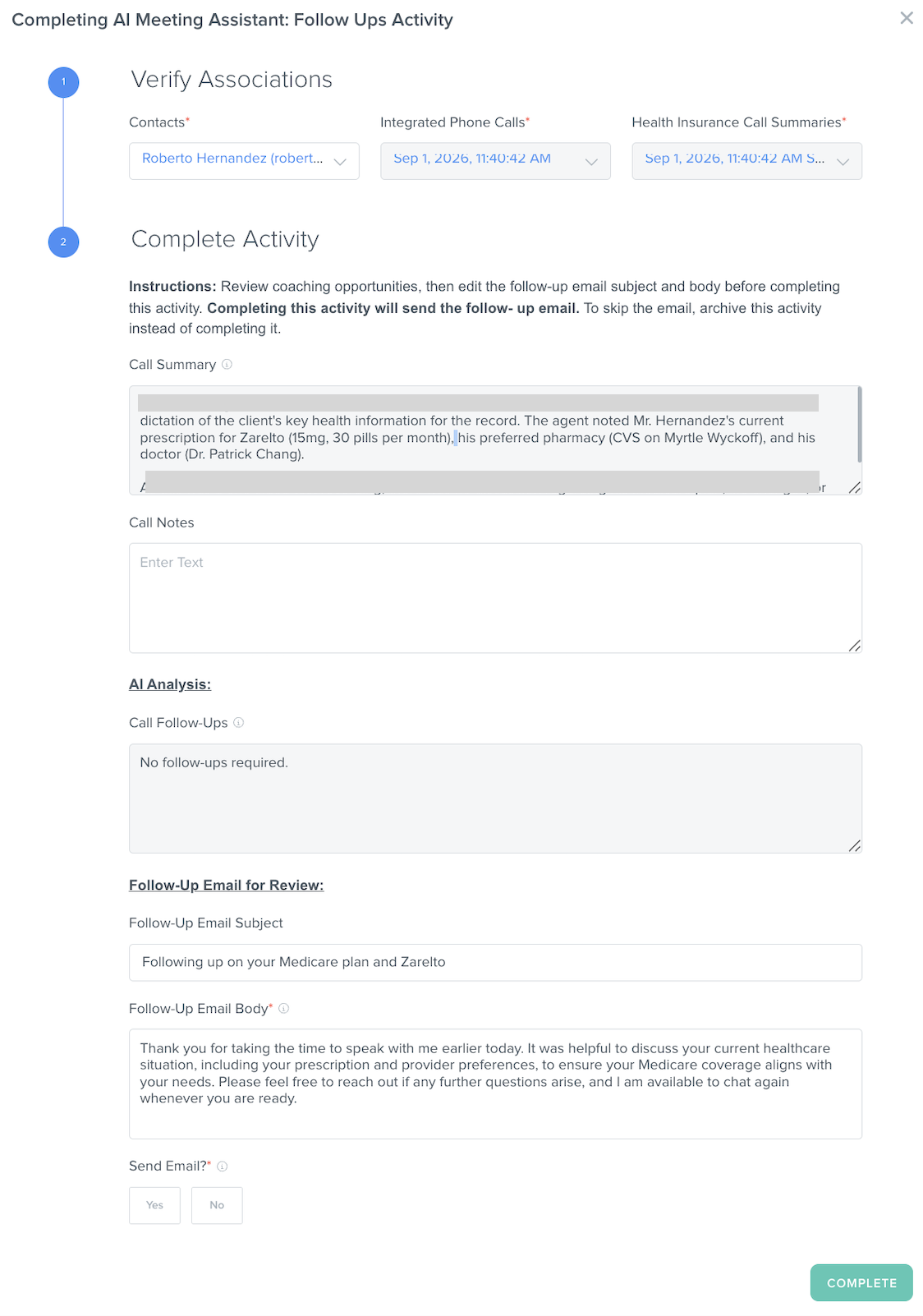
Related Articles
- AgentCRM: Kizen Voice App & Meeting Assistant User Guide
- AgentCRM: How to Record a Meeting in the Kizen Voice App
- AgentCRM: How to Upload a Recording from Kizen Voice App
- AgentCRM: Kizen Voice App Best Practices for Accurate Data Extraction
Still Need Help?
If you encounter any issues, contact support@kizen.com.
Was this article helpful?
That’s Great!
Thank you for your feedback
Sorry! We couldn't be helpful
Thank you for your feedback
Feedback sent
We appreciate your effort and will try to fix the article