Purpose: In this support guide, we’ll walk you through the process of modifying related Agentic Workflows within the Kizen Agentic Workflow engine. This feature allows you to initiate actions on related objects and entities, enhancing the Agentic Workflow capabilities of your workflows. By following the outlined steps, you can effectively manage and trigger Agentic Workflows based on related data, ensuring a more streamlined and efficient operational process
Follow the steps below to start an Agentic Workflow on a Related Object:
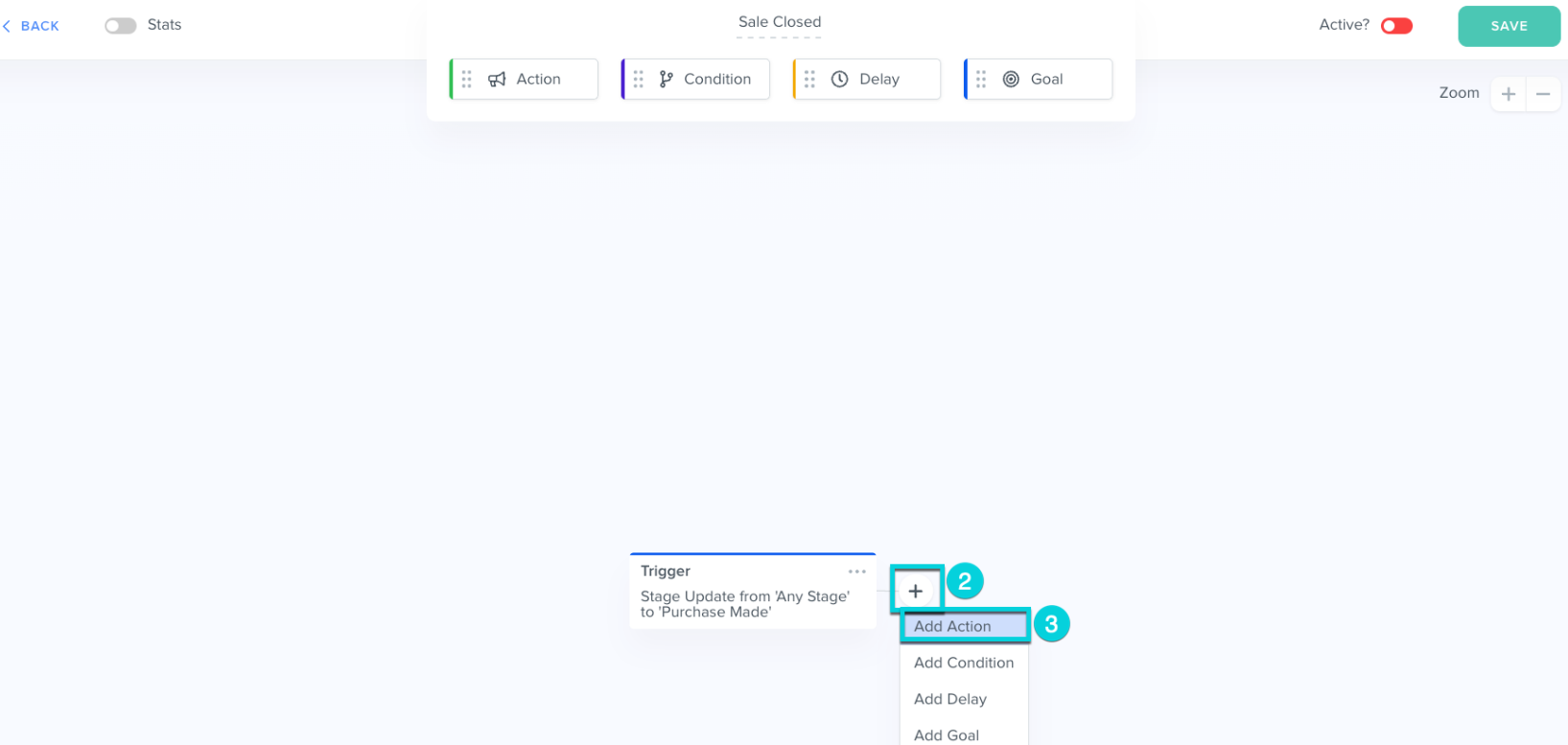
2. Click on + icon
3. Choose Add Action from the drop-down list
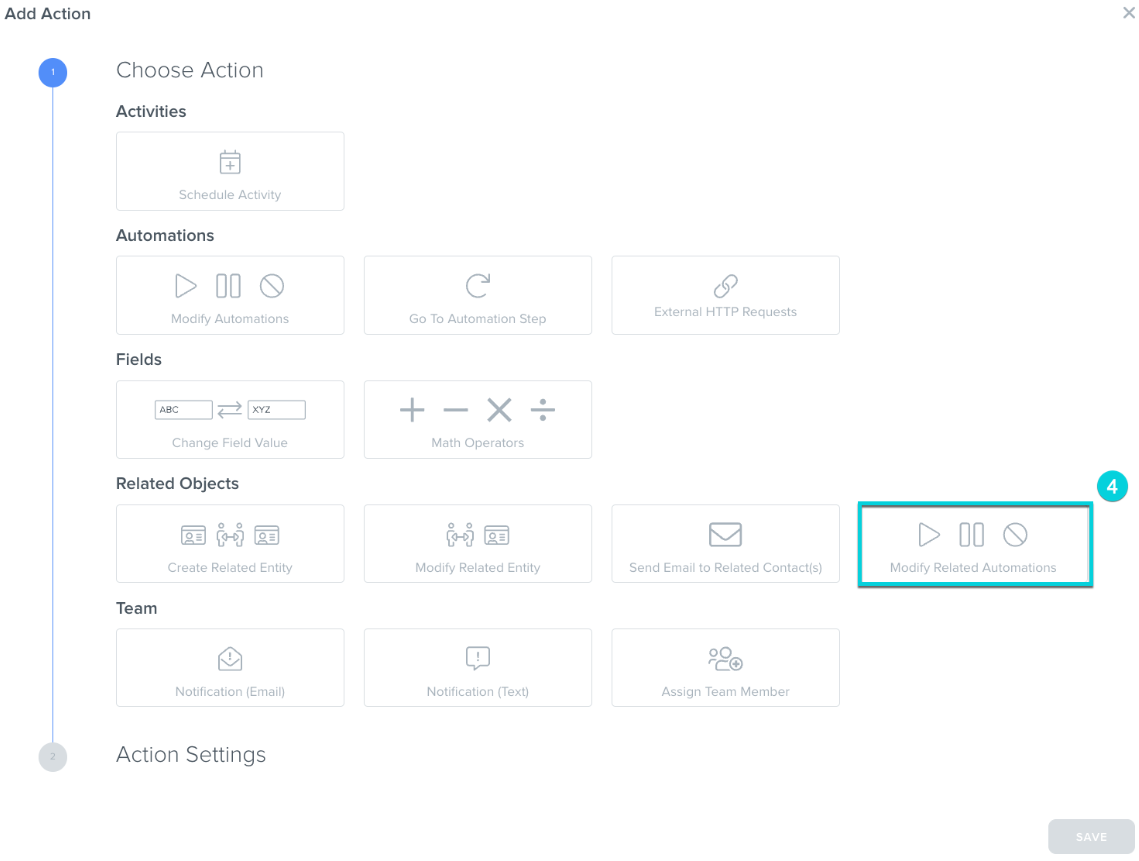
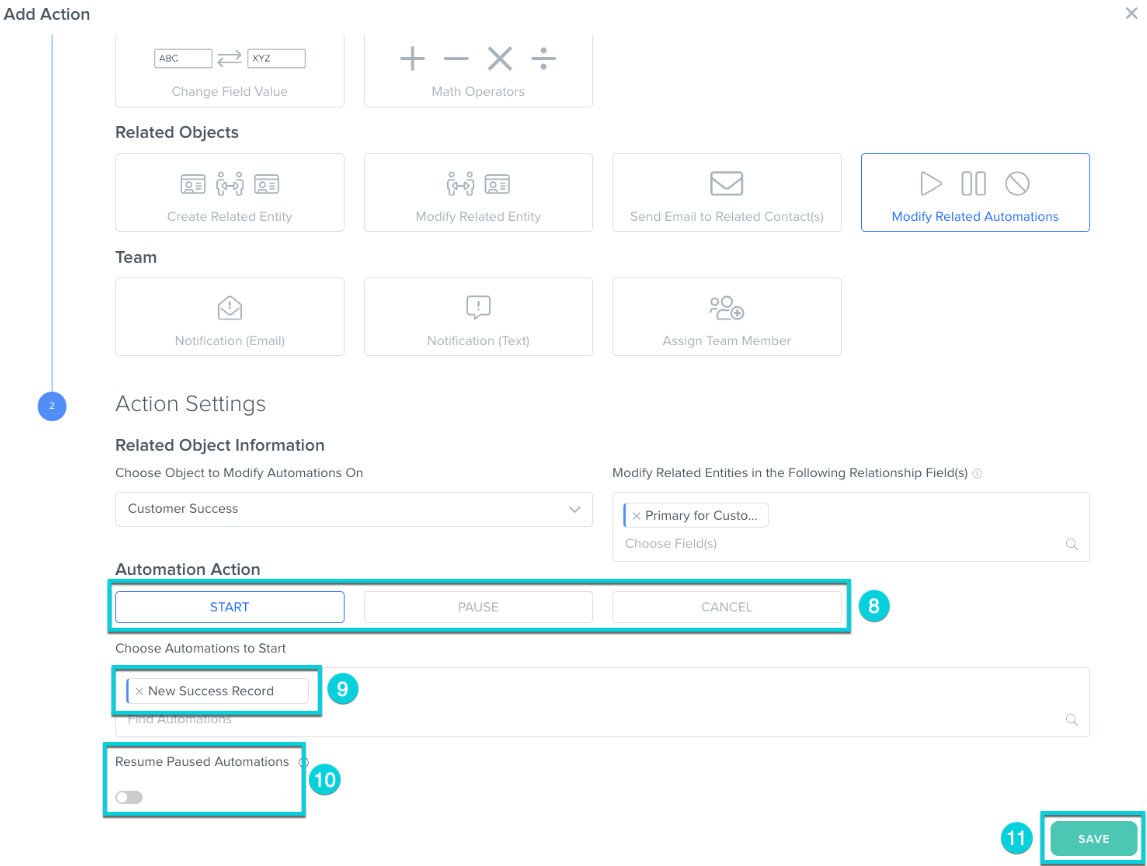
4. Click Modify Related Agentic Workflows
5. Select the dropdown to choose a Related Object
6. Select the Related Object to start an Agentic Workflow for
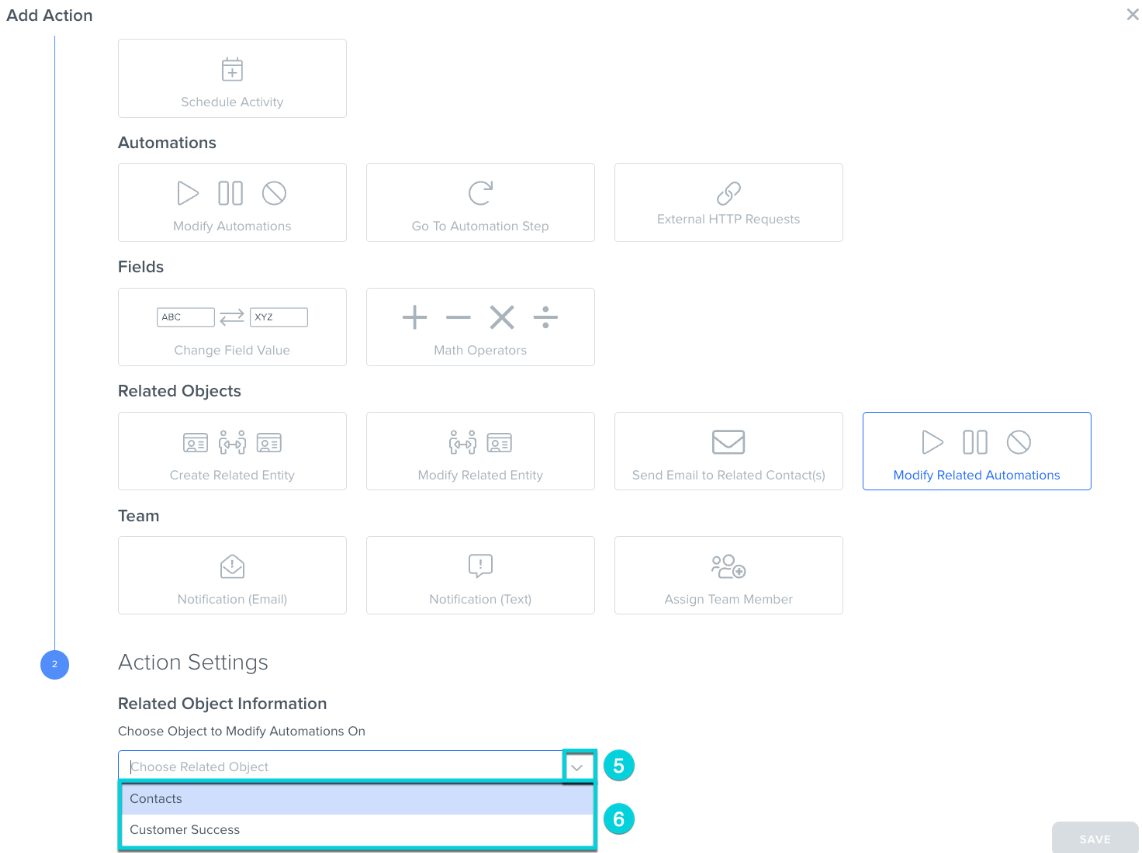
Note: Only custom objects that are related to the object of the current Agentic Workflow will be available to select
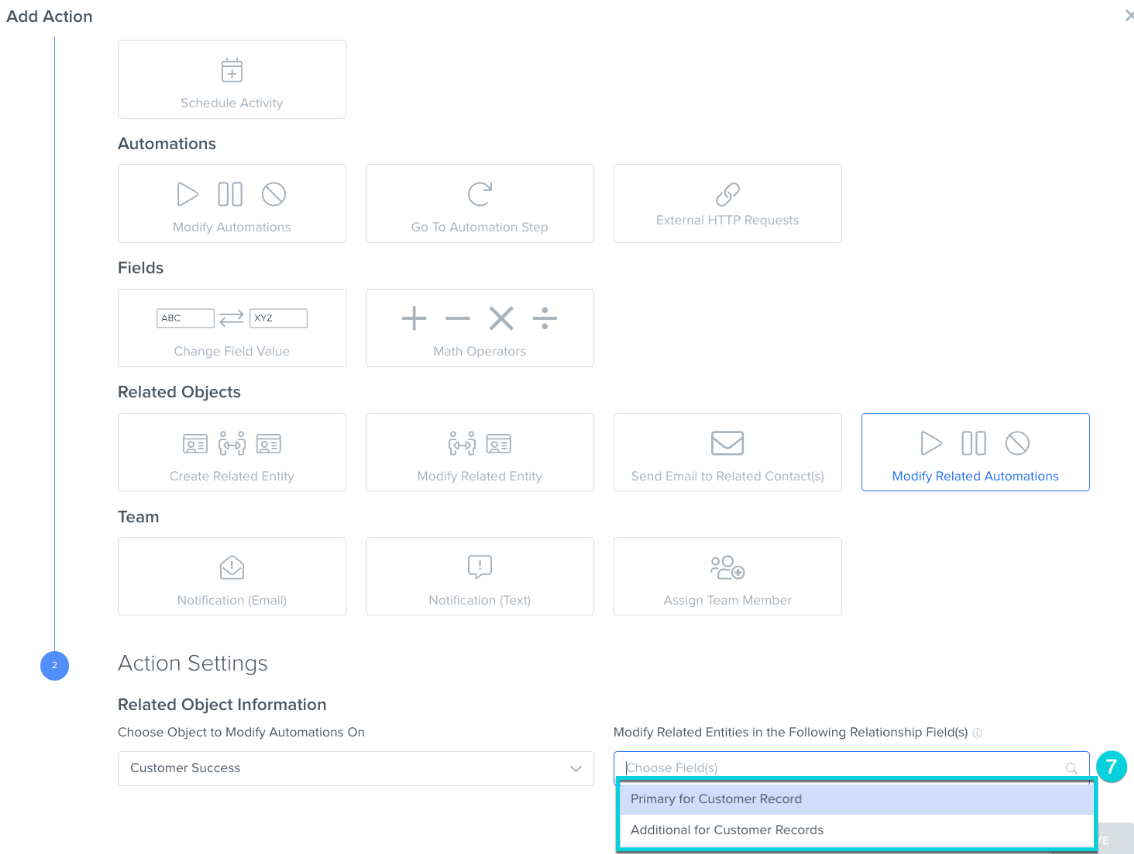
7. Select the Related Entity to trigger the new Agentic Workflow on
8. Select an Action for the new Agentic Workflow - Start, Pause, or Cancel
9. Choose Agentic Workflow to Start / Pause / Cancel
10. If Starting a new Agentic Workflow, select if paused Agentic Workflows should be restarted (optional)
Note: Records with the existing paused Agentic Workflow will be restarted instead of starting a new Agentic Workflow at step 1
11. Click Save
Was this article helpful?
That’s Great!
Thank you for your feedback
Sorry! We couldn't be helpful
Thank you for your feedback
Feedback sent
We appreciate your effort and will try to fix the article