Purpose: Learn how to add a new Agentic Workflow for your business workflow, edit, and delete an Agentic Workflow.
TABLE OF CONTENTS
- Prerequisites
- How to Add, Edit, and Delete Agentic Workflows
- Agentic Workflows Best Practices
- Related Articles
- Still Need Help?
Prerequisites
Before learning to create and manage your own Agentic Workflows, make sure to review the following guides:
✅ Getting Started with Kizen Agentic Workflows
✅ Agentic Workflows Steps: Conditions
✅ Agentic Workflows Steps: Goals
✅ Agentic Workflows Steps: Delays
✅ Agentic Workflows Steps: Actions
How to Add, Edit, and Delete Agentic Workflows
How to Add an Agentic Workflows
Click on the “Agentic Workflows” tab in the top toolbar menu.
Click on the “New Agentic Workflow” button in the top right:

Add an Agentic Workflow Name (Make sure to call your Agentic Workflow something unique, yet simple so that its purpose is clear, e.g. “New Client Follow-up,” “Contract Validation Workflow,” “Birthday email,” etc.):
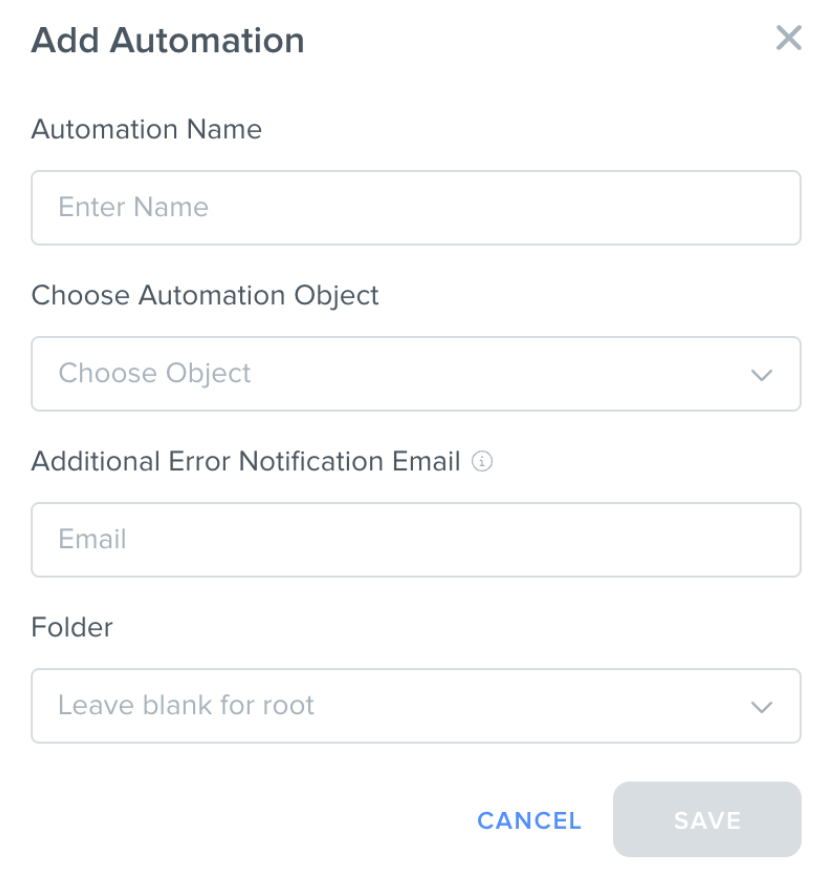
Choose the Agentic Workflow Object from the dropdown menu. You can select the relevant object, whether it’s Contacts and any of your Custom Objects, where the Agentic Workflow will trigger. (For example, you would only want that “New Client Follow-up” Agentic Workflow to trigger for your Contacts object.)
[Optional] Choose the “Additional Error Notification Email” and “Folder”:
If the Agentic Workflow you created fails, you will receive a notification email by default, but you can also choose to add an Additional Error Notification Email recipient. Otherwise, you can leave this blank.
Once you add more Agentic Workflows, you may choose to organize them in Folders (for example, by different objects, different teams, or specific workflows). Otherwise, you can leave this blank.
Then, click "Save."
In the Agentic Workflow builder, click on “Click to add new trigger” in the Trigger step.
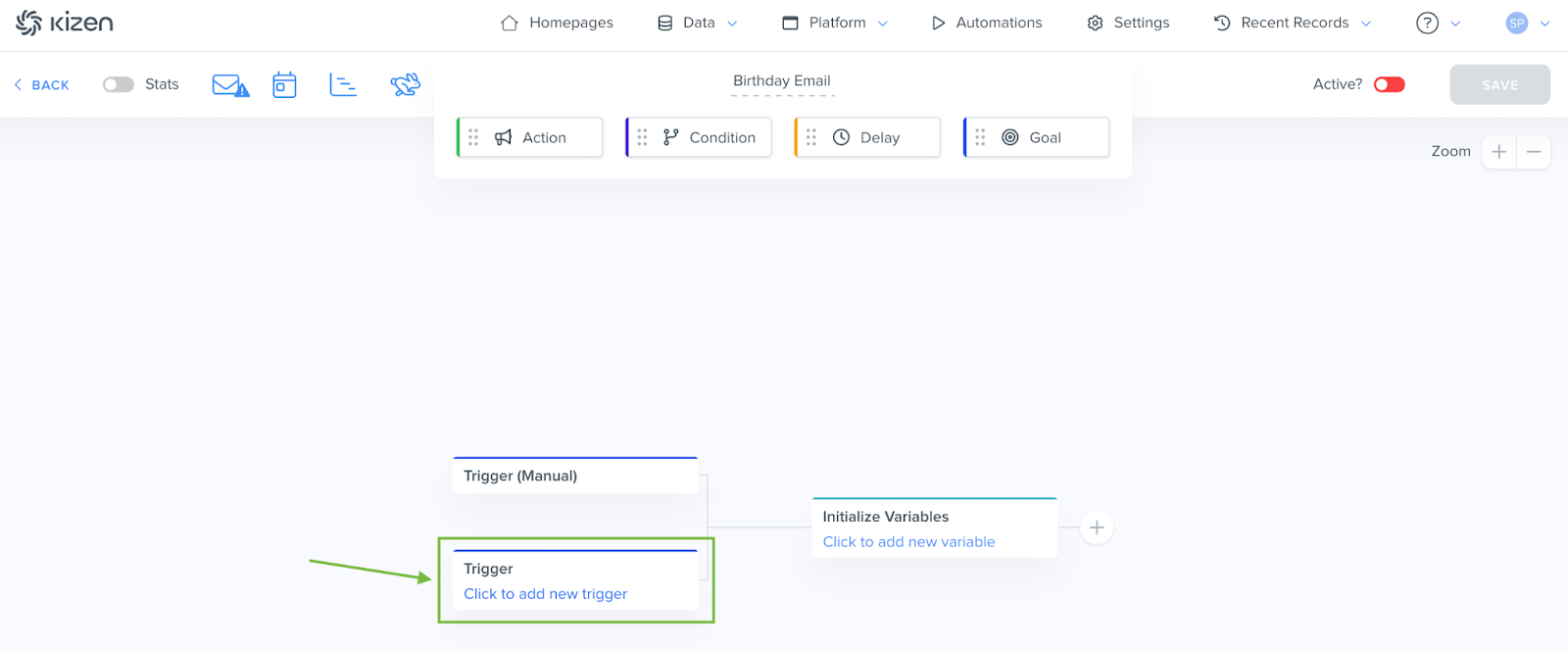
Under “Choose Trigger,” select the event that you would like to automatically start the Agentic Workflow.
Then, complete the Trigger Settings (the available options will differ based on the trigger you have chosen).
Cick on the “Save” button.
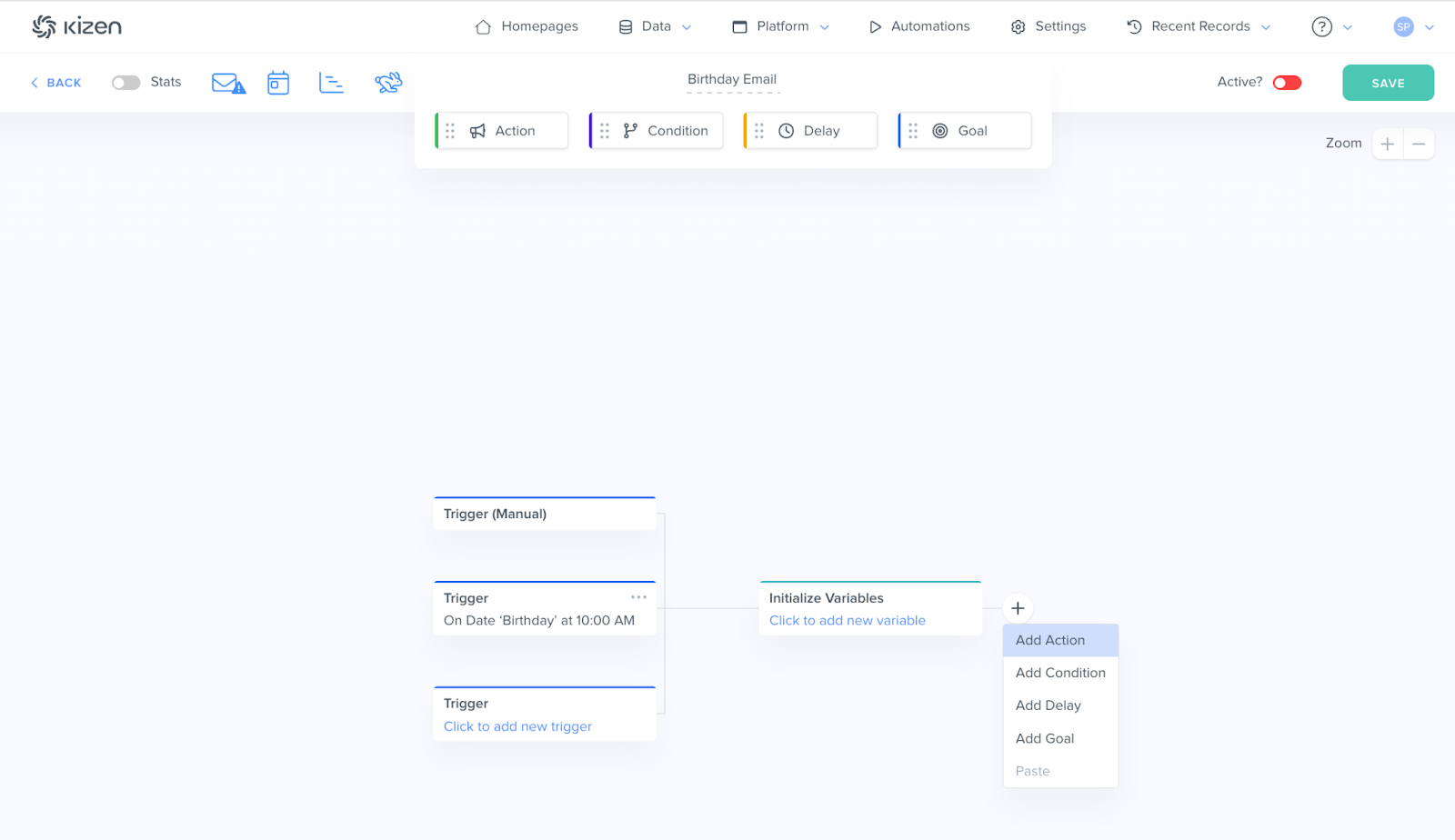
[Optional] Click on “Initialize Variables” to define variables that will fill in fields later on in the Agentic Workflow — but this is totally optional, so you can skip this step.
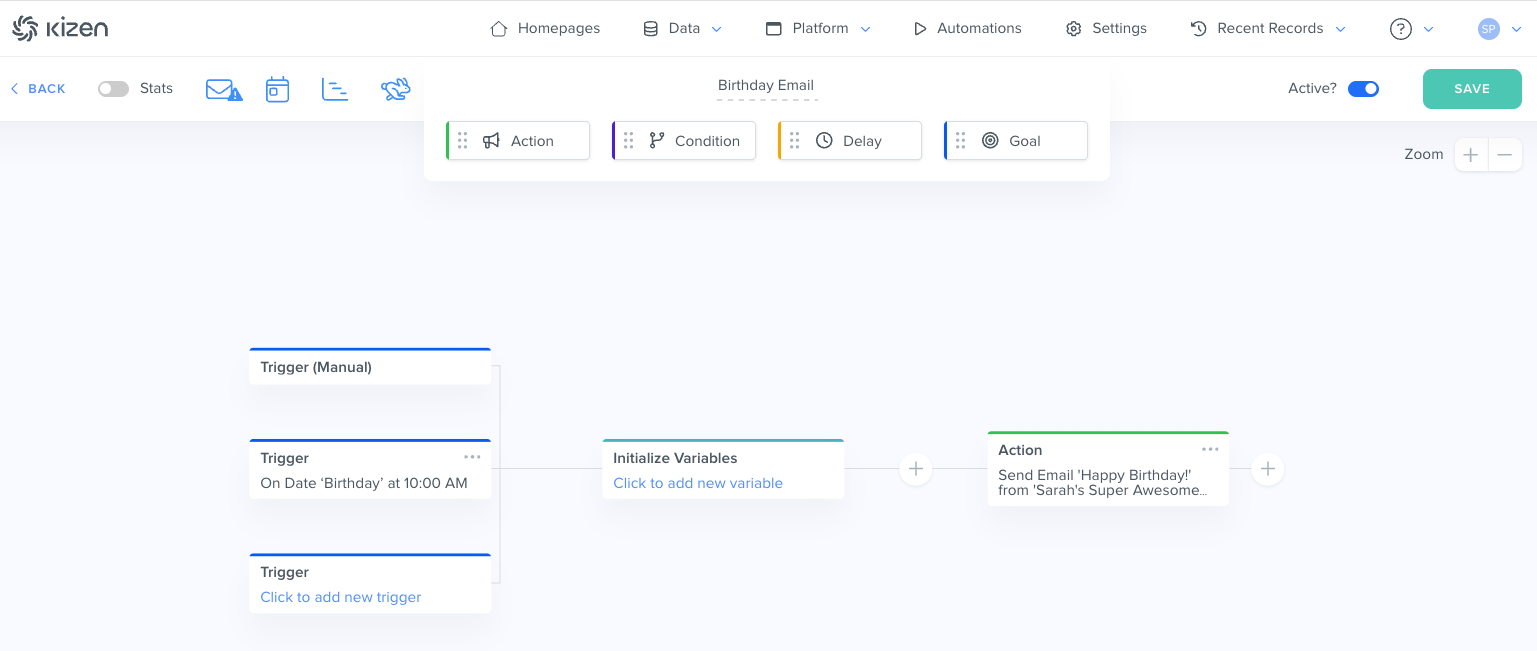
Click on the “+” button > "Add Action" or click on the "Action" block under the Agentic Workflow name at the top to drag and drop to add an Action (and if you’d like, Conditions, Delays, and Goals as well).
Check our guide on Agentic Workflow Actions to select the most relevant Action for your needs.Click on the "Save" button in the upper right corner, and when you’re ready for the Agentic Workflow to run, toggle the “Active?” button on.
How to Edit an Agentic Workflow
Click on the “Agentic Workflow” tab in the top toolbar menu.
Click into the search bar and type the Agentic Workflow name, or scroll to find the Agentic Workflow you would like to edit.
Click on the Agentic Workflow Name. This will bring you to the Agentic Workflow builder.
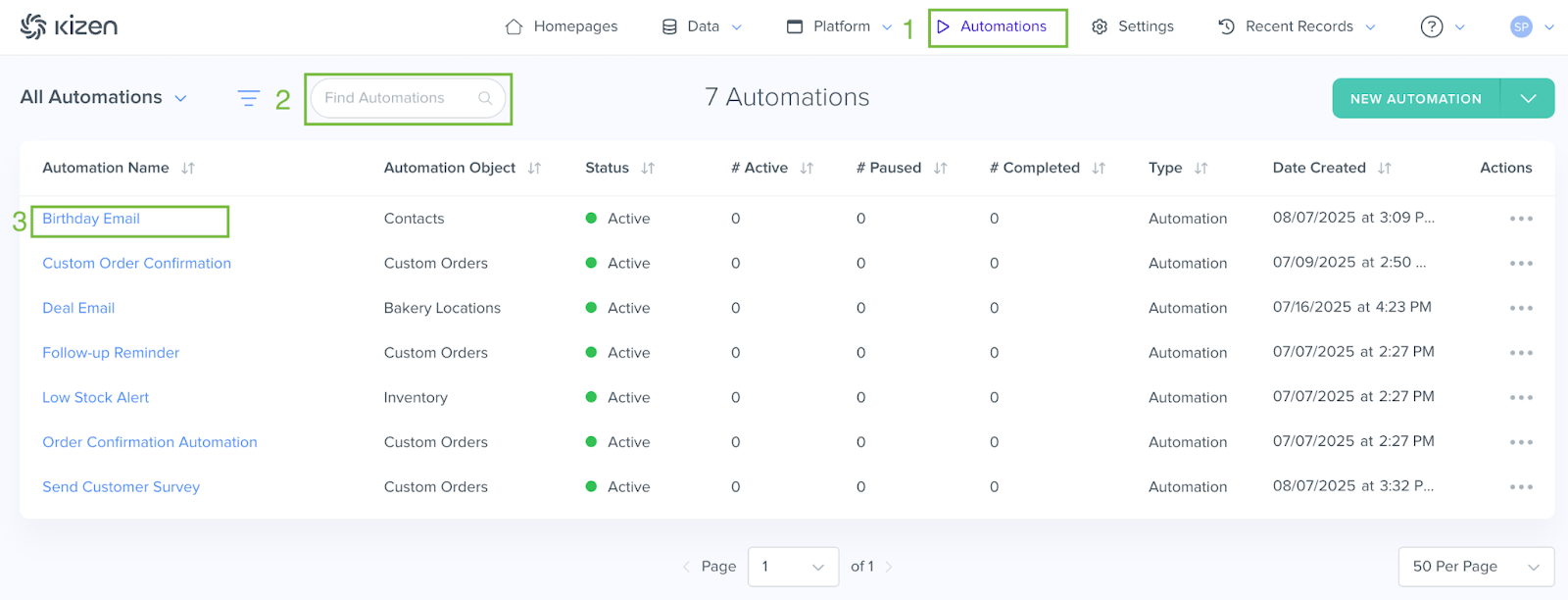
From there, you can make the following changes:
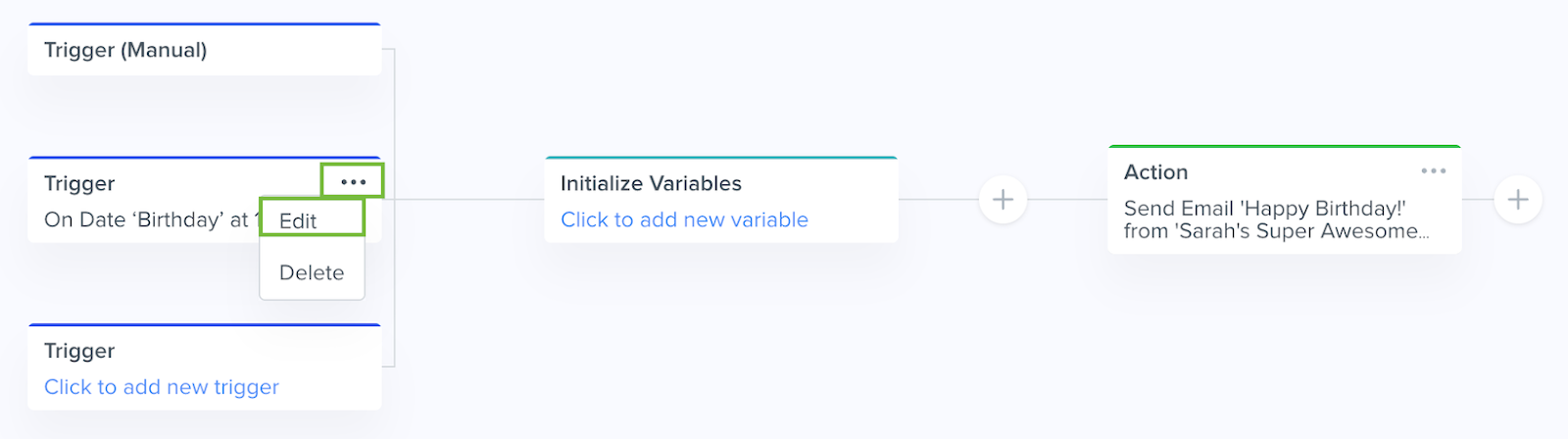
To edit an existing Agentic Workflow step, click on the “...” icon next to the relevant step > Edit and make the necessary changes. Don’t forget to click “Save”!
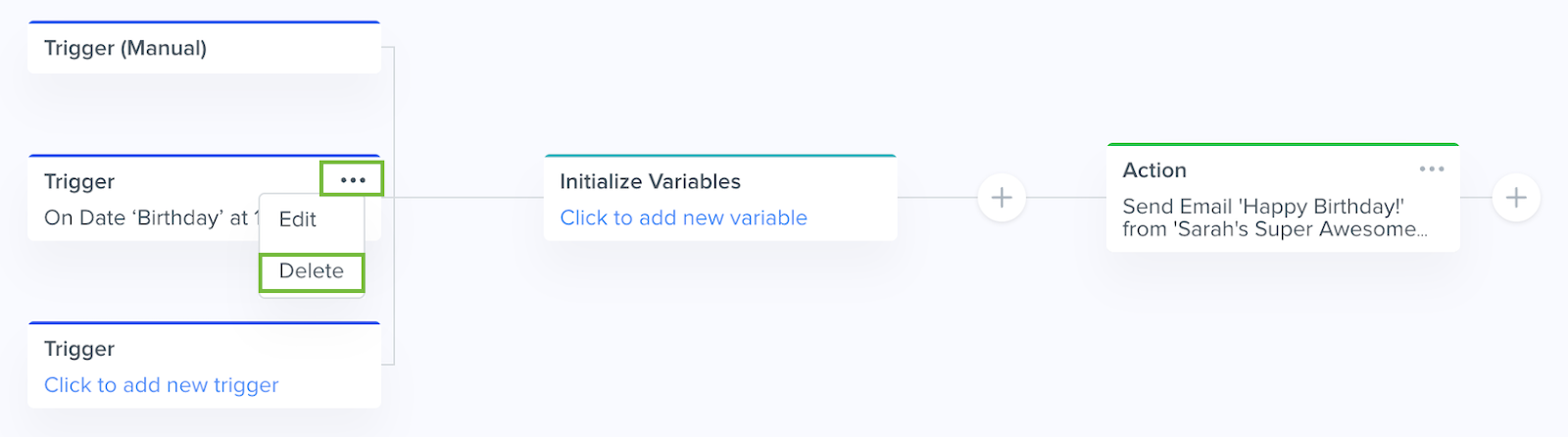
To delete an existing Agentic Workflow step, click on the “...” icon next to the relevant step > Delete.
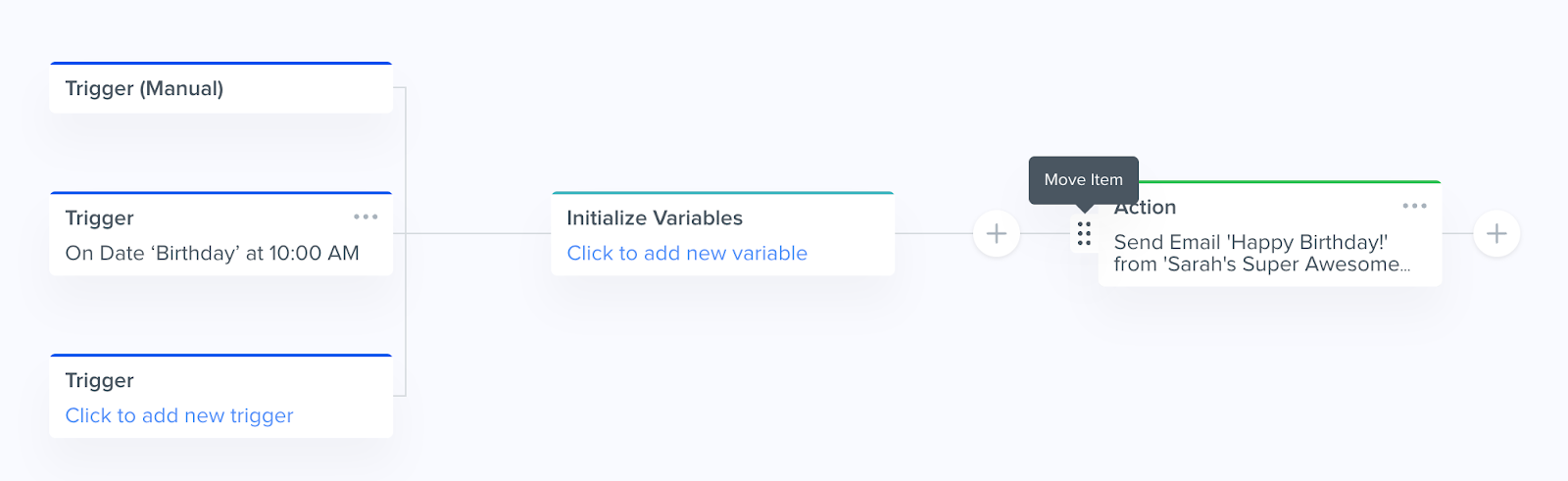
To reorder existing Agentic Workflow steps, hover over the left-hand side on the step you would like to move, and a drag and drop icon should appear. Drag and drop the step to the new location in the Agentic Workflow.
To add a new Agentic Workflow step, click the + icon or drag & drop Actions, Conditions, Delays, and/or Goals.
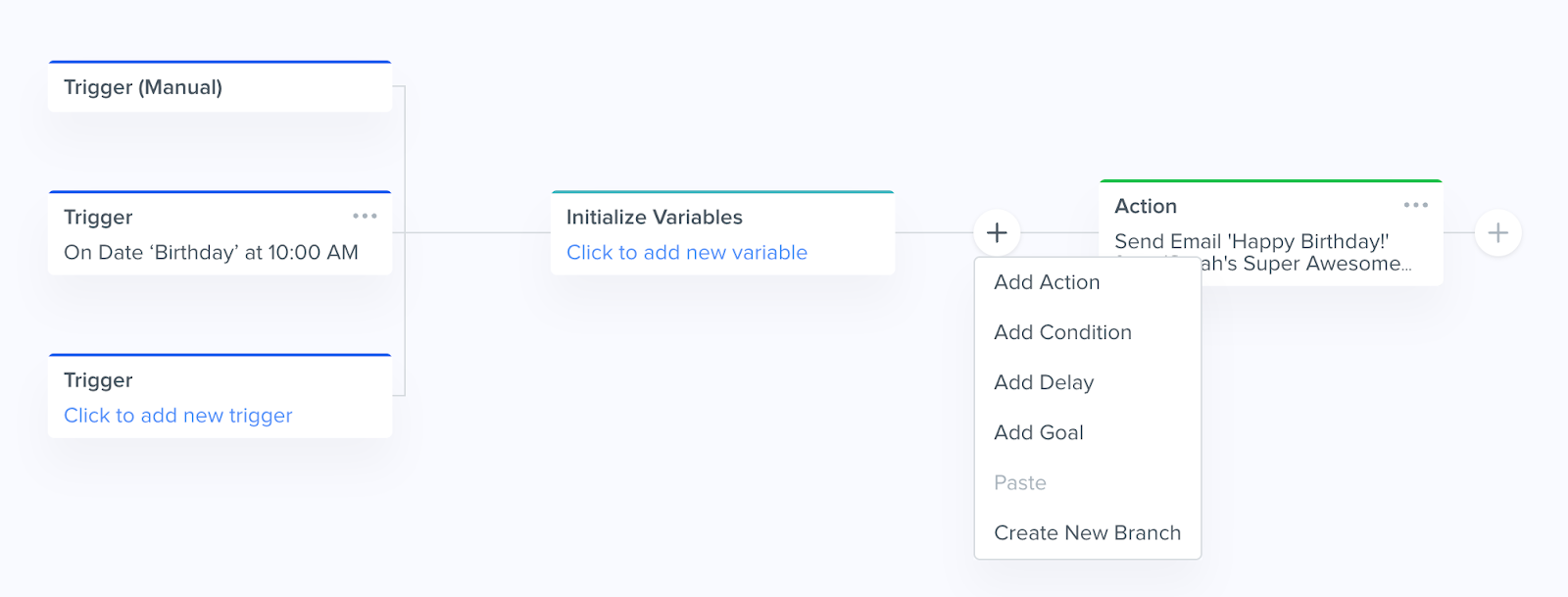
Click “Save” in the upper right corner.
⚠️ Note: Adding a step to an Agentic Workflow only applies to future object records for that Agentic Workflow, except in these scenarios: Object records currently on a Delay step will start the new steps if the new step is placed after the Delay. Object records currently waiting on a Goal step will start new steps if the new step is placed after the Goal.How to Delete an Agentic Workflow
Click on the “Agentic Workflow” tab in the top toolbar menu.
Click into the search bar and type the Agentic Workflow name, or scroll to find the Agentic Workflow you would like to edit.
Click on the "..." menu under the "Actions" column for the specific Agentic Workflow you want to delete and click on "Archive":
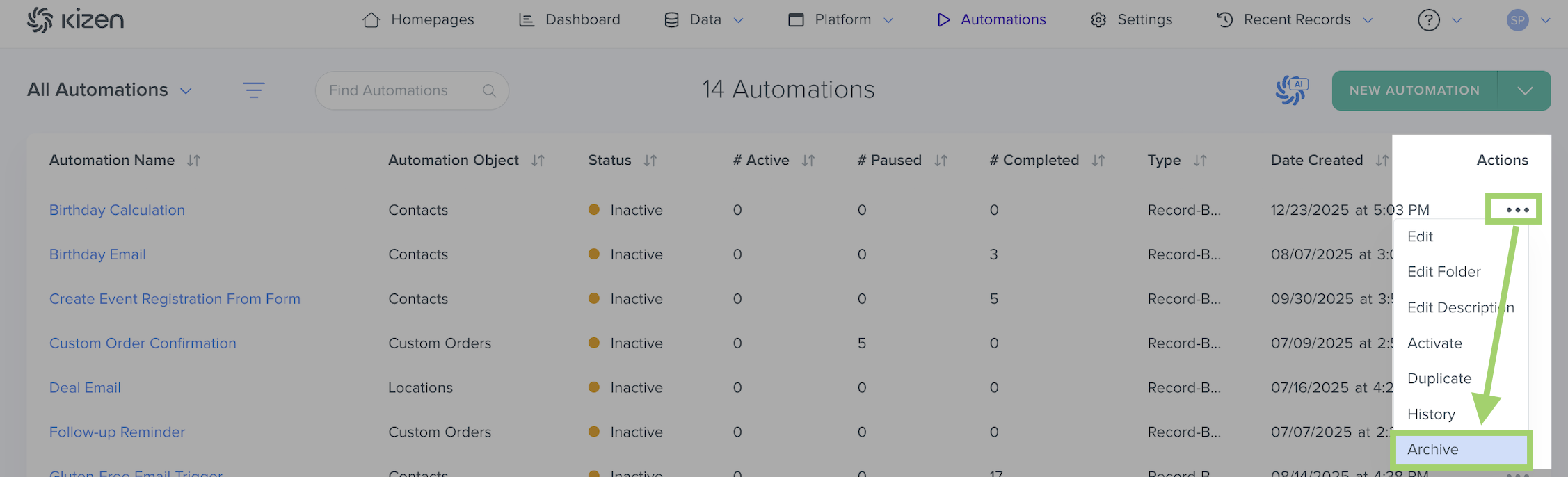
Click on the "Confirm Archive" button. This will permanently delete the Agentic Workflow.
Agentic Workflow Best Practices
We absolutely encourage you to experiment and build an Agentic Workflow workflow that accomplishes your business goals, but it’s important to prevent confusion when setting up complex workflows.
- ✅ Give your Agentic Workflows easy-to-understand names and add descriptions to each step in your Agentic Workflows.
As you add more Agentic Workflows to your Kizen account, this can lead to confusion about the purpose and functionality of each Agentic Workflow. Give your Agentic Workflows names that will make their purpose clear to everyone in your team, and take advantage of the “Additional Description” box in every component so that you and your team understand the exact purpose of each step. This will also make troubleshooting much easier if an Agentic Workflow does not work as expected for you. - ❌ Avoid redundant or repetitive Agentic Workflows steps.
Think of Kizen’s user-friendly Agentic Workflow modules like a flow chart; anytime you edit or add a new step, make sure to go back to the beginning and review the entire Agentic Workflow so that there aren’t any redundant or missing steps. - ❌ Avoid giving multiple team members editing access to your Agentic Workflows.
If there are multiple people working within your account, we recommend taking advantage of specifying Permissions so that unauthorized team members are unable to edit existing or add new Agentic Workflows.
Related Articles
- Agentic Workflow Actions: Create Related Entity
- Agentic Workflow Action: Modify Related Entity
- Agentic Workflow Action: Modify Related Agentic Workflow
- Agentic Workflow Action: External HTTP Requests
- Agentic Workflow Action: Send Email to Related Contact
- Agentic Workflow Action: Go to Step
- How to Pause an Agentic Workflow
- How to Cancel an Agentic Workflow
Still Need Help?
If you encounter any issues, contact support@kizen.com.
Was this article helpful?
That’s Great!
Thank you for your feedback
Sorry! We couldn't be helpful
Thank you for your feedback
Feedback sent
We appreciate your effort and will try to fix the article