Purpose: Go To Step Action allows you to seamlessly guide Agentic Workflows from one step to another, streamlining workflows and enabling dynamic processes. This feature is especially useful for creating flexible Agentic Workflow paths, such as looping back to retry a condition or skipping unnecessary steps. By using this feature, you can make your workflows smarter, more efficient, and error-free
TABLE OF CONTENTS |
Add Action: Go To Step
1. Drag and Drop Action element or click on + button
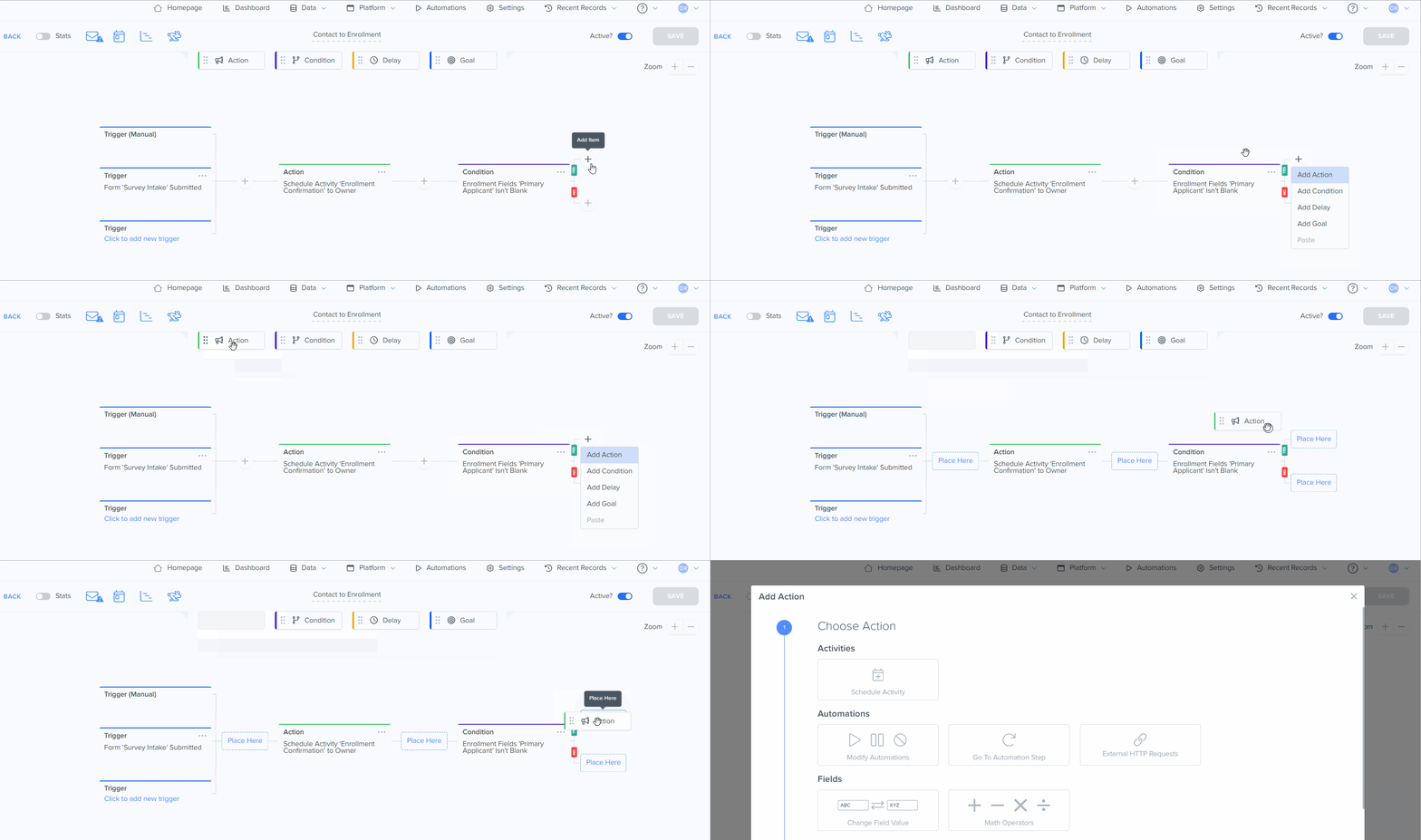
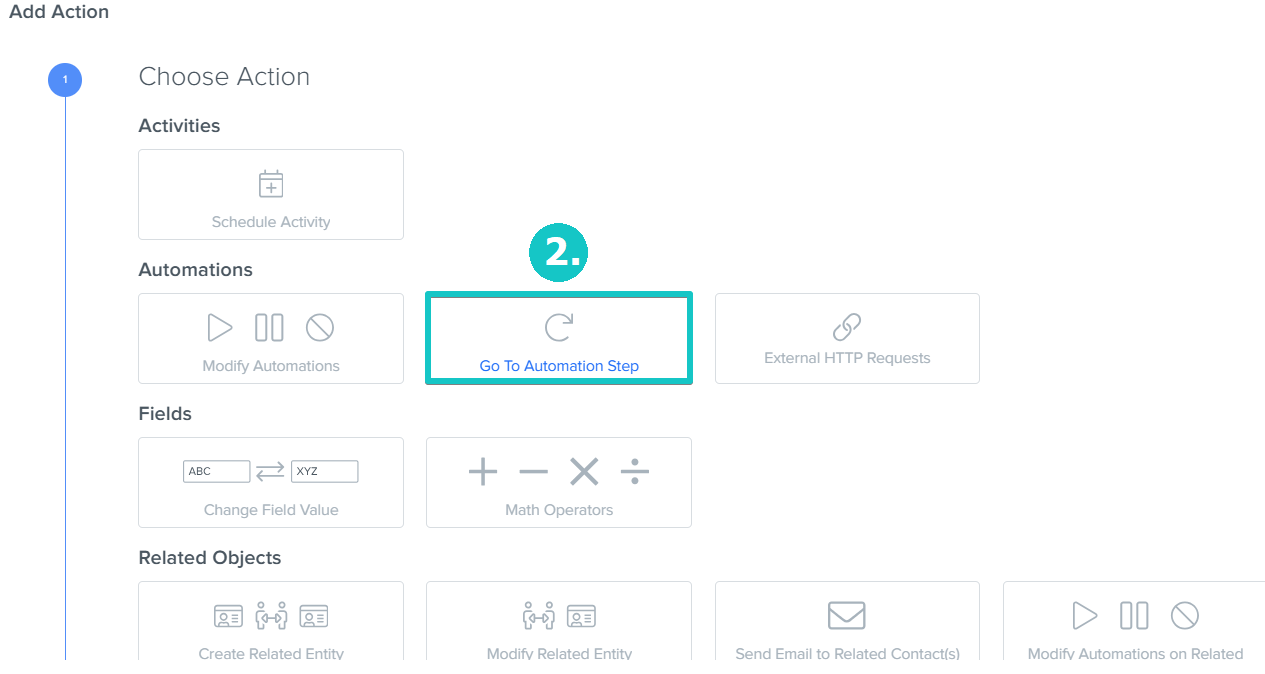
2. Select Go To Agentic Workflow Step
3. Write Additional Description if necessary
4. Choose Step to Go To
5. Click Save
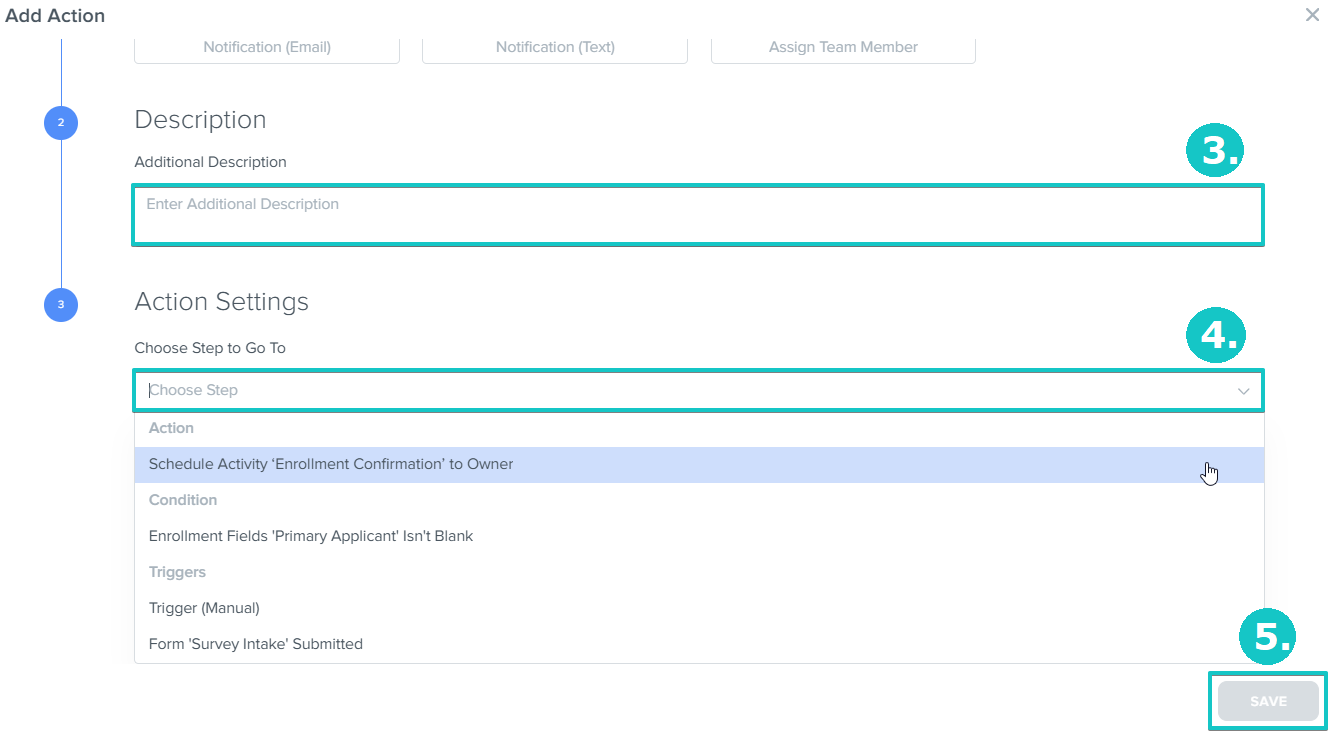
Hint: Available steps are grouped by type: Actions, Conditions, Goals, Delays, and Triggers
Prevent Infinite Loops
Creating loops can help automate parts of the process until the required outcome is achieved. However, there is a risk of creating a runaway Agentic Workflow when the steps will keep repeating infinitely.
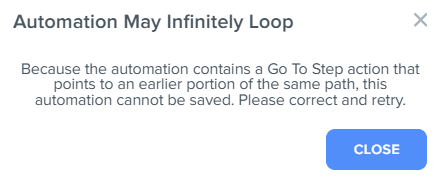
For such scenarios Kizen has a built-in process to prevent this from happening. When trying to add a Go To Step action that suggests an infinite loop, you will receive an error and will not be able to save an Agentic Workflow until Go To Step is adjusted.
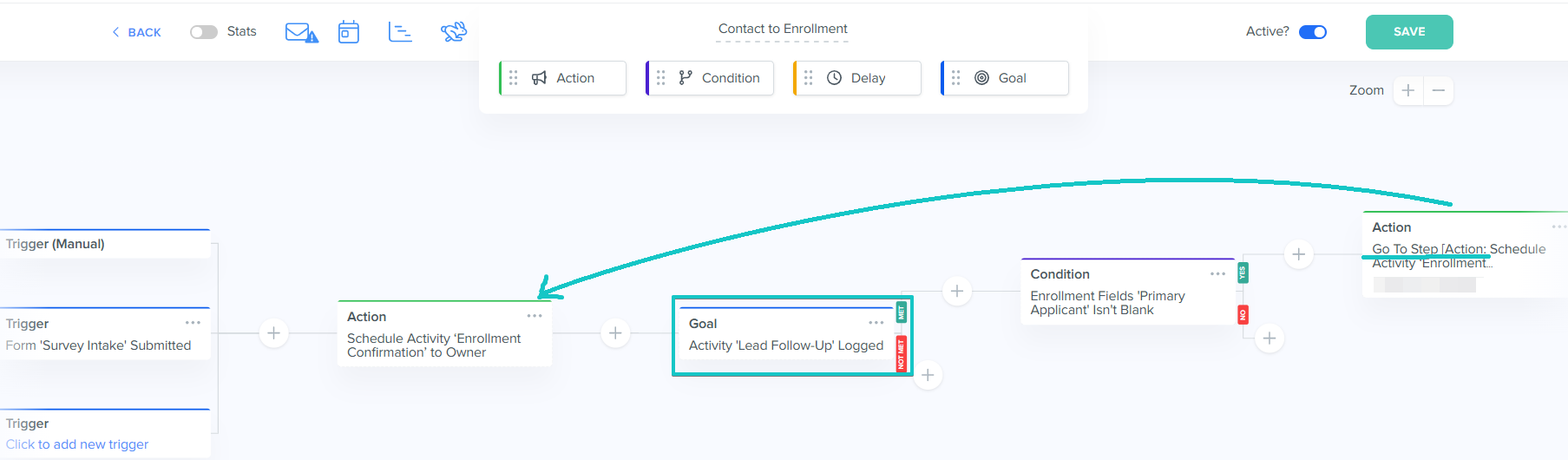
Tip: Add a Delay or Goal step between the action you want to go to and the Go to Step
Example of an Infinite Loop:
1. Add a Go to Step Action
2. Click on Save
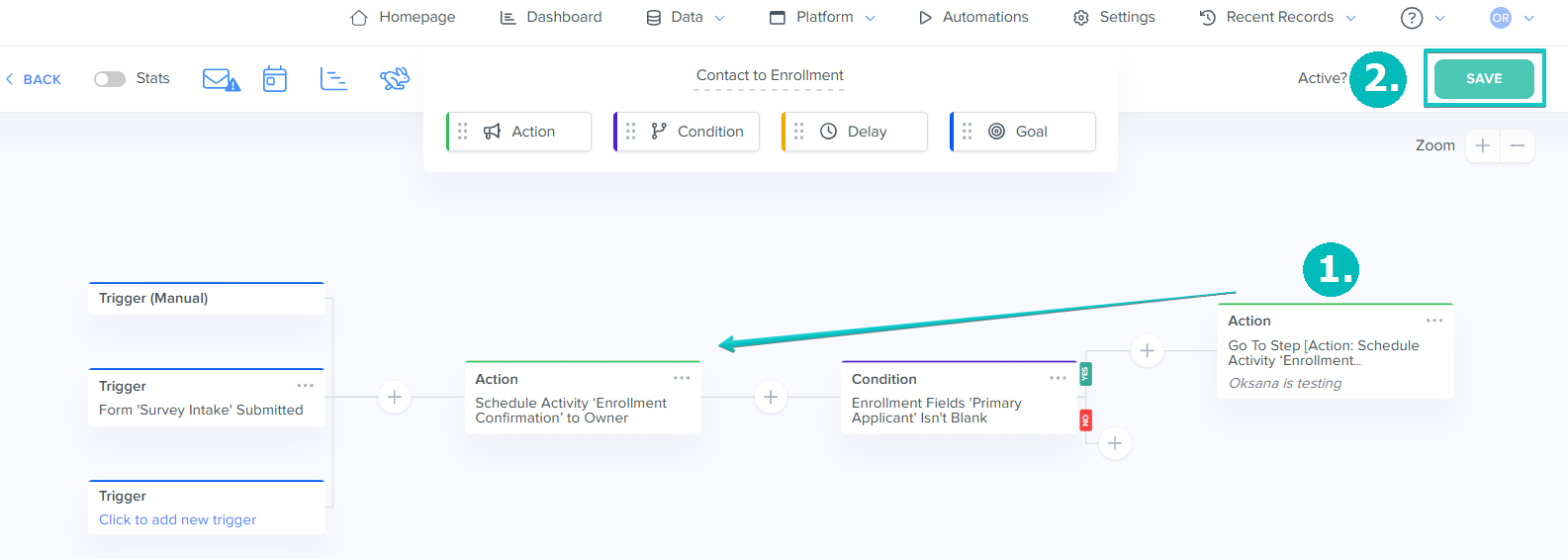
You will receive a pop-up window with an error:
Solution:
Insert a Goal step between the Go To Step action and the step you wish to navigate to
Related Articles:
Was this article helpful?
That’s Great!
Thank you for your feedback
Sorry! We couldn't be helpful
Thank you for your feedback
Feedback sent
We appreciate your effort and will try to fix the article