Purpose: Learn how to customize your Kizen account's Business Calendar by setting non-working days for accurate and efficient Agentic Workflows.
TABLE OF CONTENTS
- What is the Business Calendar?
- How to Customize Your Business Calendar
- How to Set Your Agentic Workflow to Skip Non-Business Days
- Related Articles
- Still Need Help?
What is the Business Calendar?
The Business Calendar feature allows you to set your team's custom non-working days (such as weekends) and public holidays based on your country. You can then customize your Agentic Workflows to pause on these non-working days and holidays, preventing emails, and Activities from being scheduled on those days. Instead, Agentic Workflows will be queued and trigger on the next available working day to ensure you and your team manage your time efficiently and maintain your business processes accurately.
How to Customize Your Business Calendar
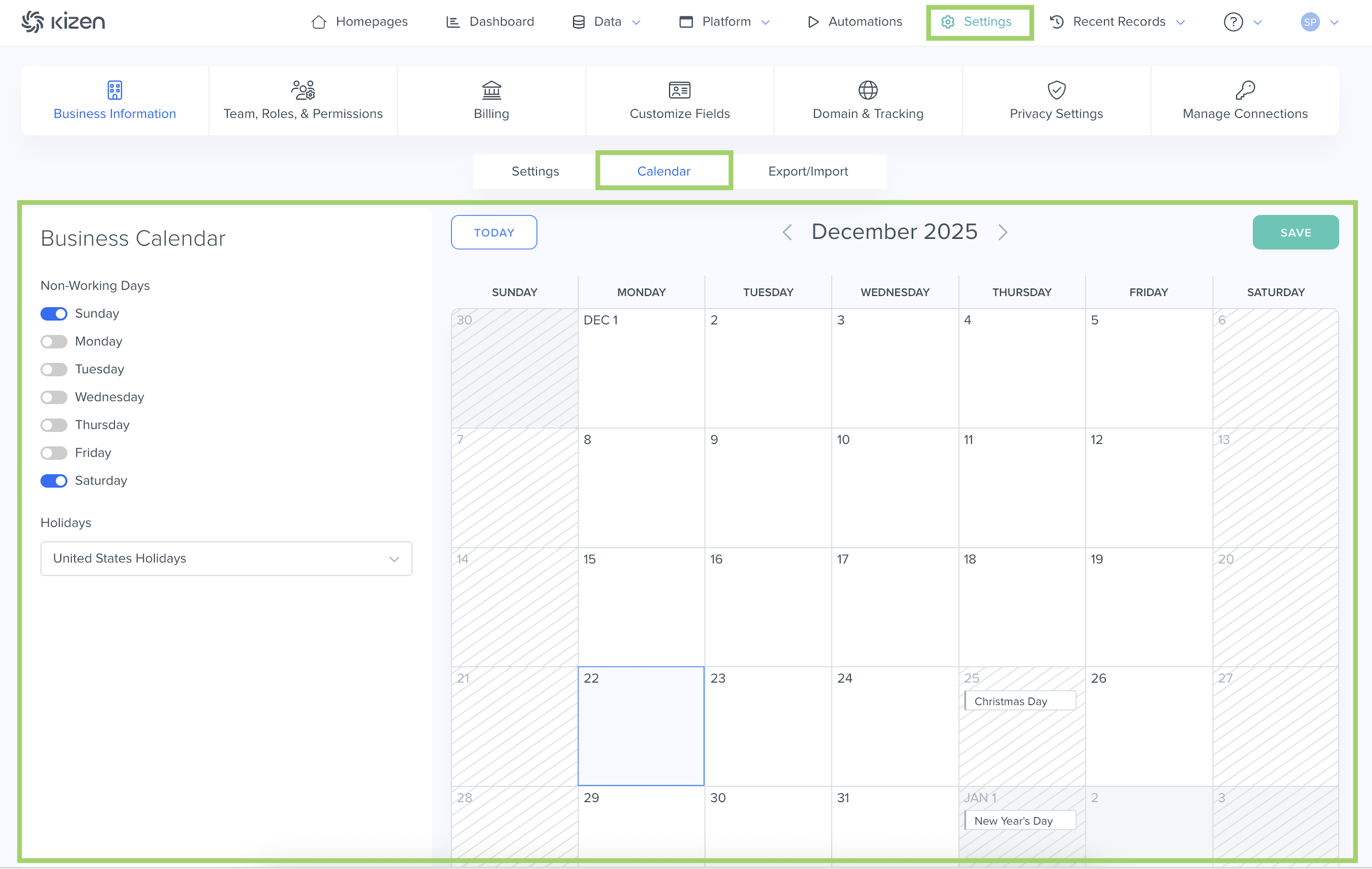
How to Set Non-Working Days
- Click on "Settings" in the top toolbar menu > "Business Information" > "Calendar."
- Under "Non-Working Days" on the left pane, toggle on the days of the week your team does not work that you want to pause Agentic Workflows for.
- Click on the "Save" button in the top right.
How to Set Holidays
- Click on "Settings" in the top toolbar menu > "Business Information" > "Calendar."
- Under "Holidays," select your country. This will automatically include your country's holidays as non-working days.
- Click on the "Save" button in the top right.
⚠️ Note: It's important to note that the "Holidays" settings include all official holidays in your country. Just in case your business will be open and operating as usual, we recommend clicking through the Business Calendar to preview future holidays before saving these settings.
To remove your "Holidays" setting, click on the red "Clear" button at the bottom of the dropdown menu.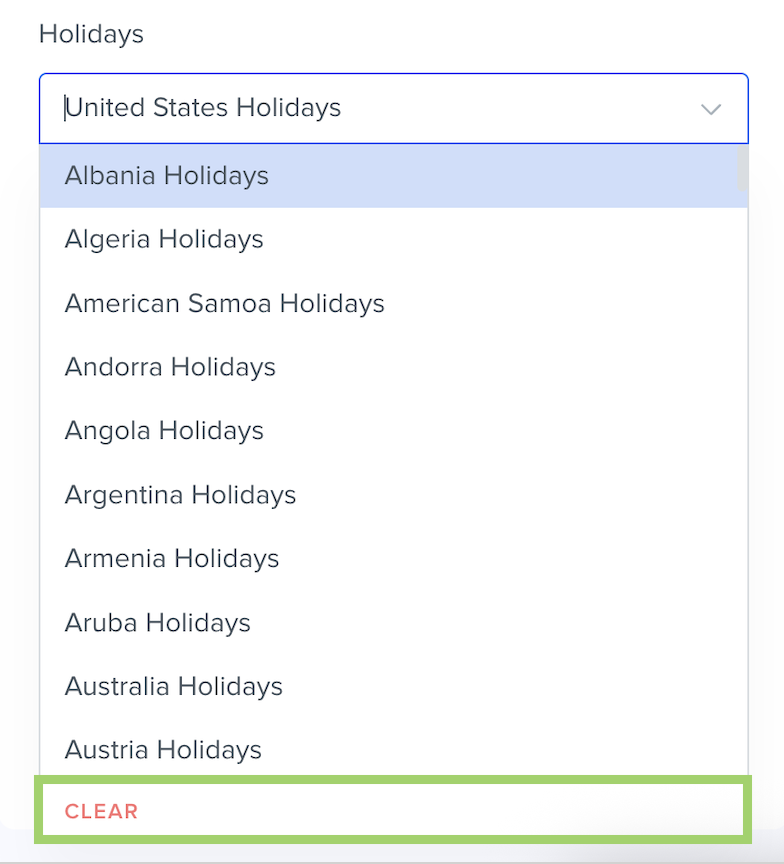
How to Set Your Agentic Workflow to Skip Non-Business Days
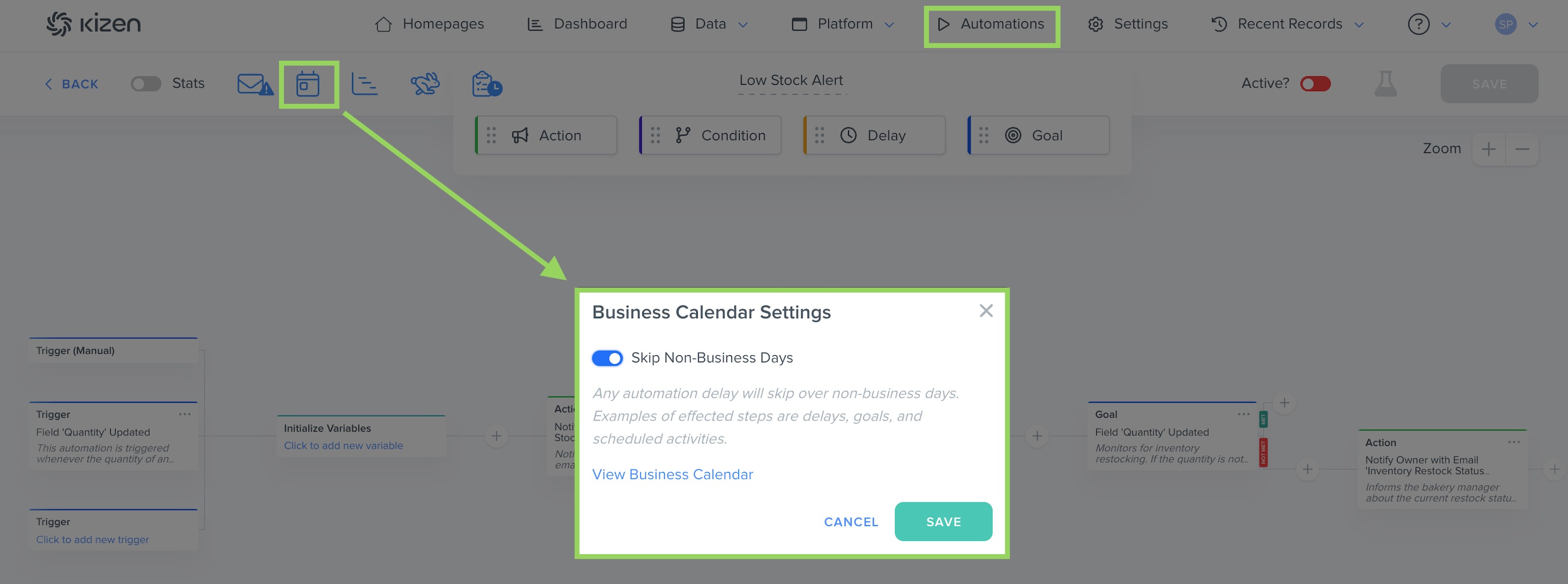
- Click on "Agentic Workflows" in the top toolbar menu.
- Add a new Agentic Workflow or select the Agentic Workflow you want to skip business days for.
- Click on the calendar icon in the top left.
- In the pop-up window, toggle "Skip Non-Business Days" on. If the Agentic Workflow is set to trigger on a non-working day or holiday, the Agentic Workflow will be pushed to the next working day. This includes Delay steps and all Scheduled Activities.
- Click on the "Save" button in the top right.
Related Articles
Still Need Help?
If you encounter any issues, contact support@kizen.com.
Was this article helpful?
That’s Great!
Thank you for your feedback
Sorry! We couldn't be helpful
Thank you for your feedback
Feedback sent
We appreciate your effort and will try to fix the article