Purpose: Learn how to send text messages manually or via Agentic Workflow to your Contacts using Kizen's Twilio Integration. This guide will walk you through Twilio's configuration requirements and tips and tricks for SMS messaging.
TABLE OF CONTENTS
- What does the Twilio Integration do?
- Prerequisites
- How to Connect Your Twilio Account to Kizen
- How to Send SMS Messages From Kizen Using Twilio
- Related Articles
- Still Need Help?
What does the Twilio Integration do?
Boost even higher engagement with your Contacts by sending automated, personalized, and bulk text messages from your Kizen account! Kizen supports simple and easy SMS messaging through direct integration with Twilio. Once you configure your Twilio account and connect your Twilio credentials to your Kizen account, you can send follow-up texts and targeted campaigns to your clients, vendors, and employees.
⚠️ Note: SMS messages sent through Twilio from Kizen consume messaging credits associated with your Twilio account license. It's important to ensure your Twilio account has sufficient messaging credits available before sending high-volume or automated SMS messages.Prerequisites
Kizen does not provision Twilio accounts or phone numbers. You must create and manage your own Twilio account for your business. In order to use the Twilio integration, you will need the following:
✅ An active Twilio account
✅ Access to the Twilio Console
✅ A Twilio phone number capable of sending SMS
✅ Your Twilio Account SID
✅ Your Twilio Auth Token
⚠️ Note: At this time, you can configure one Twilio phone number per Kizen account. If your Twilio account contains multiple numbers, you must select a single number to use in Kizen.

Additionally, if your SMS traffic is United States–based, ensure your Twilio account complies with A2P 10DLC requirements before proceeding. (Requirements for SMS messaging outside the United States are governed by the regulations and carrier policies of the destination country.)
How to Connect Your Twilio Account to Kizen
Once your Twilio account is set up, you can configure this integration in your Settings > Privacy Settings.
- Select "Settings" or "Platform" > "Settings" in your toolbar menu at the top of your Kizen window.
- Select the "Privacy Settings" tab.

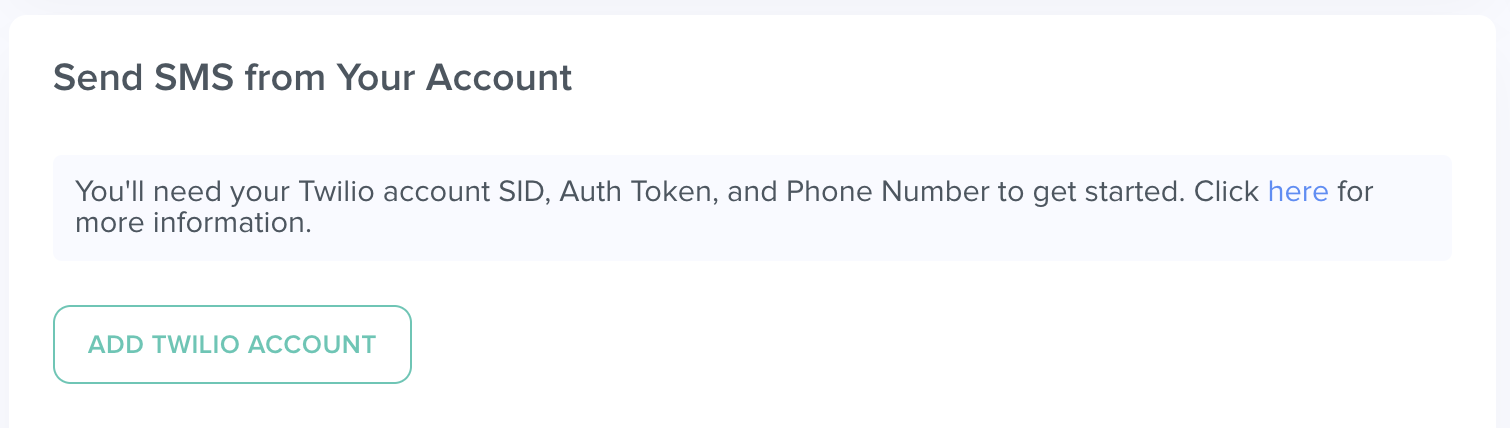
- Scroll down to the "Send SMS from Your Account" section.
- Select "Add Twilio Account."
- In the pop-up window, paste your Twilio Account SID, Auth Token, and Phone Number. Include the country code (Example: +1).
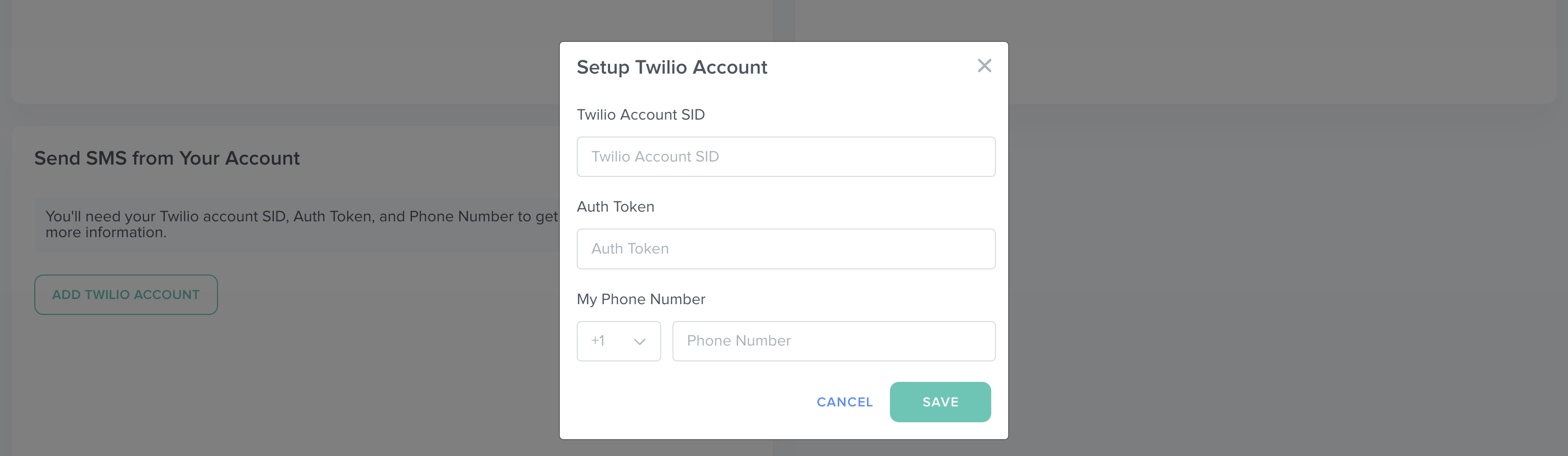
- Select "SAVE."
✅ Once you save your Twilio credentials, we will perform a validation check against Twilio. If Twilio rejects the credentials, you will see an error message and need to resolve the issue within the Twilio Console. Once the Twilio configuration is validated, Kizen will use the saved credentials to send SMS messages.
How to Send SMS Messages From Kizen Using Twilio
How to Send a Single Text to One Contact
- Select "Contacts" or "Data" > "Contacts" from your toolbar menu at the top of your Kizen window.
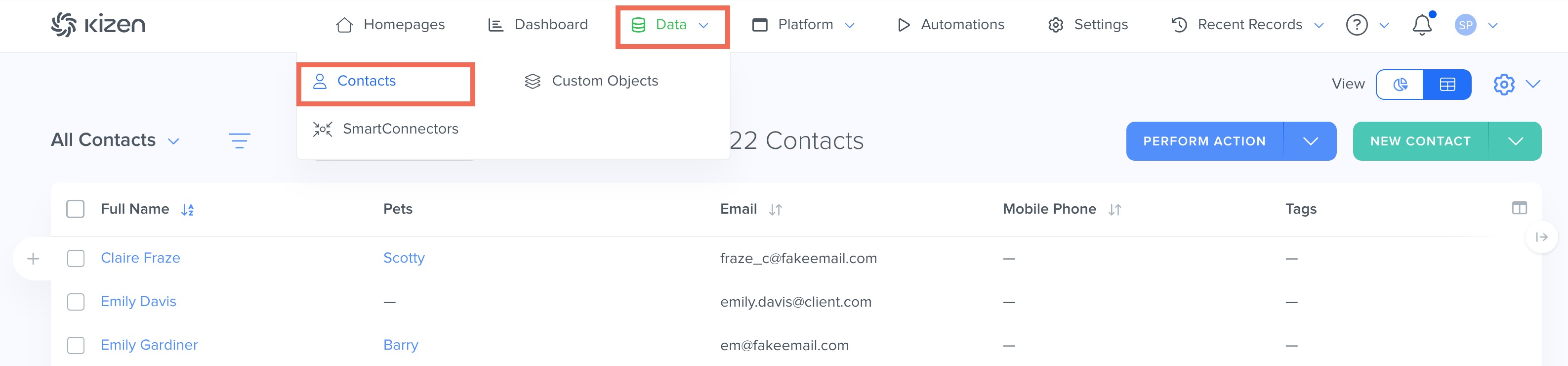
- Select the Contact's name to open the Contact record.
- In the top-right corner of the Contact record, select the "Perform Action" button.

- Select "Send Text" in the pop-up window.

- Enter your message in the text field.
- Select "Confirm" to send the text message.
How to Send Bulk Text to Multiple Contacts
- Select "Contacts" or "Data" > "Contacts" from your toolbar menu at the top of your Kizen window.
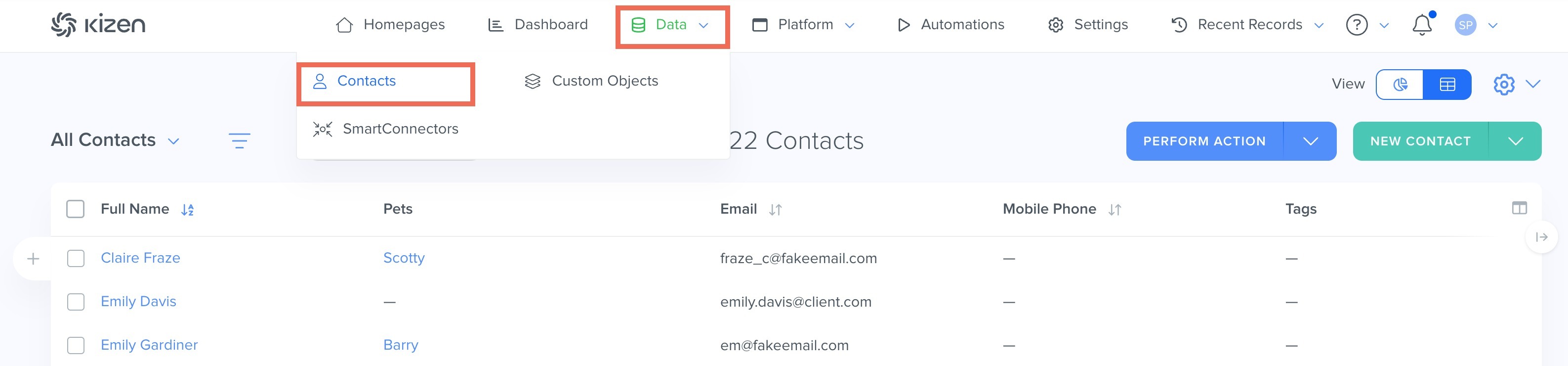
- In the top-right corner of the object page, select the "Perform Action" button and select whether you want to message all the Contacts on this page, in your search results* (see tip box below), in a specific group, or in the entire Contacts object.
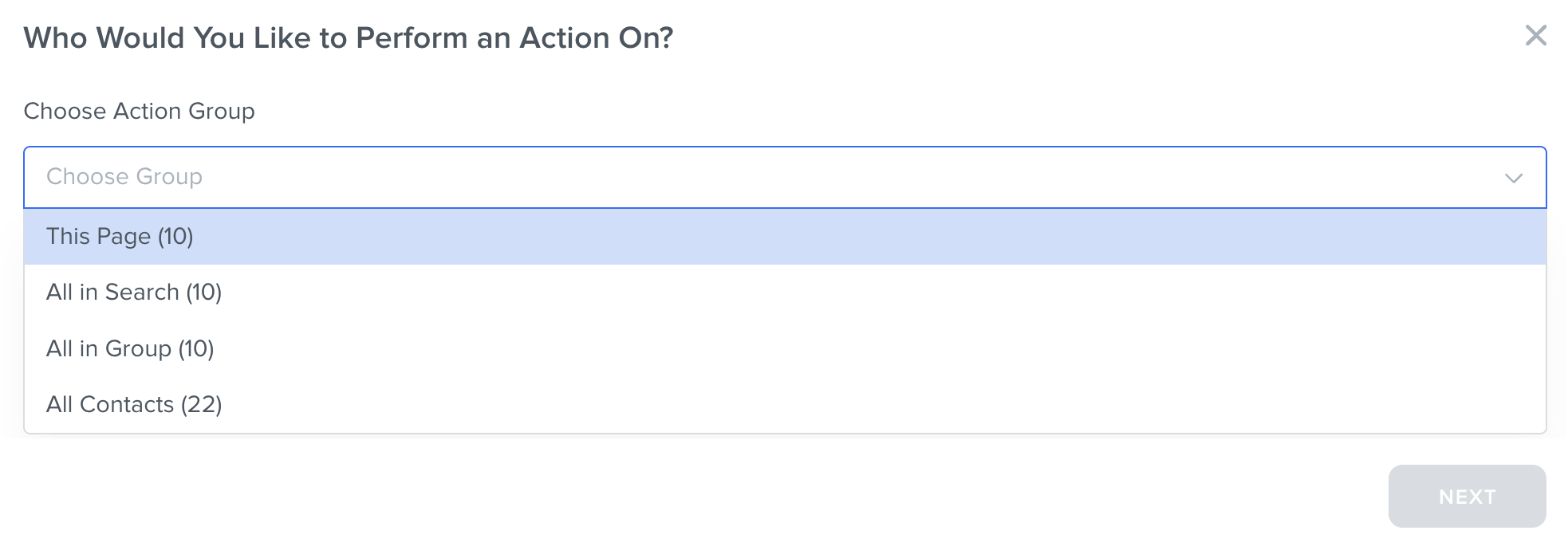 (Alternatively, you can select the checkboxes to the left of the specific names you want to message and then click on the down caret in the "Perform Action" button.)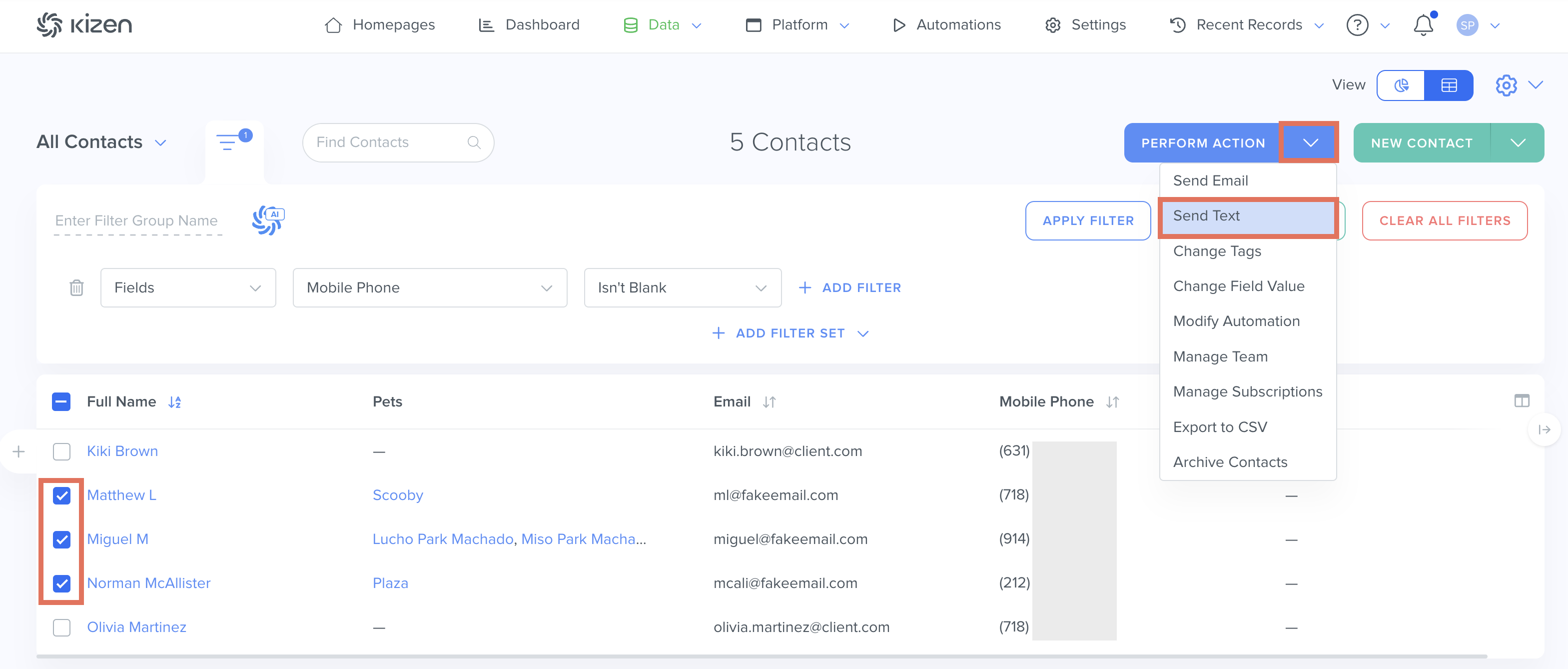
- Select the "Send Text" button.
- Enter your message in the text field.
- Select "Confirm" to send the text message.
*Tip: To avoid SMS delivery errors, we recommend filtering your Contacts where the "Mobile Phone" field is not blank before sending a bulk text.How to Automatically Send Text using Agentic Workflows
New to Agentic Workflows? Check out our Getting Started with Kizen Agentic Workflows guide and review How to Add an Agentic Workflow before proceeding.
- Select "Agentic Workflows" in your toolbar menu at the top of your Kizen window.
- Select the "New Agentic Workflow" button in the top right corner.

- In the pop-up window, give your Agentic Workflow an easy-to-understand name and choose Contacts as your Agentic Workflow Object.
- Add the relevant Trigger to your Agentic Workflow (this is what will kick off the automatic text message, for example when the Contact's birthday arrives) and a Condition* (see tip box below).
- Select the "+" sign > "Add Action."
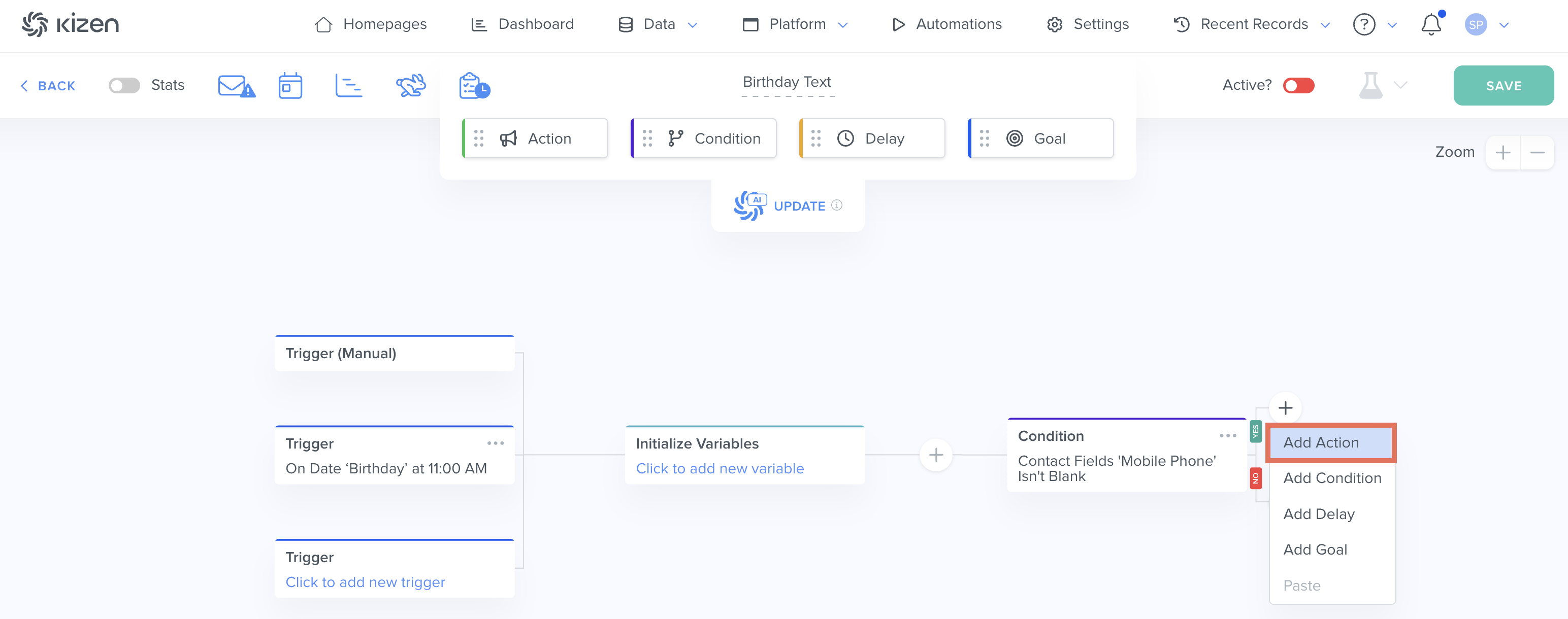
- In the pop-up window, select the "Send Text" Action.
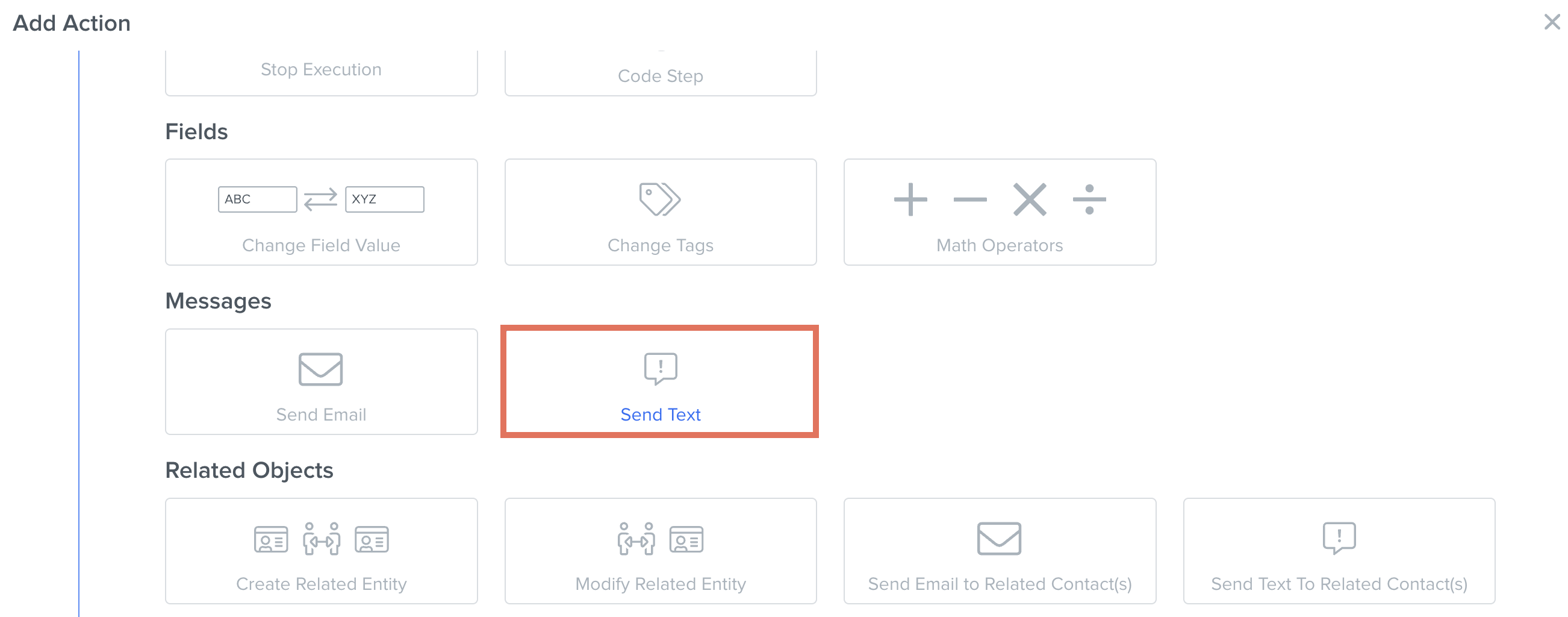
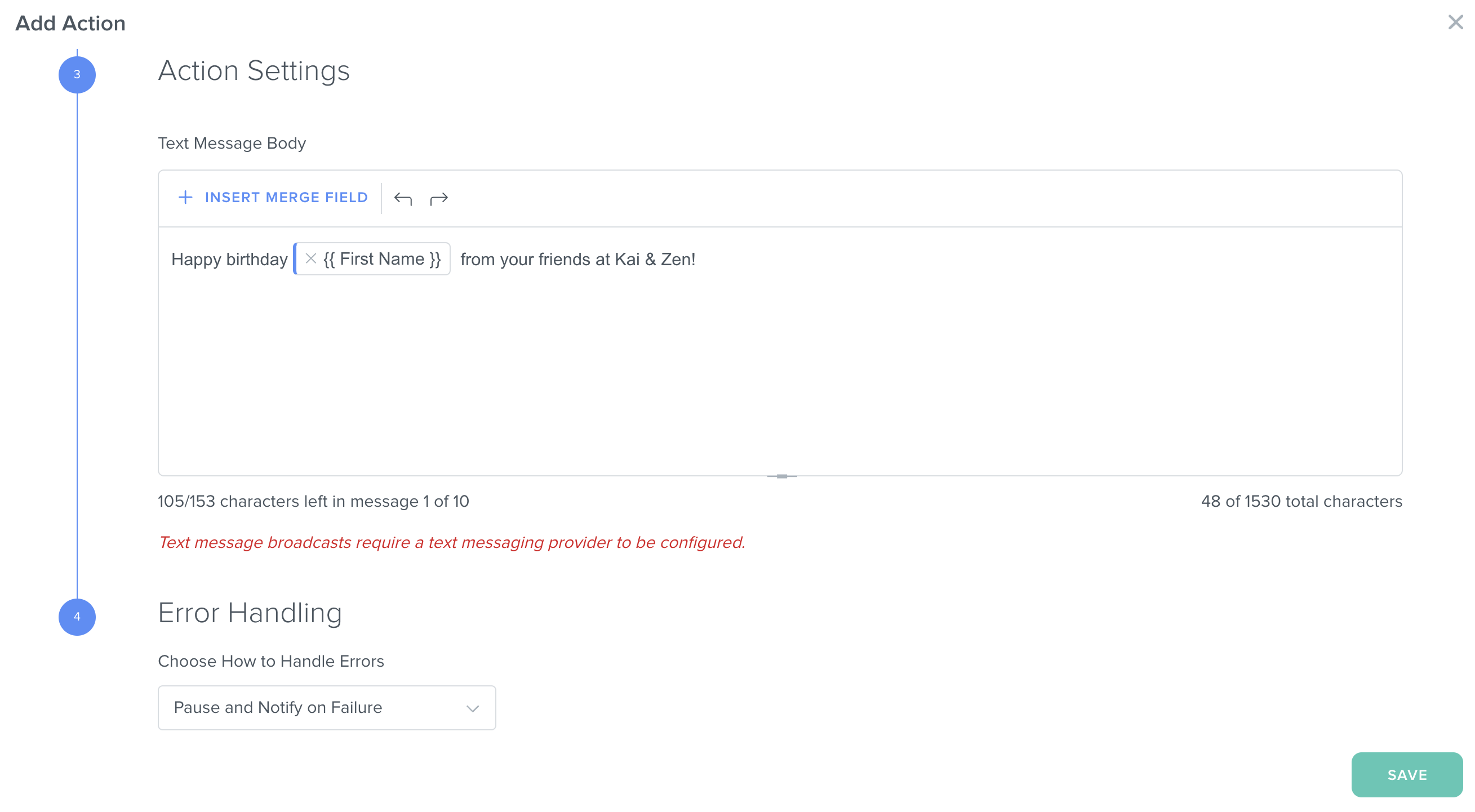
- Scroll down to the "Action Settings" and enter your message in the text field.
- Select the "Save" button to save this Action step.
- Toggle "Active" on to activate your Agentic Workflow and select the "Save" button.
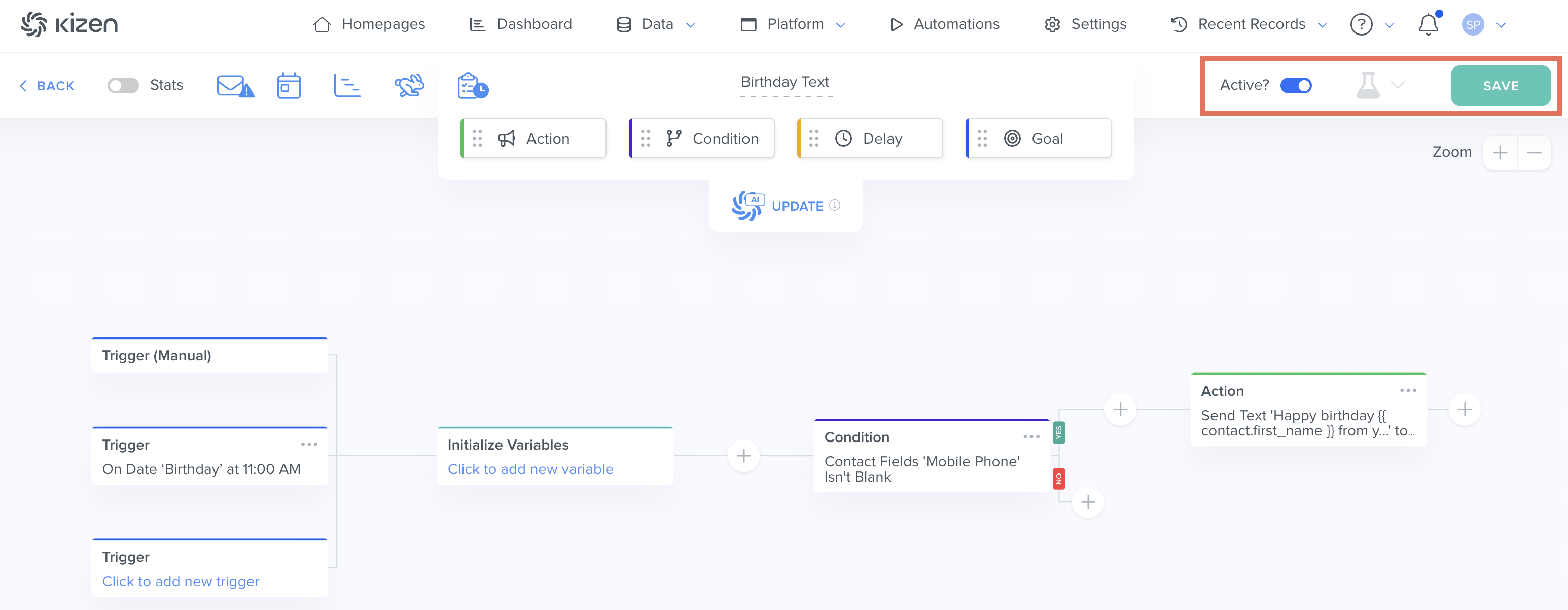
*Tip: To avoid SMS delivery errors, we recommend adding a Condition to your Agentic Workflow to only trigger the text on Contacts where the "Mobile Phone" field is not blank.Related Articles
- Integrated Inbox Overview: Connect Your Email Account to Send and Track Emails
- How to Send Emails to Your Contacts from Kizen
- Getting Started with Kizen Agentic Workflows
- How to Schedule Mass Emails & Agentic Workflows from the Broadcast Calendar
Still Need Help?
If you encounter any issues, contact support@kizen.com.
Was this article helpful?
That’s Great!
Thank you for your feedback
Sorry! We couldn't be helpful
Thank you for your feedback
Feedback sent
We appreciate your effort and will try to fix the article