Purpose: Learn how to create a custom email signature to automatically populate in emails that you send directly from your Contact records in Kizen.
TABLE OF CONTENTS
What is the Email Signature feature?
In Kizen, you can easily personalize the emails you send from the platform with a custom email signature. Once you connect your email address, just add your full name, title, contact information, and any relevant website links to the My Profile section. This will then automatically populate in every email you send directly from any Contact record, saving you time and energy!
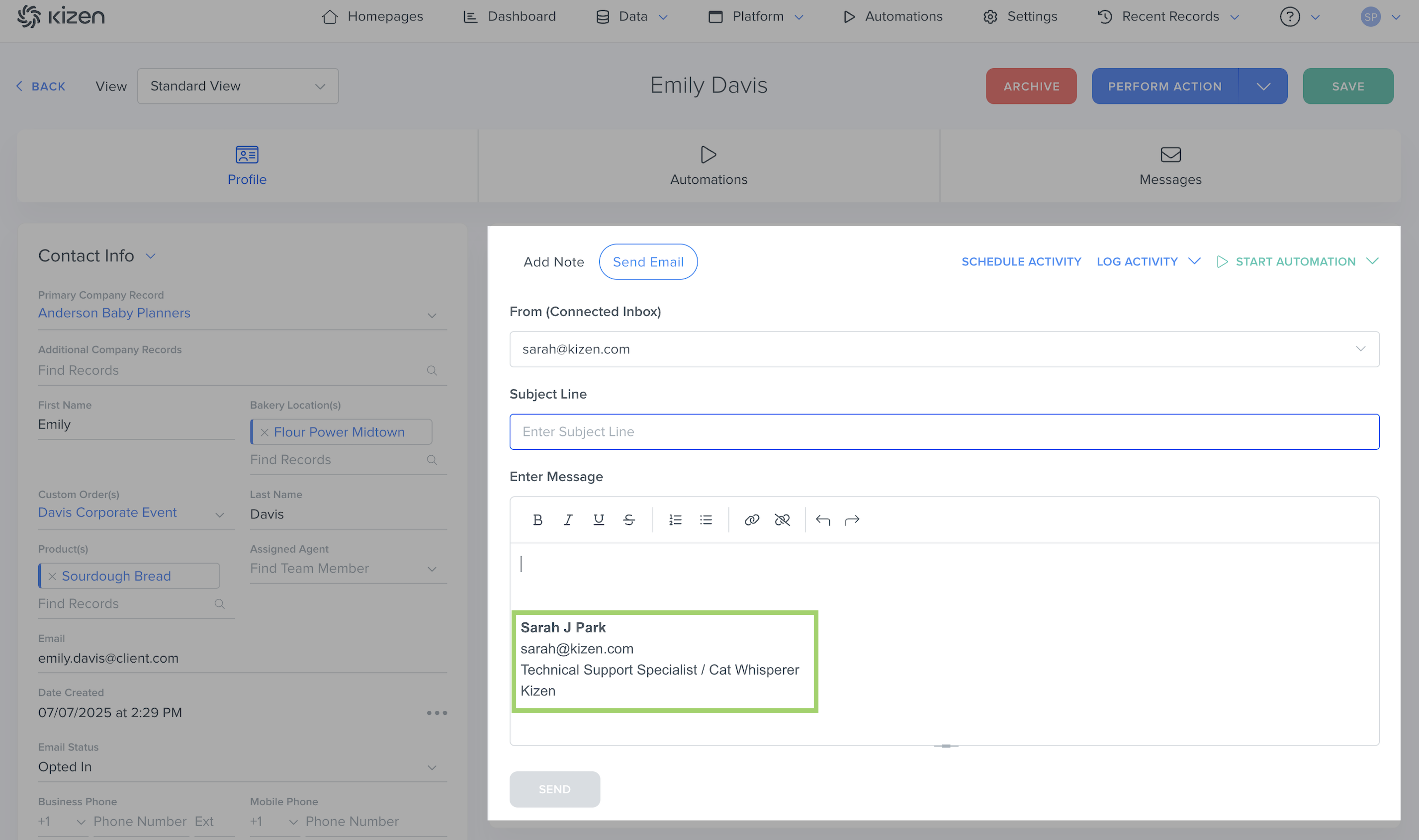
⚠️ Note: The Email Signature feature does not support HTML formatting or images at this time. Additionally, the signature will only appear in emails that you send directly to a contact from the Contact record.

To add a picture to your email signatures, create a custom email template instead, and you can duplicate this email template from your Library any time you need to send an email with HTML.
How to Add an Email Signature
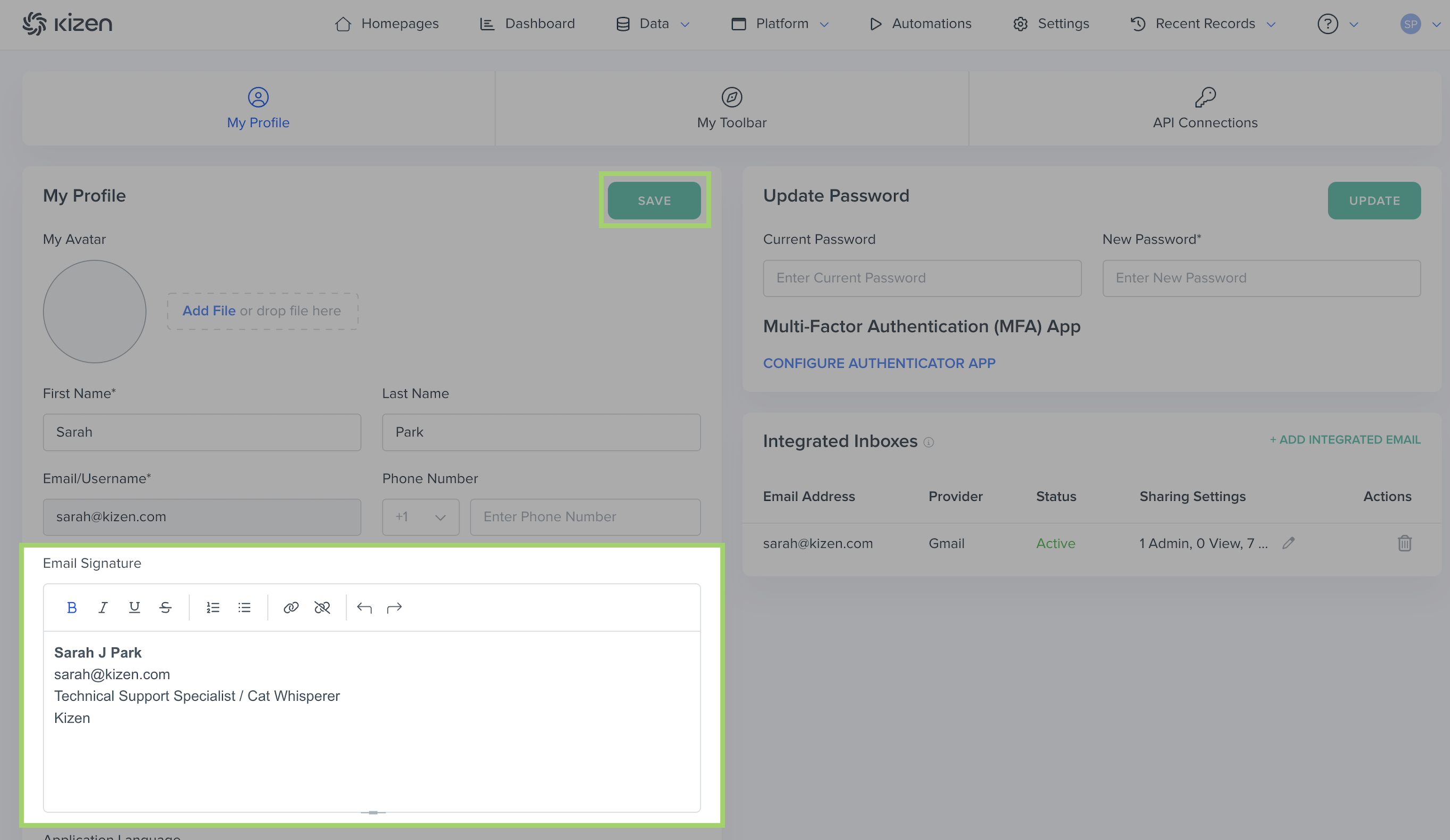
- Select on your avatar in the top right corner > My Profile
- In the "Email Signature" section in the bottom left, add your email signature text.
- Click on the "Save" button.
✅ Success Indicator: To see your email, go to any Contact record and click on "Send Email" in the action box — your email signature will be automatically populated at the body of your email.Related Articles
- How to Customize Your Kizen Business Information
- Integrated Inbox Overview: Connect Your Email Account to Send and Track Emails
- How to Create a Custom Email in Kizen
Still Need Help?
If you encounter any issues, contact support@kizen.com.
Was this article helpful?
That’s Great!
Thank you for your feedback
Sorry! We couldn't be helpful
Thank you for your feedback
Feedback sent
We appreciate your effort and will try to fix the article