Purpose: Learn how to send both personalized and pre-built, bulk emails to your Contacts directly from your Kizen account, as well as how to troubleshoot common email delivery issues.
TABLE OF CONTENTS
- What are the Different Ways You Can Send Emails From Kizen?
- Prerequisites
- How To Send Emails To Your Contacts from Kizen
- How to Troubleshoot Common Email Issues
- Related Articles
- Still Need Help?
What are the Different Ways You Can Send Emails From Kizen?
With Kizen, you can centralize communication with your Contacts without ever leaving the platform, making customer relationship management easy and efficient. You can create custom email templates that you can send to multiple Contacts at once or send simple, ad hoc emails to individual Contacts. There are several ways to send emails to your Contacts from Kizen:
- Send an ad-hoc message to an individual directly on their Contact record.
- Send a pre-built email template to an individual directly on their Contact record.
- Send a pre-built email template to multiple Contacts at the same time.
- Send automated emails to Contacts who set off a trigger and/or meet certain conditions specified by your Agentic Workflows.
- Schedule a pre-built, mass email to go out to multiple Contacts for a specific date and time in the future using the Broadcast Calendar.
In this guide, we'll walk you through the first three methods to send emails. To send via Agentic Workflow or Broadcast Calendar, check out the articles linked above!
Prerequisites
Before learning how to send emails to your Contacts, make sure you have filled out your business information, connected your email account, and filtered your Contacts with valid email addresses from your Contacts without valid email addresses. We also recommend creating custom email templates ahead of time to maintain consistent branding across your communications.
✅ How to Customize Your Kizen Business Information
✅ Integrated Inbox Overview: Connect Your Email Account to Send and Track Emails
✅ How to Manage Contacts without Emails
✅ How to Filter Your Contacts & Custom Object Records
✅ How to Create a Custom Email in Kizen
✅ How to Add an Email Signature in Kizen
⚠️ Note: Please note that you must have a valid business address and your business default email/integrated inbox set up before sending any email. At this time, you can only integrate Gmail or Outlook email accounts with Kizen.How To Send Emails To Your Contacts from Kizen
How to Send an Ad Hoc Email to a Single Contact
You can quickly send personalized, one-off communication to a Contact record, whether you need to confirm an appointment time, reach out with a quick question, or follow up on a recent conversation. Best of all, you can send these text-only messages directly from the Contact record.
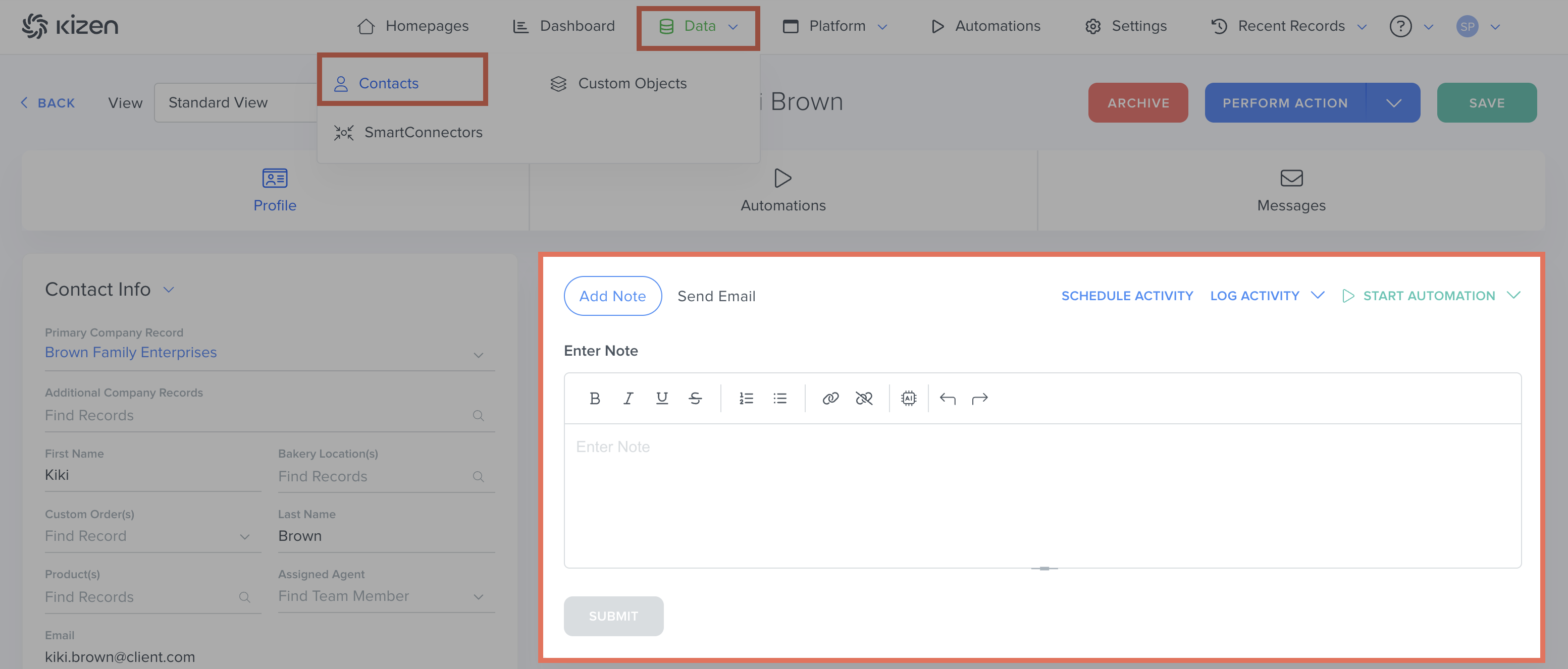
- Select Contacts or Data > Contacts in your top toolbar menu.
- Search for and select the specific Contact you want to email.
- In the Contact record, scroll to the Action Block.
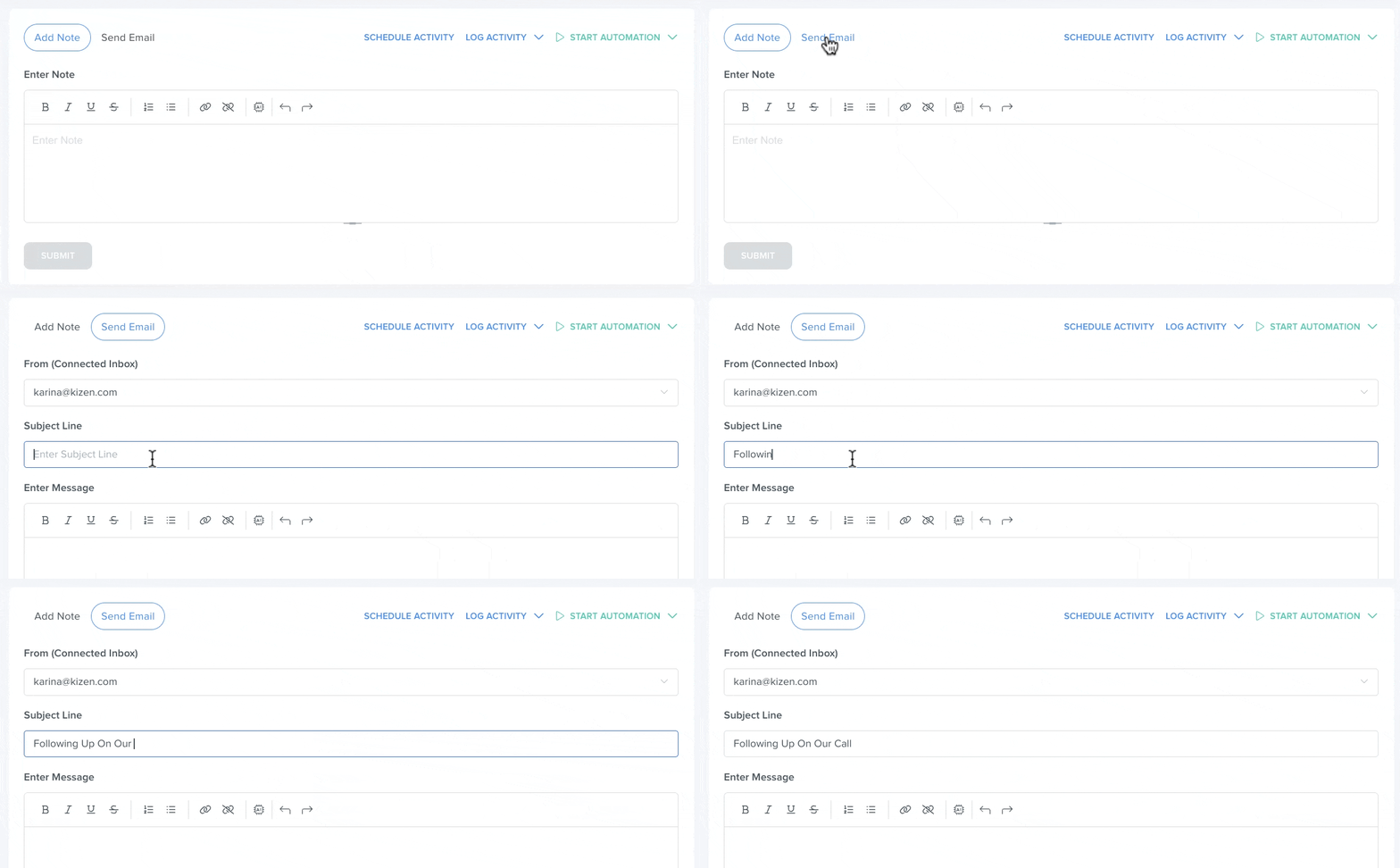
- Select Send Email > Select your Integrated Inbox > Add a subject line.
- Add the message to the email body, using any necessary formatting tools and/or the AI feature to help you complete or edit your message.
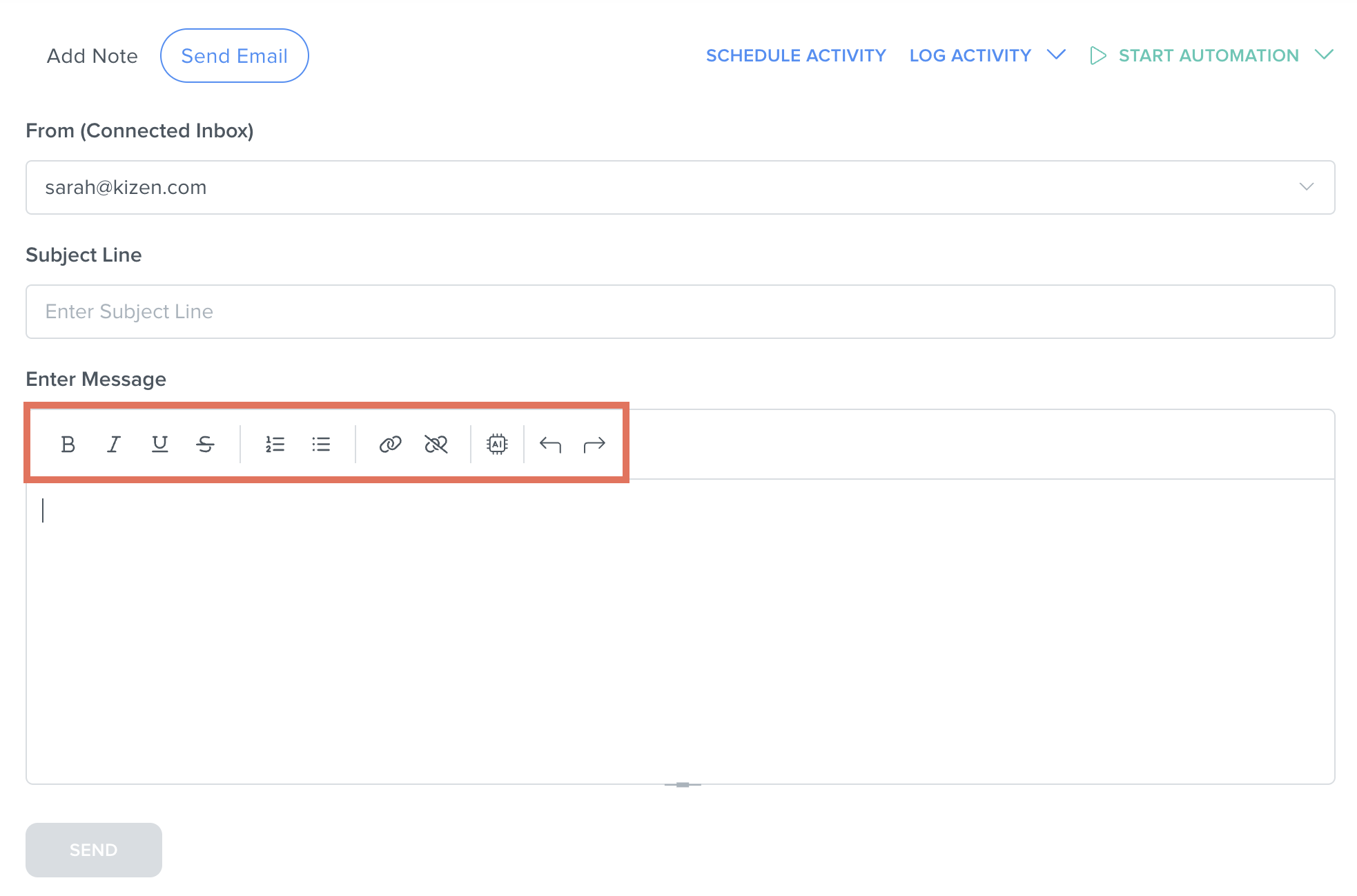
- Select the "Send" button at the bottom to send the message to the email address in the Contact's "Email" field.
⚠️ Note: At this time, it is not possible to attach files or images to these ad hoc emails. To send more complex emails with file attachments and images, we recommend creating email templates, which we will cover in the next section.How to Send a Pre-Built Email Template to a Single Contact
You can also create a custom email template with Kizen's email builder and send it to your Contact. These email templates allow you to add images, file attachments, and other HTML formatting.
- Select Contacts or Data > Contacts in your top toolbar menu.
- Search for and select the specific Contact you want to email.
- In the top right corner of the Contact record, select the down caret next to the blue "Perform Action" button > "Send Email."

- In the pop-up window, select either "Choose Email From Library" to use an existing email template to edit and send to the Contact, or "Create New Email" to start from scratch and create a completely new email template.
- In the email builder, select the correct Business Default or Integrated Inbox as the Sender Type.
- Add a Subject Line and customize your email body.
- Select the green "Save & Close" button in the top right corner.
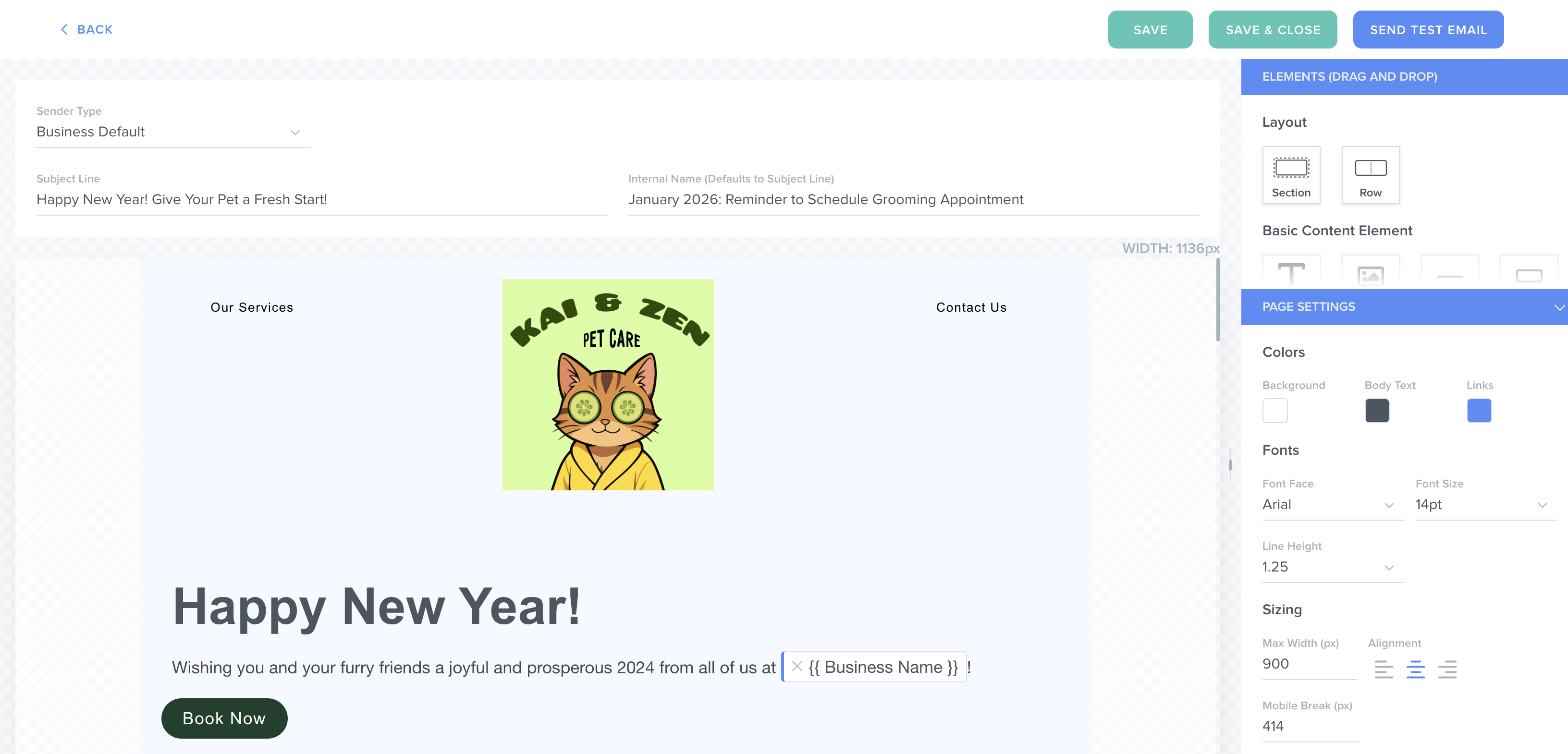
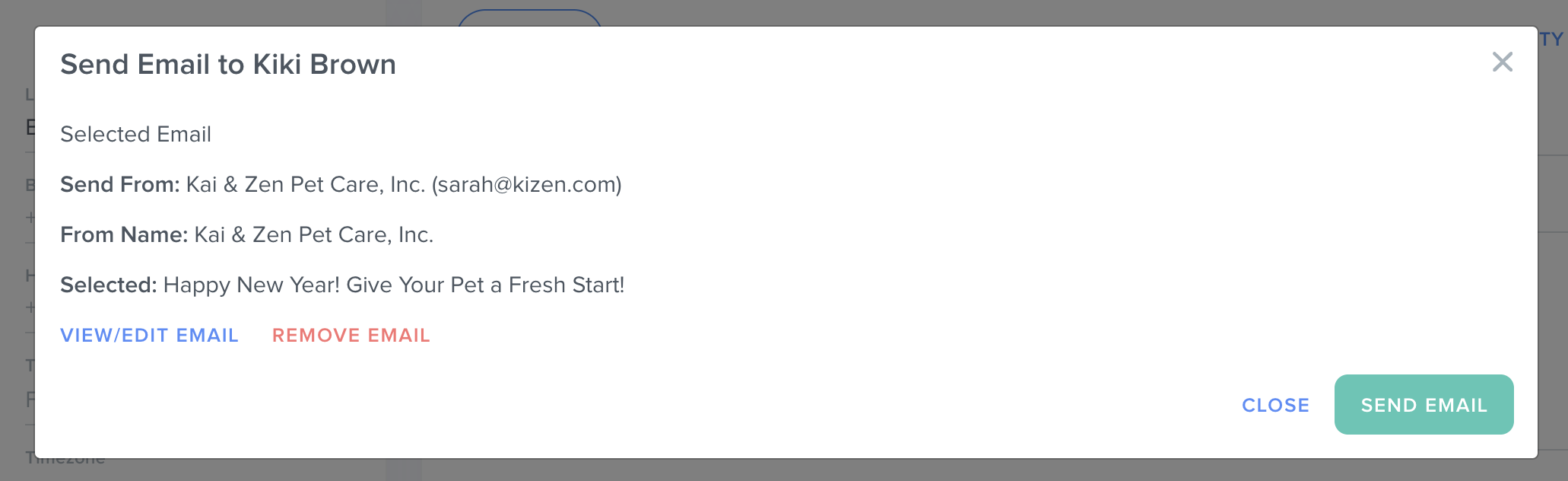
- Review the email details and select "Send Email."
How to Send a Pre-Built Email Template to a Multiple Contacts
Whenever you want to send a mass email to a filtered group of Contacts (for example, an email blast to all of your clients in a specific city) or all of your Contacts at once, you can do this easily from the Contacts object page.
- Select Contacts or Data > Contacts in your top toolbar menu.
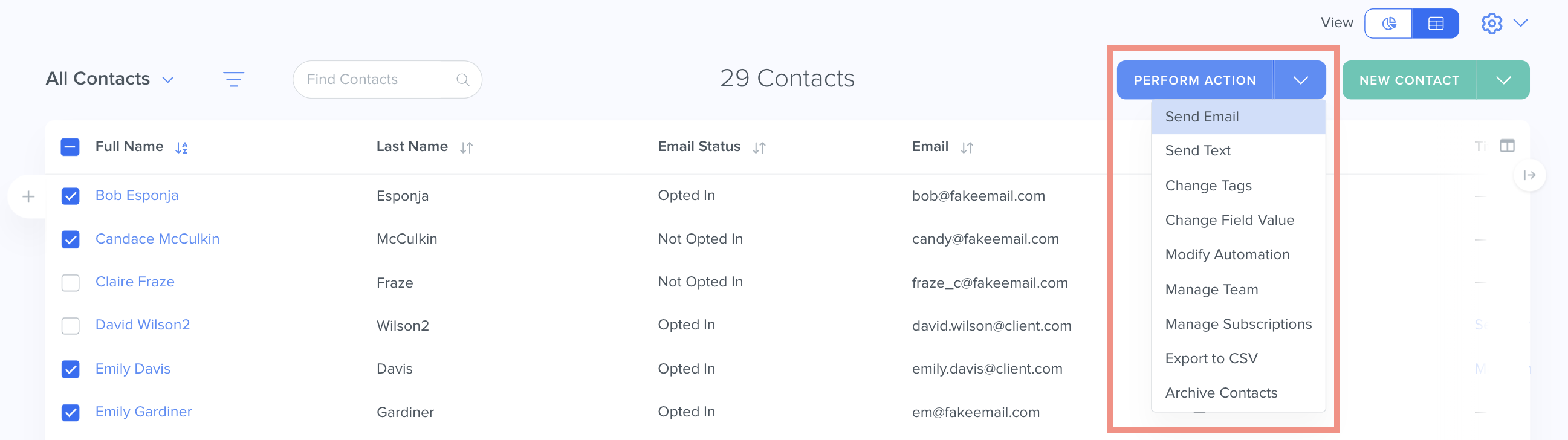
- Select a specific filter or click on individual Contacts by manually selecting the checkboxes next to their names.
- Select the down caret next to the blue "Perform Action" button > "Send Email."
- Select the Contact status you want to specifically send emails to.
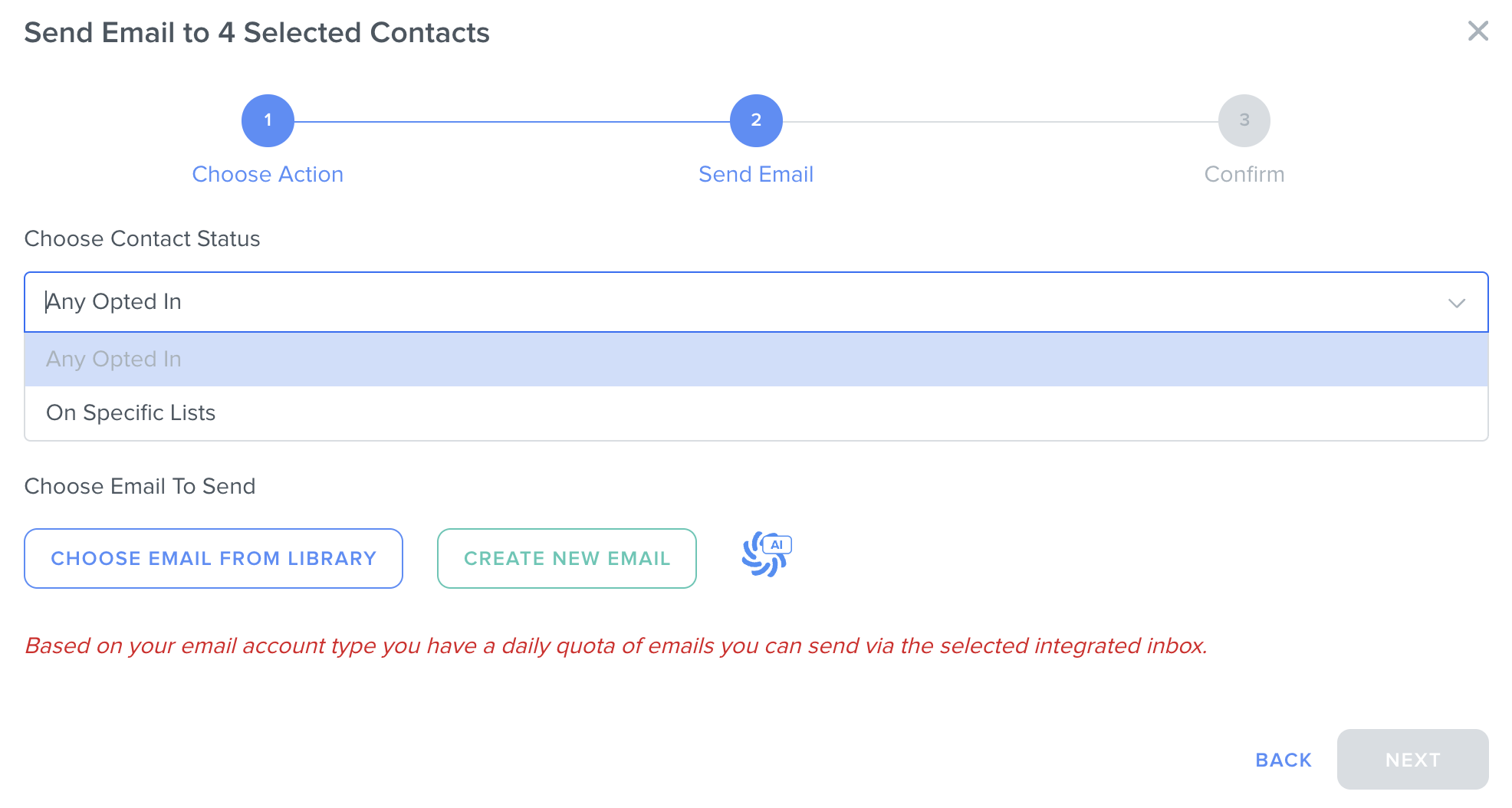
- Any Opted In: Any Contacts who have opted into any emails from you.
- Specific List: Only Contacts who have opted into a specific Subscription List.
- Select "Choose Email From Library" to use an existing email template to edit and send to the Contacts, or "Create New Email" to start from scratch and create a completely new email template.
- In the email builder, select the correct Business Default or Integrated Inbox as the Sender Type.
- Add a Subject Line and customize your email body.
- Select the green "Save & Close" button in the top right corner.
- Confirm the number of Contacts.
- Select the green "Send" button to send your email.
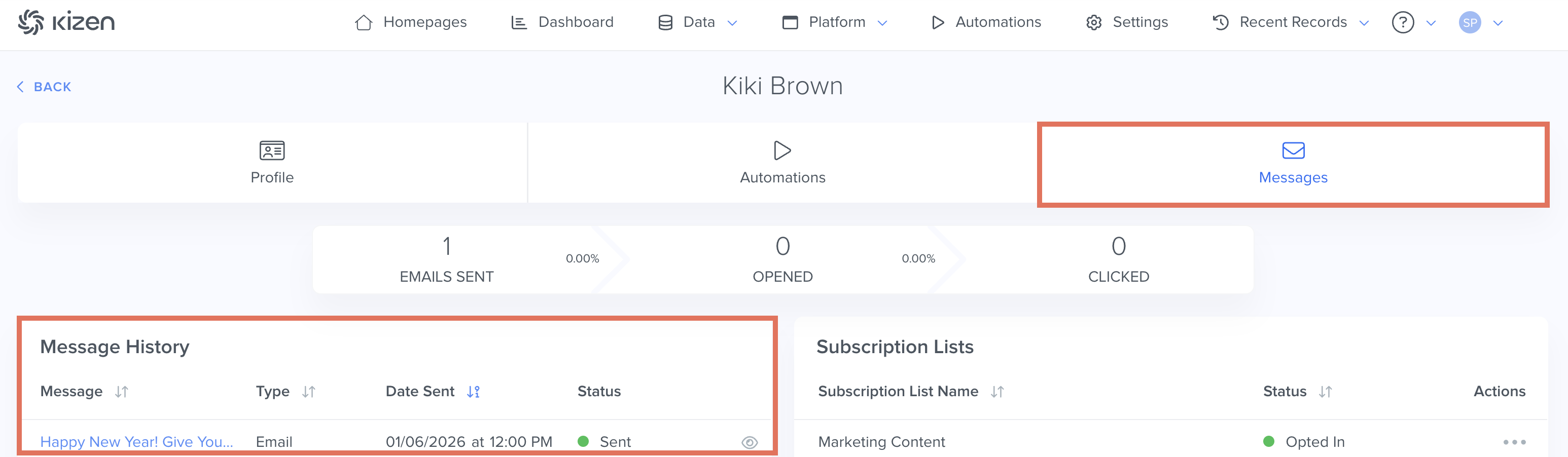
✅ Success Indicator: To confirm if your email was sent successfully, open one of the Contact records and select the "Messages" tab. You should see the delivery status of the email in the Message History.
How to Troubleshoot Common Email Issues
Help! None of My Emails are Sending!
If none of your emails seem to be sending successfully to your Contacts, check the following:
- Confirm that you have the client's correct email address in their Contact record's "Email" field.
- Make sure that you have added your Business Default Email and selected the correct Integrated Inbox when configuring your email.
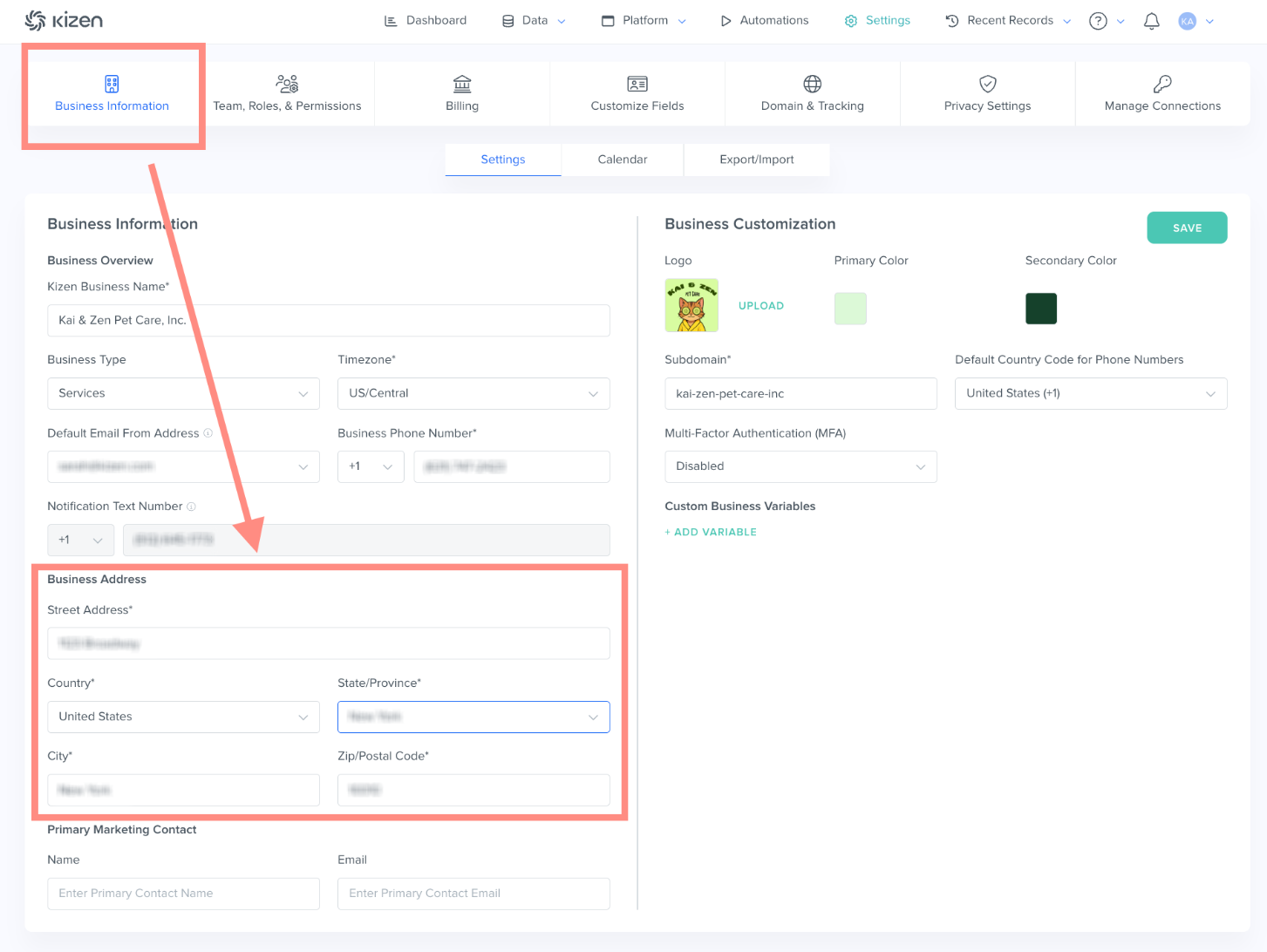
- Make sure that you have added your business address to the Business Information section in your account settings.
- Try to avoid subject lines that may be easily flagged by spam filters.
⚠️ Why is the Business Address required? Federal law requires a valid physical postal address to be included on all commercial emails. Emails sent from Kizen will automatically include the Business Address listed in your settings, as well as the option to opt out of future marketing emails, at the bottom of your emails. Learn more about CAN-SPAM Act requirements here.
Help! My Emails are Bouncing!
Your Contacts might end up on the Suppression List through a hard bounce (for example if the Contact marks emails from your email address as spam), or through two soft bounces, which may happen when a Contact's inbox is full or has an out-of-office automatic reply. After two soft bounces, the contact is suppressed for 14 days and then removed from the Suppression List. However, if you send another email from Kizen and a soft bounce occurs again, then the Contact is put back on the list.
To check whether a client has ended up on the Suppression List, go to the contact's profile and look for the Email Status field:
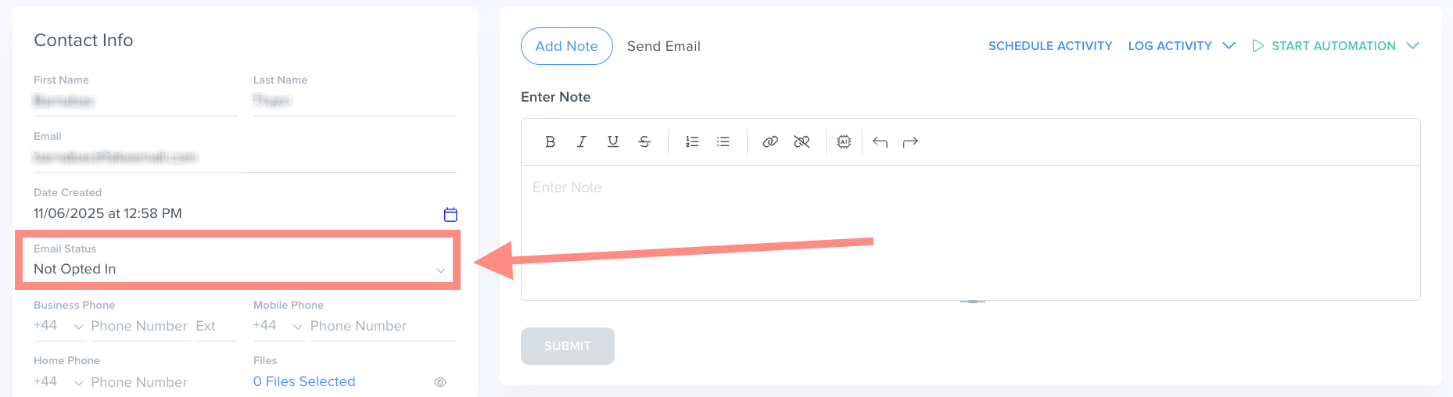
If the client is merely Unsubscribed From All, then you can just switch their status to Opted in. However, if their status is set to Suppression List:
- Reach out to the client's email address from a different email account asking them to reply, "I consent to be taken off the Suppression List." We will need this written confirmation from the individual authorizing to be opted back in to receiving your emails.
- Forward this email message to us at support@kizen.com.
- Our engineers will remove the client's email address from the Suppression List from the back-end and we will send you confirmation when your request has been completed.
Related Articles
- Integrated Inbox Overview: Connect Your Email Account to Send and Track Emails
- How to Create a Custom Email in Kizen
- How to Schedule Mass Emails & Agentic Workflows from the Broadcast Calendar
Still Need Help?
If you encounter any issues, contact support@kizen.com.
Was this article helpful?
That’s Great!
Thank you for your feedback
Sorry! We couldn't be helpful
Thank you for your feedback
Feedback sent
We appreciate your effort and will try to fix the article