Purpose: Delays are steps in an Agentic Workflow that allow you to control when the next step occurs
TABLE OF CONTENTS
Delays Overview
The following Delays are available to add to your Agentic Workflows:
1. Minutes
2. Hours
3. Days
An example of when you might use a delay in an Agentic Workflow when you need to send a follow up email 24 hours after a contact opens an email.
Add a Delay
1. Navigate to Agentic Workflows tab from top menu bar
2. Click New Agentic Workflow or Search for the Agentic Workflow you would like to edit

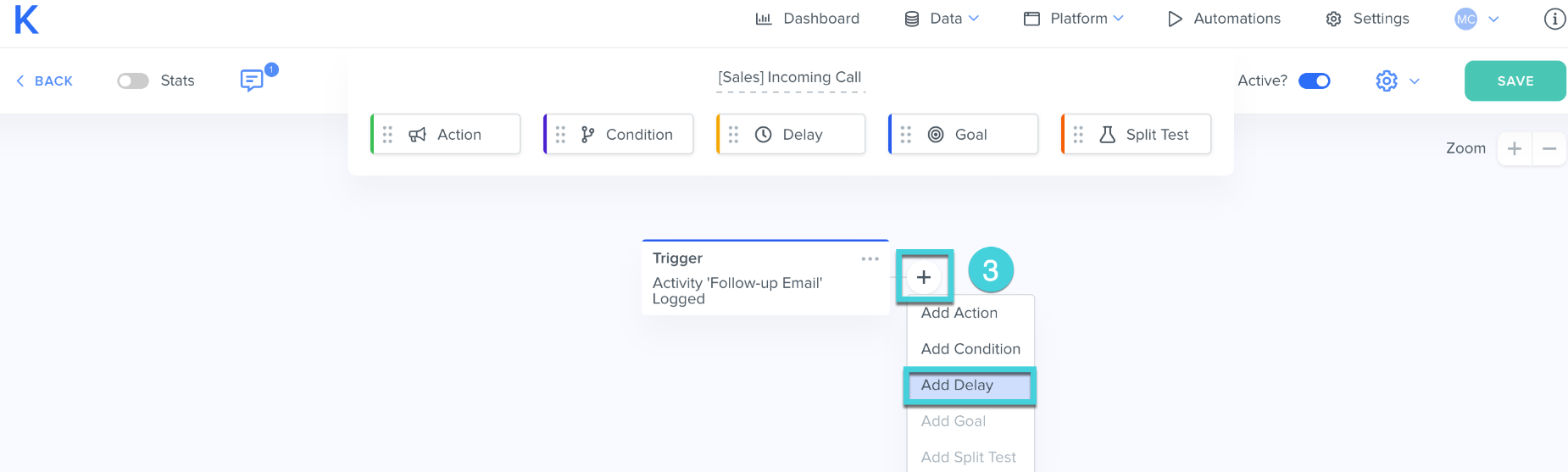
3. Click the + and Add Delay, or drag and drop Delay onto your Agentic Workflow
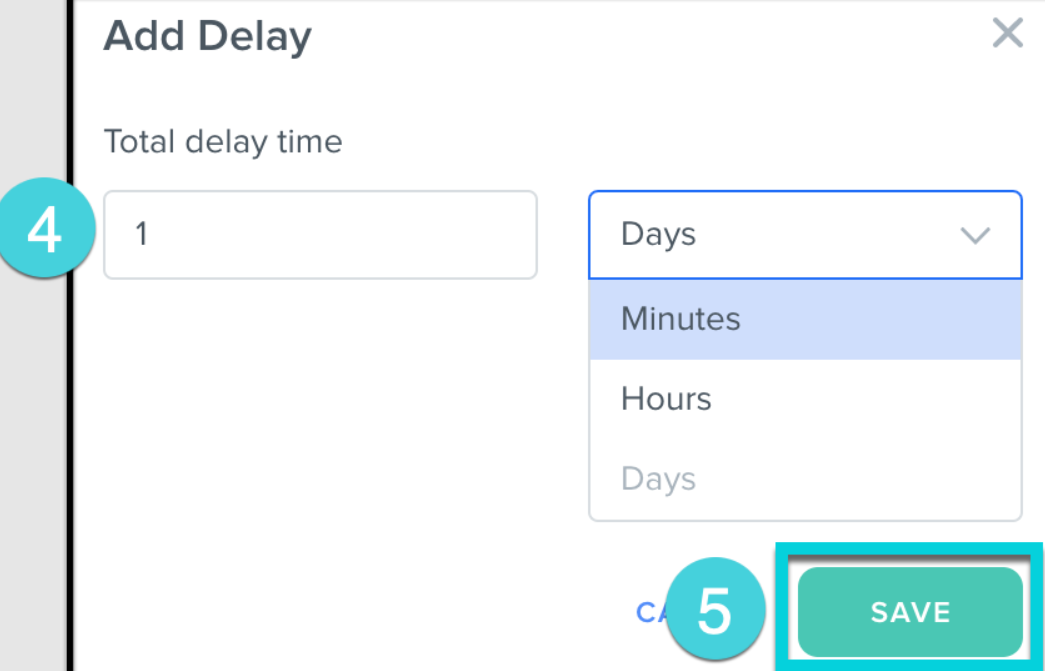
4. Enter the Total Delay Time and select Days, Minutes, or Hours
5. Click Save
Was this article helpful?
That’s Great!
Thank you for your feedback
Sorry! We couldn't be helpful
Thank you for your feedback
Feedback sent
We appreciate your effort and will try to fix the article