Purpose: Learn what each email template that comes in Kizen's Agent CRM product do and how they can help with your insurance agent workflow.
TABLE OF CONTENTS
What are the Agent CRM Email Templates?
With Kizen's Agent CRM, you can create and send beautiful custom emails to your clients from a single platform. We've created some basic template emails to get you started, as well as tailored emails for communicating with your clients about their health insurance needs. Some of these emails are connected to active Agent CRM Agentic Workflows, so they're set up to automatically start sending as soon as you connect your email inbox!
To find these email templates:
- Click on "Platform" > Library.

- The Library is split into Templates, Broadcasts, and Agentic Workflows. In the "Broadcasts" and "Agentic Workflows" tabs, you can find all the different versions of email templates that you've created and sent to your Contacts.
Tip: You may have additional email templates in your Library that were customized by your FMO account. If you have questions about those emails, reach out to your FMO contact!
| Email Template Name | Subject Line | Description |
1 - Basic Template | 1 - Basic Template | The "Basic Template" email is a clean and simple email format with one image and a policy enrollment congratulations message. It includes personalized "Merge Fields" that will pull the Contacts' names into their respective emails. You can edit and customize this email for any other purpose and save it as a new template. |
2 - More Content Template | 2 - More Content Template | The "More Content Template" email is formatted like an informational newsletter, with several images and text that provides tips on choosing the right life insurance policy, as well as a call-to-action to contact the agent to discuss personalized insurance options. |
3 - All Text Email | 3 - All Text Email | The "All Text Email" template is a plain-text email (no images) with a personalized greeting using Merge Fields, simple message, and signature with the agent's contact information. This is useful when you want to create a completely new email from scratch or send a simple text email. |
| Email with Fact Finder Link | [Time Sensitive] Please Complete This Fact Finder Form | The "Email with Fact Finder Link" is an email with a link to an internal Kizen Fact Finder Form, a questionnaire that collects essential client information such as financial needs, family medical history, etc. The form connects directly to the Contact object and updates key fields so that you can provide tailored insurance recommendations. |
[Time Sensitive] Please Complete This Medicare Survey | [Time Sensitive] Please Complete This Medicare Survey | The "[Time Sensitive] Please Complete This Medicare Survey" email links to the Medicare Survey so that your client can fill it out before their first appointment with you. You can trigger this email to send by clicking on the "Medicare Survey" button on the relevant Contact record. |
[New] Enrollment Confirmation | Congratulations on Your Enrollment | The "[New] Enrollment Confirmation" email confirms that your client's enrollment has been processed successfully. When a new Enrollment object record is created (usually via the SunFire or Connecture sync), this automatically triggers this personalized email to be sent to the relevant Contact record. |
| [New] Congratulations on Your New Active Policy! | Congratulations on Your New Active Policy! | The "[New] Congratulations on Your New Active Policy!" email notifies the client that their insurance policy is now active and their benefits are available. This email will send automatically on the Effective Date of the Policy record. |
| Email with Link to NPS Survey | We would love your feedback | The "Email with Link to NPS Survey" email template includes a link to a feedback survey so that your client can provide constructive feedback on their overall experience working with you. You can send this email manually or via Agentic Workflow. |
| Referral & Online Review Request | Thanks for your great feedback! | The "Referral & Online Review Request" email sends out automatically after a high-scoring NPS survey is received, thanking the client for their positive feedback and encouraging them to share their experience in a review on Google or Facebook. |
| 1 - Birthday Email | Happy Birthday! | The "Birthday Email" is a simple, but festive email that will send automatically on the month and day in the "Birthday" field of the relevant Contact record. This is an easy and effective way to maintain a great relationship with your clients! |
Email with SOA Link | [Time Sensitive] Please Complete This Scope Of Appointment | The "Email with SOA Link" template includes a link to a pre-built "Scope of Marketing Appointment Confirmation Form" in Kizen, which is required to ensure understanding of what will be discussed between you and the Medicare beneficiary (or their authorized representative) before any sales appointments. You can send this email by triggering the "Send Scope of Appointment" Agentic Workflow. |
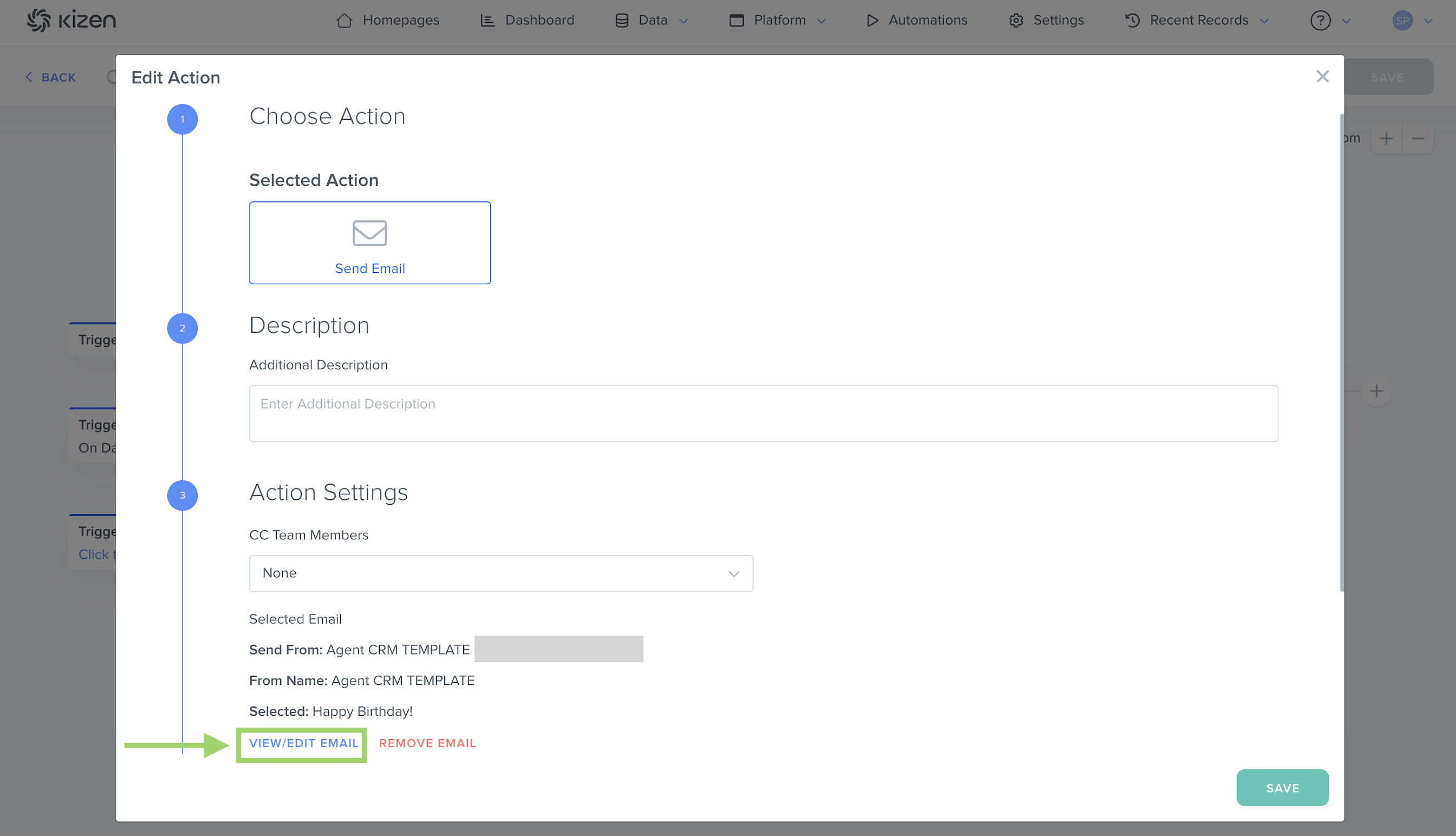
Note: If you would like to customize the emails sent via Agentic Workflow, make sure to edit them from directly within the Agentic Workflow by clicking on "View/Edit Email." If you edit the email templates in Platform > Library, your changes will only apply to new Agentic Workflows, not existing ones.
Agent CRM Email Best Practices
To confirm everything is working correctly:
- ✅ Make sure your Business Default email or the Integrated Inbox is connected successfully — you will not be able to send emails otherwise.
- ✅ Make sure your Contacts' "Email Status" field is set to "Opted In" in order to receive these emails.
- ✅ Make sure the Agent CRM Agentic Workflows are toggled on to "Active." You can choose to deactivate any Agentic Workflows you don't want to use.
What's Next?
Now that you've learned all about the pre-built Agent CRM emails, you can learn how to customize these existing or create new custom Emails!
Need Help?
If you encounter any issues, reach out to us at support@kizen.com.
Was this article helpful?
That’s Great!
Thank you for your feedback
Sorry! We couldn't be helpful
Thank you for your feedback
Feedback sent
We appreciate your effort and will try to fix the article