Purpose: Learn how to set the "Designation Type" field for an Agent or Agency record using the "[Utility] Agents & Agencies - Set Designation Type" Activity in your Kizen account's Contracting CoPilot workflow.
Overview
The "Designation Type" field must be filled out for all records in the *Agents & Agencies object for contract creation: Agencies must be designated as "Agency" and individual Agents must be designated as "Agent."
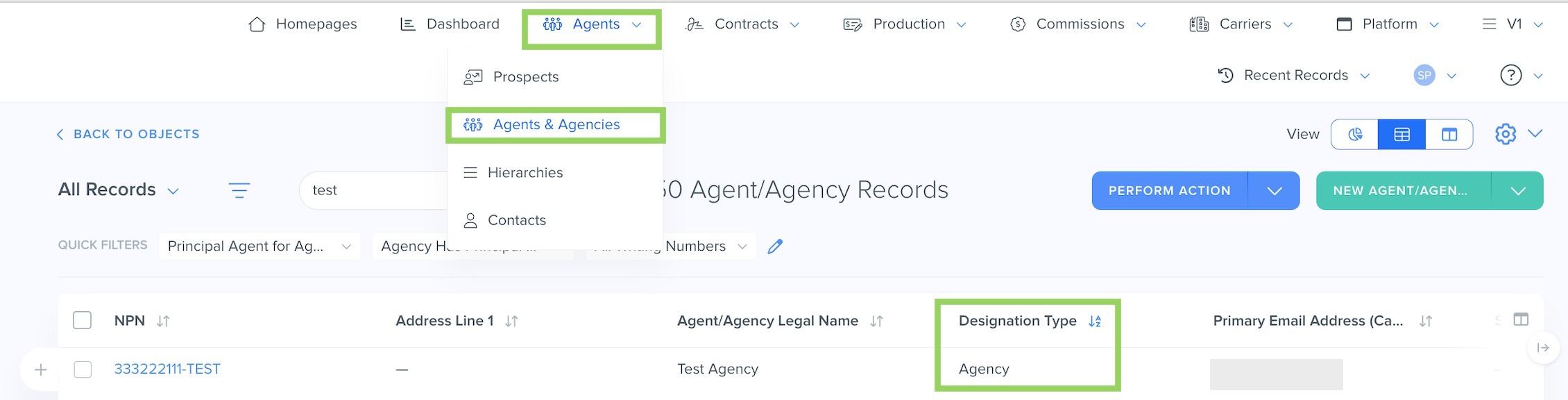
If the "Designation Type" field is blank for an Agency or Agent record, a Contracting submission will fail the validation step and automatically schedule an Activity for you to fill out:
"Corp Contract - Failed: No Designation Type on Agent/Agency record. Please fill out Activity that was just scheduled to you and then resubmit."
The following steps will walk you through how to complete this activity to populate the required Designation Type field on the Agent/Agency record, ensuring the record is properly categorized and allowing the contract submission process to continue.
How to Complete the "[Utility] Agents & Agencies - Set Designation Type" Activity
- In the *Agents & Agencies object, search for the specific Agent or Agency record where the Contracting submission error was triggered.
- Select the hyperlinked NPN to open the Agency record.
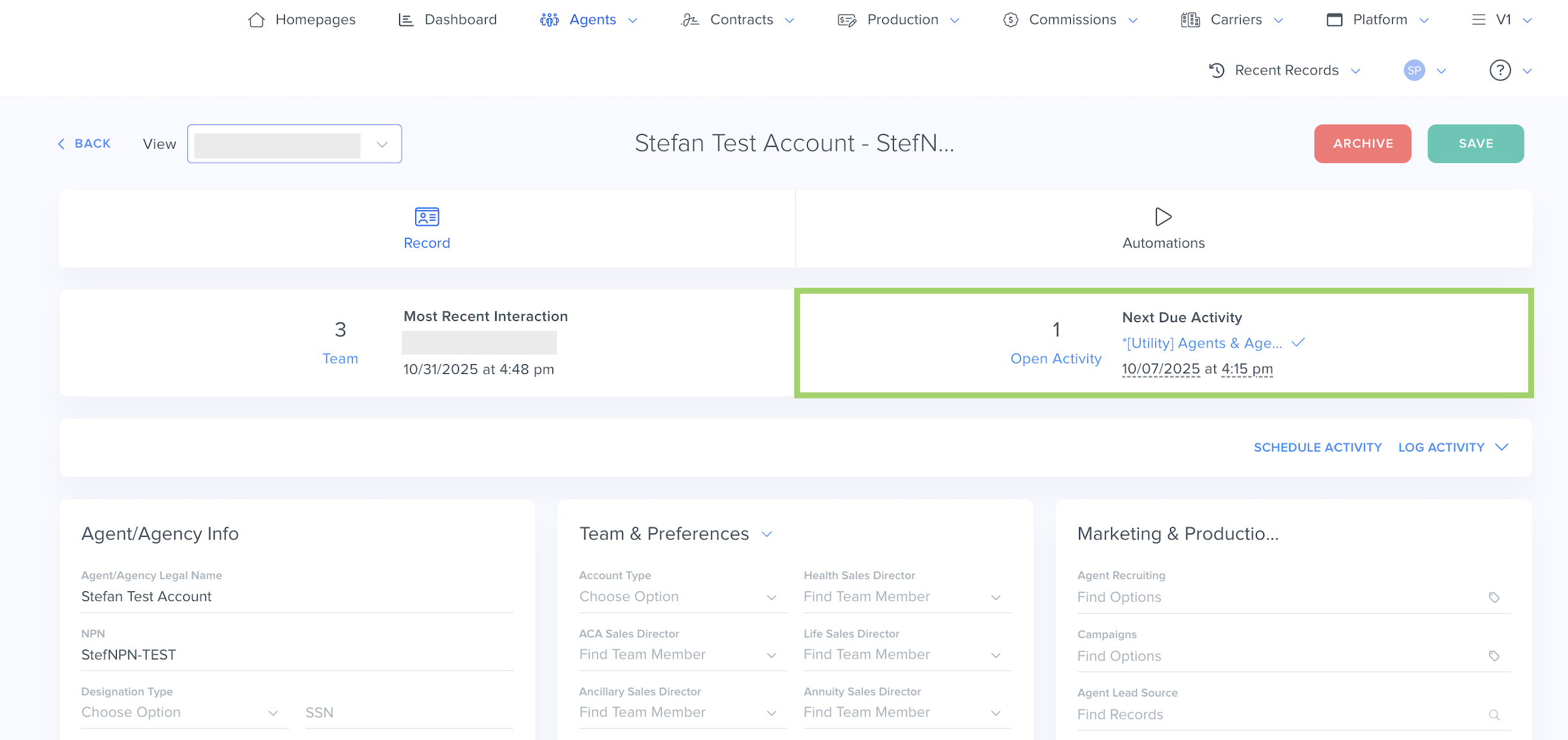
- Select the Open Activities section:
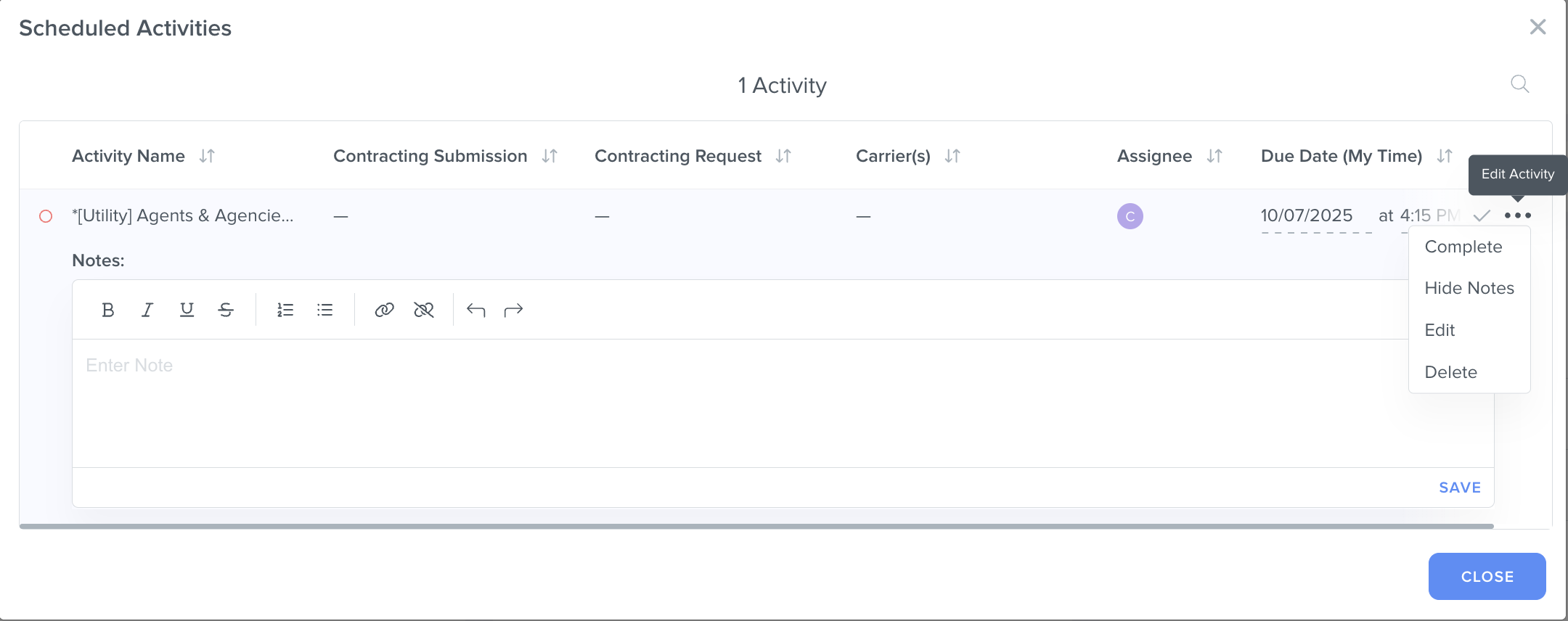
- In the pop-up window, select the checkmark icon or the "..." menu to the right of the "*[Utility] Agents & Agencies - Set Designation Type" Activity > "Complete."
- Choose either "Agent" or "Agency" in the "Set Designation Type*" field:
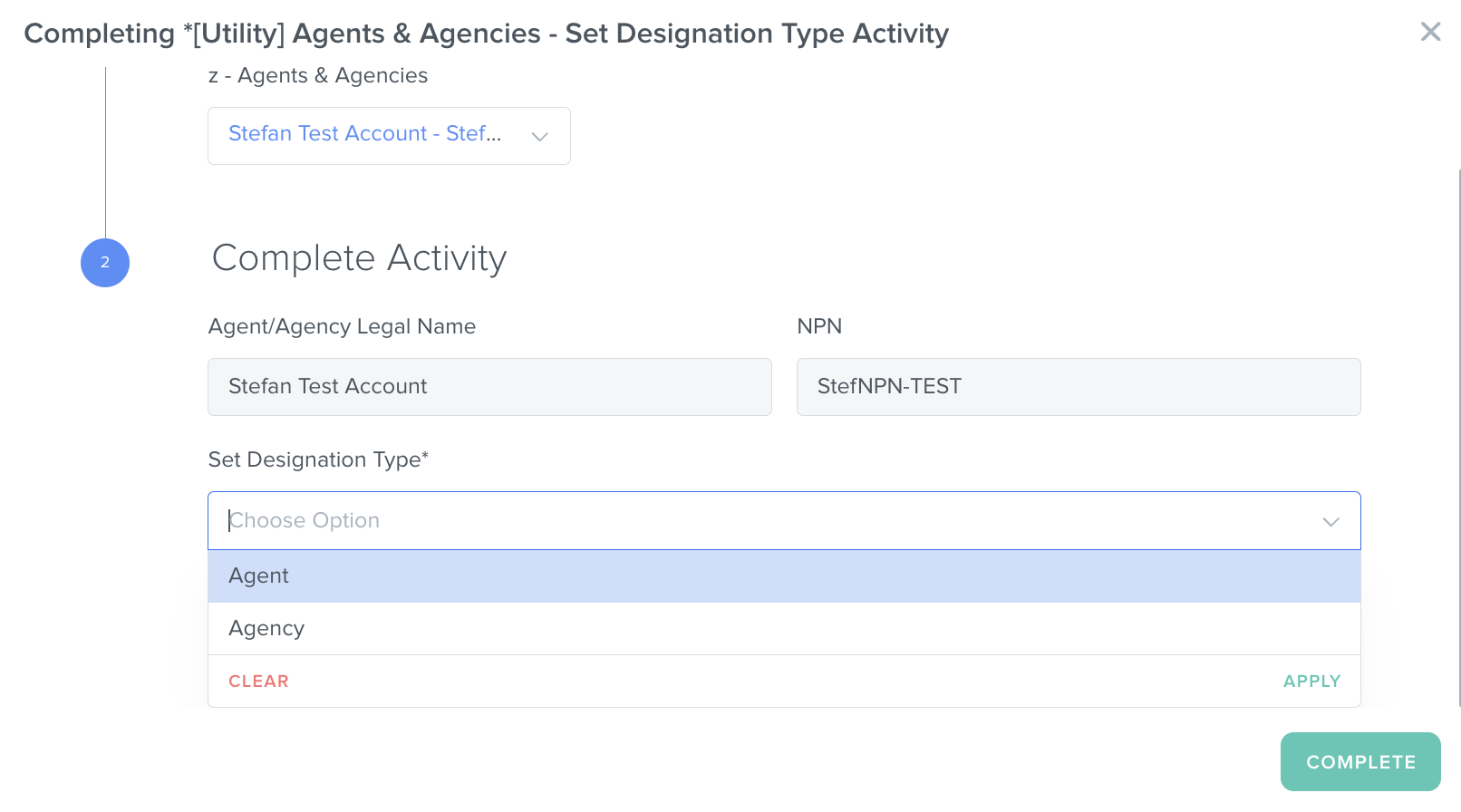
- Select the "Complete" button.
⚠️ Note: If multiple contracting submissions were submitted, you will only need to complete the "[Utility] Agents & Agencies - Set Designation Type" Activity once. This will automatically delete the duplicate Activities associated with this Agent/Agency record.
Related Articles
- [Contracting CoPilot] How to Add a New Agency to a Principal Agent Record
- Contracting CoPilot: How to Update an Agency's Principal Agent
- [Contracting CoPilot] How to Find the Principal Agent(s) on a Contract
- Contracting CoPilot: How to Update an Agent or Agency's Email Address
Still Need Help?
If you encounter any issues, contact support@kizen.com.
Was this article helpful?
That’s Great!
Thank you for your feedback
Sorry! We couldn't be helpful
Thank you for your feedback
Feedback sent
We appreciate your effort and will try to fix the article