Purpose: Learn how to change an Agent or Agency's primary email address in their respective linked Contact record in your Kizen account's Contracting CoPilot workflow.
Overview
In Kizen, each Agent and Agency in the *Agents & Agencies object is linked to a Contact record with their respective email address (and other contact details). It is crucial that the linked Contact record has the correct email address on file, as this is the single source of truth that is used for all communication regarding their contracts and commissions. If the agent has changed their email address (or they are reporting that they are not receiving emails from you via Kizen), make sure to check their Contact record.
⚠️ Note: Make sure you do not update an email address directly on the Agent or Agency's record in the *Agents & Agencies object; instead, you must update the email address in the linked Contact record.How to Update an Agent or Agency's Email Address
- In the *Agents & Agencies object, search for the specific Agent or Agency record.
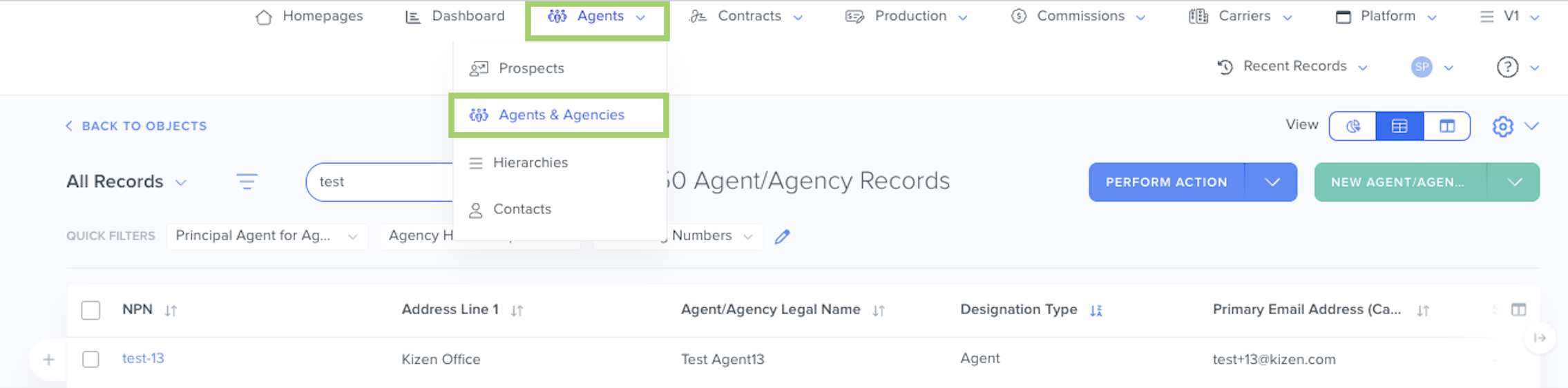
- Select the hyperlinked NPN to open the record.
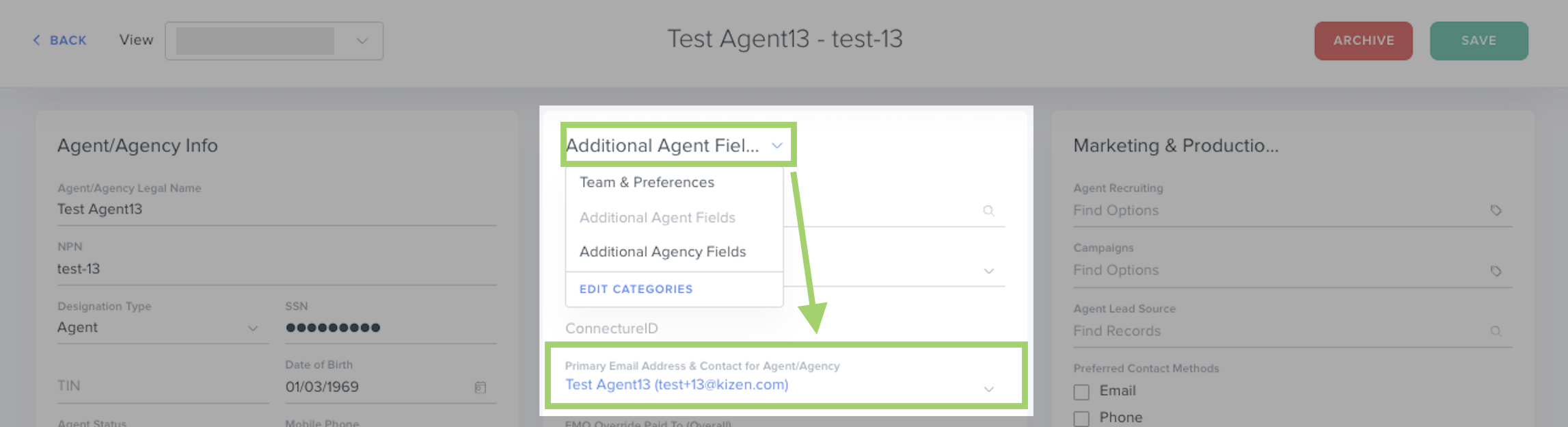
- In the Agent/Agency record, select the down caret next to the "Team & Preferences" category and select the "Additional Agent Fields" category.
- Select the linked Contact record in the "Primary Email Address & Contact for Agent/Agency" field.
- In the Contact record, add the new email address in the "Email" field.
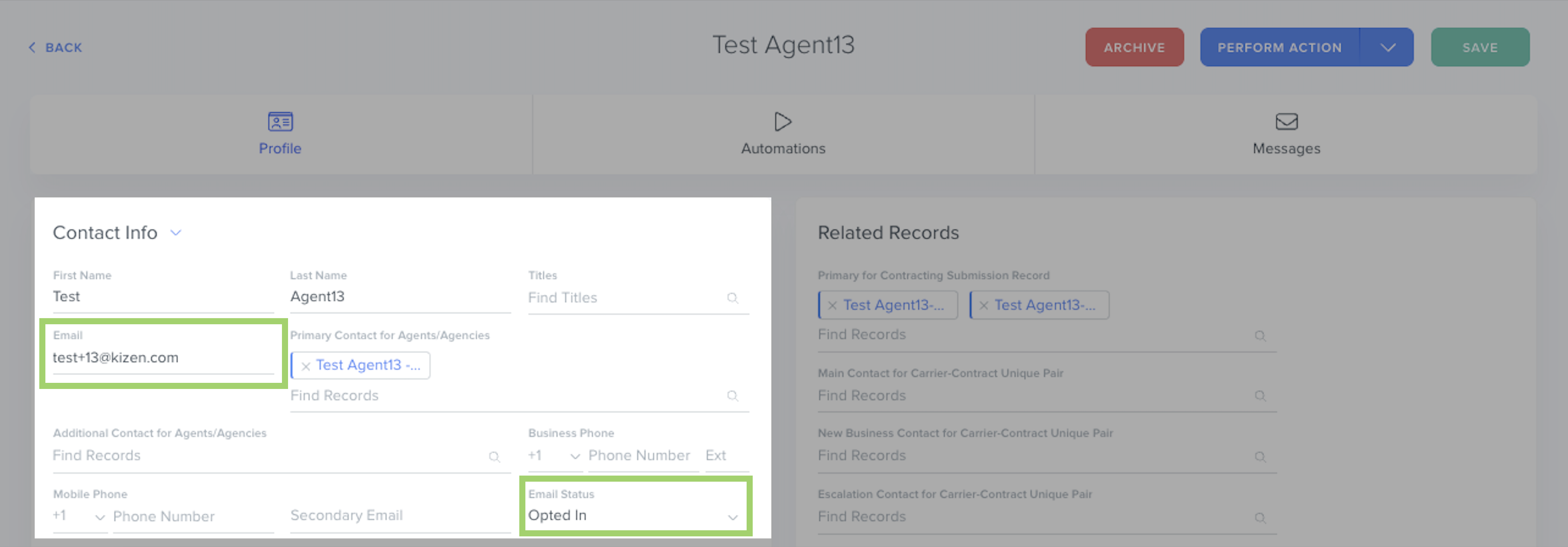 **Make sure the Contact's Email Status is set to "Opted In" in order for the Agent/Agency to receive your emails.
 - Click on the "Save" button in the top right. All existing Contracting Submission records and new Contracting Requests that are tied to this Contact Record will now reference the new email address.
Related Articles
- [Contracting CoPilot] How to Add a New Agency to a Principal Agent Record
- Contracting CoPilot: How to Set the Agent/Agency Designation Type
- [Contracting CoPilot] How to Find the Principal Agent(s) on a Contract
Still Need Help?
If you encounter any issues, contact support@kizen.com.
Was this article helpful?
That’s Great!
Thank you for your feedback
Sorry! We couldn't be helpful
Thank you for your feedback
Feedback sent
We appreciate your effort and will try to fix the article