Purpose: Learn how to submit a manual contract request for an existing agent using the "[Contracts] Add New Manual Contract for Agent/Agency" activity in your Kizen account's Contracting CoPilot workflow.
A manual contract request is used to transfer an active contract with an existing agent or agency that was completed outside of Kizen into your Contracting CoPilot workflow (for example, if the contract was created before your organization started using Kizen). You can request this contract using the "[Contracts] Add New Manual Contract for Agent/Agency" activity.
⚠️ Note: Active contracts can only be manually created for self-service/non-RTS-pipeline carriers. If the "[Contracts] Add New Manual Contract for Agent/Agency" Activity is logged for a full service/RTS-pipeline carrier, this will result in a validation error.

If the agent/agency does not have an active contract with the carrier yet, use the
"[Contracting] Existing Agent - New Contract Request" activity.
- In the *Agents & Agencies object, search for the specific Agent or Agency record.
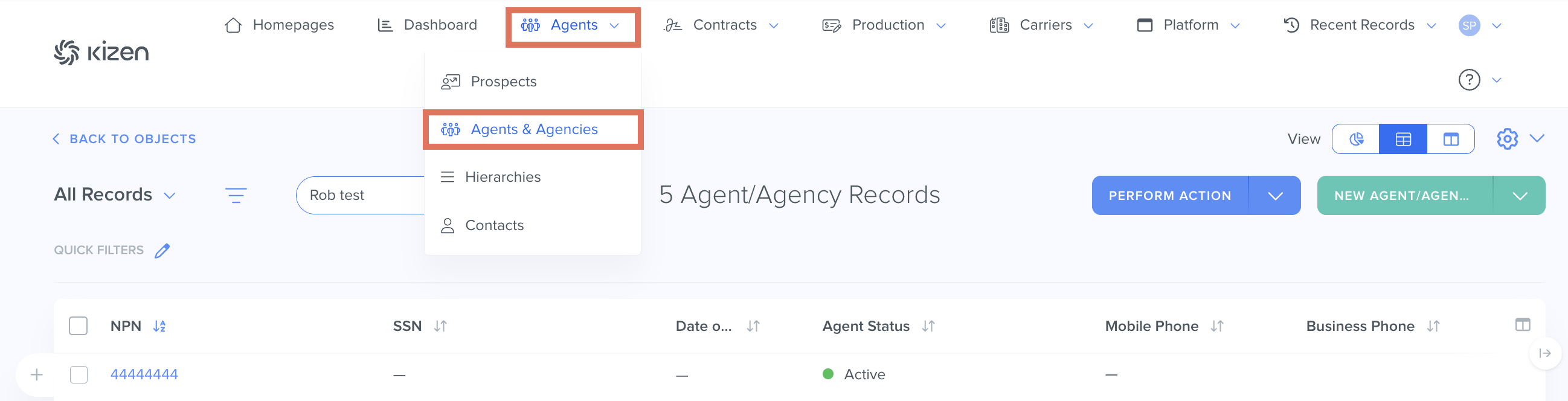
- Select the hyperlinked NPN to open the record.
- In the top right of the agent’s record, select Log Activity > "Add New Manual Contract for Agent/Agency" from the dropdown menu.

- In the pop-up window, fill in all required and relevant fields, such as the carrier, agent’s upline, and requested level.
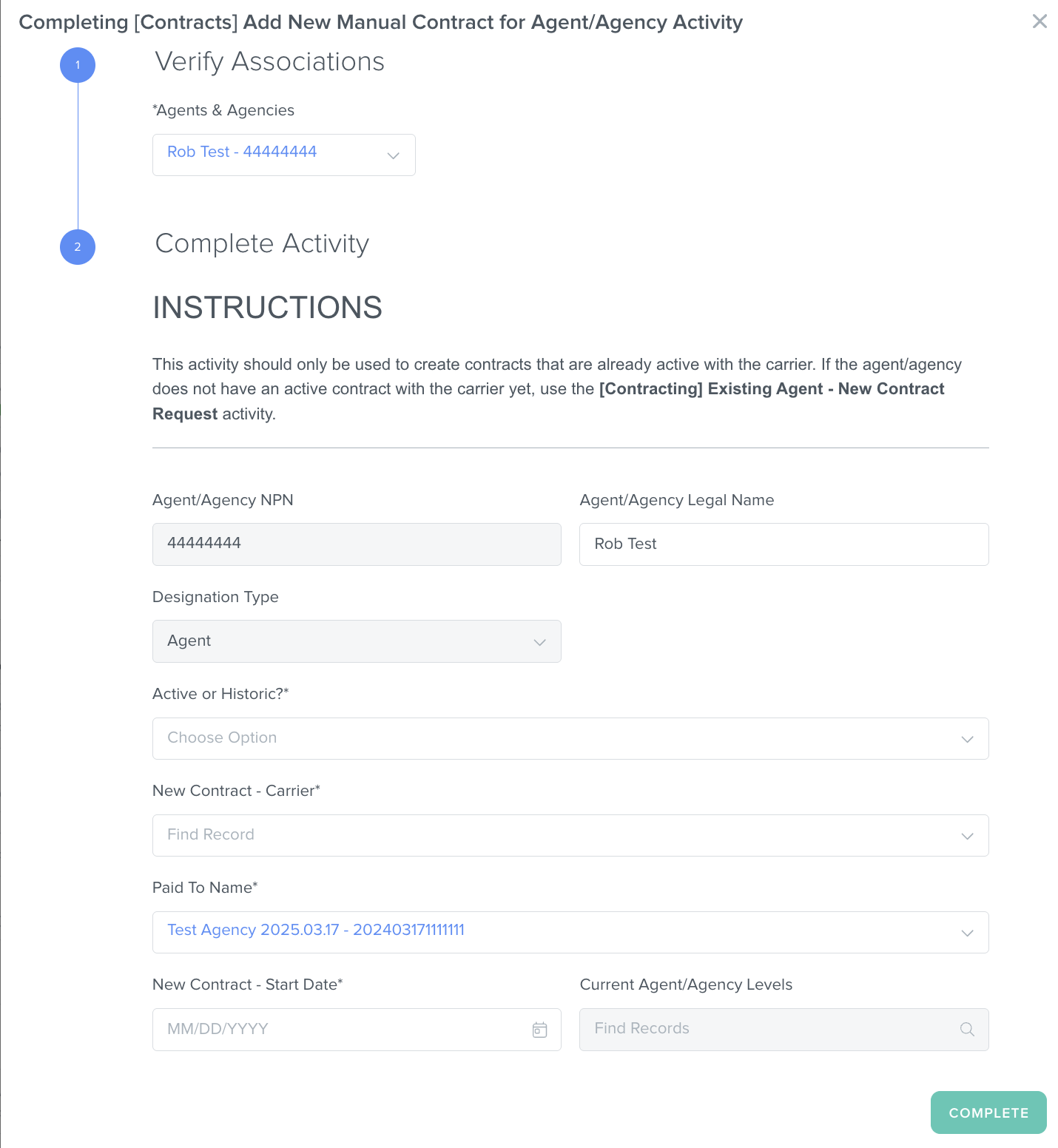
- Click the Complete button. (This will trigger Kizen Agentic Workflows to run validations based on the activity fields you submitted and ensure that the contract does not have any issues.)
- Check the "Active Contracts" section in the agent record to confirm that the contract was created successfully.

⚠️ Note: The contract will only be created if validations are passed successfully. If more information is required or there is an issue with the submission, you will see the "Validation Failure - New Manual Contract Needs Attention" scheduled activity in the agent record's Timeline:
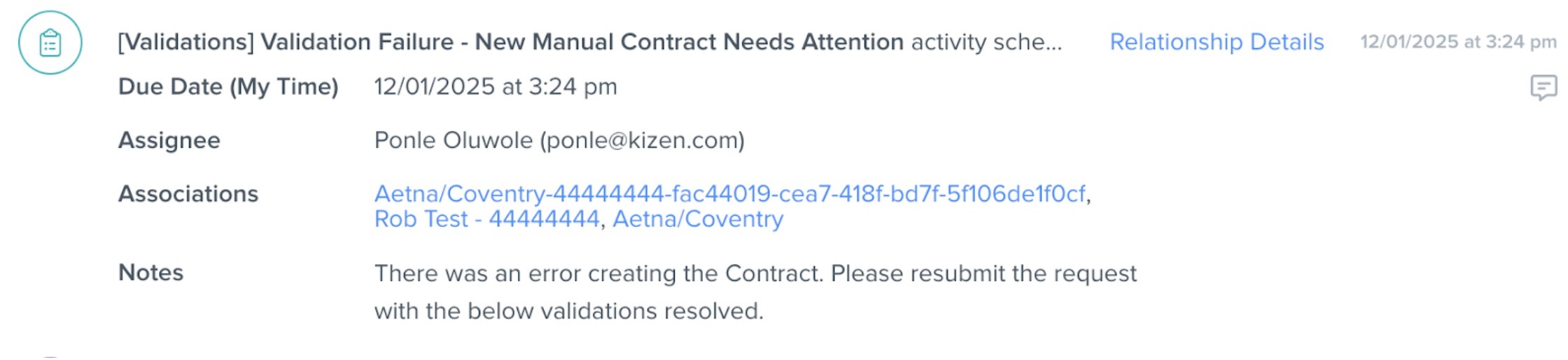 Additionally, this activity will appear on the Scheduled Activities dashboard assigned to the relevant Sales Director to complete the activity and resubmit the corrected contract request.
Related Articles
- Contracting CoPilot: How to Reactivate a "Historic" or "Never Active" Contract
- Contracting CoPilot: How to Activate a Pending Contracting Request
- Contracting CoPilot: How to Request a New Carrier Addition
Still Need Help?
If you encounter any issues, contact support@kizen.com.
Was this article helpful?
That’s Great!
Thank you for your feedback
Sorry! We couldn't be helpful
Thank you for your feedback
Feedback sent
We appreciate your effort and will try to fix the article