Purpose: Learn how to record client interactions and manage those recordings on your Kizen Voice App without logging in to your Kizen AgentCRM business.
TABLE OF CONTENTS
- How to Record in the Kizen Voice App while Not Logged In
- How to Manage Kizen Voice Recordings Stored on Device
- Related Articles
- Still Need Help?
How to Record in the Kizen Voice App while Not Logged In
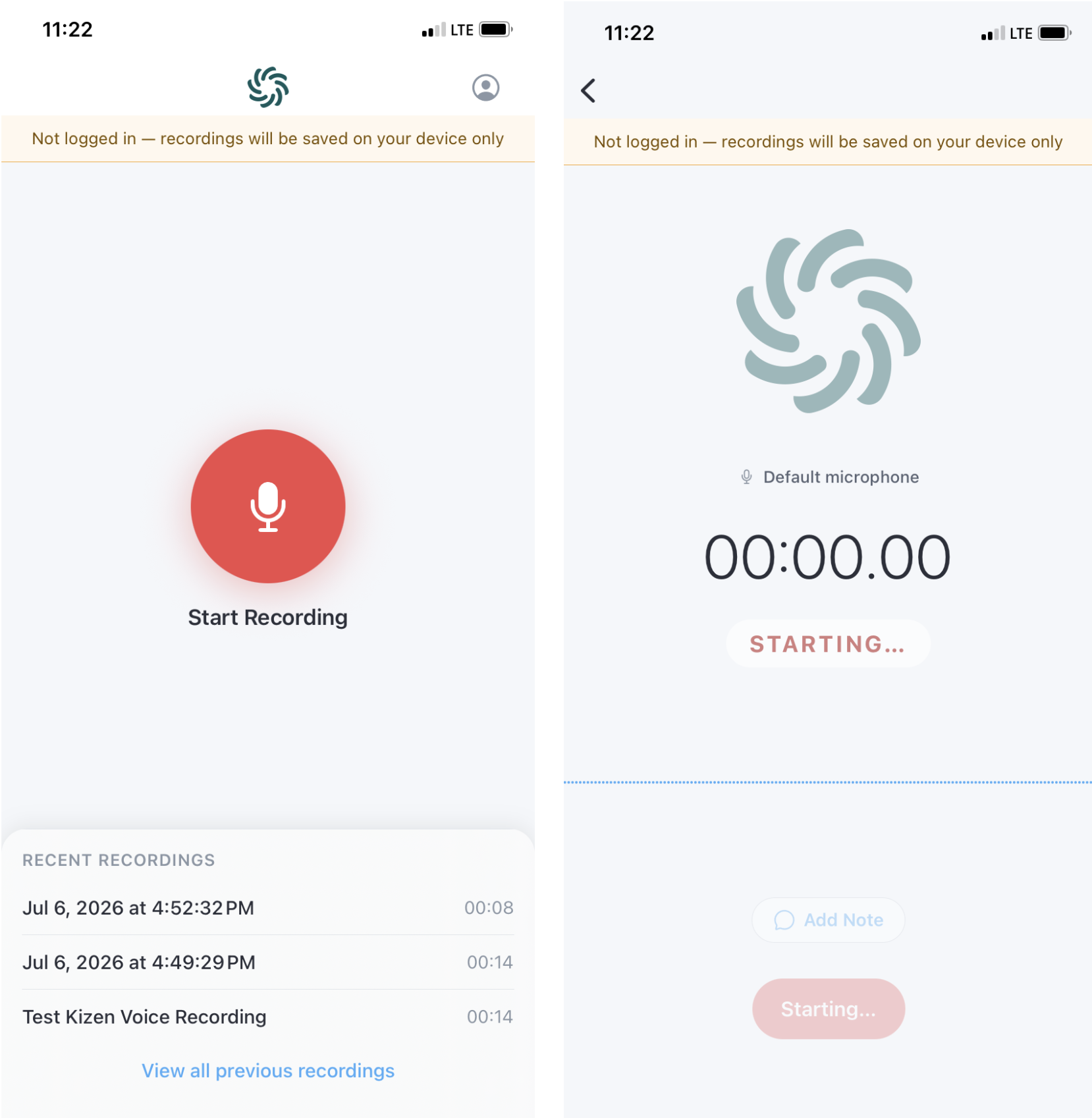
Whether you're in a rush or you don't have internet service, you do not need to be logged in to your AgentCRM business to use Kizen Voice for recording client interactions. If you open the app without logging in, you'll see a banner at the top of every screen: "Not logged in — recordings will be saved on your device only."
- Recording a call "offline" works the same as it does when you record while logged in. Tap Start Recording, and the app will show Starting... briefly before recording begins.
- You can add a note during the recording by tapping Add Note, and pause or resume the recording as needed.
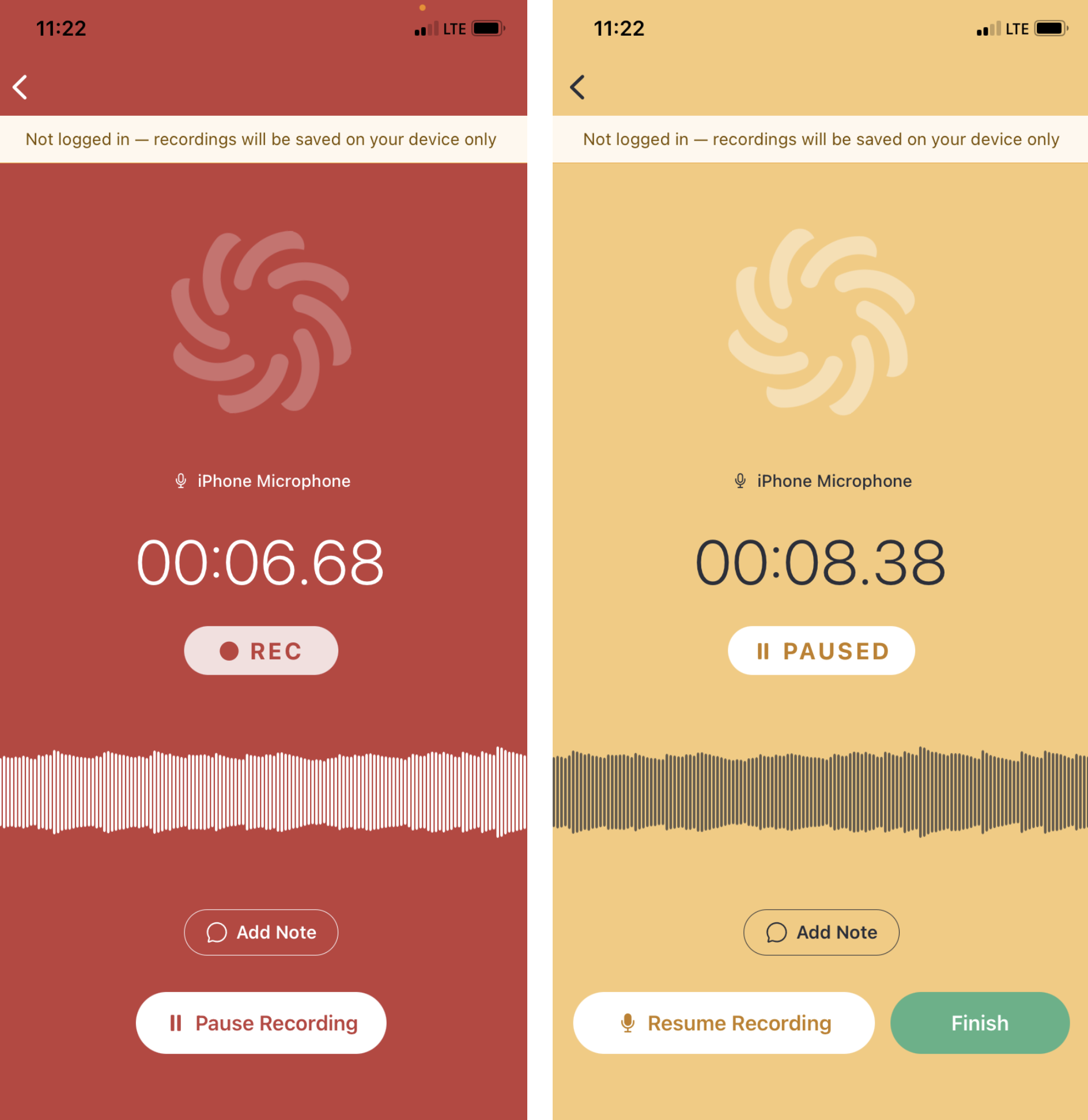
- Tap Finish when you're done.
⚠️ Note: Recordings made on the Kizen Voice App while not logged in are stored only on your device. They are not uploaded to Kizen and are not linked to any Contact record in your CRM.
How to Manage Kizen Voice Recordings Stored on Device
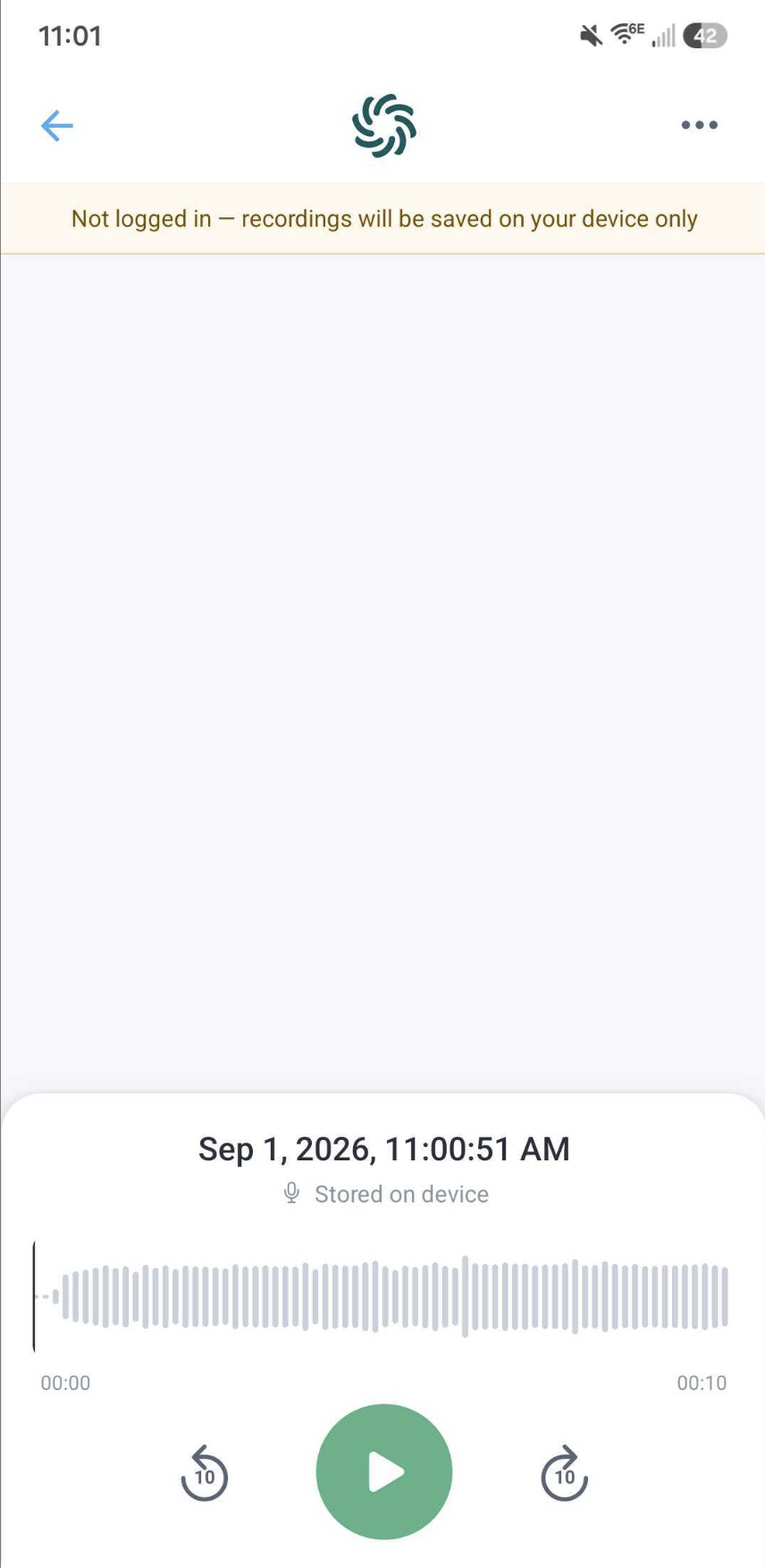
- After tapping Finish, you'll land on the playback screen for that recording, showing the waveform, duration, and "Stored on device" status. Tap the back arrow (top left) to return to the full recordings list.
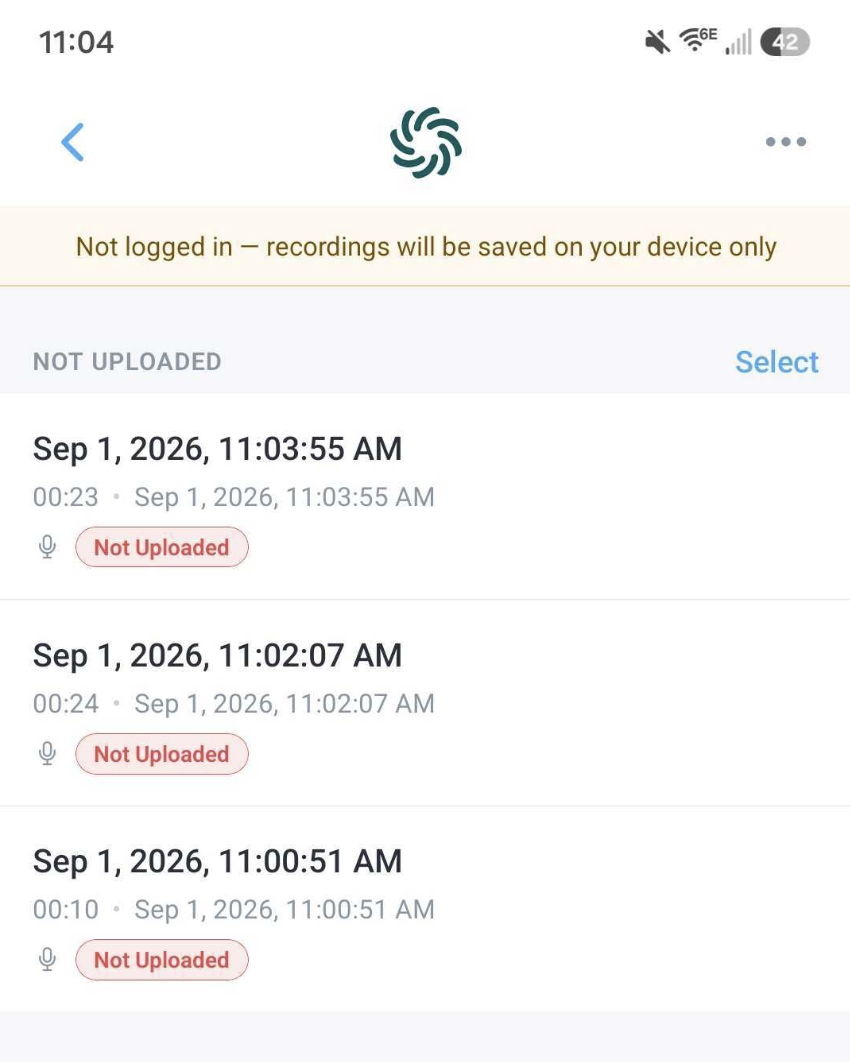
- From here you can see your full list of un-uploaded recordings. Recordings that have not been sent to Kizen are labeled Not Uploaded.
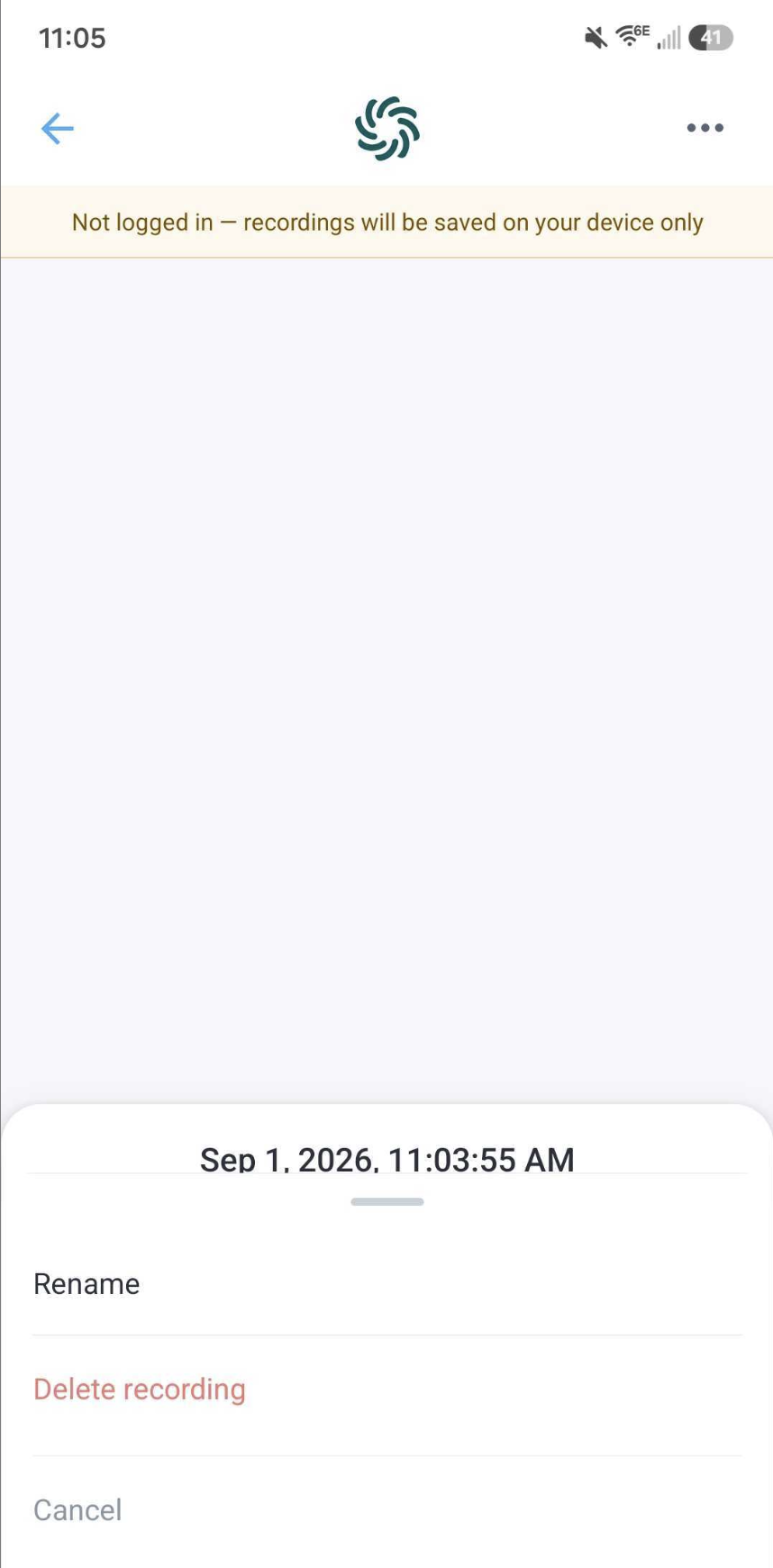
- To rename or delete a single recording, tap the three-dot menu on that recording and choose Rename or Delete recording.
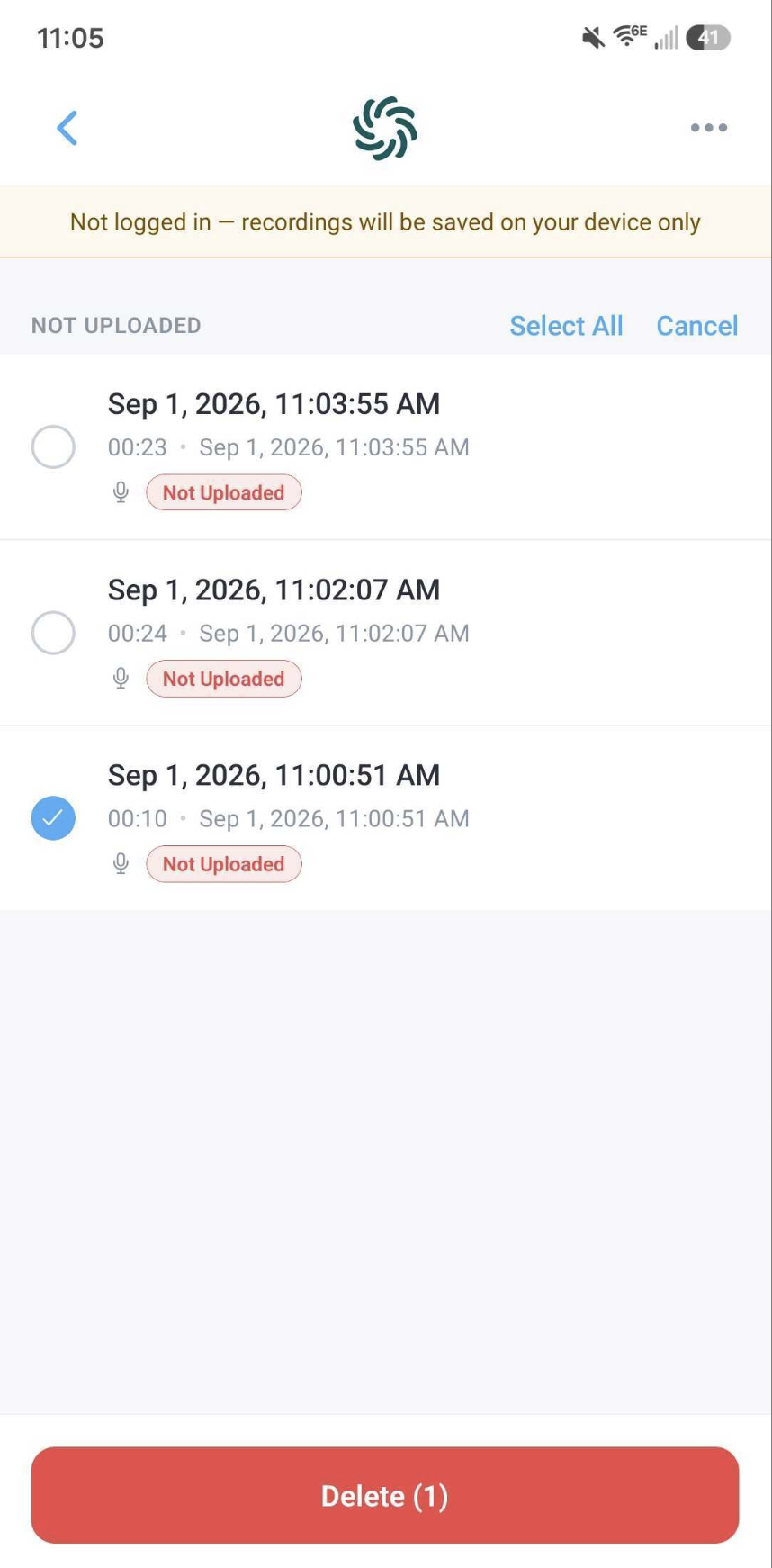
- From the Not Uploaded list, tap Select (top right of that section). The list switches to selection mode: each recording is now selectable, and the section header options change to Select All and Cancel.
- Tap the checkbox next to each recording you want to remove. Selected recordings show a filled blue checkmark.
- Once at least one recording is selected, a red Delete button appears at the bottom of the screen with the number of recordings selected. Tap Delete to remove the selected recordings.
⚠️ Note: The Not Uploaded and Processing lists are tied to your device, not your Kizen AgentCRM account. Any recording that hasn't successfully uploaded, including one that failed while you were logged in, will remain visible on the device even after you log out. This is expected: since the recording was never attached to an account, it stays local until it's uploaded.
Related Articles
- AgentCRM: Kizen Voice App & Meeting Assistant User Guide
- AgentCRM: How to Log into the Kizen Voice App
- AgentCRM: How to Record a Meeting in the Kizen Voice App
- AgentCRM: How to Upload a Recording from Kizen Voice App
Still Need Help?
If you encounter any issues, contact support@kizen.com.
Was this article helpful?
That’s Great!
Thank you for your feedback
Sorry! We couldn't be helpful
Thank you for your feedback
Feedback sent
We appreciate your effort and will try to fix the article