Purpose: Learn all about the Connecture Integration and how it can help streamline your insurance workflow by syncing completed Medicare enrollments directly to your Agent CRM.
TABLE OF CONTENTS
- What is the Connecture Integration?
- Prerequisites
- How to Sync Enrollments from Connecture to Kizen
- How to Troubleshoot the Connecture Integration
- Related
- Need Help?
What is the Connecture Integration?
Connecture is a Medicare plan quoting and enrollment platform used by licensed insurance agents. With Kizen's Agent CRM, you can easily open your clients' records in Connecture directly from their Contact records in order to compare plans and estimate costs, check drug and provider coverage, and submit enrollments to carriers. These completed enrollment then sync back to the Contact record's Enrollments related object in Kizen so that you can keep track and manage your clients' essential insurance data, all from one platform.
Note: Your "Connecture" button may be under a different name, depending on your FMO. Reach out to your FMO contact with more specific questions about their enrollment platform!Prerequisites
In order to use the Connecture integration successfully, make sure to complete the following steps to set up your account and data beforehand:
✅ You must have an Agent CRM account with the relevant template objects. The integration is designed to sync specifically to the pre-built objects and field API. (This also ensures that your Connecture integration entitlement is enabled in the back-end.)
✅ Your account must have been provisioned by your FMO with the correct Agent NPN. Your Agent NPN will be used as your Connecture username, so if it is missing or incorrect, the Connecture plugin will not launch correctly.
✅ You must upload all of your clients data to the Contacts object. All new enrollments must start with an existing Contact record in your Kizen account.
How to Sync Enrollments from Connecture to Kizen
Step 1: Open the Contact record in Kizen
- Click on "Contacts" in the top menu bar OR "Data" in the top menu bar > "Contacts", depending on your toolbar configuration.

- Open the Contact record you want to get a quote for or enroll. (It's crucial that you are opening the correct Contact record with accurate data, as there isn't a way to "transfer" a Connecture connection from one Contact record to another Contact record.)
- Ensure that the following fields are filled in the "Contact Info" category of your Contact record:
- First Name
- Last Name
- Medicare Number* (a.k.a. Medicare Beneficiary Identifier or MBI) — if available
- Birthday
- Street Address*
- City
- State*
- County*
- Zipcode*
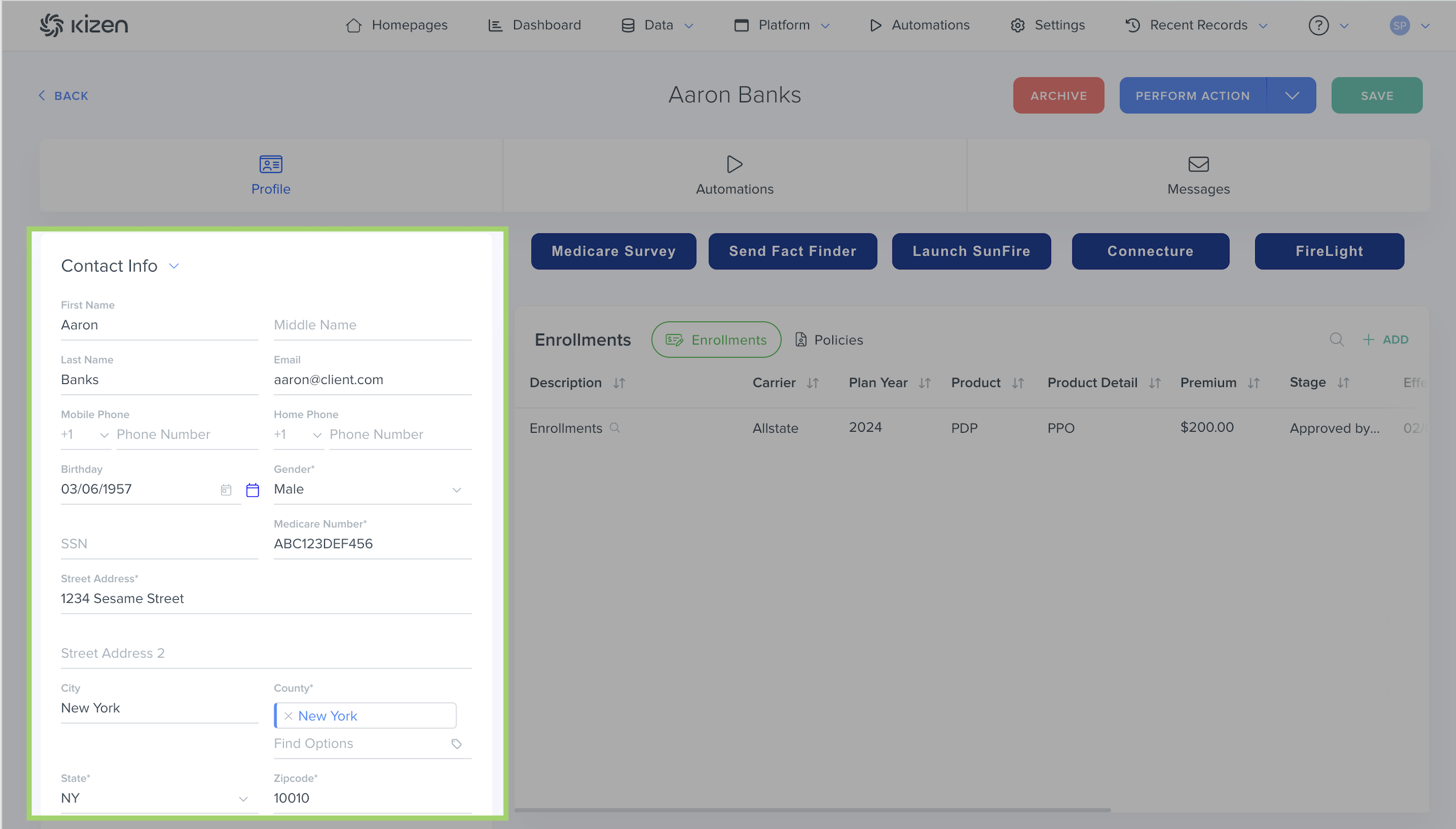
⚠️ Note: Connecture requires the name, date of birth, and address field values to pre-fill the beneficiary's profile. The Medicare Number field is how the system will identify if there is an existing record in Connecture and prevent duplicate records. If you do not have a Medicare Number for your client yet, make sure to add it to the Contact record in your Agent CRM and the record in Connecture afterwards.
Step 2: Launch Connecture from Kizen
- Click on the "Connecture" button in the Contact record. (As noted above, the name of this button may be customized by your FMO to their specific Connecture instance.)
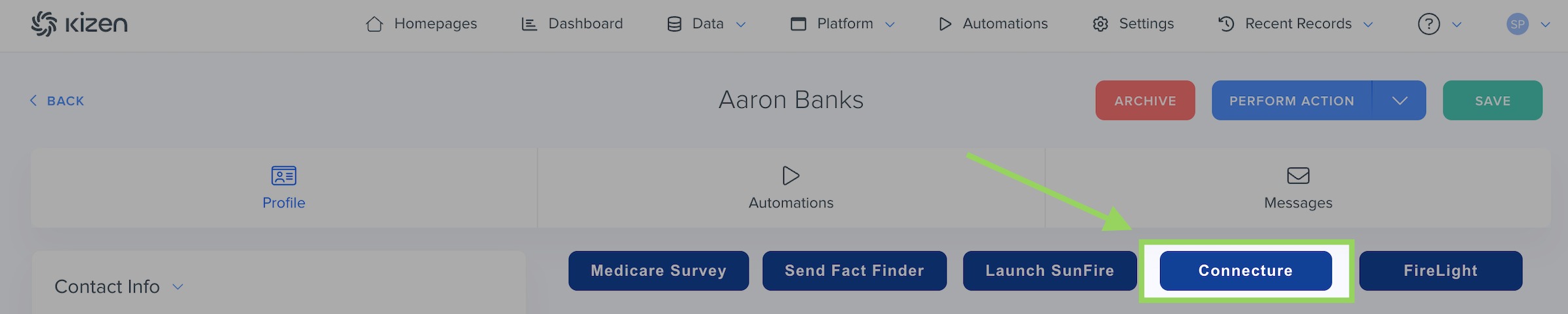
- If you have filled out the Medicare Number field, and there are existing matching record with the same Medicare Number in Connecture, you will see a pop-up window prompting you to select the correct record or give you the option to create a new record.
- In the new window that opens up, log in to Connecture using the single sign-on (SSO) provided by your FMO.
Step 3: Complete the Enrollment in Connecture
- Review costs and coverage, and choose a plan for the beneficiary. You can also add or update drugs, doctors, and pharmacies in Connecture.
- Complete and submit the enrollment in Connecture. (Only submitted enrollments will sync back to your Agent CRM.)
- Open the Contact record in Kizen. You should now see the Enrollment under the Enrollments related objects block:
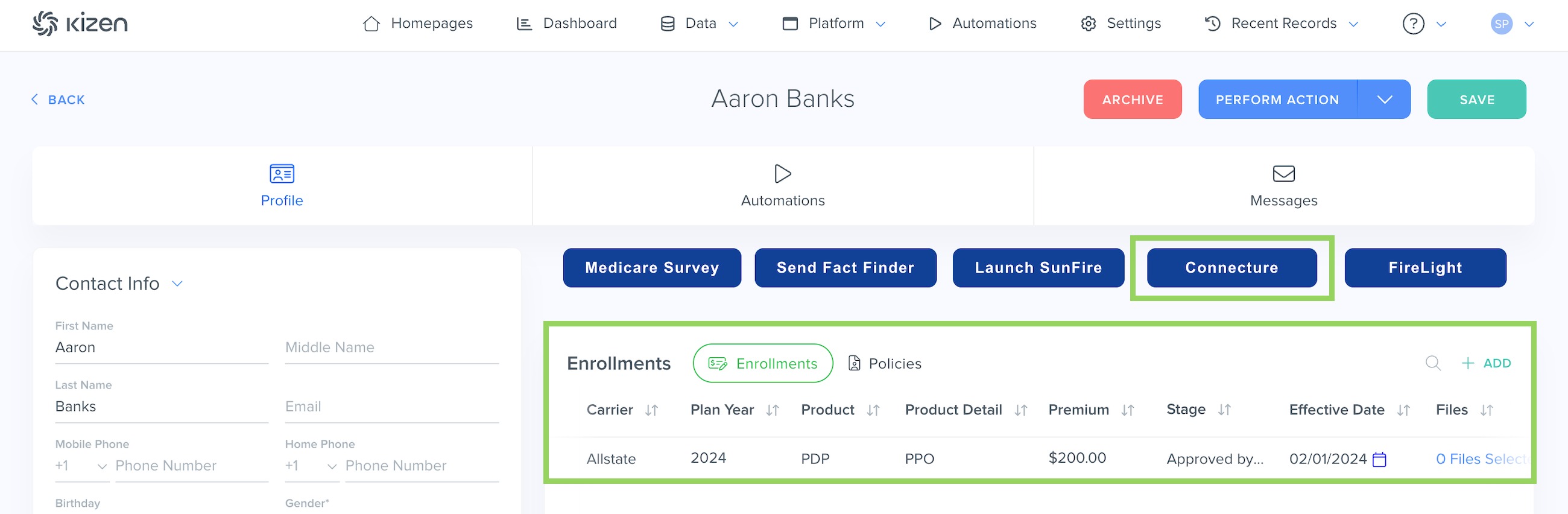
The synced Enrollment will include:- The selected Plan
- Effective Dates
- Beneficiary Information
- Medicare Identifiers (MBI, Part A/B dates)
- Enrollment metadata (Special Enrollment Period reason, agency fields, etc.)
⚠️ Note: The Connecture integration will not backfill historic enrollments or drugs/providers/pharmacies data in Connecture to your Agent CRM. Only enrollments completed after you first created your Kizen Agent CRM account will sync to your Contacts' records.
How to Troubleshoot the Connecture Integration
Kizen created a duplicate record for my client in Connecture!
There should only be a 1:1 relationship between a Contact record in Kizen and the beneficiary's profile in Connecture that was created from launching the Connecture button. However, if there was an existing record in Connecture when you created the Contact record, then the Medicare Number (MBI) field will need to be filled in both platforms in order to match the two records.
Connecture created a duplicate Contact record in Kizen!
Kizen matches the Connecture enrollment to the Contact record where you originally launched the Connecture session. However, if Kizen cannot match the enrollment to an existing Contact in Kizen — usually because you did not start the enrollment in Kizen — a completely new Contact may be created. Make sure that you are opening Connecture from the Contact record.
My Enrollments (or Drugs, Providers, & Pharmacies) are not syncing from Connecture to Kizen!
Connecture only sends data to Kizen after an enrollment is submitted. Quotes and in-progress work in Connecture will not appear in Kizen.
I'm getting a red error banner when I click on the Connecture button!
- Your NPN may not be configured correctly. Agents must have a valid NPN in their Employee record in order to launch Connecture successfully.
- Your required address fields may not be filled completely. As noted above, the address fields are required on Connecture's side to fill a beneficiary's profile.
Related
- Agent CRM: "Contacts" Object Overview
- Agent CRM: "Enrollments" Object Overview
- Agent CRM: "Drugs," "Pharmacies," & "Providers" Objects Overview
Need Help?
If you encounter any issues, contact us at support@kizen.com with the specific Contact record, detailed explanation of the problematic behavior, and screenshots!
Was this article helpful?
That’s Great!
Thank you for your feedback
Sorry! We couldn't be helpful
Thank you for your feedback
Feedback sent
We appreciate your effort and will try to fix the article