Difficulty: Beginner

Purpose: Learn what an Activity is and example use cases for how Activities can help you track client interactions, create and track tasks, manage workflows, and more!
TABLE OF CONTENTS
What is an Activity?
Activities are typically the client interactions (such as emails, phone calls, and meetings) tracked in a CRM (customer relationship management) platform and the tasks associated with those interactions. With Kizen Activities, you can do even more. In addition to tracking client interactions, you can use our highly customizable Activities to create and track tasks and manage complex workflows for any use case.
When you and/or your team log an Activity, you can choose to push the Activity field values back to your object record fields. You can also pair Activities with Kizen's Automations in order to automatically trigger workflows and even create new Activities for follow-up tasks. You can then visualize your team's Scheduled Activities on your Activities Dashboard to ensure collaboration and accountability.
Example Use Cases
For our example use cases, we're going to go through common Activities for a pet care business that offers daycare services, dog walking, petsitting, and grooming services. We need to log client interactions such as appointment requests, and we need to schedule appointments and the tasks associated with those appointments — we can use Activities to do all of it!
Tip: No matter what your use case is, you can tailor the logic behind each of these examples and apply them to different scenarios.Use Case 1: Logging Client Interactions
Let's say we have a client, Samantha, who calls our office phone to let us know her dog, Lola, needs doggy daycare services tomorrow, and Lola needs a grooming session.
While Samantha is on the phone with us, we:
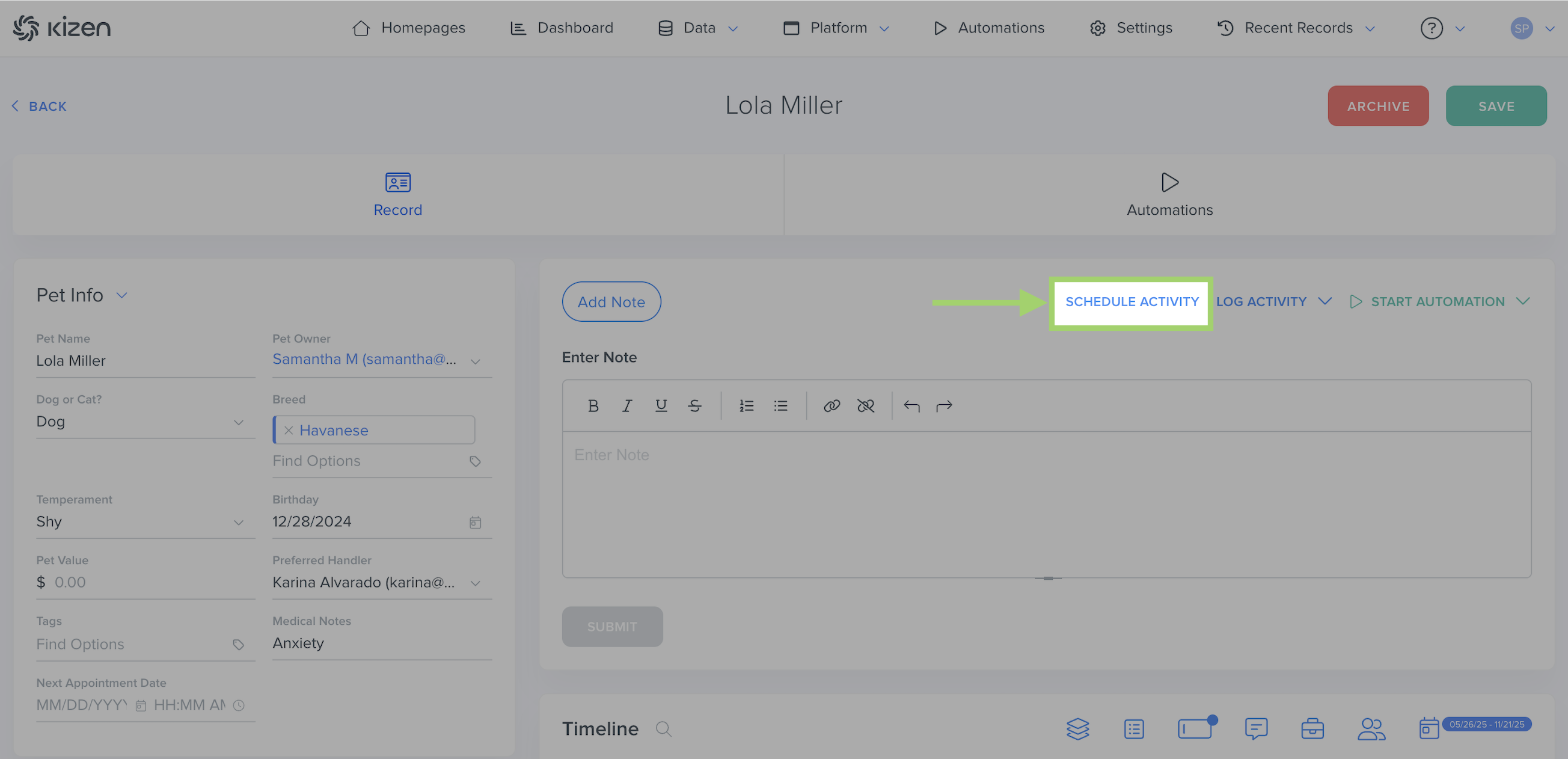
- Open Lola's record in Kizen.
- Click on "Schedule Activity" in the Action Block.
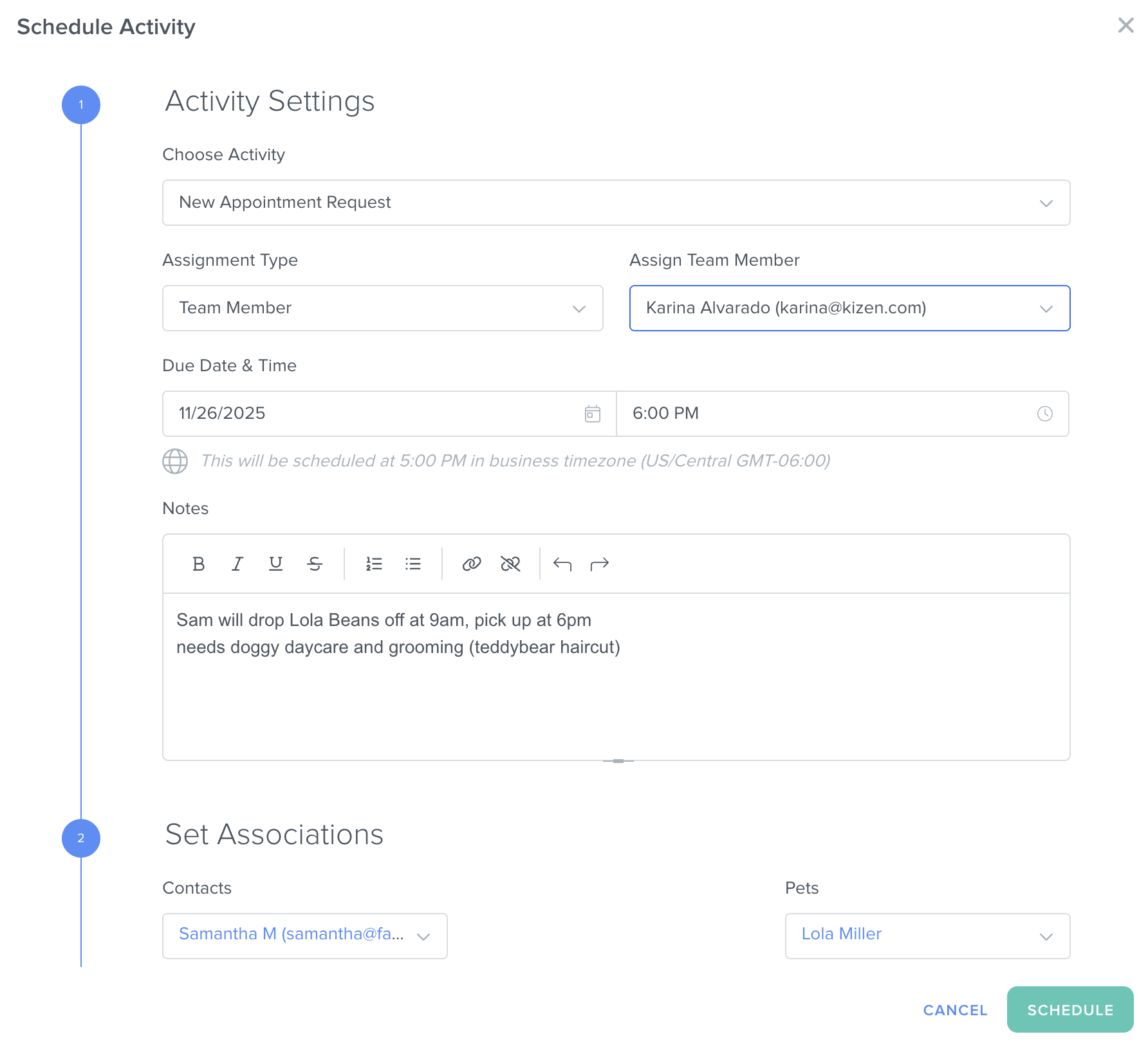
- Choose "New Appointment Request" as the Activity type, assign the relevant staff member, add the pick-up time in the "Due Date & Time" field, and add notes about Lola's service needs.
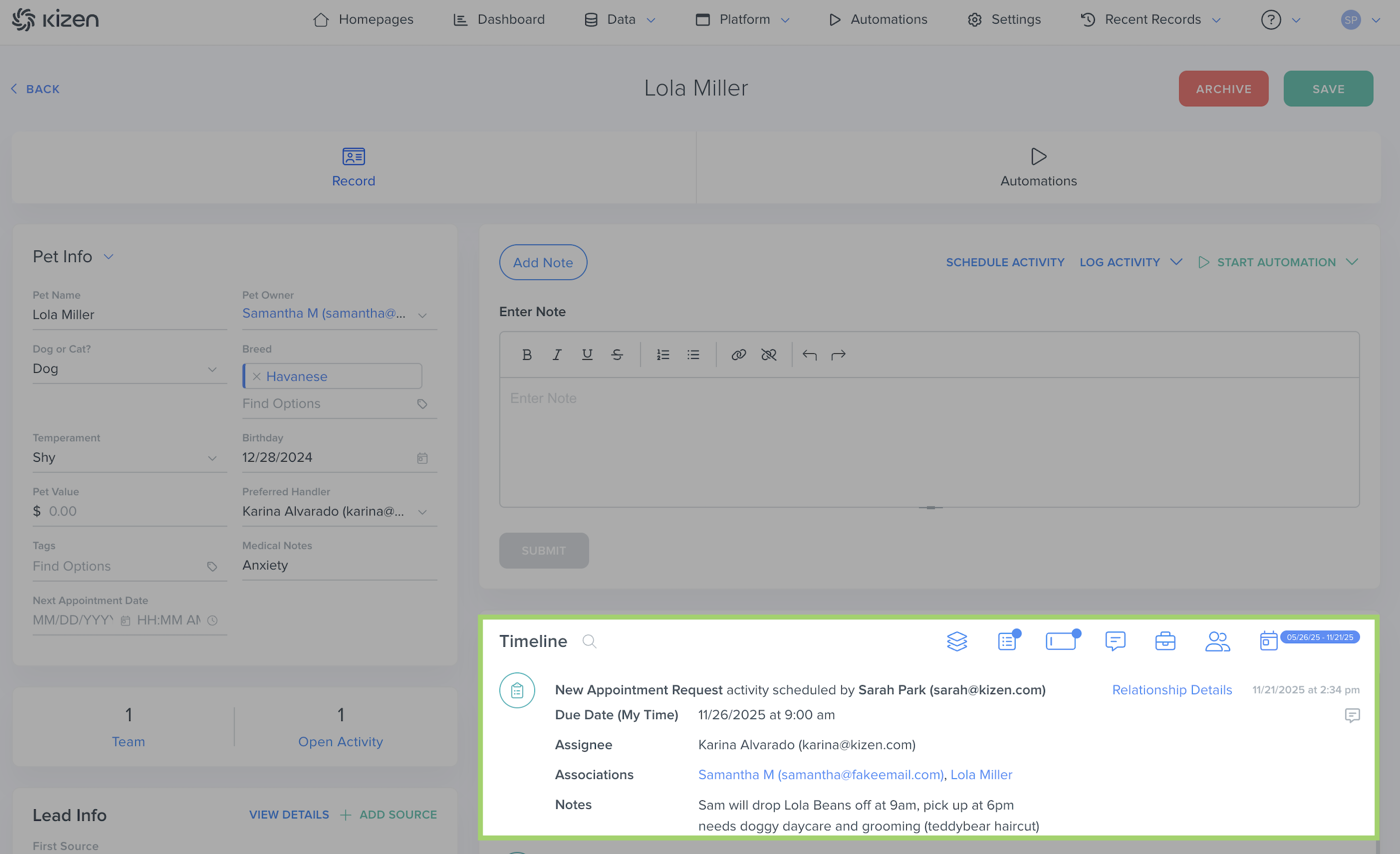
- Click on the "Schedule" button. This appointment request will then show up on the pet's record Timeline, as well as the client's Timeline.
Use Case 2: Creating and Setting Reminders for Tasks
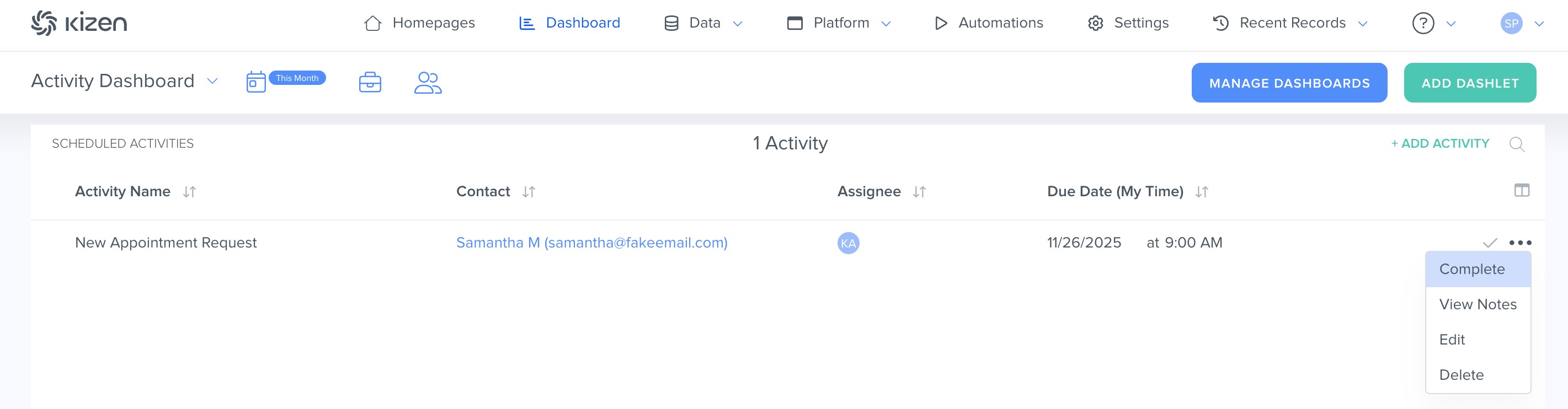
Samantha's appointment request for Lola will also display on the Scheduled Activities dashlet, assigned to Karina. Karina would view all her upcoming tasks/appointments, and at the end of each appointment, Karina would "complete" the Activity.
To complete the appointment from the Activity Dashboard, Karina would:
- Click on the "..." menu next to Samantha's Appointment Request > "Complete."
- Fill out the fields about the care given and add any relevant notes.
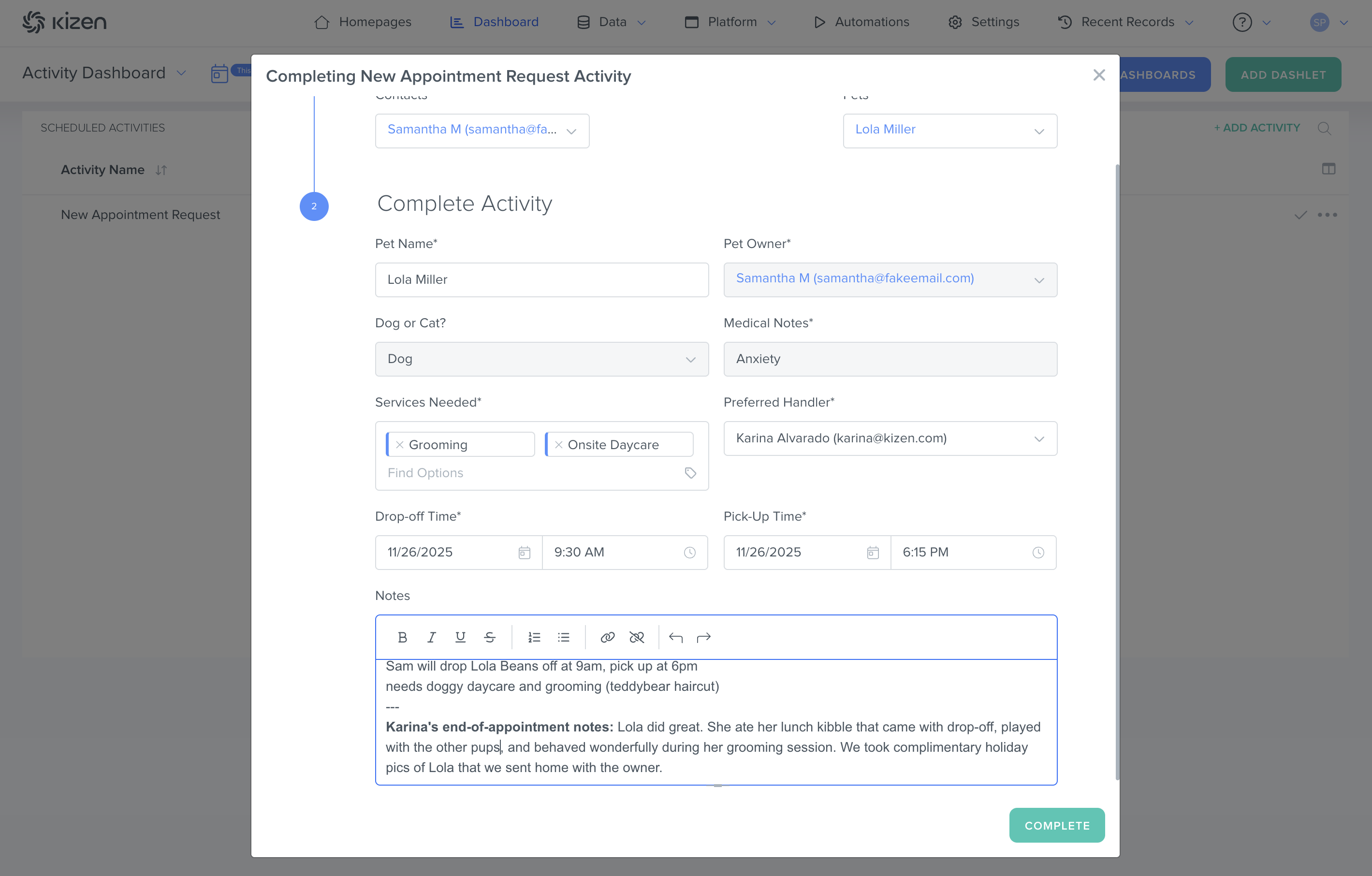
- Click on "Complete."
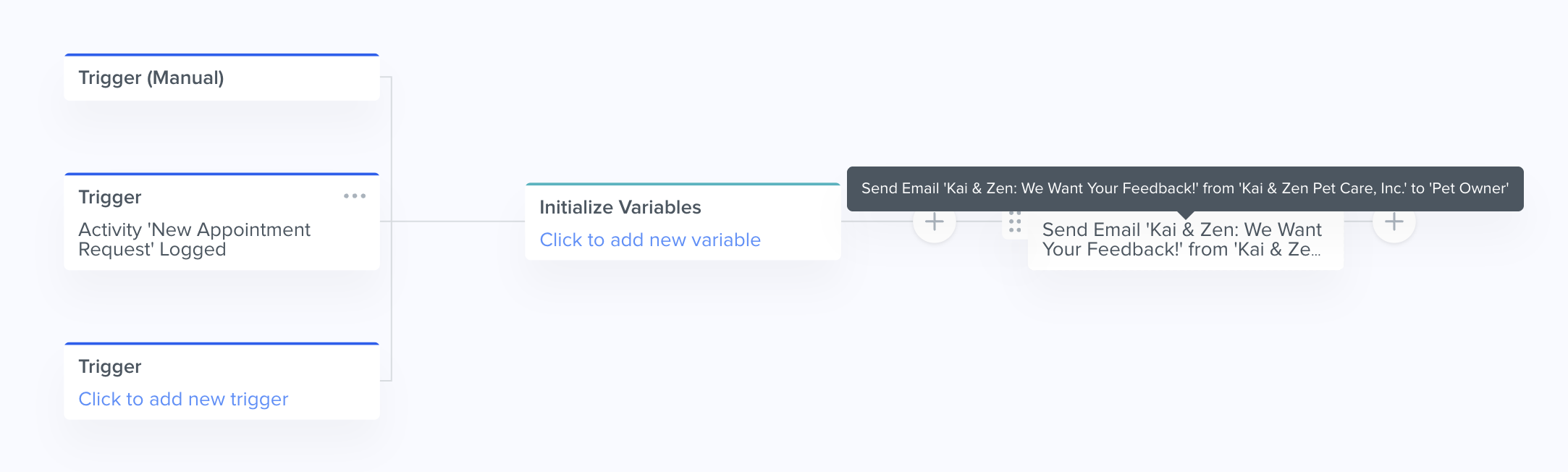
- Once the Activity is completed, this can trigger the following automation to automatically send a feedback survey email to the client.
Best Practices
To make the most use out of Activities in your account:
- ✅ Give your Activities unique, descriptive names that make their function clear and easy to understand for the whole team.
- ✅ Use the Activities Dashboard to complete Activities.
- ✅ Use Automations to make your Activities even more powerful.
What's Next?
Now that you've learned what an Activity is, you can:
- How to Create a Custom Activity
- How to Delete an Activity
- How to Schedule an Activity
- How to Complete An Activity
- How to Manage Your Activity Dashboard
- How to Filter by Scheduled Or Completed Activities
Need Help?
If you encounter any issues, contact us at Support@Kizen.com.
Was this article helpful?
That’s Great!
Thank you for your feedback
Sorry! We couldn't be helpful
Thank you for your feedback
Feedback sent
We appreciate your effort and will try to fix the article