Difficulty: Intermediate

Purpose: This step-by-step guide will walk you through how to add additional fields or re-order fields in an existing Activity.
TABLE OF CONTENTS
Prerequisites
✅ Review our "What is an Activity?" guide to understand the function and capabilities of Activities.
✅ Add the Custom Fields you require on the relevant Objects for this Activity.
✅ Create your Custom Activity or have a template Activity.
How to Edit Activity Fields
How to Edit, Delete, and Add New Activity Fields
- Click on "Platform" in the top menu bar > "Activities."
- Click on the name of the Activity you would like to edit or click on the "..." icon under the "Actions" column > "Edit Activity." This will bring you to the Activity Settings. (Learn more about the different Activity Settings here.)
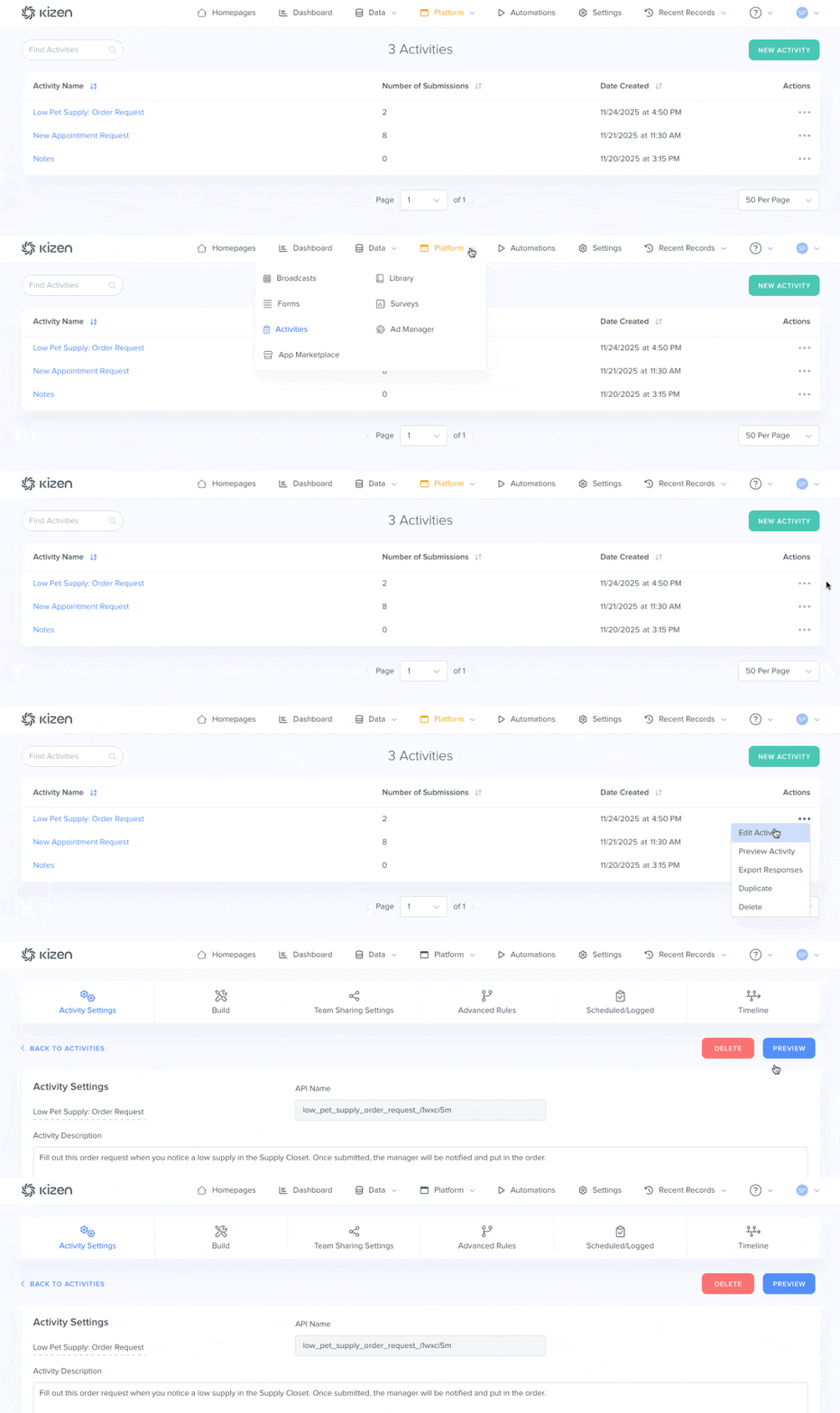
- Click on "Build" in the Activity menu bar.
- Click on the "..." menu to the right of the Custom Field or Activity field to edit the field, deactivate the field, make the field optional or required, or delete the field.
- To change the Activity Display name, click on the name of the Custom Field or Activity Field.
- To add new fields, click on "Add New Custom Field," "Add New Activity Field," or "Add New Text Block."
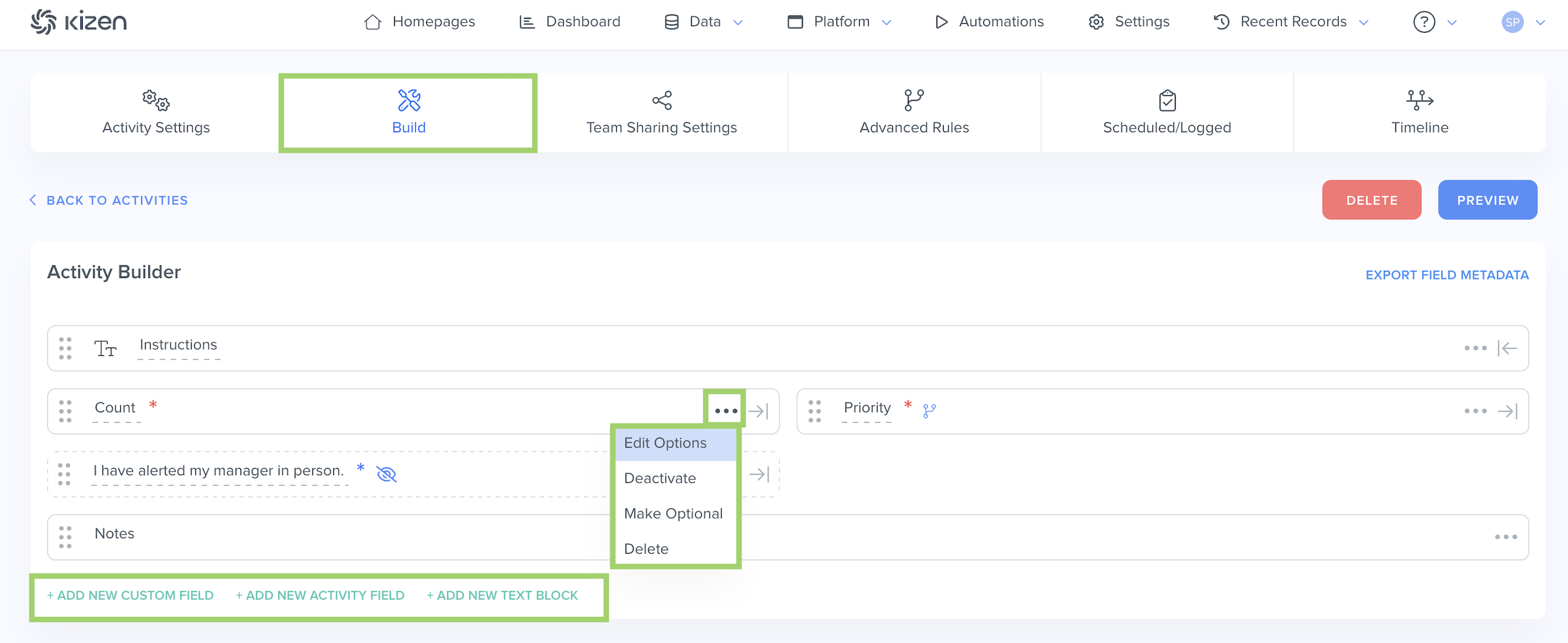
You can learn more about the difference between Custom Fields and Activity Fields here.
How to Re-order Activity Fields
- To move around fields in the Activity Builder, click on the dots to the left of the field and drag and drop the field to the desired space.
- To extend the size of a field or shrink the size of a field in the Activity Builder, click on the arrow next to the "..." icon.
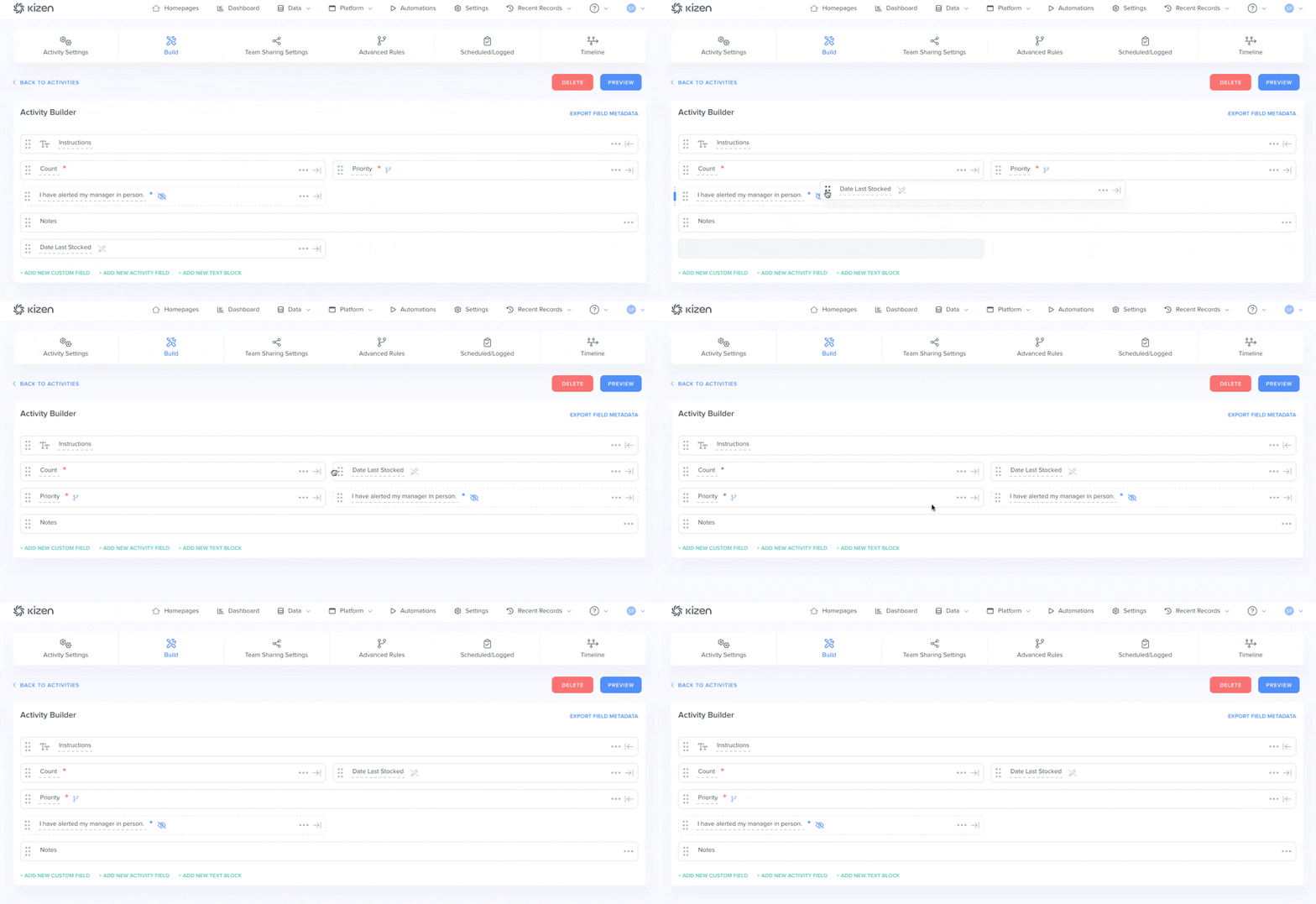
✅ Success Indicator: Click on the blue "Preview" button in the upper right to visualize how the Activity will appear to you and your team.Was this article helpful?
That’s Great!
Thank you for your feedback
Sorry! We couldn't be helpful
Thank you for your feedback
Feedback sent
We appreciate your effort and will try to fix the article