Difficulty: Beginner

Purpose: This step-by-step guide will walk you through how to log an Activity and how to complete a Scheduled Activity.
TABLE OF CONTENTS
- What are Completed Activities?
- Prerequisites
- How To Complete An ActivityHow to Complete an Activity From Your Dashboard
- Related Articles
- Still Need Help?
What are Completed Activities?
Completed Activities are crucial to document completed tasks and client interactions. Whether you want to log a phone call or meeting with your client, or complete a previously scheduled task, this ensures you and your team stay on top of your tasks and all of your records are up-to-date. You can view all of your Scheduled Activities easily in the Activity Dashboard, and prioritize your past-due Activities which have red circles next to them and will remain pending until they are completed.
Prerequisites
Before you can complete an Activity, you must first understand the purpose of Activities, and you must have existing Activities to schedule and complete. We also recommend having a Scheduled Activities Dashlet in your Dashboard.
✅ Getting Started with Activities: What is An Activity?
✅ How to Create a Custom Activity
✅ How to Manage Your Activity Dashboard
How To Complete An Activity
How to Complete an Activity From Your Dashboard
- Click on "Dashboard" in your top menu bar and find your Scheduled Activities (Table) Dashlet.
- Click on the checkmark next to the Scheduled Activity or click on the three dot-menu.
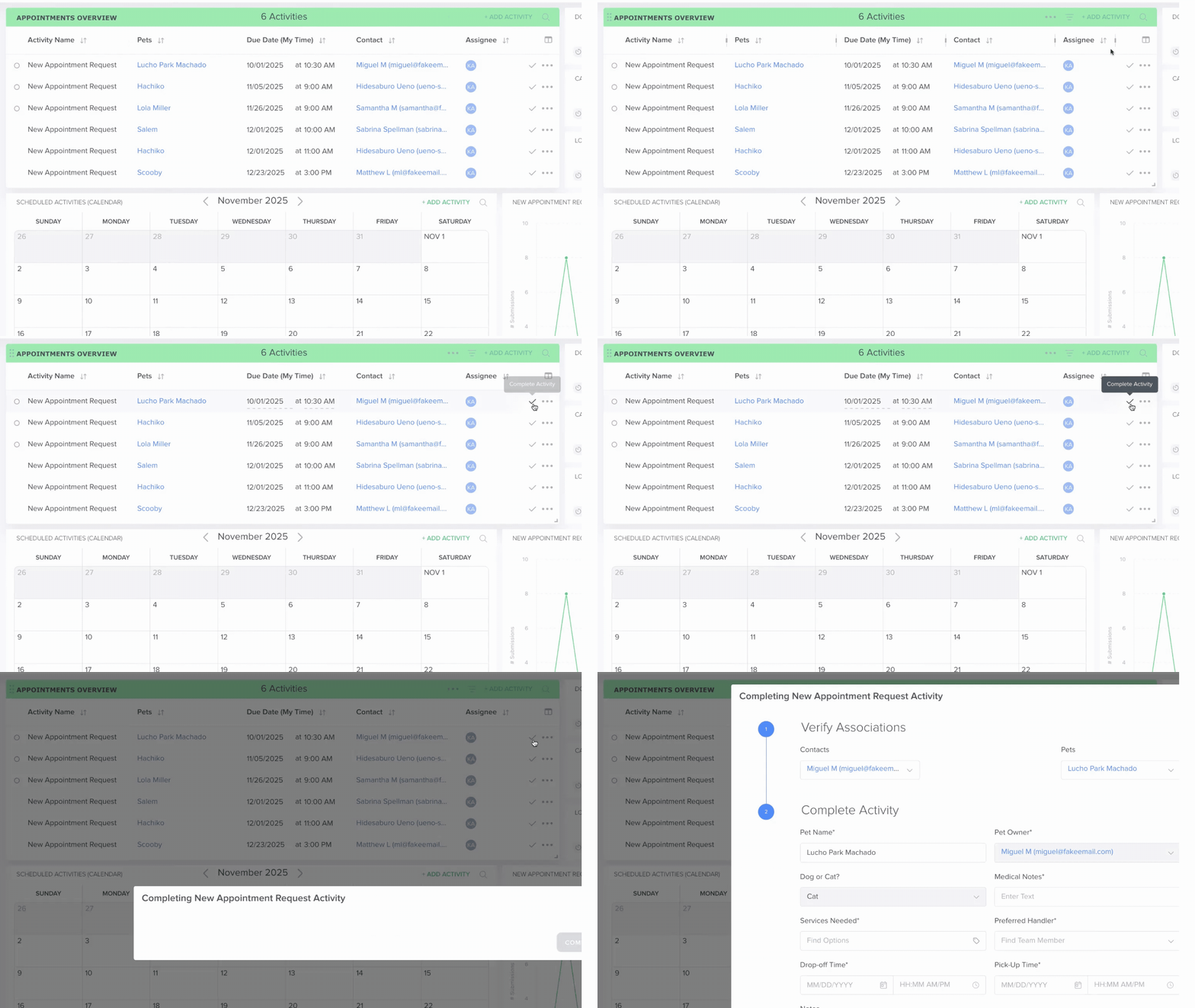
- Fill out any required fields or update notes for your Activity.
- Click on the green "Complete" button in the bottom right.
How to Complete an Activity From Your Contact (or Custom Object Record)
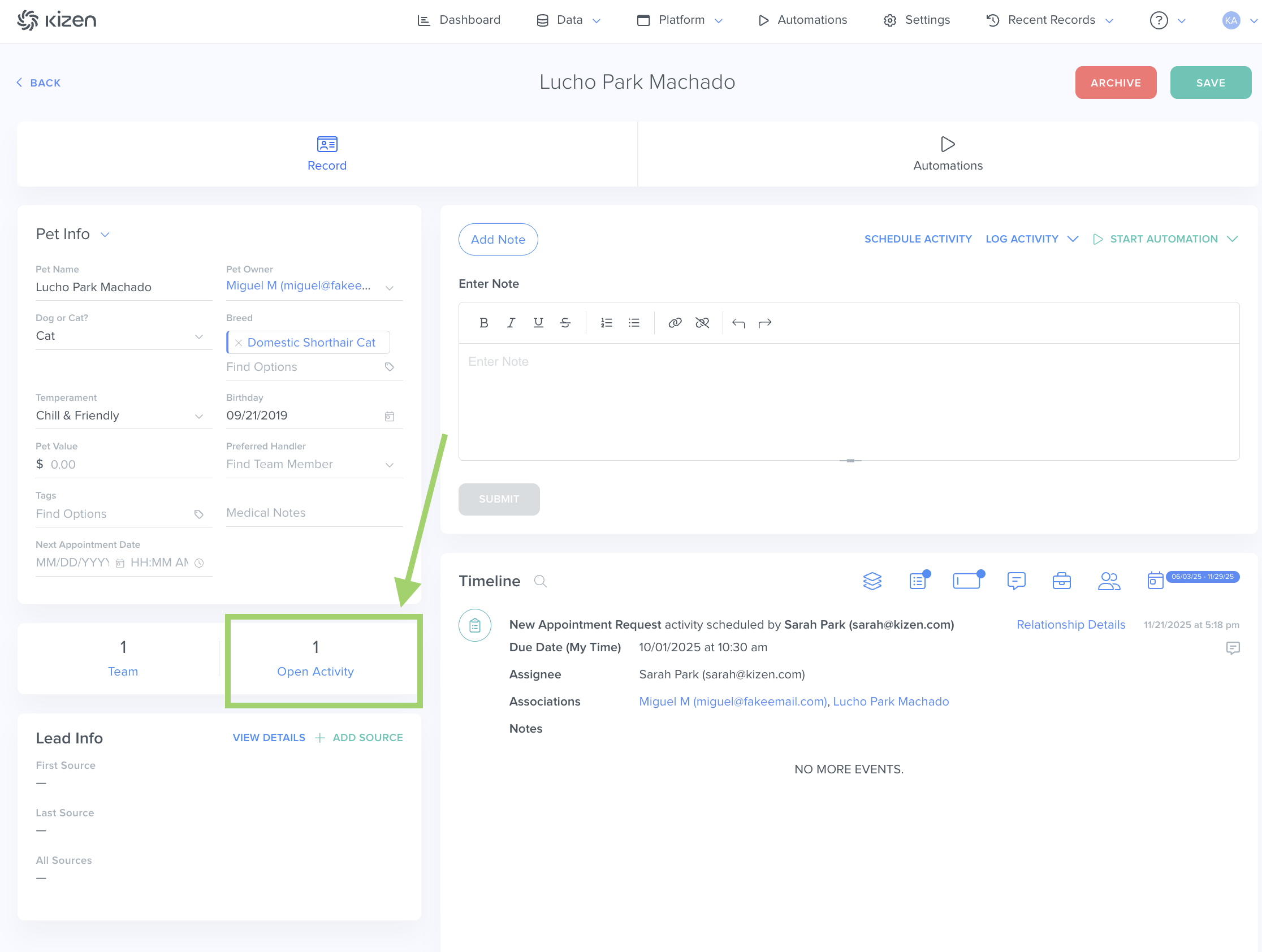
- Click on "Data" in the top menu bar > "Contacts" (or "Custom Objects") > and open the specific record you want to complete an activity for.
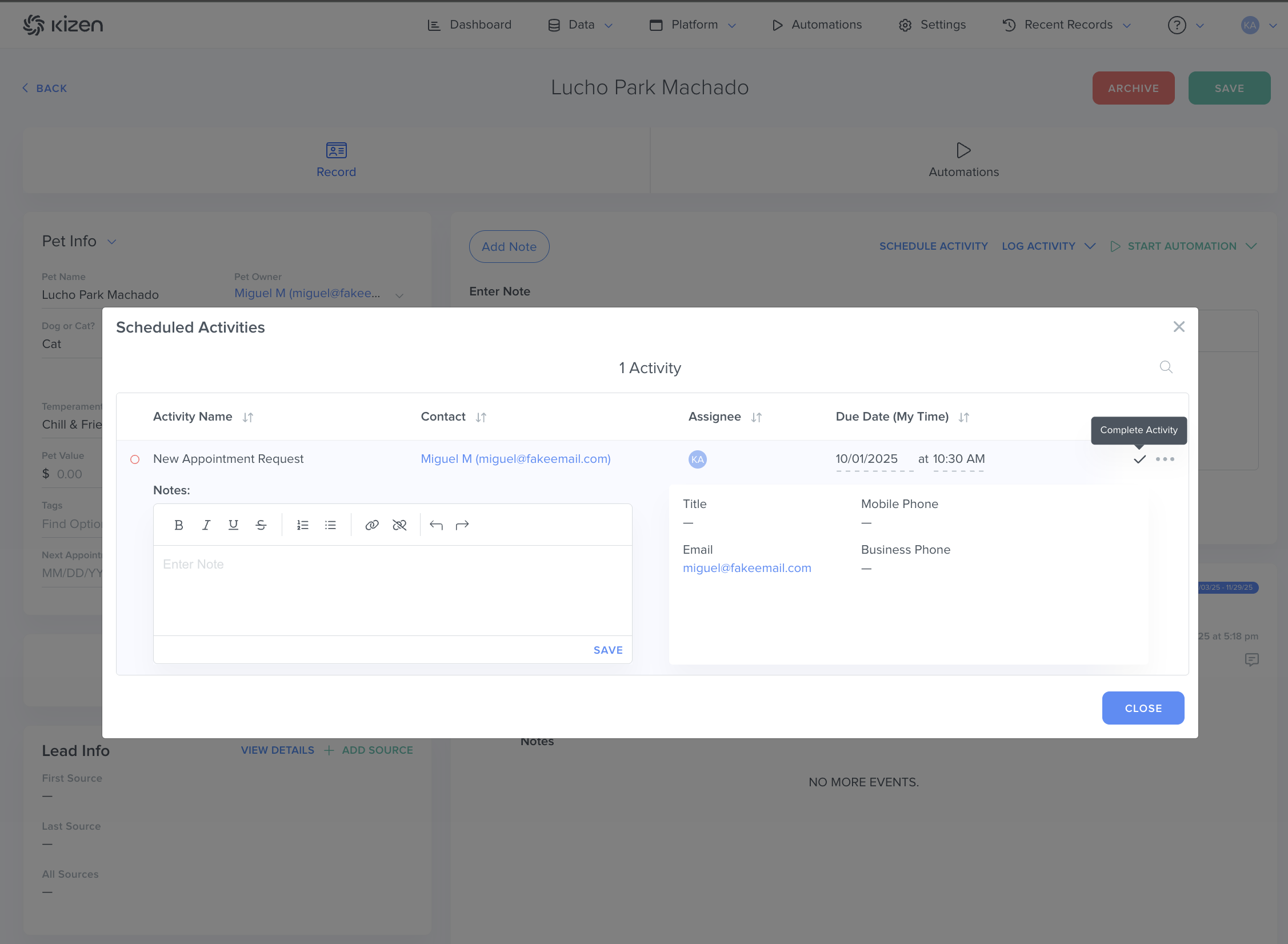
- Click on the "Open Activity" in the Team & Activities box. This will display all of the Open Activities, a.k.a. all of the Scheduled Activities that need to be completed for that object record.
- In the pop-up window, click on the checkmark icon next to the specific Scheduled Activity.
- Fill out any required fields or update any notes in the Activity.
- Click on the green "Complete" button in the bottom right.
How to Log Ad-Hoc Activities
- On the relevant Contact or Custom Object, click on "Log Activity" in the Action Block box and choose the Activity you want to complete.
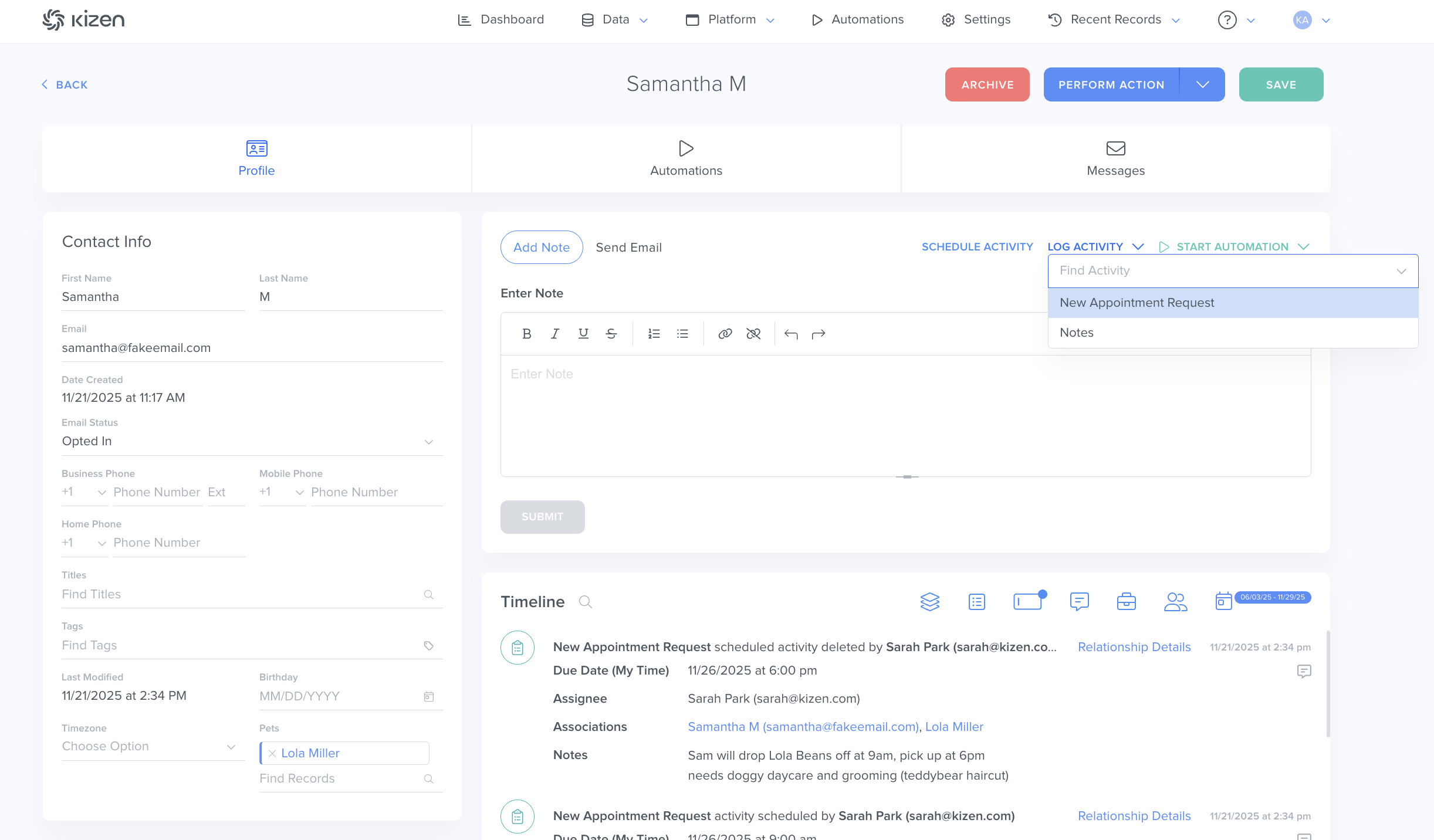
- In the pop-up window, fill out any required fields and any relevant notes.
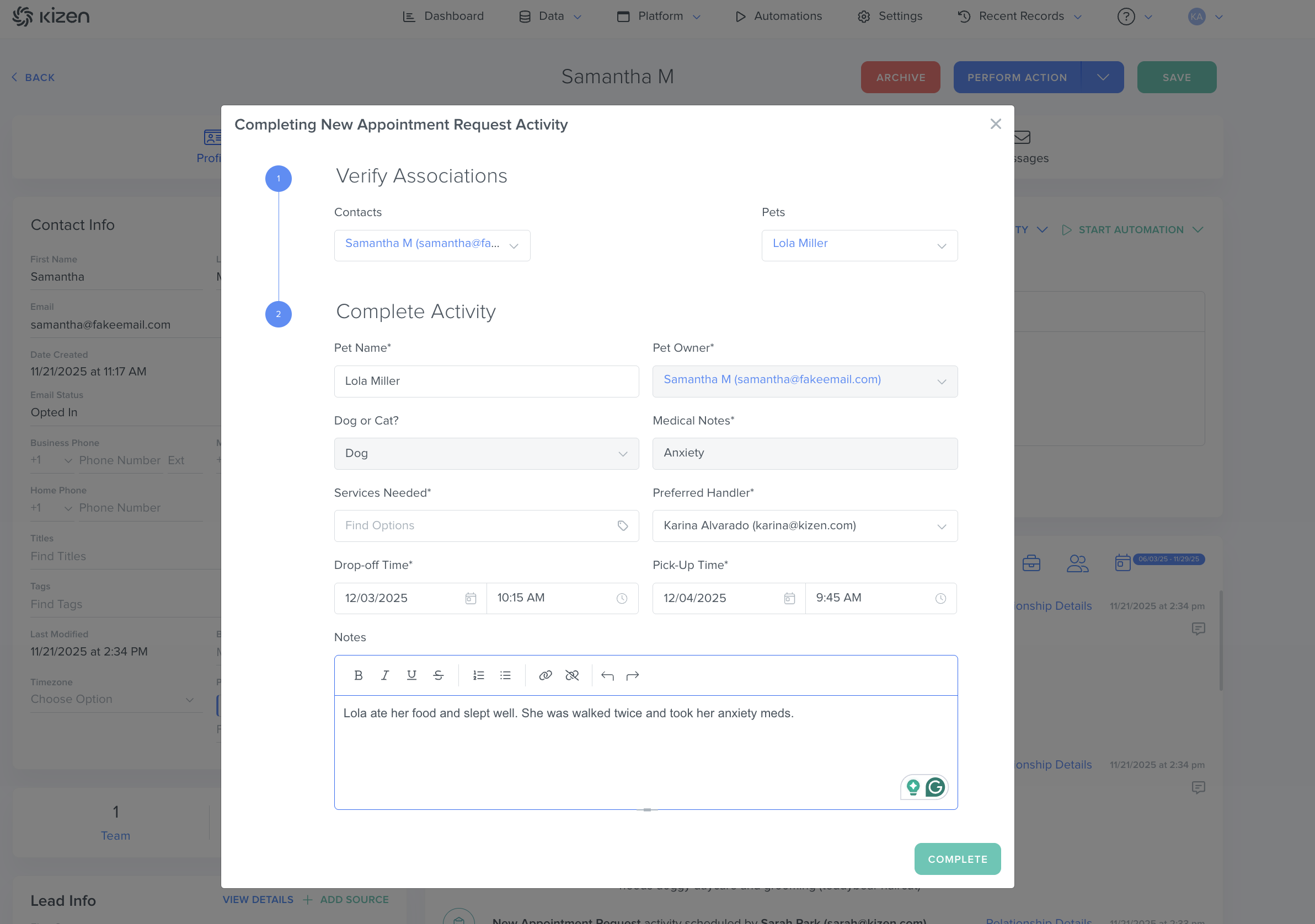
- Click on the green "Complete" button in the bottom right.
Related Articles
- How to Create a Custom Activity
- How to Manage Your Activity Dashboard
- How to Filter by Scheduled Or Completed Activities
Still Need Help?
- If you encounter any issues, contact support@kizen.com
Was this article helpful?
That’s Great!
Thank you for your feedback
Sorry! We couldn't be helpful
Thank you for your feedback
Feedback sent
We appreciate your effort and will try to fix the article