Difficulty: Intermediate

Purpose: This step-by-step guide will walk you through how to add and customize a new Activity to streamline your workflow.
TABLE OF CONTENTS
Overview
Activities are highly customizable tools to manage your client interactions, tasks, and workflows for any use case. Keep reading to learn how to create your own custom Activity and configure your Activity settings, create custom fields, manage Activity fields, and set up notifications.
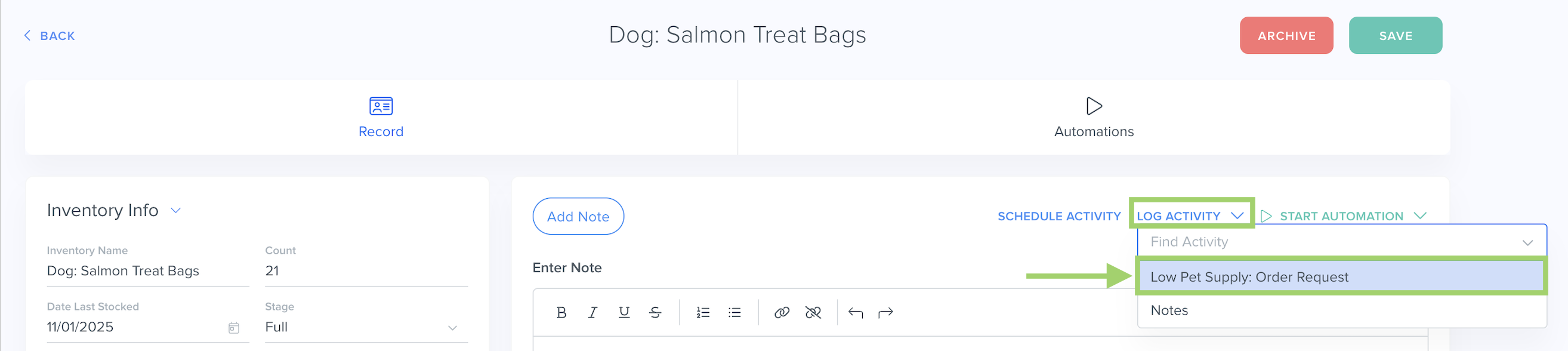
For our example use case below, we are a pet care business and we want to create an Activity to help our staff members submit order requests directly on specific inventory items.
Prerequisites
Make sure you complete the following steps before creating a new custom Activity.
✅ Review our "What is an Activity?" guide to understand the function and capabilities of Activities.
✅ Add the Custom Fields you require on the relevant Objects for this Activity.
How to Create a New Activity
Step 1: Add a New Activity
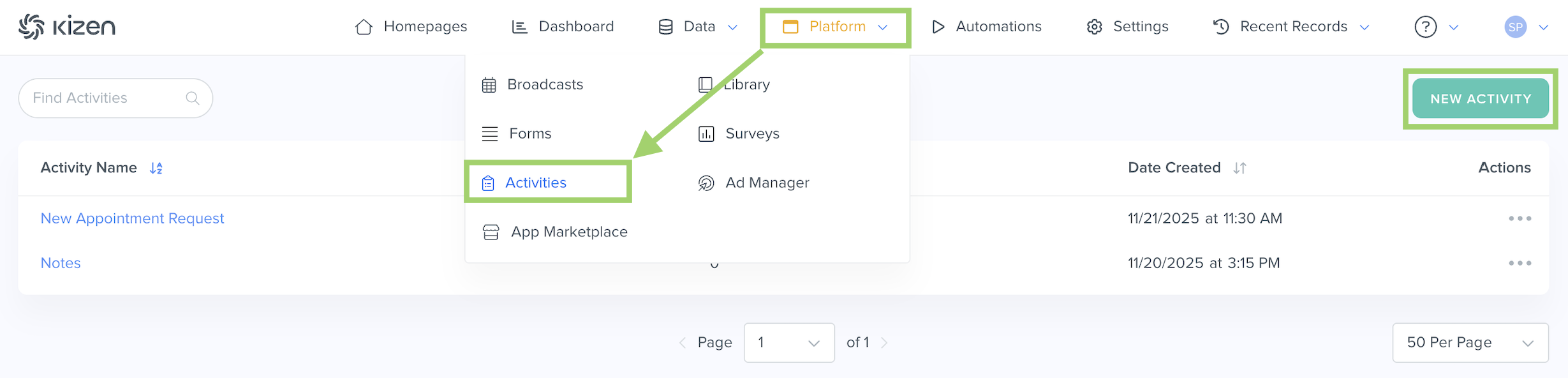
- Click on "Platform" in the top menu bar > "Activities."
- Click on the "New Activity" button in the top right.
- In the pop-up window, add the Activity Name. (For our use case, we are naming this Activity "Low Pet Supply: Order Request.")
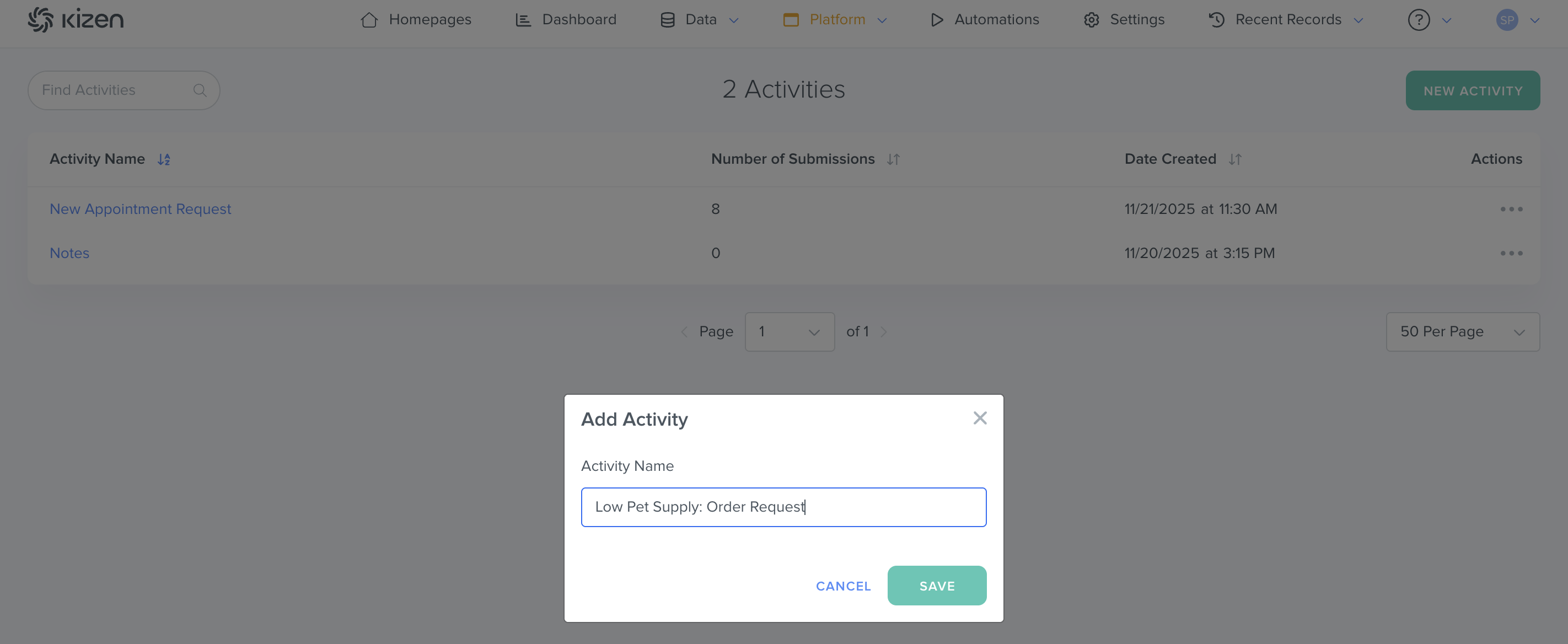
- Click on the "Save" button.
Tip: Give your Activity a unique, descriptive name that makes its function clear and easy to understand for the whole team.
Step 2: Choose Your Activity Settings
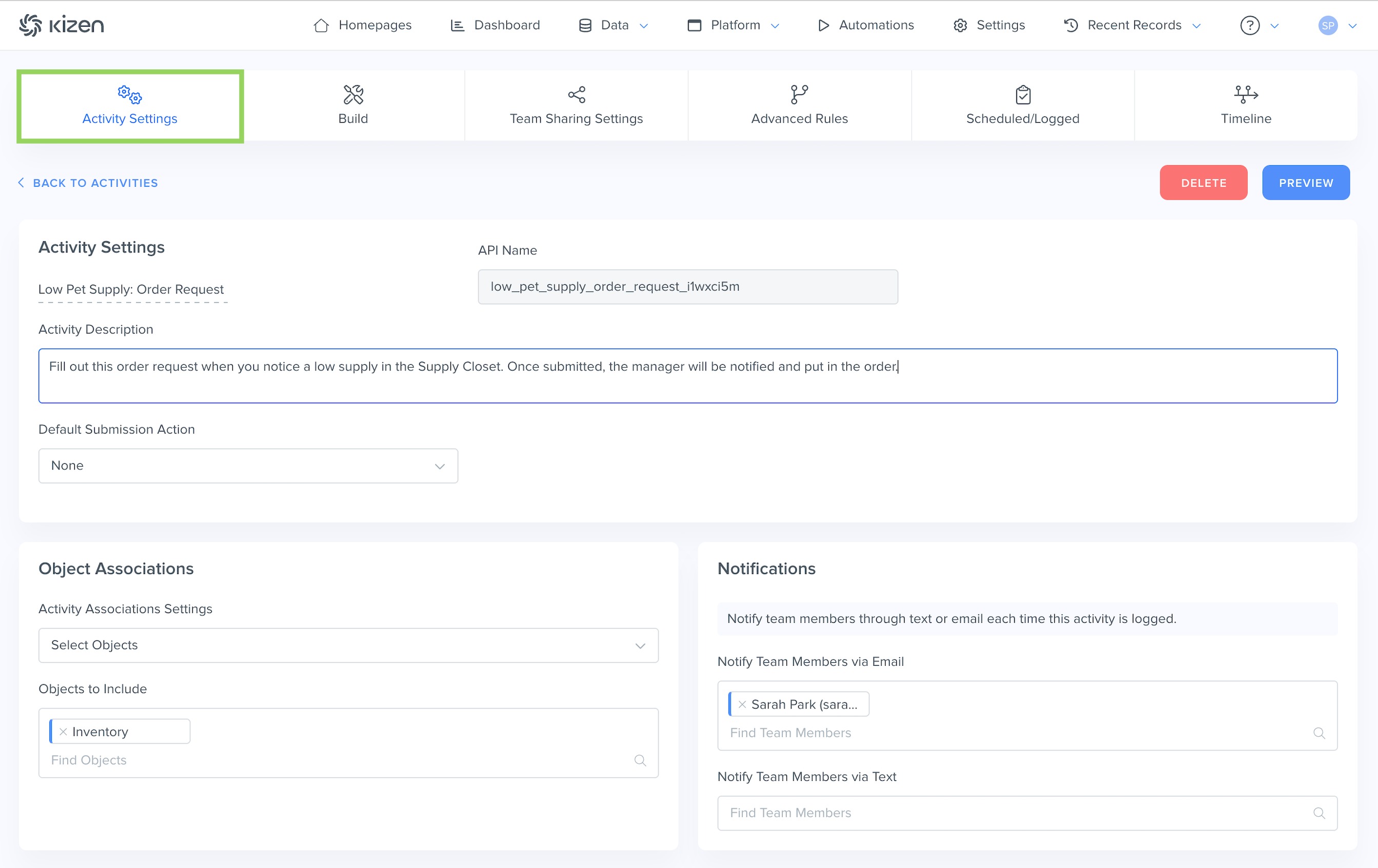
- Add the Activity Description to help you keep track of the purpose of each Activity. (The Activity Description will not display on the Activity itself when you or your team members go to schedule or log the Activity.)
- Choose the Default Submission Action. This is the immediate action that will trigger when this Activity is completed.
- None: The Activity submission pop-up window will simply close.
- Go to URL: The Activity submission will redirect to the webpage of your choosing.
- Trigger Webhook: The Activity submission will trigger a webhook for a custom Zapier or Workato workflow.
- None: The Activity submission pop-up window will simply close.
- Choose the Object Associations where you want to enable logging and scheduling this Activity.
- Select Objects: You can choose to only display this Activity option in a specific Object(s). For our example use case, we only want to display the "Low Pet Supply: Order Request" Activity on the Inventory object.
- All Objects with Activities Enabled: This Activity will display on any Object that has "Enable Activities" toggled on in their Object Settings.
- No Object Associations: This Activity will not appear as an option on any Object.
- Select Objects: You can choose to only display this Activity option in a specific Object(s). For our example use case, we only want to display the "Low Pet Supply: Order Request" Activity on the Inventory object.
- Choose your Notifications settings to notify team members through email or text each time the Activity is logged.
Step 3: Build Your Activity Fields and Layout
When you're done with your Activity Settings, click on "Build" in the Activity menu to start adding the components of your Activity. By default, the Activity Builder comes with a Notes field. You can also add Custom Fields, Activity fields, or Text Blocks.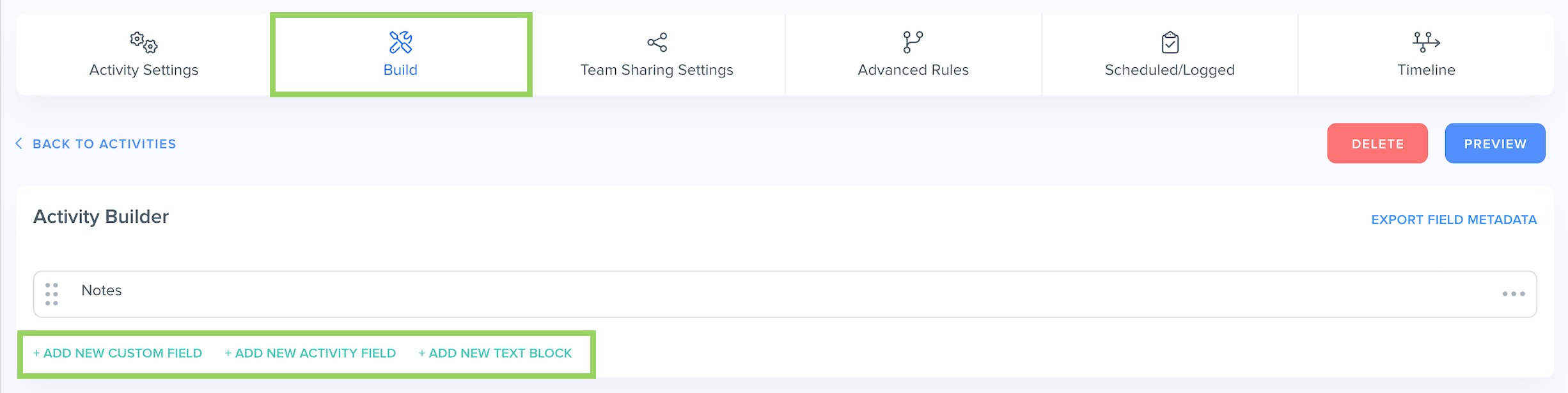
- Click on "Add New Custom Field" to add a pre-configured field from a specific Object. This will take the value entered in the Activity and enter it into the corresponding field in the Object record where the Activity is logged.
- Choose the Object and the Field in that Object that you want to add to your Activity.
- Toggle "Field is Required" on to make this mandatory for Activity completion.
- Toggle "Informational Field (Read-only)" if you only want to display the field data for the specific Object record and prevent team members from editing the field via the Activity.
For our "Low Pet Supply: Order Request" Activity, we want to require the "Count" field in the "Inventory" Object, but we do not want it to be read-only because we want our staff members to count the remaining number of items and add that number when filling out this request.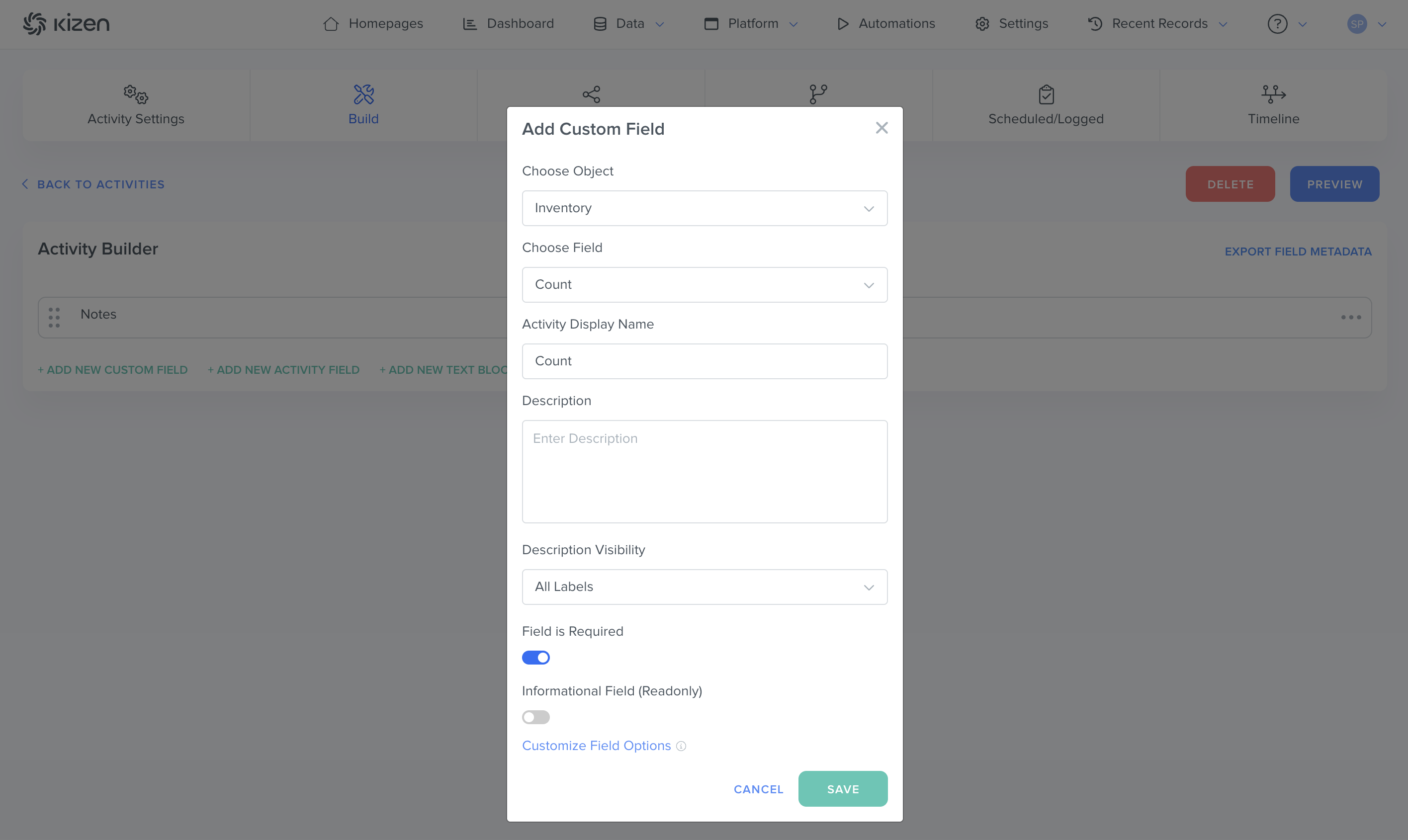
- Choose the Object and the Field in that Object that you want to add to your Activity.
- Click on "Add New Activity Field" to add fields that will only display on the logged Activity.
- Add a Field Name.
- Choose the Field Type.
For example, we're adding a "Priority" Activity Field — we don't need to display the priority of a specific supply request in a Custom Field on the item record itself, but it's useful for the manager receiving the request to know.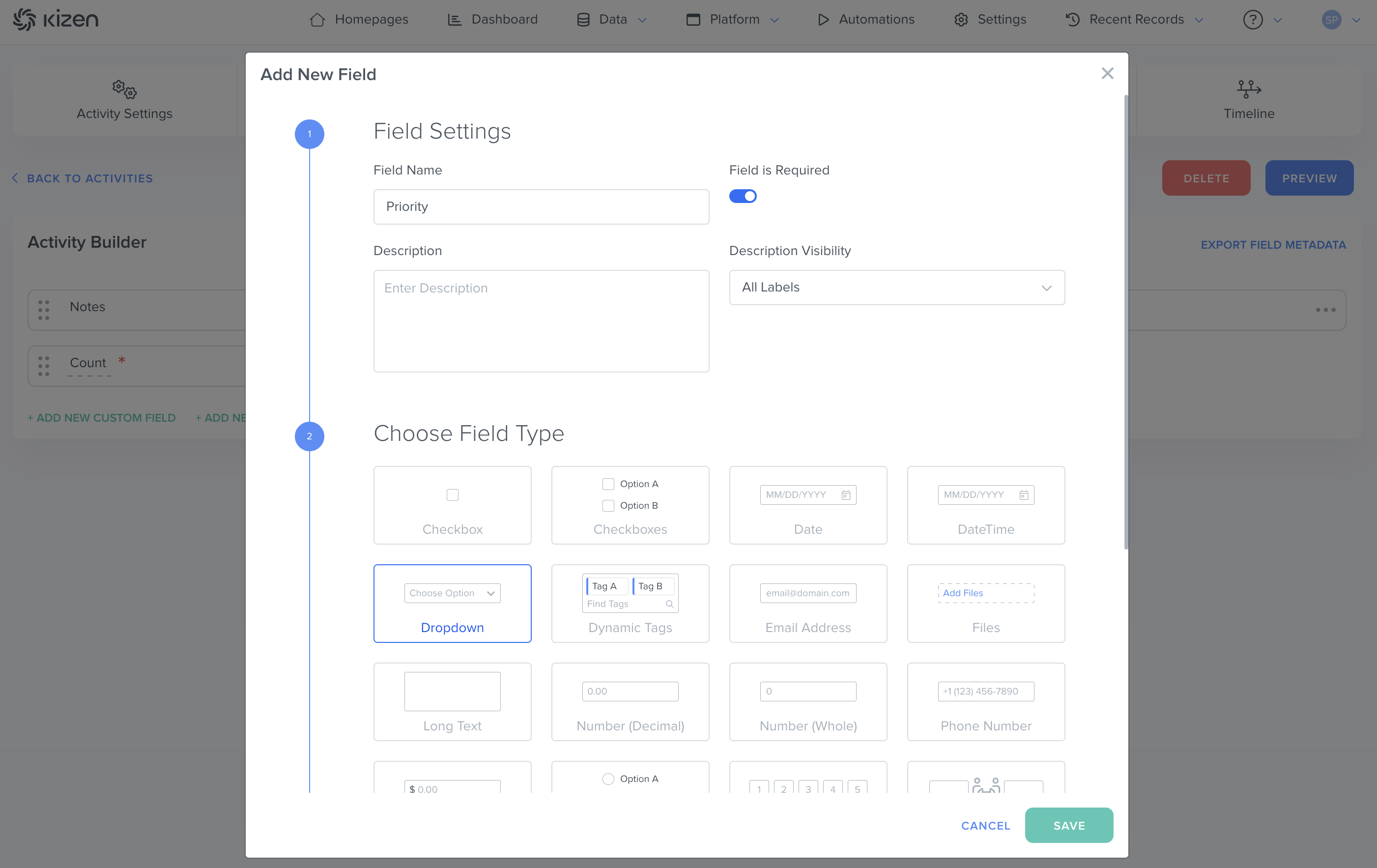
- Add a Field Name.
- Click on "Add New Text Block" to add read-only text to your Activity. For example, you can add details or instructions.
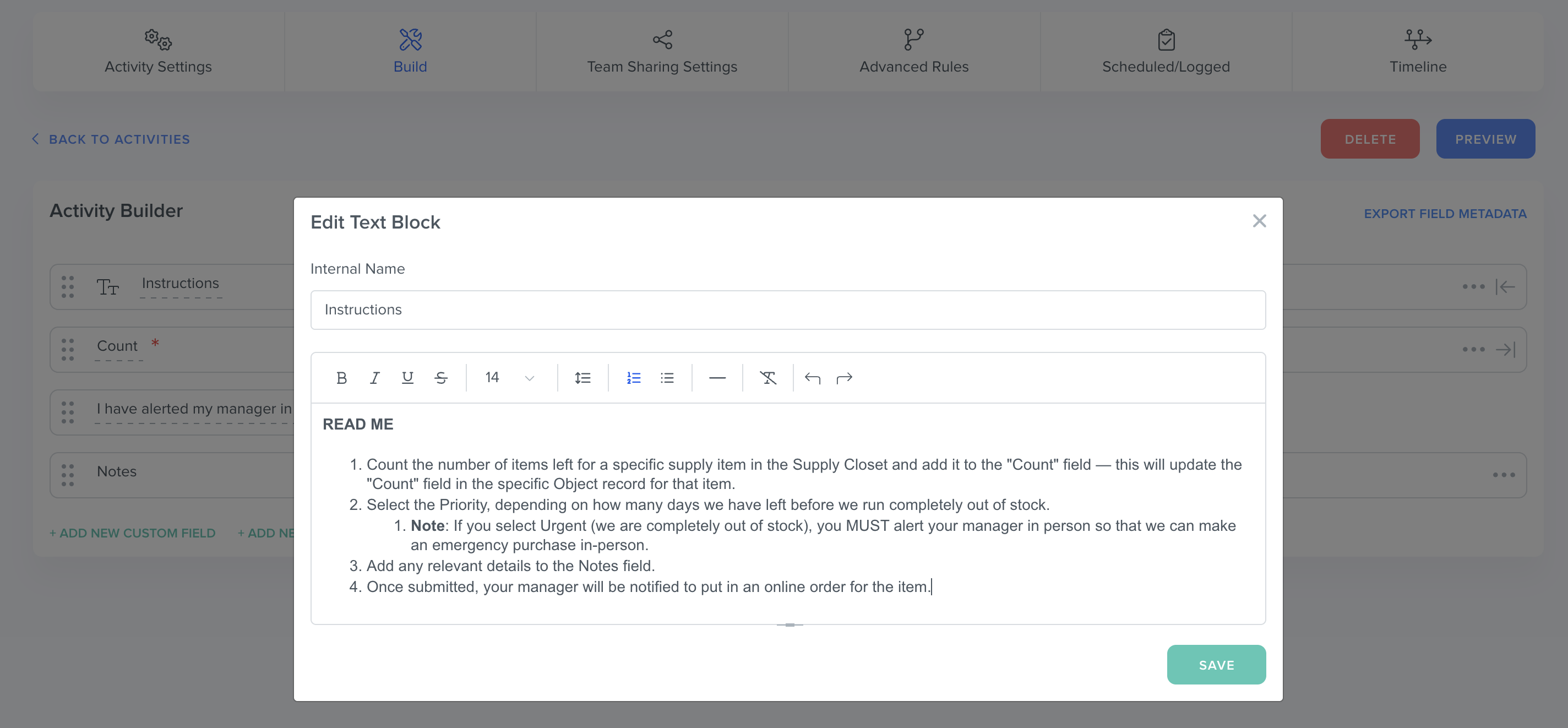
- Click on the dots to the left of each field, and drag and drop to reorder the Activity fields.
Note: What is the difference between Custom Fields and Activity Fields in the Activity Builder? Custom Fields are fields that will feed data entered in the Activity back to the Object record and change those field values. Activity Fields only display in the logged Activity and will not change any Object record field values.
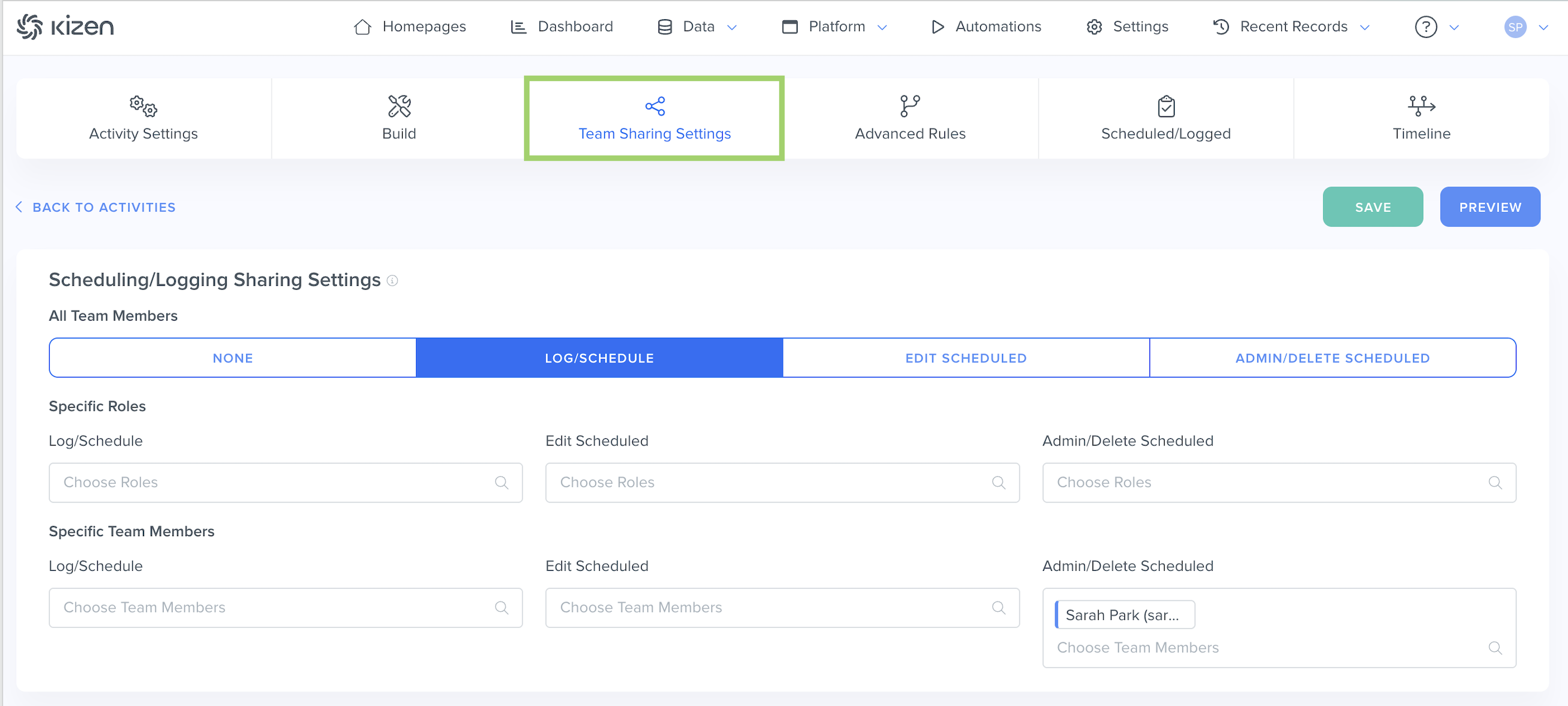
Step 4: Team Sharing Settings
Next, customize your Team Sharing Settings.
- Choose the default sharing setting for all team members in your account to determine who can log and schedule this Activity, edit Scheduled Activities, and edit the Activity itself/delete Scheduled Activities.
- To get more granular with your Activity sharing settings, choose which specific roles and which specific team members can log and schedule this Activity, edit Scheduled Activities, and edit the Activity itself/delete Scheduled Activities.
- Click on the "Save" button in the top right.
Step 5: Advanced Rules (Optional)
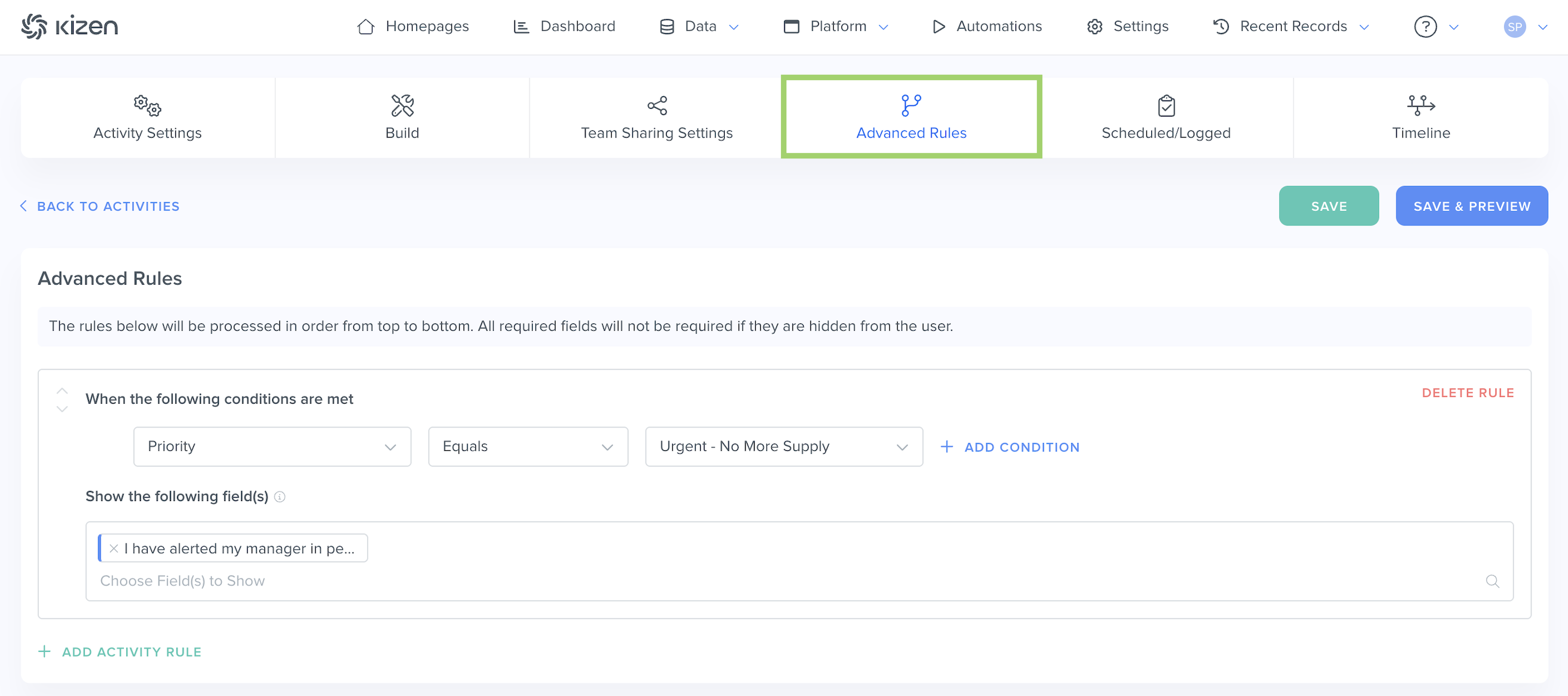
You can also set up advanced rules for your Activity that will display specific fields depending on certain conditions. These rules will be processed in order from top to bottom.
- Click on "Add Activity Rule."
- Choose the Custom Field or Activity Field.
- Choose the condition.
- Choose which field you want to display based off of this condition.
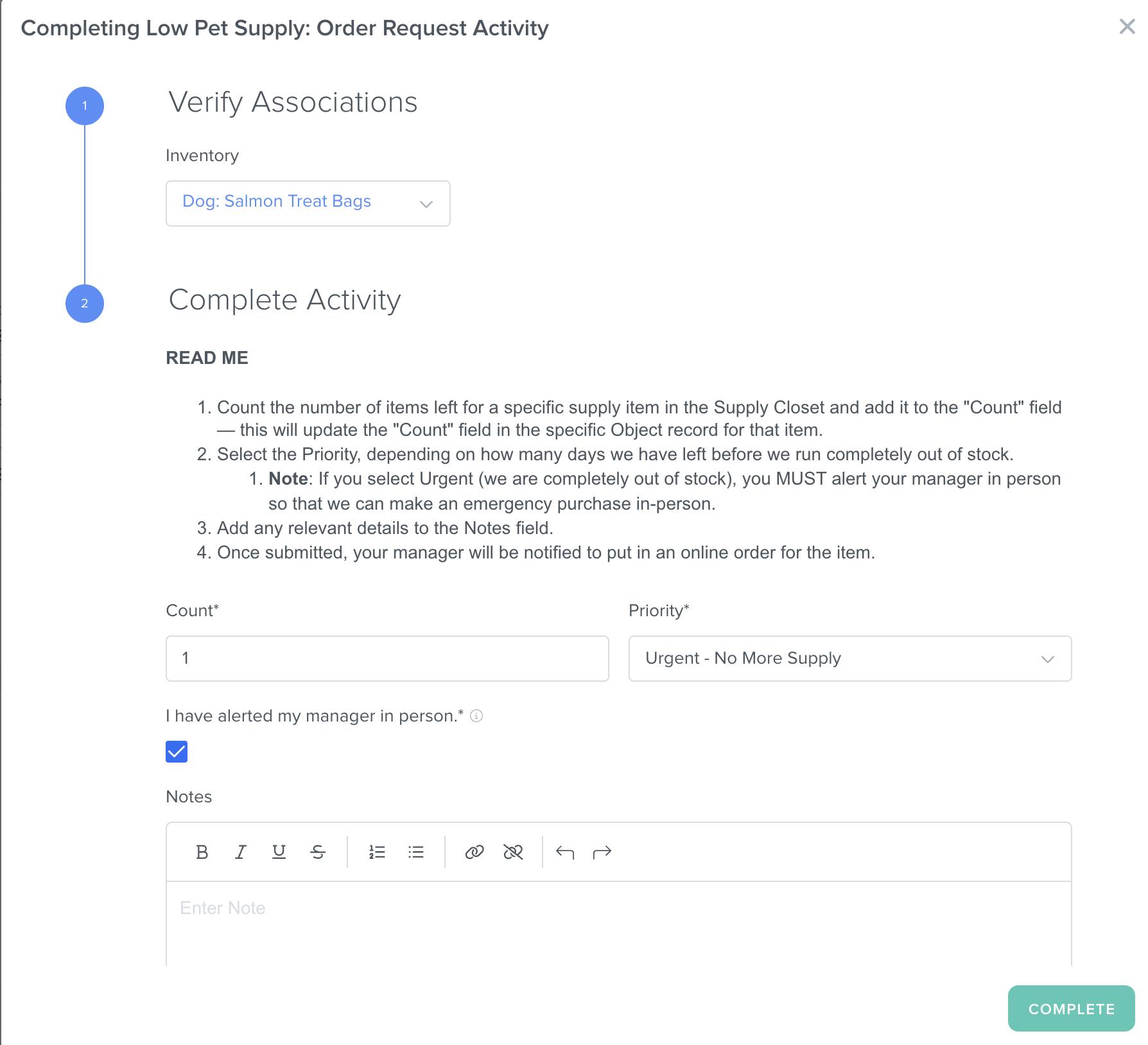
In our example, we want to only display the required "I have alerted my manager in person" checkbox if the priority selected is "Urgent - No More Supply." All required fields will not be required if they are hidden from the user.)
Best Practices
To confirm everything is working correctly:
- ✅ Log a "test" Activity on the Object record to make sure your Custom Fields and Activity Fields are configured and work as you intended, and that you receive the notification for a completed Activity.
- ✅ Export Scheduled Activities and Logged Activities from the "Scheduled/Logged" section to see all of your Activity data.
- ✅ Click on "Timeline" for the Activity History Log to see all edits made to your Activity.
Was this article helpful?
That’s Great!
Thank you for your feedback
Sorry! We couldn't be helpful
Thank you for your feedback
Feedback sent
We appreciate your effort and will try to fix the article