Purpose: Learn how to build a Marketing Dashlet and how the different report types within the Dashlet can help you keep track of your Leads and Lead Sources.
TABLE OF CONTENTS
- What is the Marketing Dashlet?
- Prerequisites
- How to Add a Marketing Dashlet to Your Dashboard
- Related Articles
- Still Need Help?
What is the Marketing Dashlet?
Dashlets are the building blocks that make up a Dashboard. Within your Kizen platform, there are four types of Dashlets: Activities, Pipelines, Emails, and Marketing.
Marketing Dashlets can track three types of Lead sources: web activity through a Kizen form on your site, ad campaigns from 3rd party platforms like Google and Facebook Ads, and custom sources you add manually to your Kizen account, such as conference leads, cold calls, or walk-ins.
Prerequisites
The Marketing Dashlet requires at least one active lead source to display data: a Kizen form embedded on your website, running ad campaigns, or manually entered lead tracking. Otherwise, the Dashlet will remain empty.
✅ Website Interaction Tracking
Make sure to review the basics of Dashboards and Dashlets as well:
✅ Getting Started with Dashboards & Dashlets
✅ How to Add, Edit, and Delete Dashboards
✅ How to Add, Edit, or Delete Dashlets
How to Add a Marketing Dashlet to Your Dashboard
- On your Dashboard, click on the green "Add Dashlet" button at the top right.

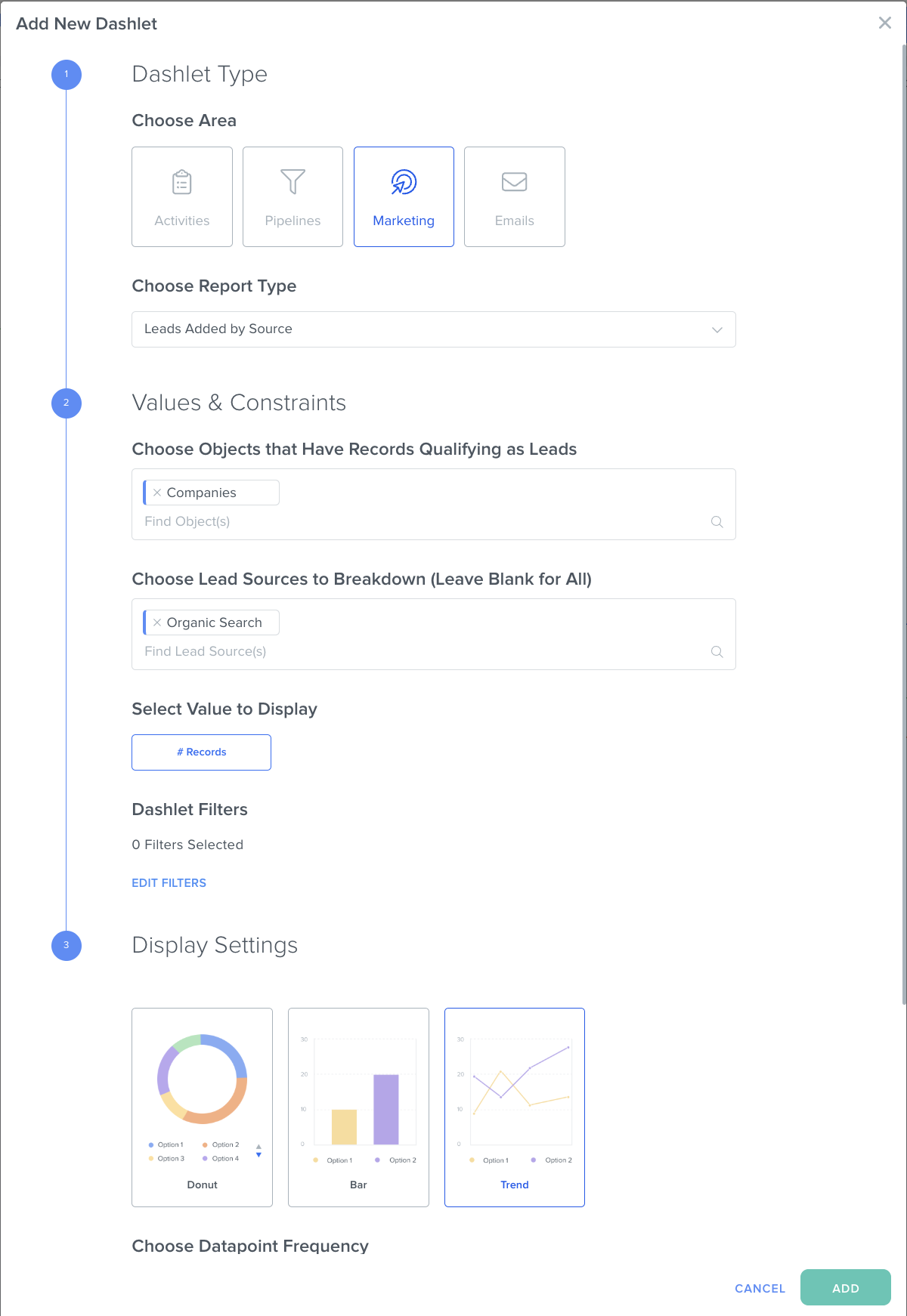
- In the pop-up window, click on "Marketing" as your Dashlet Type.
- Choose the Report Type for your Marketing Dashlet:
- Leads Added: This displays the number of Leads that have been added.
- Lead Added by Source: This displays the number of Leads that have been added, categorized by the source of the Lead.
- Lead Sources Breakdown Over Time: This displays how many Leads each source has brought in over time, so you can see which channels are performing best and track your progress across all campaigns.
- Leads Added: This displays the number of Leads that have been added.
- Choose the Custom Object you want to display. If applicable, choose the Lead Source you want to display (Google Ad, Facebook Ad, etc.)
- Choose your Display Setting as a chart or as a number. If you select a chart, choose the timeframe you want to see the chart broken down by: daily, weekly or monthly.
- Give your Dashlet a unique, easy-to-understand name that makes its purpose clear, as well as a description.
- (Optional) Toggle "Customize Style" to personalize the display colors and font of the Dashboard.
- Click the green "Add" button at the bottom right corner.
Related Articles
- How to Filter Dashboards and Dashlets
- How to Manage Your Activity Dashboard
- How to View and Customize My Toolbar
Still Need Help?
If you encounter any issues, contact support@kizen.com.
Was this article helpful?
That’s Great!
Thank you for your feedback
Sorry! We couldn't be helpful
Thank you for your feedback
Feedback sent
We appreciate your effort and will try to fix the article