Purpose: Learn how to add a Custom Field to your Object settings in this step-by-step guide. Whether you're managing Contacts, Deals, or any other Custom Objects, you can track any data you want using Custom Fields.
TABLE OF CONTENTS
Prerequisites
Before adding new Custom Fields, make sure you have completed the following:
✅ Review the different Custom Field Types. Each field type has a distinct purpose and functionality.
⚠️ Note: Make sure to create Custom Fields before uploading data from a csv file. You will need to match each of your columns in your spreadsheet to an existing field in Kizen.How to Add a Custom Field
- Click on "Data" > "Contacts" or "Custom Objects" in the top toolbar menu. If you are adding new fields to an existing Custom Object, select the relevant Custom Object.
- Click on the gear icon in the top right and click on "Customize Fields."

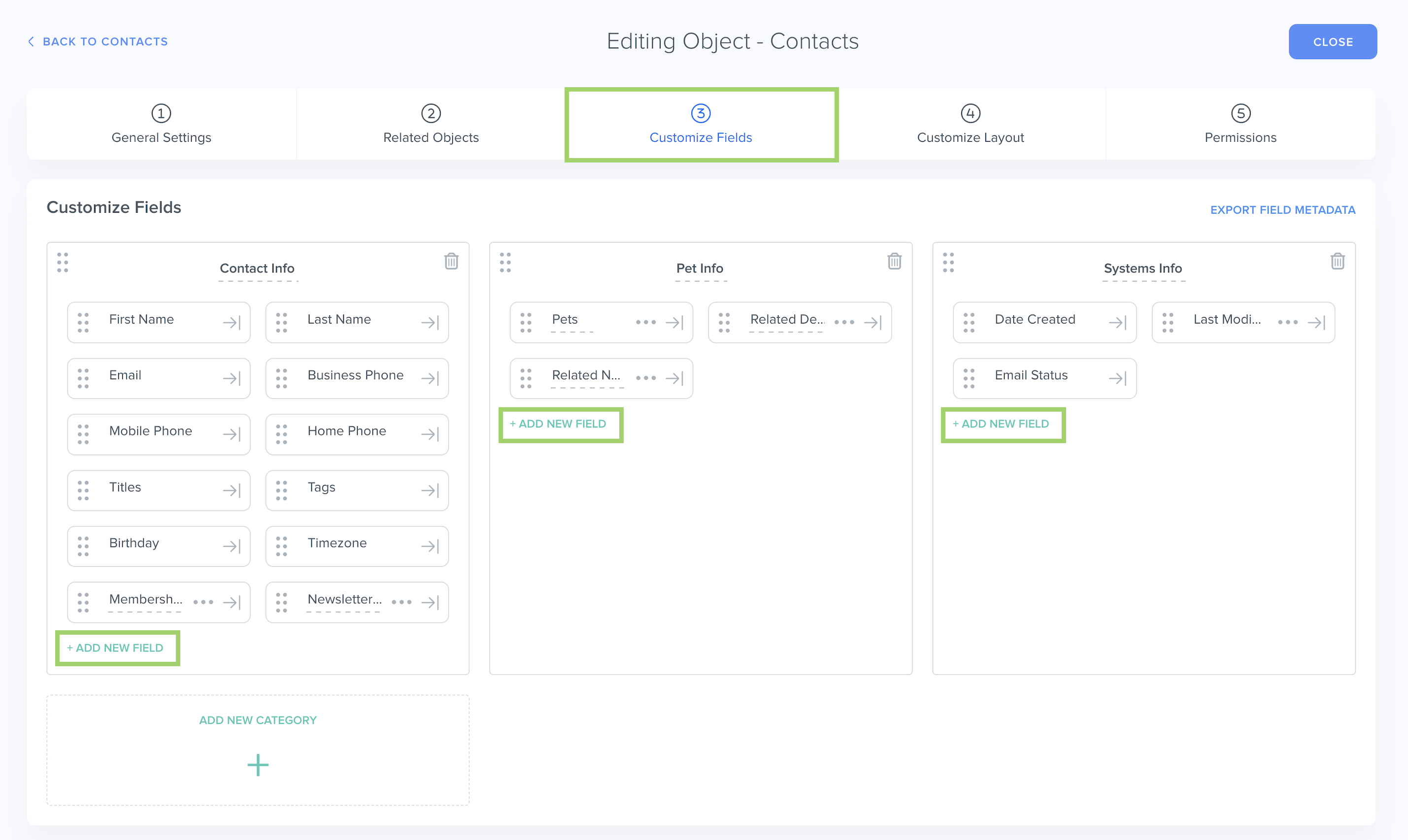
- Click on "Add New Field" in the relevant category where you want to display this new field OR create a new category by clicking on "Add New Category."
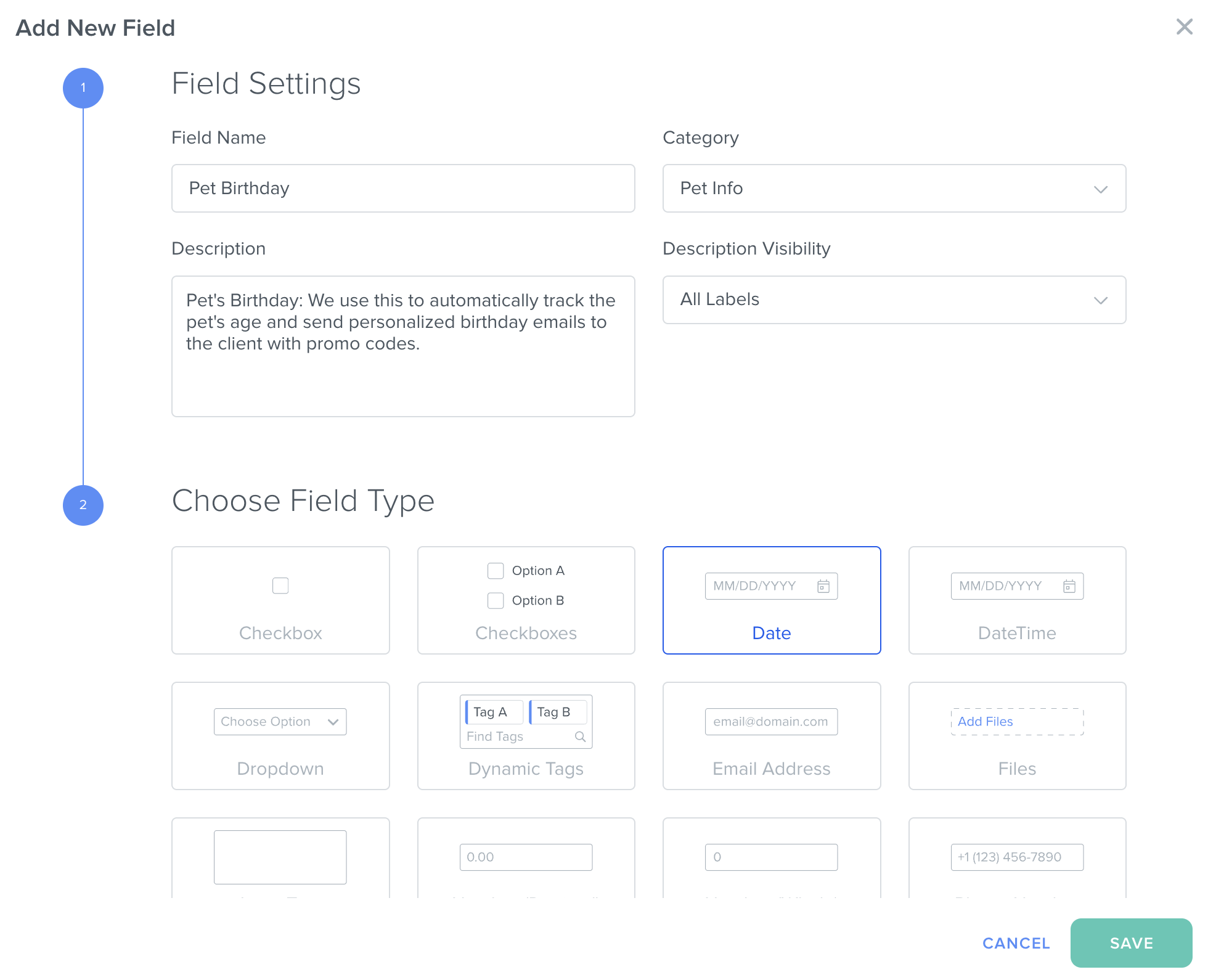
- In the pop-up window, add the Field Name. (For our pet care business, we want to add a birthday field for our clients' pets and we are naming this field "Pet Birthday.")
Note: Make sure to create a unique Field Name that makes its purpose clear and easy to remember.- You can also choose to add a Description for the field to make its purpose clear for your team.
- Additionally, you can customize the Description Visibility to display the field description for all labels, to only display the field description whenever you create a new object record, or to only display the field description within the Field Settings itself.
- Choose the Field Type. (For our "Pet Birthday" field, we are choosing a Date field so that we can use this field in Agentic Workflows and Scheduled Activities.)
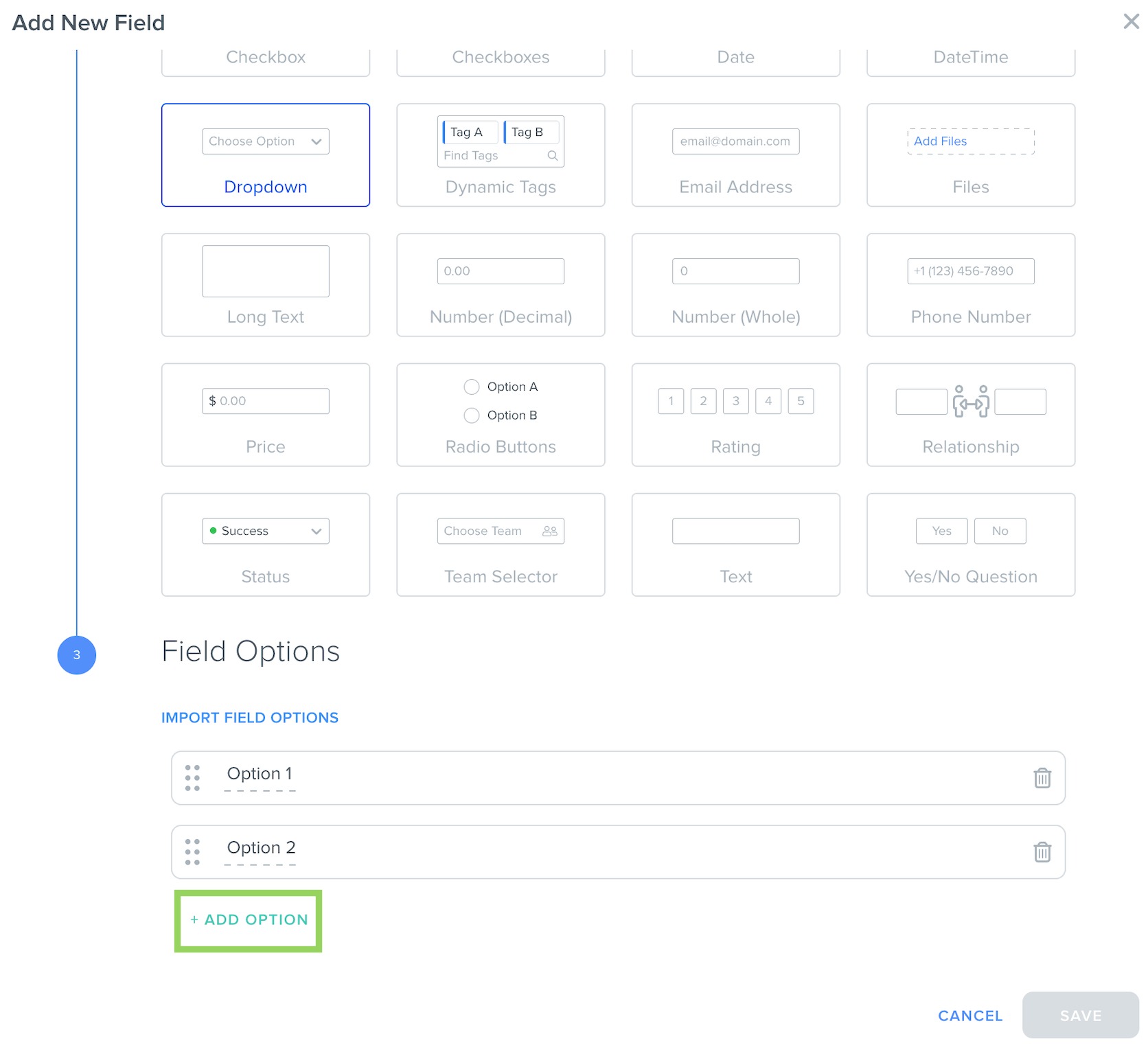
- Depending on your field type, choose additional Field Options. For example, for Dropdown fields, you can add different values to display in your dropdown menu.
- Click on the "Save" button in the bottom right.
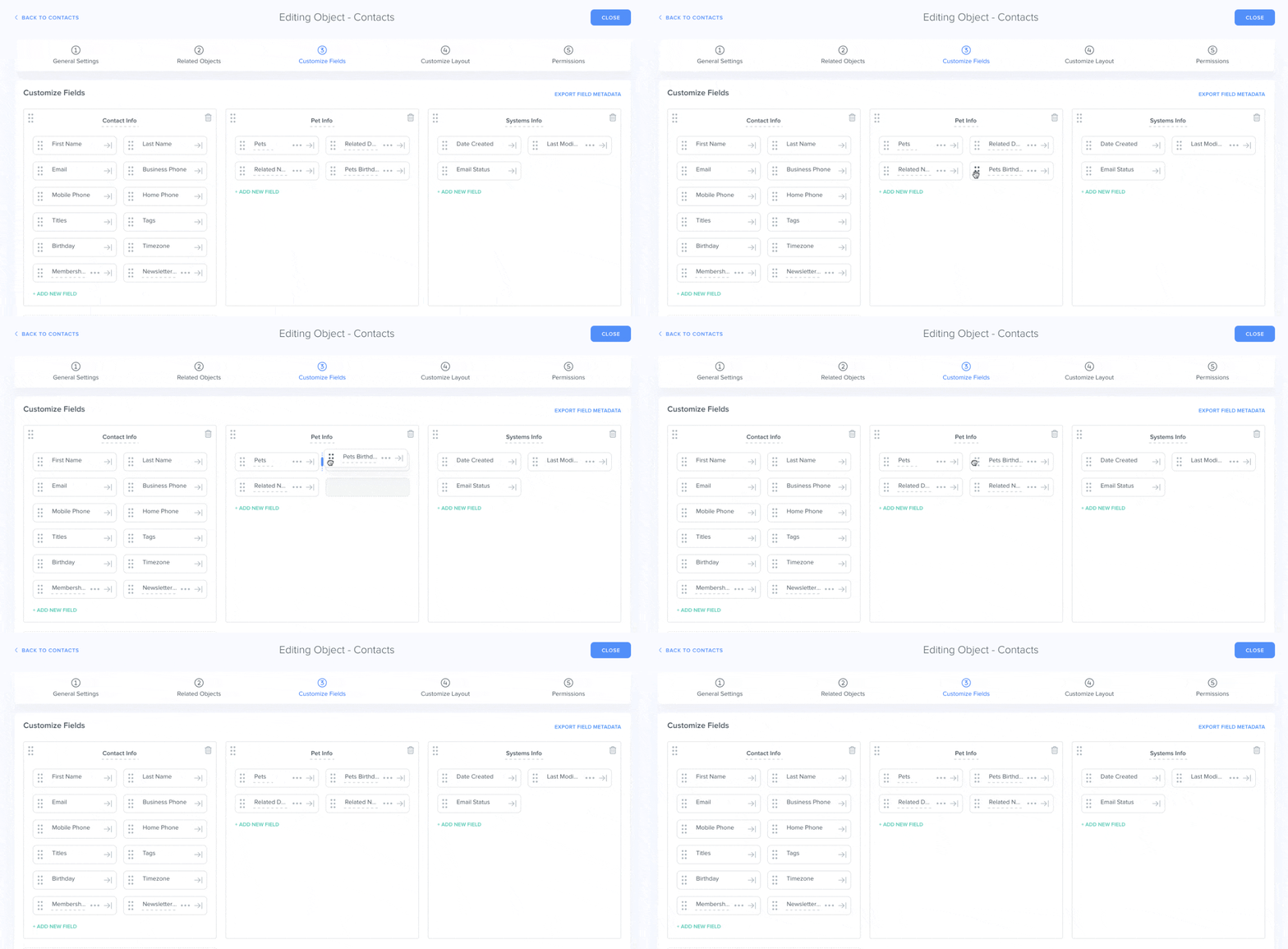
- By default, your new Custom Field will be added to the bottom of the Category you selected. To reorder your fields, click on the 6-dot icon to the left of the field name, drag, and drop the field.
⚠️ Note: Each plan has a field limit per object. If you see a pop-up message stating the Custom Field cannot be created because you have reached your field limit, reach out to our Support team at support@kizen.com for assistance!

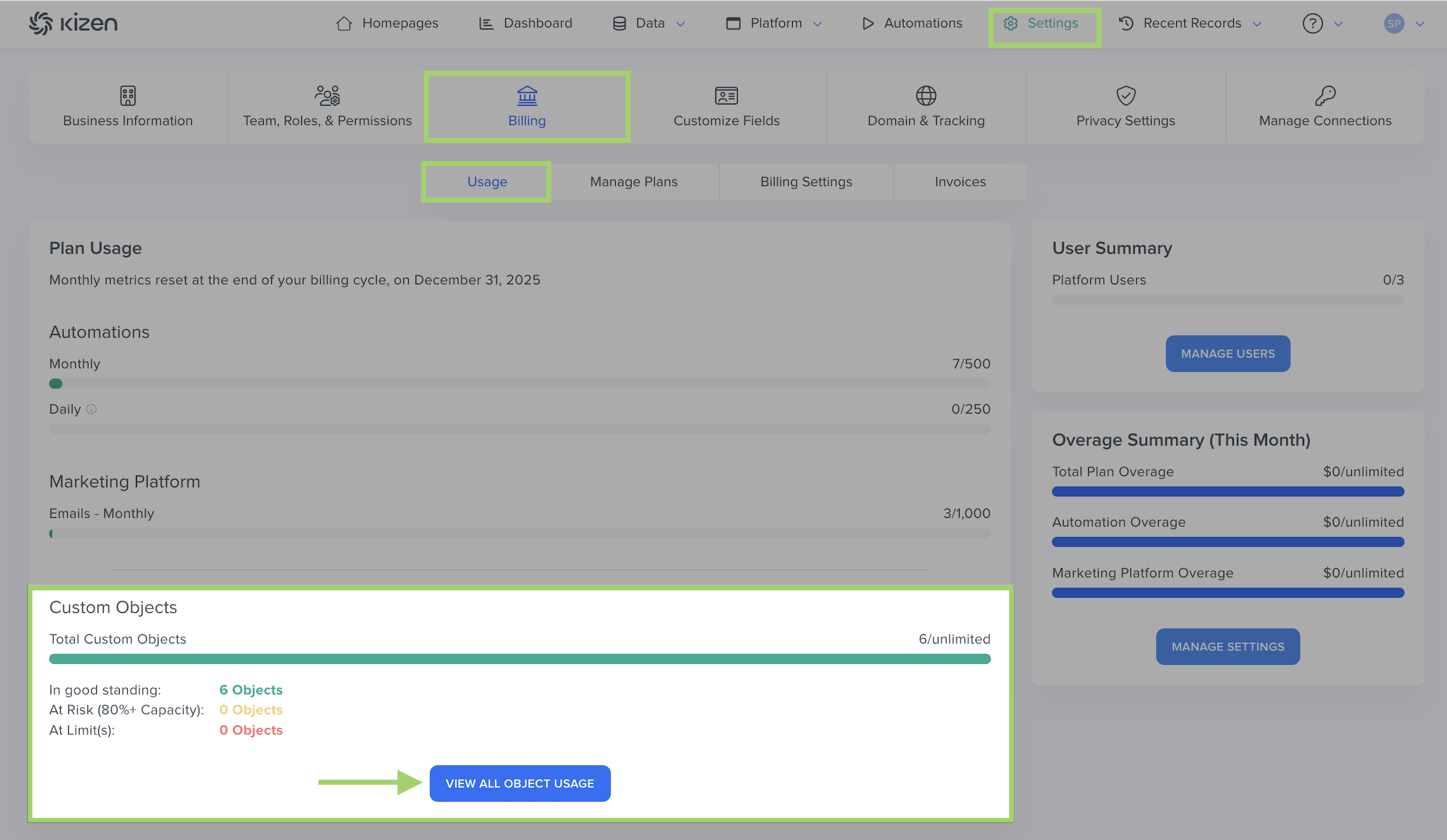
To view your Object usage and limits, click on Settings in your top toolbar menu > Billing > Usage and click on the blue "View All Object Usage" at the bottom of the page.
Related Articles
- How to Add a Custom Object in Kizen
- Custom Fields Overview: Field Types & Purpose
- How to Edit, Delete, or Hide a Custom Field
Still Need Help?
If you encounter any issues, contact support@kizen.com.
Was this article helpful?
That’s Great!
Thank you for your feedback
Sorry! We couldn't be helpful
Thank you for your feedback
Feedback sent
We appreciate your effort and will try to fix the article