Purpose: Learn how to schedule mass emails and trigger bulk Agentic Workflow actions for future dates using the Broadcast Calendar feature.
TABLE OF CONTENTS
- What is the Broadcast Calendar feature?
- Prerequisites
- How to Use the Broadcast Calendar
- Best Practices
- Related Articles
- Still Need Help?
What is the Broadcast Calendar feature?
The Broadcast Calendar feature is a super powerful feature that allows you to easily schedule bulk emails and trigger Agentic Workflows for future dates. You can then visualize and track these dates in a centralized calendar view so that nothing falls through the cracks. Whether you need to send out monthly newsletter emails to your Contacts or automatically change the field values for all active memberships to renew on January 1st, Broadcasts help you manage timely business communications and operations.
⚠️ Note: Check your Kizen plan's monthly limits for Agentic Workflows and emails, as your account may incur overage charges if you exceed the limit. We recommend keeping your Broadcasts as specific and targeted as possible.Prerequisites
Before using the Broadcast Calendar, you must complete the following:
✅ Add your Business Information to your account settings.
✅ Connect your email account to Kizen's Integrated Inbox feature.
✅ Upload your data into Kizen in order to trigger bulk actions for your Contacts and Custom Objects.
How to Use the Broadcast Calendar
How to Schedule and Send Emails from the Broadcast Calendar
To set up and send mass emails to your Contacts, follow these steps:
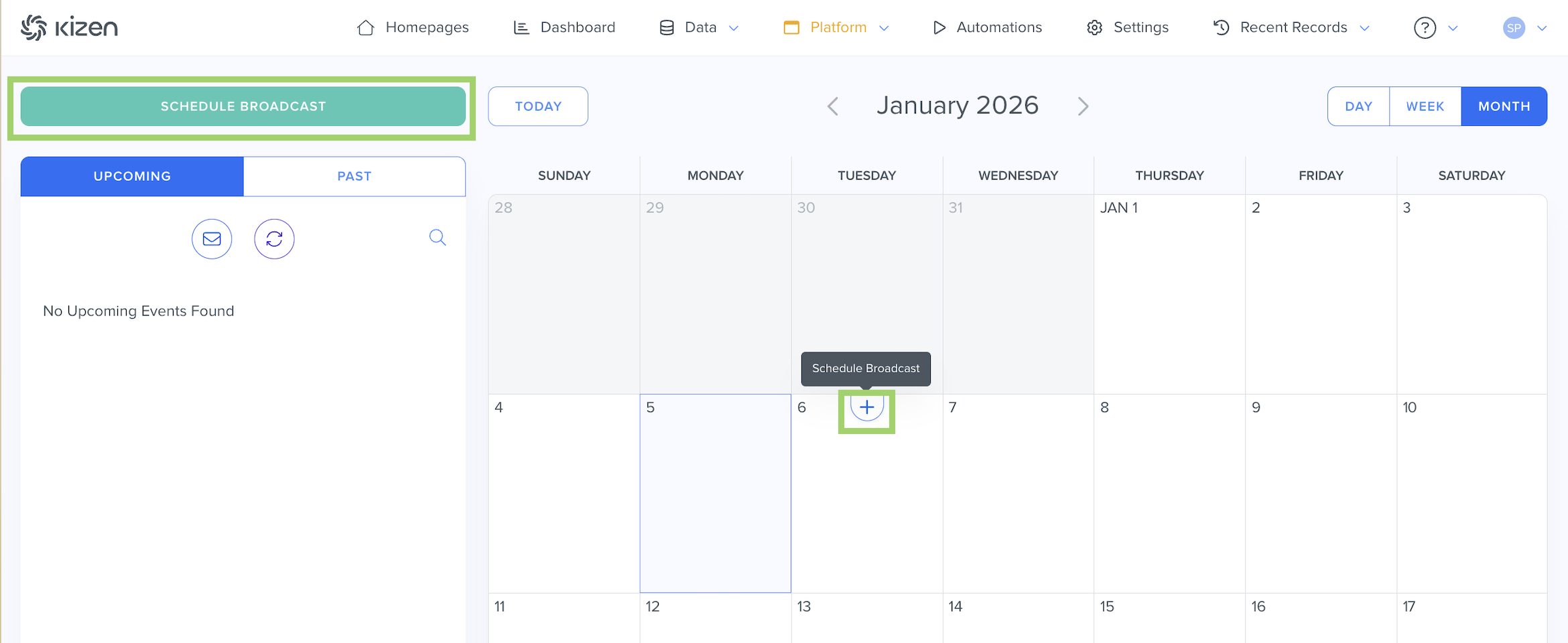
- Select "Platform" > "Broadcasts" in the top toolbar menu.

- Select "Schedule Broadcast" button or click on the "+" button on the desired day in the calendar view.
- Configure your Broadcast Settings:
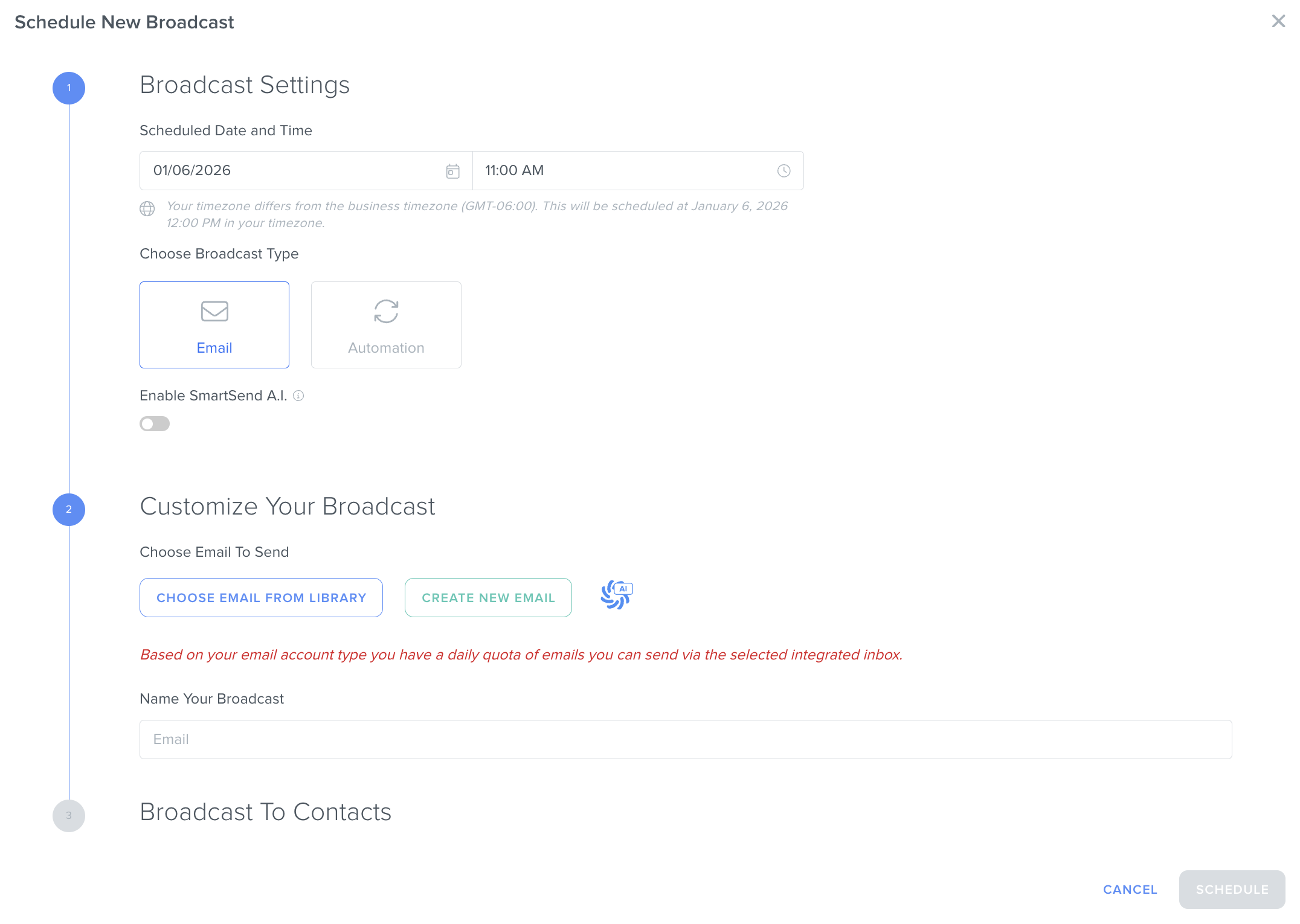
- Select the date and the time that you want this email to be sent. (Make sure your timezone is correctly configured in your Business Information settings.)
- Choose "Email" as the Broadcast Type.
- [Optional] Toggle "SmartSend A.I." on if you would like the system to wait and send the email at a predicted optimal send time to maximize interaction with the email.
- Click on "Email From Library" to select an existing email template or "Create New Email" to create a new email completely from scratch or the Kizen AI button to have the AI build a custom email for you.
- Give your Broadcast a specific and unique name that makes its purpose clear.
- Finally, select the specific Contact group or filtered Contacts whom you will be sending this Broadcast email to. (For example, you might only want to send the Broadcast to Contacts where the email field is not blank.)
- Select the date and the time that you want this email to be sent. (Make sure your timezone is correctly configured in your Business Information settings.)
- Click the "Schedule" button.
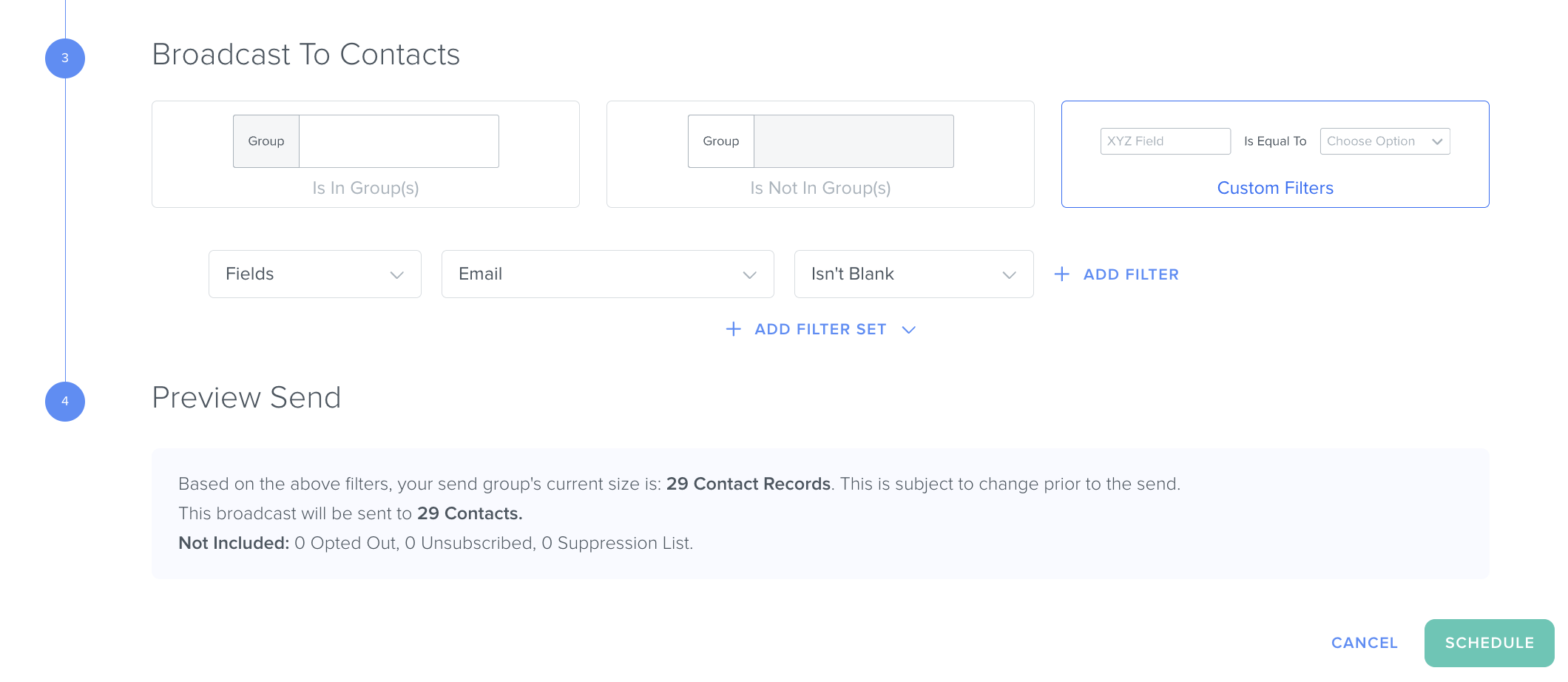
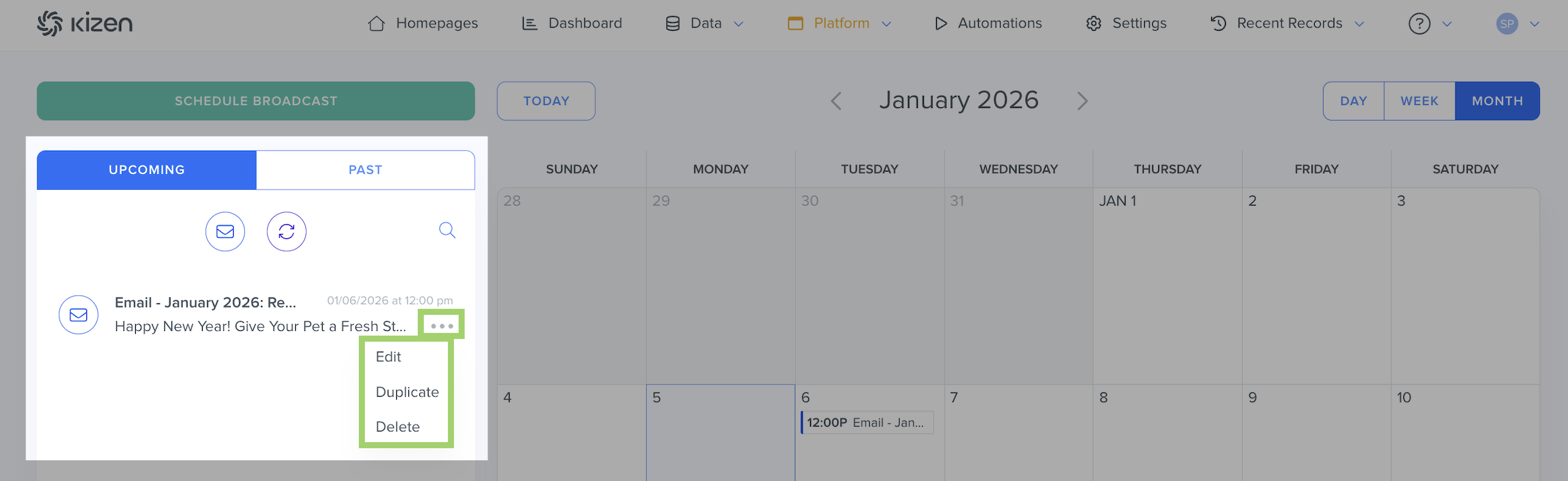
✅ Success Indicator: Check "Preview" to ensure that the number of Contacts whom the Broadcast email will be sent to is accurate. - The scheduled Broadcast will appear on the scheduled date and under the "Upcoming" tab in the calendar view. To edit, duplicate, or delete a scheduled Broadcast, click on the "..." menu next to the Broadcast name in the "Upcoming" tab.
How to Schedule Agentic Workflows from the Broadcast Calendar
To schedule an Agentic Workflow to trigger at the same time, follow these steps:
- Click on the "Platform" > "Broadcasts" in the top toolbar menu.
- Click on the "Schedule Broadcast" button or click on the "+" button on the desired day in the calendar view.
- Configure your Broadcast Settings:
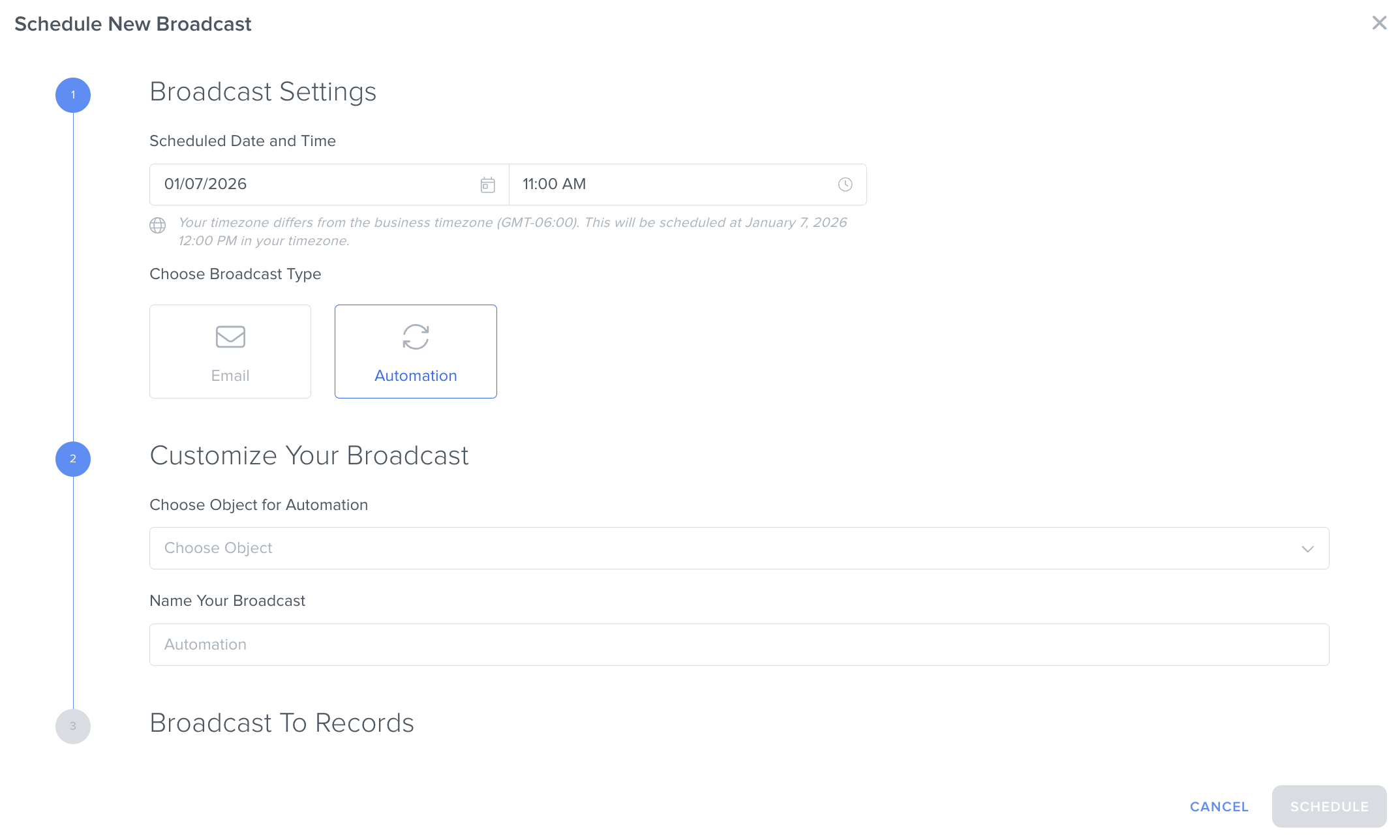
- Select the date and the time that you want this Agentic Workflow to trigger. (Make sure your timezone is correctly configured in your Business Information settings.)
- Choose "Agentic Workflow" as the Broadcast Type.
- Choose the object (either your Contacts or Custom Objects) where you want your Agentic Workflow to trigger.
- Choose the specific Agentic Workflow that you want to trigger for this object. (If you have not created your Agentic Workflow yet, check out our step-by-step guide on how to add an Agentic Workflow.)
- [Optional] Toggle "Resume Paused Agentic Workflows" on if there are existing records in this object that currently have this specific Agentic Workflow paused at some step, and you want to start the Agentic Workflow over from the beginning for those records.
- Give your Broadcast a specific and unique name that makes its purpose clear.
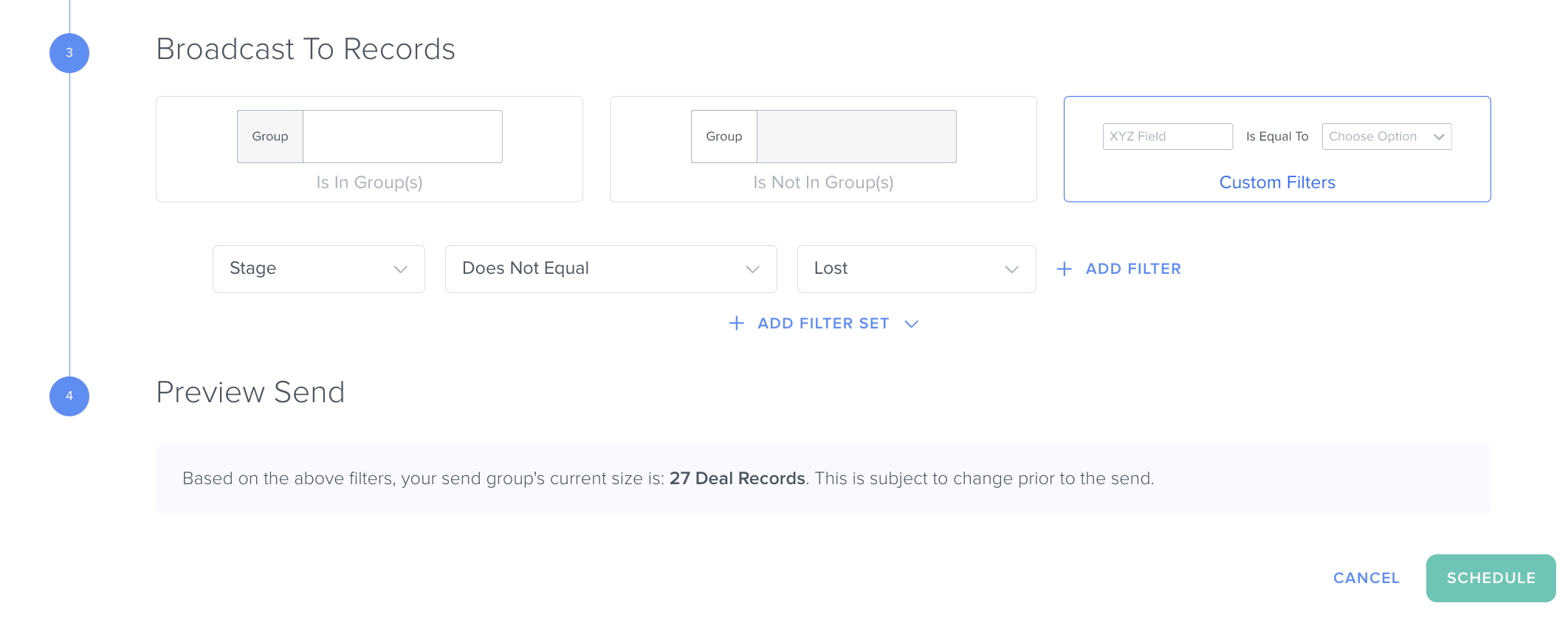
- Finally, select the specific Object group or filtered Object records that you want to trigger this Agentic Workflow for.
- Click the "Schedule" button.
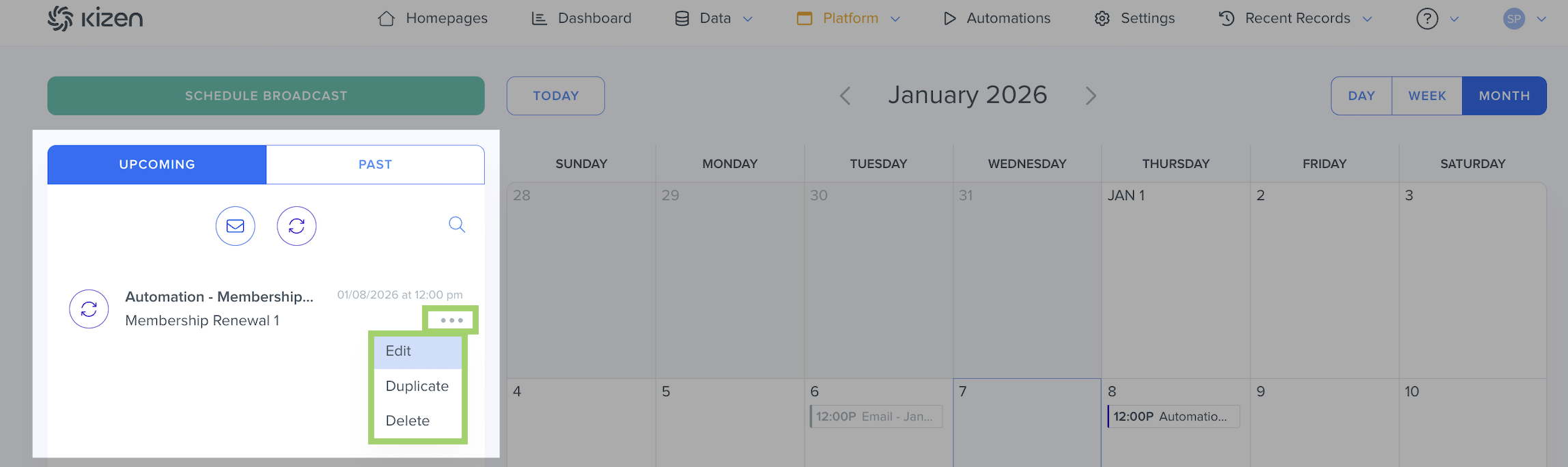
- The scheduled Broadcast will appear on the scheduled date and under the "Upcoming" tab in the calendar view. To edit, duplicate, or delete a scheduled Broadcast, click on the "..." menu next to the Broadcast name in the "Upcoming" tab.
Best Practices
To confirm everything is working correctly:
- ✅ Keep the Broadcast group targeted so that you reduce bouncebacks and don't hit Agentic Workflow/email limits for your plan.
- ✅ Give your Broadcasts specific names so you can easily differentiate between multiple versions of each email and Agentic Workflow blast.
- ❌ Avoid sending the same email blast multiple times to the same Contacts to reduce the risk of being flagged as spam.
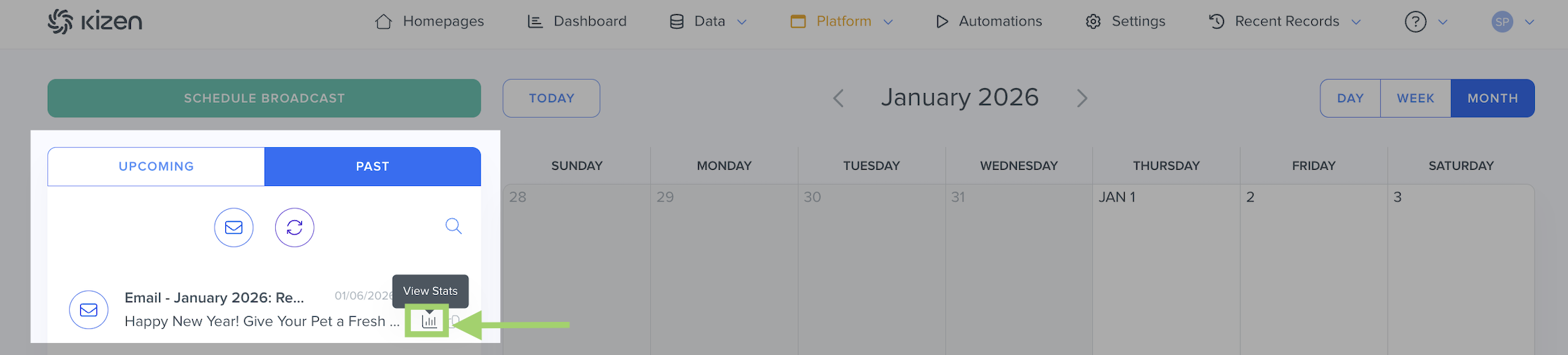
- ✅ Check your email deliverability stats in the "Past" tab. You can learn more about email deliverability here.
Related Articles
- Integrated Inbox Overview: Connect Your Email Account to Send and Track Emails
- How to Create a Custom Email in Kizen
- Getting Started with Kizen Agentic Workflows
- How to Add, Edit, and Delete an Agentic Workflow
Still Need Help?
If you encounter any issues, contact support@kizen.com.
Was this article helpful?
That’s Great!
Thank you for your feedback
Sorry! We couldn't be helpful
Thank you for your feedback
Feedback sent
We appreciate your effort and will try to fix the article